

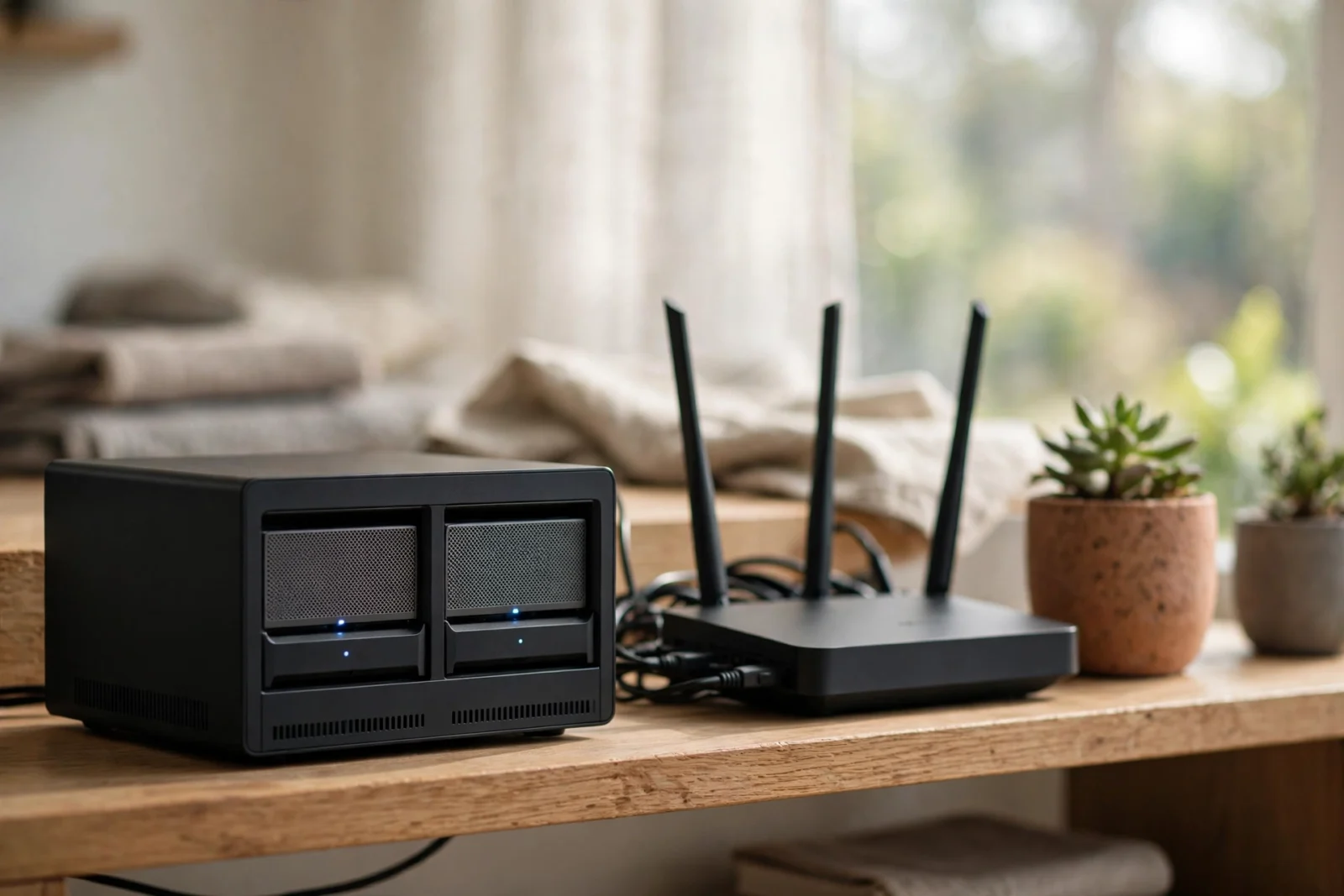
What is a NAS? However, three words: network-attached storage. For example, in human words: a small box full of hard drives that plugs into your home network and stays on around the clock, so every phone, laptop. In addition, tV in the house can grab the same files. Your own private cloud. Sitting on a shelf. Not in someone else’s data center.
Do you actually need one? Depends. Depends on how much data you’re hoarding and how sick you are of paying a monthly fee to store it on somebody else’s computer. That’s the two-sentence version. But here’s what I’ve noticed — this is one of those purchases people either love for a decade or regret within a month. And the difference? Almost always, it’s whether they understood what they were buying before the box arrived. So. Let’s make sure you do.
What Is a NAS, in Plain English?
Forget the hard drive for a second. Think about the actual problem instead. Your photos are on your phone. Documents on your laptop. Movies on some streaming service you rent by the month. Everything’s scattered — and the moment a device dies or a subscription lapses, chunks of your digital life just… vanish. Poof.
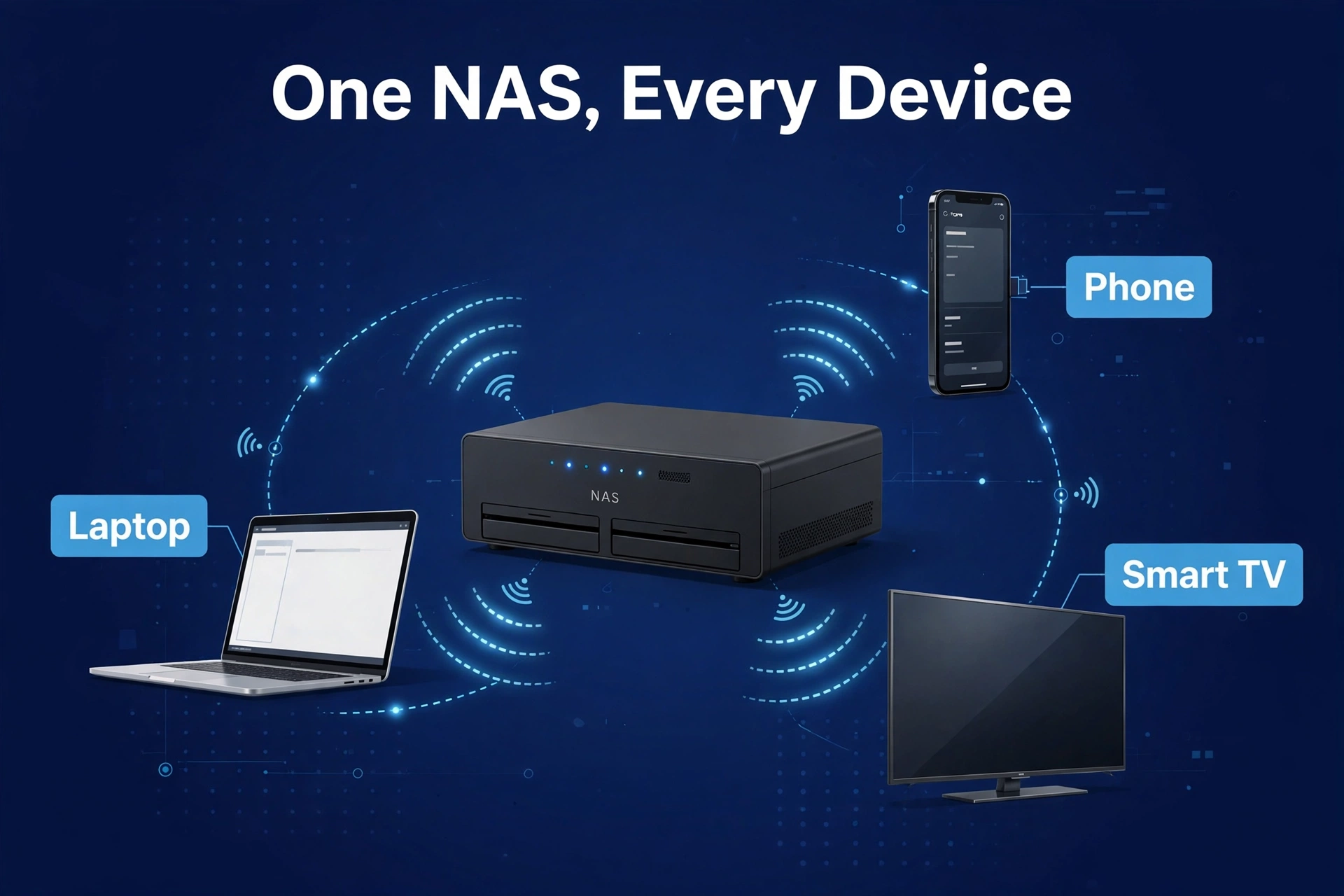
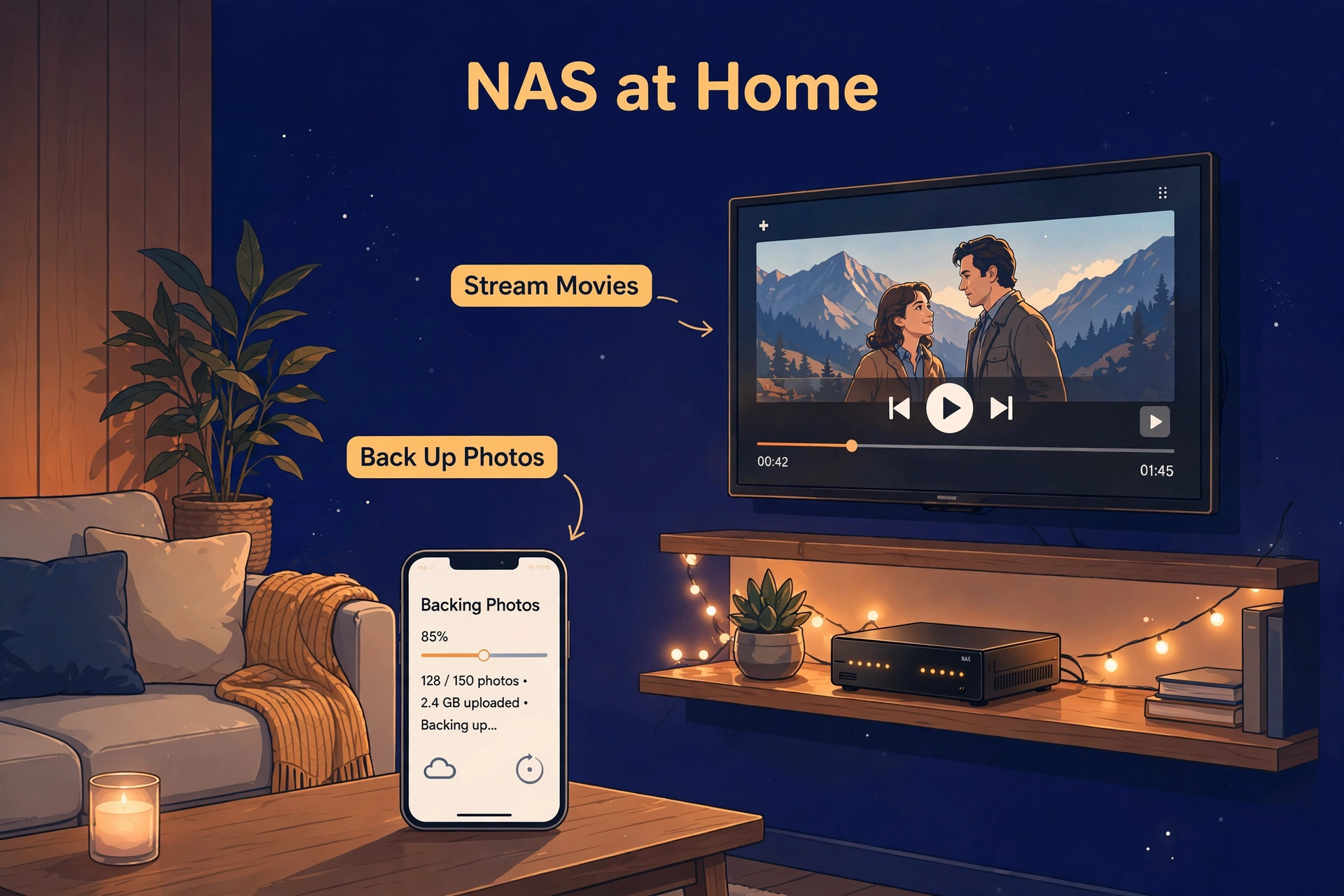
A NAS fixes the scattering. In addition, it’s a dedicated little computer — usually a compact box with two, four, or more drive bays — that plugs into your router with a network cable and basically never turns off. Furthermore, copy your files to it once. Moreover, after that? Also, anything on your home network can open them. Laptop grabs documents. Phone backs up photos on its own overnight. TV streams movies straight from the box. Away from home? Most NAS systems let you reach your files securely over the internet through the manufacturer’s app. Pretty neat trick for a box that just sits there.
“Network attached” just means it lives on your network instead of plugging into one computer. “Storage” is the drives inside. In fact, usually arranged so one drive can die without taking your data with it. That’s RAID. We’ll circle back to it, because everyone misunderstands RAID at least once.
Day to day, though — what does a NAS do? It centralizes. One family photo archive instead of five phones and three laptops. One movie collection instead of a pile of external drives. Backups from every computer in the house, running quietly at 2 AM while you sleep. Boring? A little. Wonderful? Completely.
What Can You Actually Do With a NAS?
Marketing lists go on forever — they’ll have you running a small data center by page two. In real houses, though? A NAS ends up doing the same handful of jobs, over and over:
- Central file storage. Documents, installers, project files — one shared folder everybody reaches. Instead of emailing files to yourself like it’s 2009.
- Automatic computer backups. Every Mac and Windows PC in the house backs up on a schedule. Laptop drive dies? You restore. No panic, no tears. (Okay, fewer tears.)
- Photo backup and organization. Phones auto-upload; apps like Synology Photos sort everything with on-device face recognition. This — right here — is the use case that sells more NAS boxes to families than everything else combined.
- Home media server. Install Plex or Jellyfin and boom: personal Netflix. Your movies, your shows, any TV in the house. No monthly fee. This is the fun one.
- Private cloud. File syncing across your devices without renting space from a tech giant. Your data. Your box. No subscription, no terms-of-service surprises.
- Surveillance video storage. Some NAS systems record straight from IP security cameras. No cloud subscription needed — your footage stays yours.
Here’s the thing nobody tells you upfront: you don’t need all six to justify buying one. Most owners buy for a single reason — usually photos or backups — and stumble into the rest later. That’s the typical NAS ownership arc.
NAS vs External Hard Drive: What’s the Real Difference?
This trips up more people than anything else in this guide, so let’s kill the confusion for good. An external hard drive plugs into one computer with a USB cable. Only that computer can use it, and only while it’s plugged in. Now — yes, some folks plug an external drive into their router’s USB port as a cheap hack. Technically works. But it’s slow, it’s flaky, and it’s missing every useful feature I’m about to describe. Don’t do the router-USB thing. You’ll regret it.
A NAS is a computer in its own right. First, own processor. Second, own operating system. Own apps. It serves files to a bunch of devices at once, runs backups on its own schedule, handles user accounts and permissions. In fact, kids get their folder, you get yours — and protects everything with RAID. An external drive is a bucket. A NAS is a filing cabinet with a diligent clerk living inside it.
NAS vs external hard drive vs cloud storage, at a glance
| Feature | NAS | External hard drive | Cloud storage |
|---|---|---|---|
| Accessible from all home devices | Yes | No — one computer at a time | Yes |
| Accessible away from home | Yes, via app | No | Yes |
| Monthly fee | None | None | Yes, forever |
| Protection if a drive dies | Yes (RAID) | No | Yes (provider handles it) |
| Automatic backups | Yes | Manual | Yes |
| Upfront cost | Moderate to high | Low | None |
| Speed on home network | Fast | Fast (USB) | Limited by internet upload |
| Who controls your data | You | You | The provider |
NAS vs Cloud Storage: The Honest Comparison
Cloud storage is the NAS’s real rival. And I’ll be straight with you — for plenty of people, the cloud is the right call. Google Drive, iCloud, Dropbox: zero hardware, zero setup, access from anywhere, and the provider quietly handles every drive failure you’ll never hear about. If your whole digital life is a few hundred gigabytes of documents and photos? Cloud wins on simplicity. Probably on cost too.
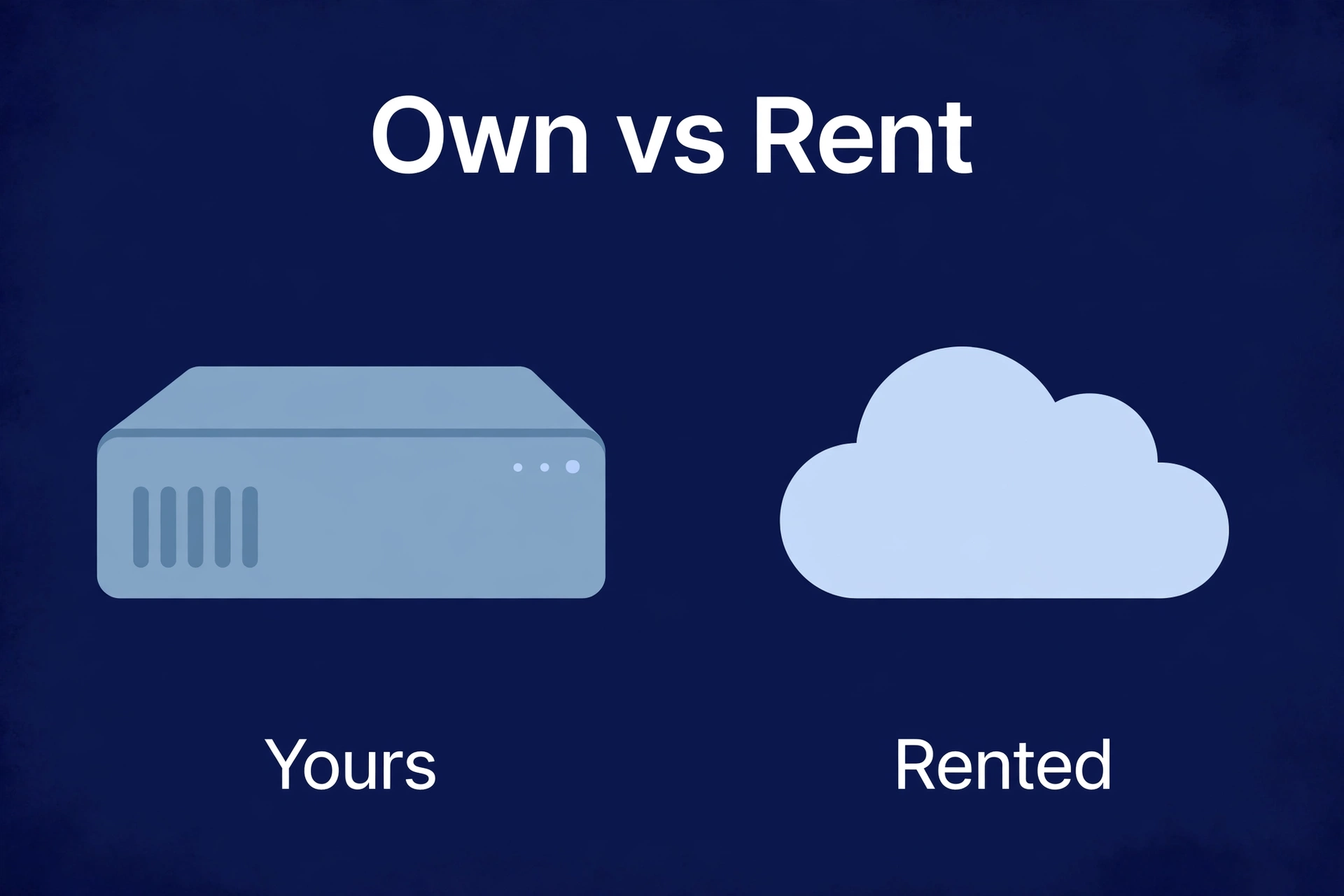
But the math flips as your data grows. Finally, that’s the thing about renting — it’s cheap until it isn’t. Meanwhile, cloud is rented monthly, forever, and the price climbs hard past a couple of terabytes. Nevertheless, a NAS? Bought once. Our NAS vs cloud storage cost comparison runs the full five-year numbers — but the shape of it is simple enough to say in one line. Light users should rent. Heavy users should own.
Then there’s the control argument. Money aside — some people just care about this more. On a NAS, your files are yours. No terms-of-service rewrites. No surprise price hikes. No getting locked out of your own account. On the cloud, you’re a tenant. Usually that’s fine. But “usually” is doing an awful lot of heavy lifting in that sentence, isn’t it?
Who Should Buy a NAS?
Give it serious thought if a few of these hit home. You don’t need all of them — two or three is plenty:
- Your phone storage is perpetually full ,and you’re tired of paying for more iCloud or Google One space. (The $2.99-a-month-forever treadmill. You know the one.)
- You’ve got terabytes of photos, videos, or media you want to keep — not for a month. For decades.
- Multiple people under your roof need the same files. Family photos, shared documents, the movie collection.
- You’ve lost data to a dead laptop or dead phone before and swore :”never again.” We’ve all been there. The vow, the panic, the vow again.
- You run a home media server — or want to — and you’re done re-downloading your library every time something changes.
- The idea of owning your storage instead of renting it just feels right. Gut-level. Can’t quite explain it, but it’s there.
Who Should Skip It?
Equally important, this part. Maybe more important. You probably don’t need a NAS if:
- Everything important fits comfortably in a free or cheap cloud tier. A student with 100GB of documents? A NAS buys them nothing. Nothing at all.
- You hate tinkering. Modern NAS systems are way friendlier than they used to be — but you’re still running a small server. If that sentence made you tired, rent cloud storage and don’t look back. Honestly.
- Most of your access happens away from home on slow connections. Remote access works, sure — but browsing a big photo library over hotel Wi-Fi is nobody’s idea of fun. Nobody’s.
- Your internet upload is excellent, and your data needs are modest. In that specific combo, cloud’s convenience wins outright. Take the win.
Seriously — no shame in the cloud. The only bad purchase here is the expensive box gathering dust on a shelf while you keep paying for Google One anyway. Don’t be that person.
What Does a NAS Cost?
Two costs. And beginners forget the second one every single time — I mean every time. The box, and the drives. The enclosure — processor, RAM, bays — is what gets advertised in big friendly letters. The hard drives are sold separately and can easily cost as much as the box itself. Surprise! It’s the printer-ink model, except the ink lasts for years.
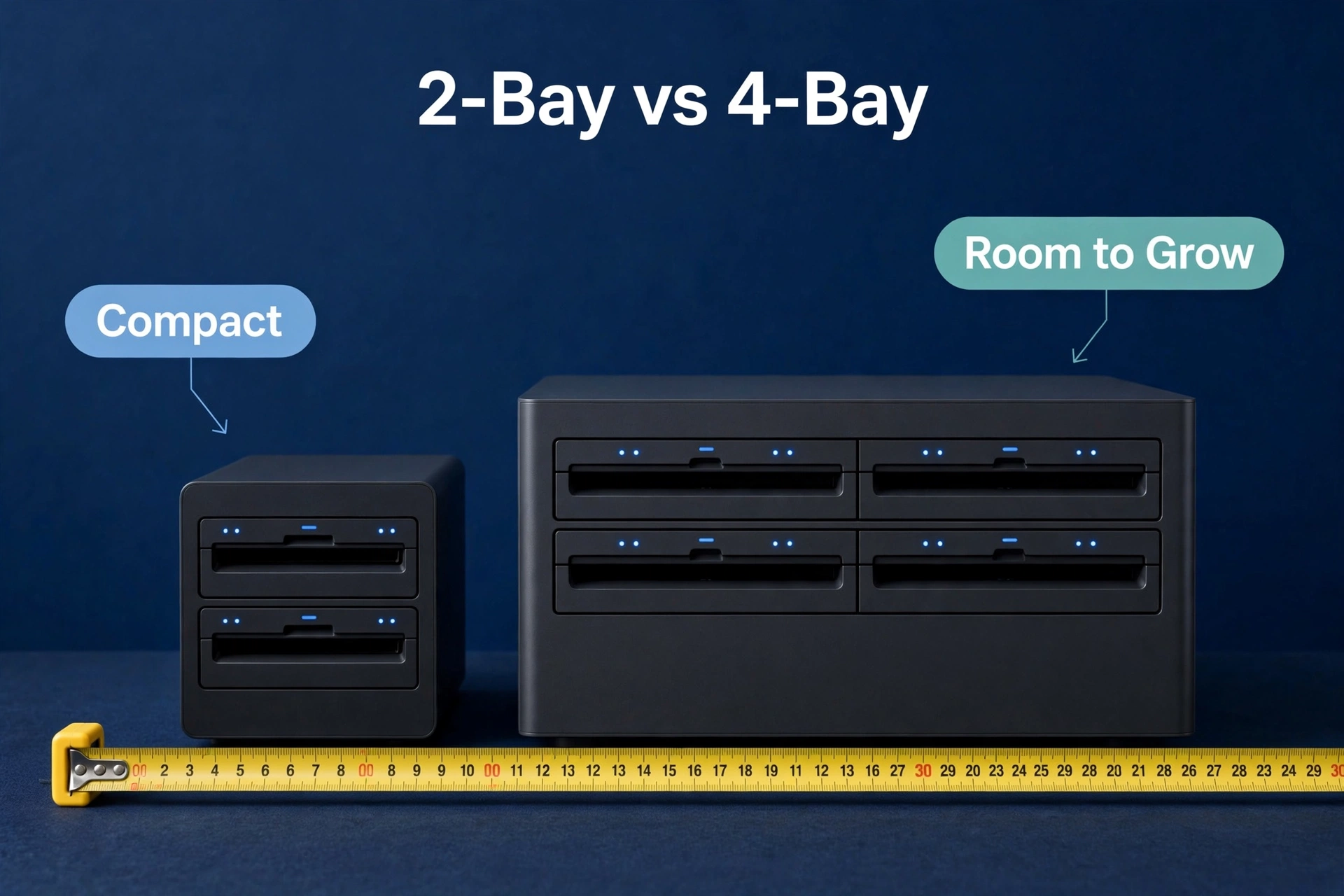
For example, rough scale, so you can calibrate: a decent 2-bay enclosure plus two drives lands in the low hundreds of dollars all-in, depending on capacity. A 4-bay setup with room to grow costs more — our 2-bay vs 4-bay NAS guide matches bay counts to households. As a result, drives are the wild card. Capacity drives the price, prices shift constantly — so check what’s current when you shop instead of trusting any article’s numbers. Including this one. Especially this one.
Ongoing costs? Electricity and, eventually, replacement drives. A small NAS sips power — we’re talking tens of watts, about like leaving an LED bulb on. Not free. But not something you’ll ever notice on the bill either. Drives are the real ongoing cost: they wear out, you replace them one at a time, RAID covers you during the swap. Totally routine.
The Downsides Nobody Puts in the Marketing
Fairness time. Every NAS owner discovers these eventually — usually at an inconvenient hour. Better you hear them now, from me, than at midnight from a blinking error light:
- You’re the IT department now. Updates. Drive health checks. The occasional bizarre error at midnight that Google barely knows about. All yours. Modern systems automate most of it. Most. Not all. That last 10% is character-building.
- RAID is not a backup. Say it with me. Worth repeating because it’s the single most dangerous misunderstanding in home storage: RAID survives a dead drive. It does not survive you deleting the wrong folder. Ransomware. A fire. A break-in. Your NAS needs its own backup. Period. Full stop. No exceptions.
- Setup takes an afternoon. Unboxing, installing drives, firmware updates, your first storage pool, user accounts — budget hours, not minutes. Put on a podcast. It’s actually kind of pleasant, once you accept the timeline.
- It’s one more thing on your network to secure. Keep it updated, use strong passwords, and think hard before exposing it directly to the internet. The manufacturer’s quick-connect-style remote access is safer than opening ports yourself. Don’t be a hero with port forwarding.
Do You Actually Need One? A 5-Minute Decision Framework
Okay. Decision time. Five questions, five minutes, honest answers — go:
- Add up your data. Phone storage, cloud usage, external drives — total it all. If what you’ll need in three years is under ~500GB, you almost certainly don’t need a NAS. Multiple terabytes and climbing? Keep reading. This first question eliminates more buyers than the other four combined.
- Count devices and people. One person, one laptop — that’s cloud territory, and that’s fine. A household of four with phones, laptops, and a TV? Now a NAS starts making real sense. The more devices, the stronger the case.
- Price five years of cloud at your data size. Monthly fee times 60. Then stack that number against an enclosure plus drives. If the NAS wins big, owning beats renting — it’s just arithmetic at that point.
- Be honest about tinkering. Does “set up a storage pool” sound like a fun Saturday? You’ll love a NAS. Does it sound like homework? You won’t — and that’s completely fine. There’s no moral hierarchy here. Know thyself.
- Start from the use case, not the hardware. “I want my photos backed up automatically and my movies on the TV” — that’s a plan. “I want a NAS” — that’s a shopping trip. Plans lead to good purchases. Shopping trips lead to dusty shelves.
Land on “yes”? Then the next step is picking the right box — our guide to the best NAS for home use breaks down the 2026 picks by scenario. Still torn between owning and renting? Run the five-year numbers on your own data size. That settles it fast.
Frequently Asked Questions
What does NAS stand for?
Network Attached Storage. “Network attached” = it connects to your home network, not to one computer. “Storage” = its whole job is holding your files and serving them to your devices. That’s the whole acronym. Nothing scarier hiding in there.
Do I need a NAS if I already use Google Drive or iCloud?
Not necessarily. Cloud plan holding everything comfortably, monthly fee not bothering you? A NAS just adds complexity for minimal gain. It starts winning when your data outgrows the cheap cloud tiers — or when you want full control over your files instead of renting it.
Is a NAS hard to set up for a beginner?
Modern systems from the big brands (like Synology) are genuinely beginner-friendly — mostly wizards and “next” buttons, honestly. Still budget an afternoon for your first one: drive installation, firmware updates, the works. No Linux skills required. No networking degree. Just patience.
Can a NAS replace an external hard drive?
For shared, always-on storage — yes, and it does it better in every way that matters. For tossing files in a bag to a friend’s place, or quick plug-and-play with one computer? Keep the external drive. Different problems, different tools. Most NAS owners I know still own an external drive too.
How long does a NAS last?
The enclosure itself? Often the better part of a decade — there’s barely anything in there to wear out. No moving parts except the fans, really. Drives are the consumable part; expect to swap individual drives every few years as they age. Totally normal, and exactly what RAID handles gracefully.
Does a NAS work without internet?
Yep — everything on your home network keeps working. File sharing, backups, media streaming, all fine offline. You’d only miss remote access from outside and automatic cloud backups until the connection comes back. The box doesn’t care about the outage. Kind of beautiful, actually.
Is my data safe on a NAS?
Safer than on a lone laptop drive, thanks to RAID redundancy. But — say it with me — a NAS alone isn’t a backup. Follow the 3-2-1 rule: three copies of anything important, on two different media, one copy offsite. Cloud, or a drive at a relative’s place. Boring advice. Correct advice.
