

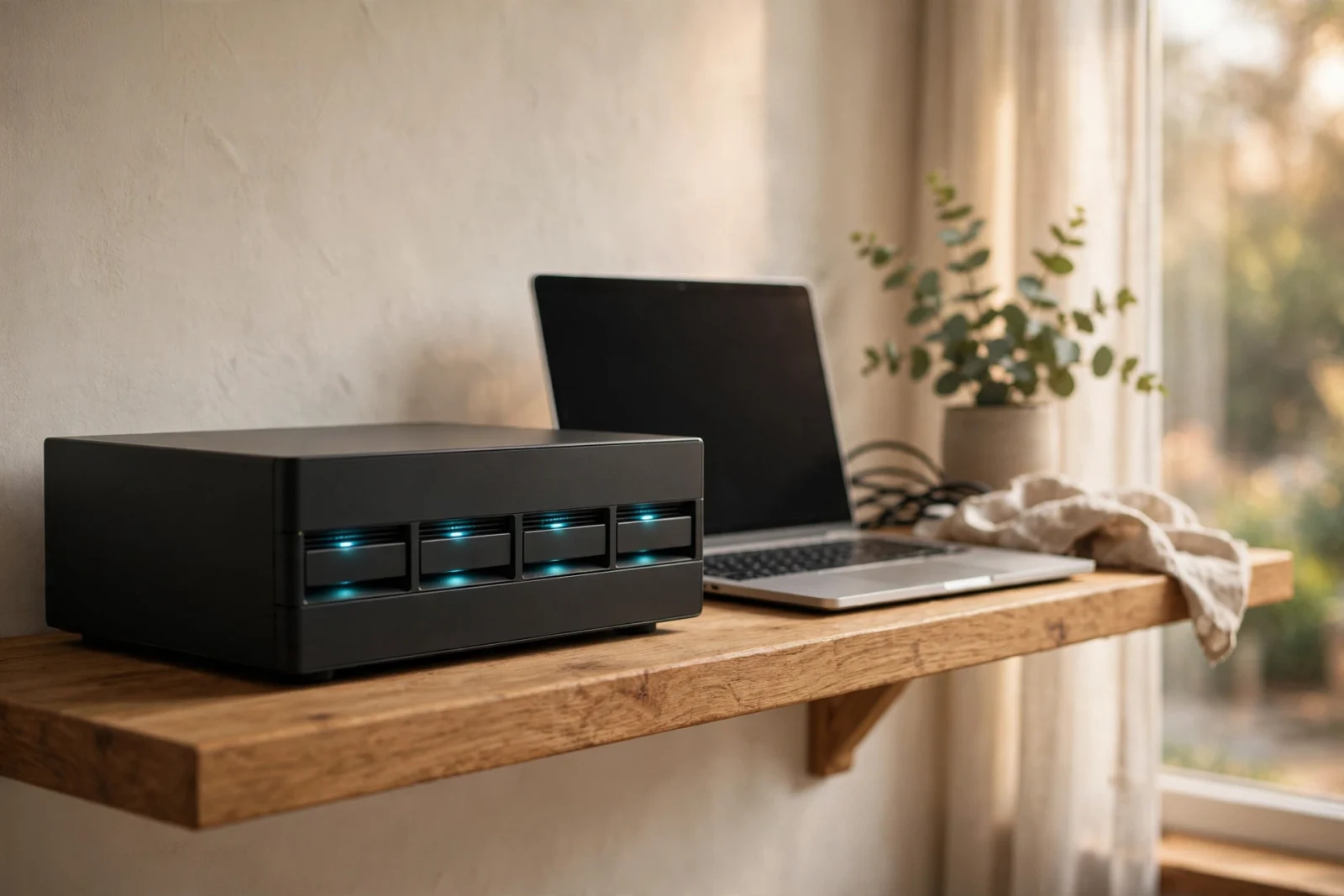
I never planned to become the NAS guy. However, one box for my brother-in-law, terrified of losing his kids’ photos. For example, one for my parents, whose “backup strategy” was a drawer of USB sticks. One for a buddy who wouldn’t stop talking about Plex at barbecues. Three installs — four, counting mine — and every one taught me something the spec sheets never mention.
Best NAS for home use in 2026? In addition, three answers keep coming up. Furthermore, the Synology DS225+ for backups and photos that just work — the one in my parents’ living room. An Intel-powered box like the UGREEN DXP2800 or QNAP TS-264 for Plex and media — the barbecue-buddy machine. The Synology DS925+ for room to grow.
For the friend who asked “what’s a NAS”: a small box of hard drives on your home network. Every phone, laptop, and TV can reach it — backups, photos, movies. Works when the internet’s down. You buy it once, no monthly fee.
Our Picks at a Glance
Caption: Best home NAS picks by scenario (2026)
| Scenario | Pick | Why |
|---|---|---|
| Best for beginners | Synology DS225+ | Simplest software, great backup and photo apps |
| Best for Plex / media | UGREEN DXP2800 or QNAP TS-264 | Intel CPU with hardware transcoding support |
| Best for photo backup | Synology DS225+ | Synology Photos is the best Google Photos alternative |
| Best budget pick | TerraMaster F2-425 or UGREEN DH2300 | Lowest cost of entry for a real NAS |
| Best for growth | Synology DS925+ or UGREEN DXP4800 Plus | Four bays and stronger hardware for years ahead |
One caveat: lineups and prices shift — confirm CPU, RAM, and price on the manufacturer’s site before buying.
What Makes a Good Home NAS?
Four things decide whether you love the box or hate it.
The software matters more than the hardware
My dad is why I lead with this. He doesn’t care about processors — he cares that the box doesn’t ask him questions he can’t answer. Synology’s DSM is the only interface I’ve watched a sixty-something set up without calling me. QNAP’s QTS does more but it’s busier. UGREEN and TerraMaster have improved fast, but their younger ecosystems show it in the rough edges. For backups, files, and photo sync, modest hardware is plenty. What you touch daily is the software — weight it like it counts double.
Bays decide your ceiling
A “bay” is a slot for a hard drive — and this is the call I dread a year later: “it’s full again, now what?” Two-bay boxes are cheaper and fine for most homes; four-bay costs more but lets you add storage later instead of starting over. My brother-in-law filled a two-bay in fourteen months with kid videos. Don’t be him. See our 2-bay vs 4-bay guide for the full breakdown with real storage math.
The CPU decides your media future
This one cost my barbecue buddy a return shipping label. He bought a NAS for Plex, picked the prettiest box, and discovered at week two’s movie night — stuttering 4K — that its CPU couldn’t transcode. If Plex or Jellyfin is anywhere in your plans, you want an Intel chip with Quick Sync. Full stop. Many current Synology models have moved away from Intel CPUs with usable Quick Sync, making them a weaker pick for this one job. Intel-based boxes from QNAP, UGREEN, and TerraMaster are the safer bet. Our best NAS for Plex guide ranks the current options — read it before you buy, not after, like he did.
Drives are always sold separately
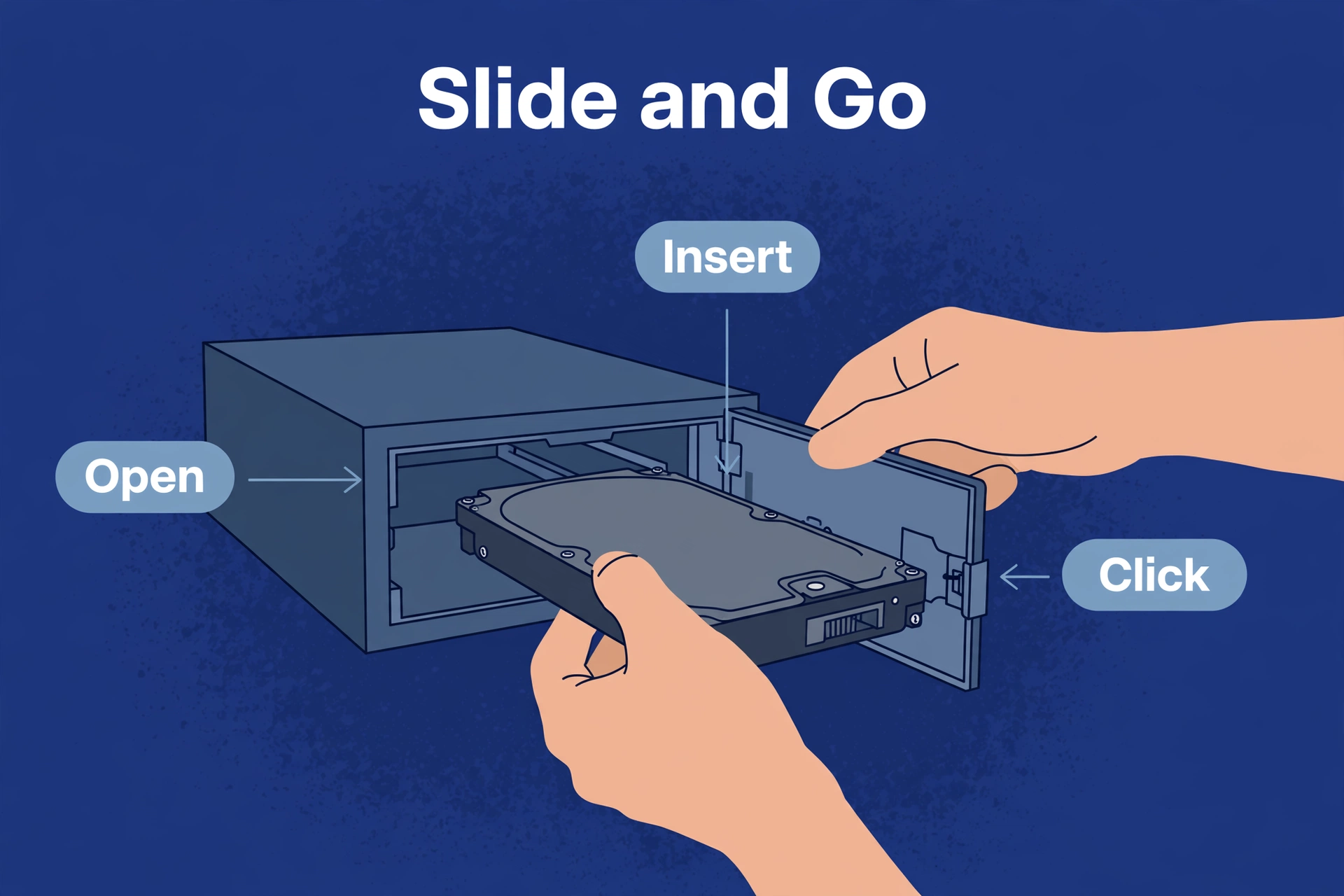
I’ve seen the arrival-day tragedy twice: the box shows up, the family gathers — and empty slots stare back. Almost every NAS ships diskless. You buy NAS-rated hard drives separately and slide them in yourself, usually tool-free, in minutes. Order the drives WITH the box. Two 4 TB NAS drives are a sensible start, and our guide to the best NAS hard drives explains which ones to buy and why “NAS-rated” matters. Budget for drives from the start or the sticker price will lie to you.
Best NAS for Beginners: Synology DS225+
The parents’ install. My dad has zero patience for tinkering — his ideal technology is a toaster. One Saturday afternoon, a quick demo of the phone app, and I left. He calls me twice a year now. Both times it was the Wi-Fi.
The DS225+ is the current 2-bay Plus-series model — where Synology puts its better hardware and full software features. Moreover, dSM walks you through installation, drive setup. In addition, your first backup in plain language; most people go from unboxing to first backup in under an hour. Also, active Backup for Business comes free and is genuinely good. Time Machine covers the Macs, the Drive app syncs files like Dropbox. In addition, Synology Photos does automatic phone backup with face recognition — the closest thing to Google Photos you can run yourself. It idles at very low wattage, quiet enough for a living room shelf. You forget it’s there. That’s the point.
The trade-offs: you pay a premium for the Synology name and software — similar hardware costs less elsewhere. And current Synology models aren’t the pick for hardware video transcoding. But backups, photos, file storage, zero tinkering? Easiest recommendation in this guide. If this is your first NAS and you just want it to work, buy this one.
Best NAS for Plex and Media: UGREEN DXP2800 / QNAP TS-264
Now the cautionary tale. My barbecue buddy bought his first NAS on looks and brand vibes — week two, movie night, his 4K remux stuttered like a slideshow, and he learned what transcoding was the hard way. We returned it and landed where I should have pointed him first: an Intel-based NAS with Quick Sync hardware transcoding. Right now that means looking past Synology toward UGREEN, QNAP, or TerraMaster. My two top names: the UGREEN DXP2800 and the QNAP TS-264.
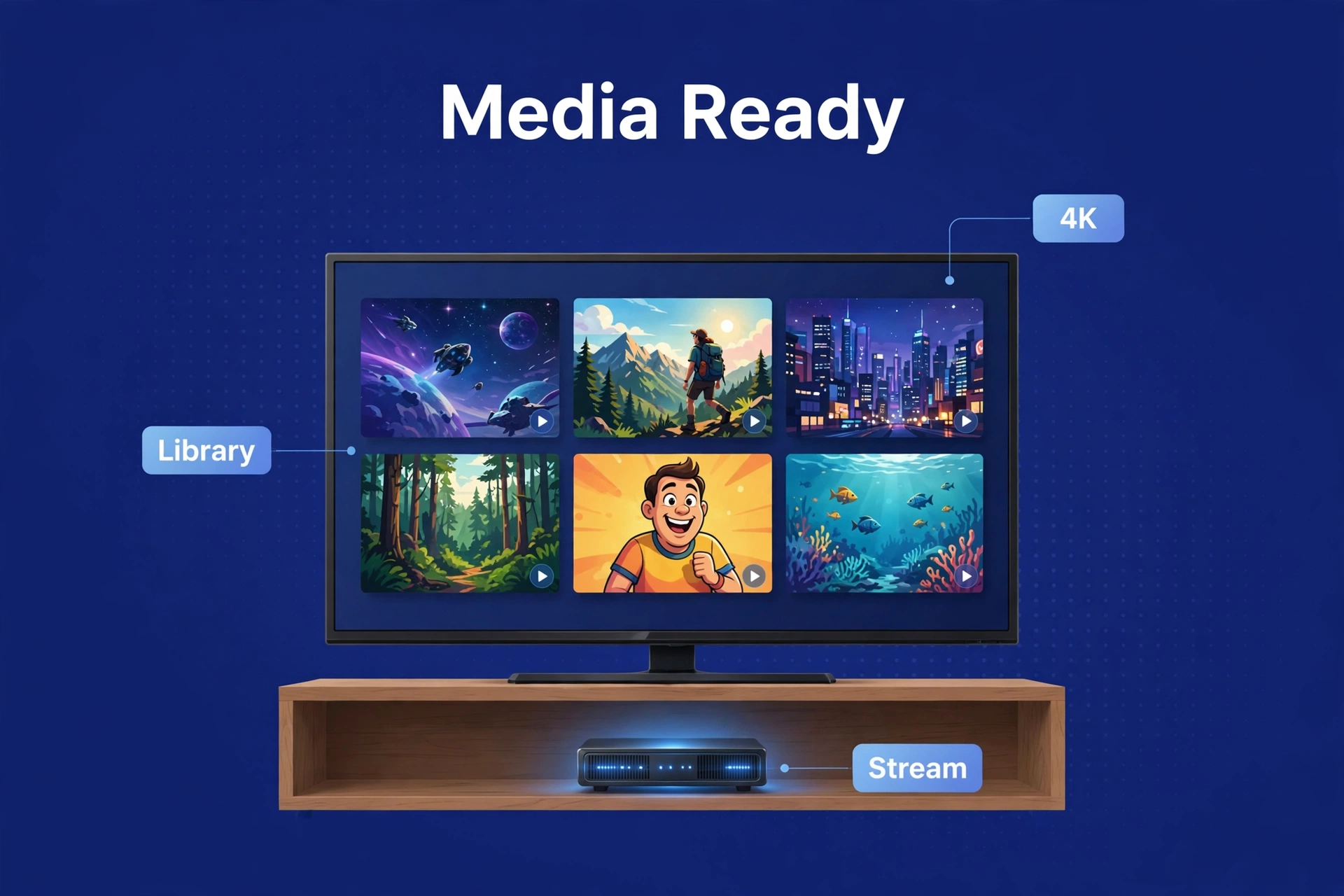
The DXP2800 is a 2-bay NAS built around an Intel N100. In fact, transcoding headroom Synology’s current 2-bay, built around a 2019-era Celeron, can’t match. First, newer, hungrier: better silicon, cleaner value, younger software. The TS-264 is the established alternative — 2 bays, Intel Celeron N5095 with Quick Sync, 2.5 GbE, QNAP’s deep app ecosystem. Either box will direct-play and transcode circles around anything without hardware acceleration.
In real terms: several simultaneous 1080p transcodes without breaking a sweat. 4K direct play to a capable TV over a wired connection. Occasional 4K transcoding in hardware works, but keep 1080p copies for remote streaming. Low power, near-silent — nothing like the jet-engine PC server my buddy ran before. One honest warning: media-server setup takes more fiddling than backups, whatever brand you buy. Budget an evening for Plex or Jellyfin plus remote access.
Best NAS for Photo Backup: Synology DS225+
Same pick as the beginner category — not laziness, just the right answer twice. The scare story: my brother-in-law’s phone hit “storage full” halfway through a family vacation. He spent the trip deleting apps to make room for photos of his own kids. He called me from the hotel; the DS225+ arrived the week they got home.
The setup that would have saved his vacation: Synology Photos on every family phone. In addition, every photo and video uploads to the NAS automatically over Wi-Fi. Second, faces recognized, places mapped, albums shared — no byte leaves your house unless you want it to. Finally, no monthly fee, no tier that fills up before a holiday. QNAP and others have photo apps, but Synology Photos is the most polished Google Photos replacement in the NAS world. If your camera roll is what you’re most afraid of losing, this is your box.
Three things I told him: turn on automatic upload on every family phone on day one — the backup you set up today saves next month’s trip photos. Keep two copies of what matters — mirrored drives protect against a dead drive, not fire, theft, or deletion, so a USB drive or cheap cloud tier for irreplaceables is worth it. RAW shooters: budget double the storage you think you need.
Best Budget NAS: TerraMaster F2-425 / UGREEN DH2300
The coworker install. He had a number in his head — not a big one — and honest needs: file storage, basic backups, maybe stream a movie sometimes. When someone knows their limits, the budget tier is genuinely good value.
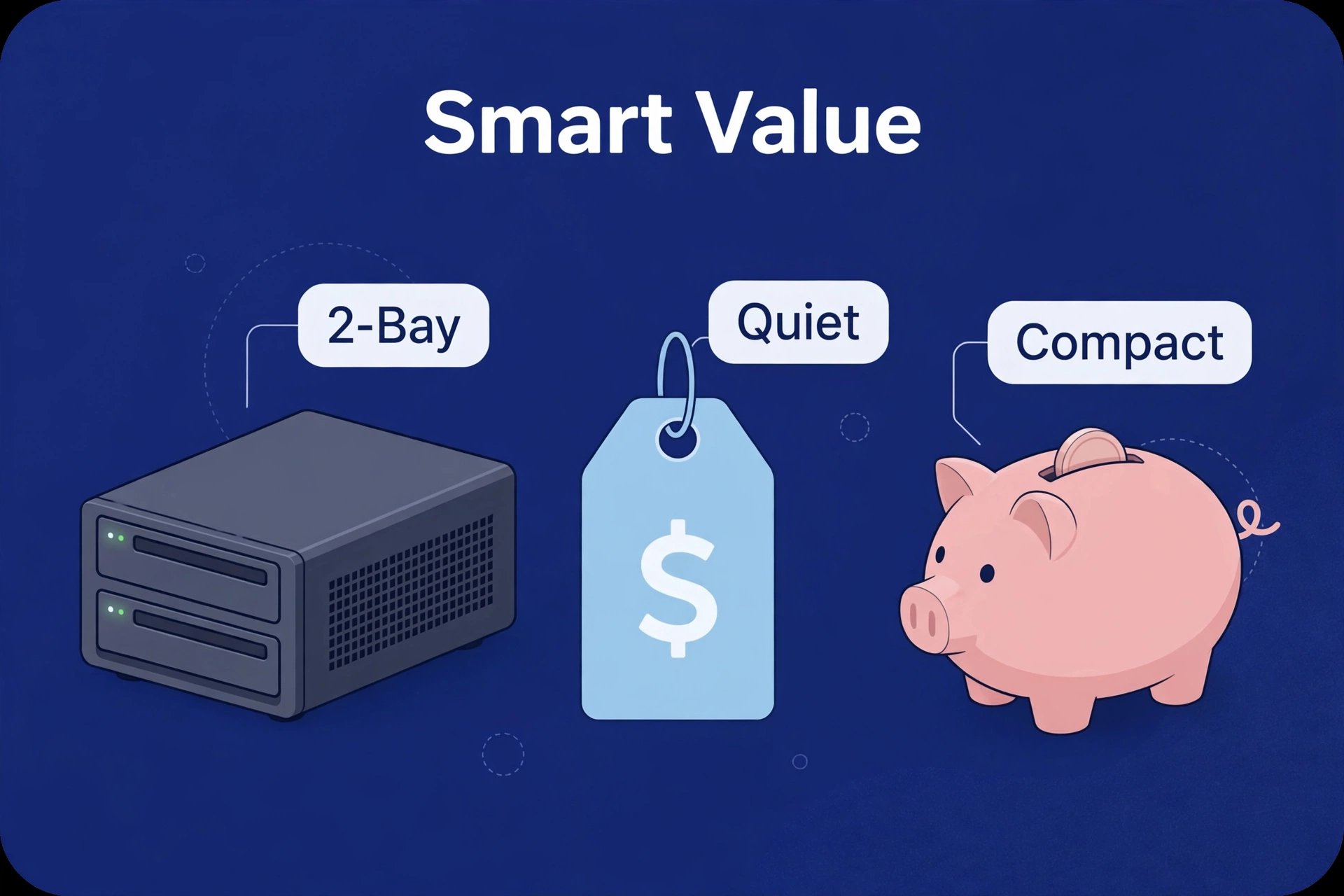
The TerraMaster F2-425 is a 2-bay Intel box — Celeron N5095, 4 GB RAM — typically cheaper than big-brand equivalents. Meanwhile, the UGREEN DH2300 is UGREEN’s entry-level 2-bay. Nevertheless, both handle file serving, backups, and direct-play streaming without complaint. What you give up: less RAM, simpler software, fewer apps, weaker transcoding. Skip this tier if you’ll run Plex with transcoding, need the polished ecosystem, or will resent a slower interface.
The part nobody tells you: drives cost extra. A cheap enclosure plus two NAS hard drives can easily double the enclosure’s price alone — my coworker did that math in the store aisle and went quiet. When the total fits your budget, the value is real. When drives push you near mid-range prices, step up — the better software and CPU are worth the stretch.
Best NAS for Growth: Synology DS925+ / UGREEN DXP4800 Plus
My sermon, “buy once, cry once,” delivered four times now: if you fill storage — media libraries, a photography habit, a household that never deletes anything — just buy four bays now. The 2-bay to 4-bay price gap is almost always smaller than buying a whole second NAS later. My brother-in-law is why this sermon exists.
The Synology DS925+ is the 4-bay Plus-series model. In fact, same excellent DSM software and backup ecosystem as the DS225+, double the drive slots. Start with two drives mirrored, add more as you grow. The UGREEN DXP4800 Plus is the 4-bay Intel alternative. In fact, pentium Gold 8505 — four bays plus Quick Sync, for households wanting serious storage and serious media serving in one box.
Two bays: one drive fails and you’re fine — mirrored, no drama — but when both fill up, you’re replacing, not adding. Four bays: start with two, add more later. Torn? Our 2-bay vs 4-bay comparison walks through it with real-world storage math.
What to Look for When Buying Any Home NAS
Whatever your scenario, here’s the short list I’d give you over coffee — the stuff first-time buyers get wrong most.
Bays: 2 to start, 4 to grow
Two bays suit most homes; four suit growing media libraries, photography habits, and the “buy once” mindset. Adding bays later means buying a new box — there is no bay-upgrade fairy. Think honestly about whether your storage grows or stays put.
CPU: Intel if media matters
For backups and files, any modern NAS CPU is fine — my parents’ box proves it daily. For Plex or Jellyfin with transcoding, Intel with Quick Sync is the feature to demand. Check the spec sheet for the exact processor; marketing pages bury it three clicks deep. If a manufacturer is shy about naming the chip, that’s information too.
RAM: 4 GB minimum, 8 GB comfortable
Basic file serving runs fine on 2–4 GB. Add Plex, photo indexing, and a few apps, and 8 GB is the comfortable zone. Many boxes let you upgrade RAM yourself — almost always cheaper than the higher-tier SKU. One stick, ten minutes, done.
Networking: 2.5 GbE is the new baseline
Gigabit is still fine for most homes. But 2.5 GbE is increasingly common and speeds up big transfers noticeably. One catch: you need a 2.5 GbE switch and a wired connection to benefit — over Wi-Fi it makes zero difference.
Noise and power
A NAS runs 24/7 in your home, so this matters more than spec sheets suggest. Check reviews for fan noise if it’ll sit in a living room — “quiet” in marketing-speak covers a heroic range of actual decibels. An efficient 2-bay box sips single-digit watts at idle: a few dollars a year, not a month.
Software and apps
Read the app list before buying — the homework nobody does. Can it back up your PCs the way you want? Does the phone app have good reviews? Is there a Plex or Jellyfin package, or Docker support? The box is a one-time purchase; the software is what you live with.
What You Do Not Need
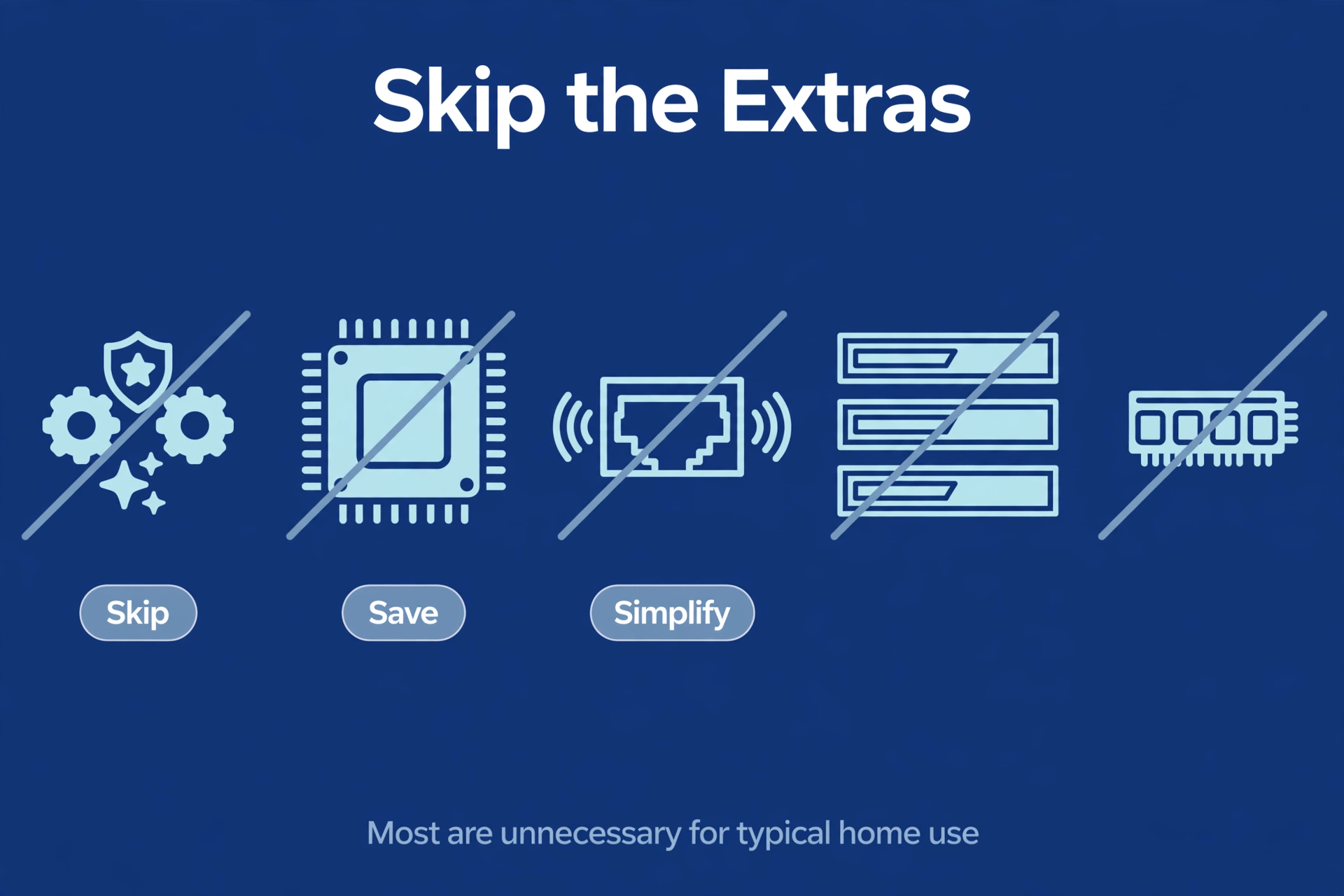
The part where I talk people OUT of spending money. SSD-only boxes for bulk storage: hard drives are far cheaper per terabyte and plenty fast over a home network. 10 GbE, unless you edit video off the NAS for a living — the switch alone costs more than some boxes. Enterprise features like SAS or redundant power supplies: you’re backing up family photos, not running a data center. And skip the biggest drives on day one — start with what you need plus headroom, since price per terabyte falls over time.
FAQ
How much does a good home NAS cost in total?
More than the box price suggests. A typical 2-bay enclosure plus two 4 TB NAS-rated drives is the real-world starting point — the drives alone are a large part of the total. Always price the enclosure and the drives together.
Can I use any hard drive in a NAS?
Physically, usually yes. Sensibly, no. Buy NAS-rated drives — WD Red Plus/Pro, Seagate IronWolf, and similar lines — built for 24/7 operation and the vibration of neighboring drives. Avoid SMR-based drives for NAS use; CMR is safer.
Is a NAS better than cloud storage?
Depends what you value. A NAS has no monthly fee, works without internet, keeps your data private, and is faster on your home network. Cloud needs no hardware and protects against fire and theft automatically. Many households end up with both: NAS for daily use, cloud for off-site backup of the irreplaceable stuff.
How hard is it to set up a NAS?
With Synology, genuinely easy — my dad reached his first backup in forty minutes. QNAP, UGREEN, and TerraMaster take a little more patience. The real time sink is the first data copy: moving terabytes can take hours or days, so start it overnight.
Do I need a NAS if I only want Plex?
Not necessarily. An old PC or mini PC running Plex works too, sometimes for less money and more CPU power. People choose a NAS for Plex because it’s quiet, efficient, and handles backups too. If Plex is truly the only job, compare against a mini PC first.
The Bottom Line
Here’s where four installs and one sermon land. Easiest experience for backups and photos? The Synology DS225+. Plex and media with transcoding? An Intel box like the UGREEN DXP2800 or QNAP TS-264. Tight budget, honest needs? The F2-425 or DH2300. Planning for growth? Four bays — the DS925+ or DXP4800 Plus.
However, whatever you pick: buy NAS-rated drives, set up automatic backups on day one, and keep one copy of the irreplaceable stuff off-site. In fact, do that, and your NAS will quietly do its job for years.
