

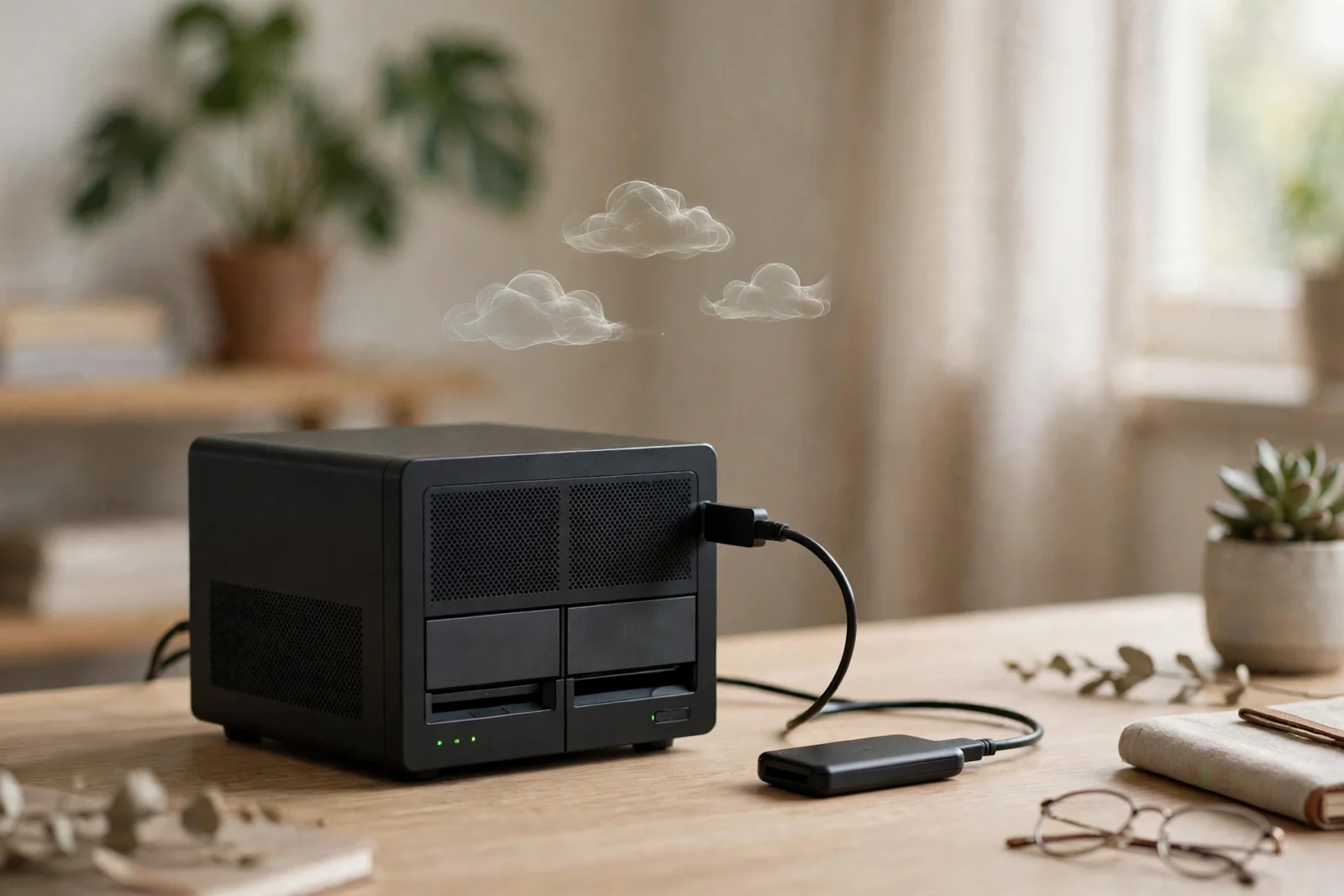
Yes — you need to back up your NAS. I know. It feels redundant: you’ve got RAID, drives mirroring each other, everything humming along. But here’s the thing — RAID only saves you when a hard drive dies. That’s it. Accidental deletion? Ransomware? Theft, fire, a power surge cooking the whole box? RAID just watches it happen; it can’t lift a finger. The fix is the 3-2-1 backup strategy: three copies of your data, on two different media types, one copy offsite. And honestly? Setting it up is easier than you think. You won’t be making it a second job.
Carry one idea through this whole guide: your NAS is storage, not a backup. Most people learn the difference on the worst day of their digital life. Let’s make sure that day never comes for you. Deal?
Why Your NAS Needs a Backup (RAID Is Not Backup)
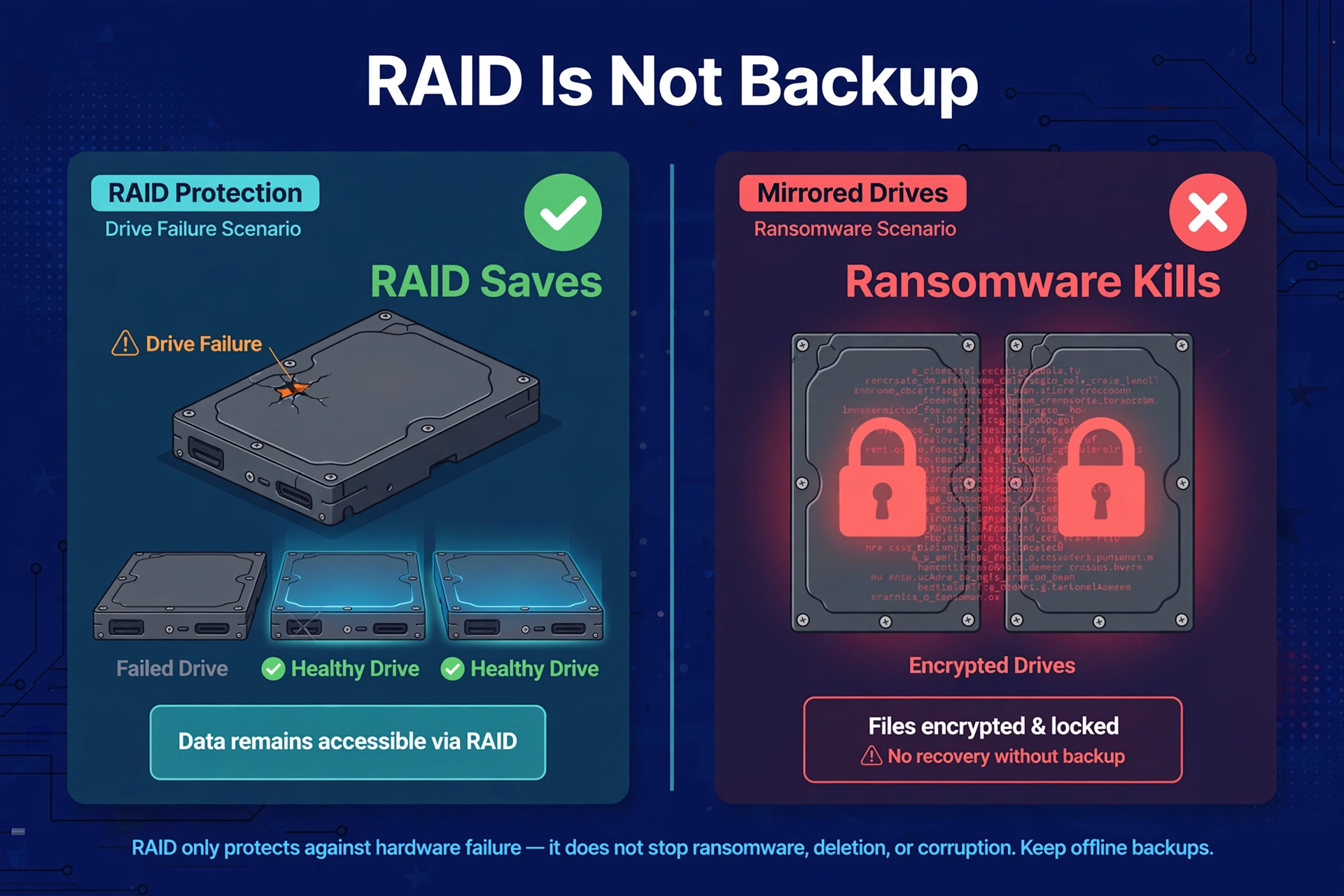
RAID might be the most misunderstood concept in home storage. So let’s be blunt. RAID 1 mirrors data across two drives; RAID 5 spreads it across three or more with parity. One drive dies, and your data survives — genuinely useful, since drive failure is the most common hardware problem you’ll ever face. No argument there.
Now here’s the part nobody tells you — everything RAID doesn’t survive:
- Accidental deletion. You delete a folder, and RAID — ever the good soldier — deletes it from every drive at once. The redundancy works against you.
- Ransomware. Encrypted files get mirrored to all drives like everything’s fine. Congratulations — you now own redundant encryption.
- Theft or disaster. Somebody steals the NAS, or the room floods, and all the drives go together. Every last one.
- Power events. A serious surge can fry the enclosure and every drive inside it simultaneously. All at once.
- You. Misconfigured settings, a botched firmware update, formatting the wrong volume. RAID can’t protect you from yourself.
Every single one of these has happened to real NAS owners who thought “I’ve got RAID, I’m safe.” Sound familiar? Here’s the mental model to keep: RAID is uptime technology — it keeps you running through a drive failure. A backup is recovery technology — it brings your data back from everything else. Different jobs. You need both. Full stop.
The 3-2-1 Backup Strategy, Explained Simply
The 3-2-1 rule is the backup strategy the whole industry recommends. Why? Because it’s simple — and because it actually works:
- 3 copies of your important data — the original plus two backups
- 2 different media types — say, your NAS drives plus an external USB drive, or NAS plus cloud
- 1 copy offsite — physically somewhere else: cloud storage, or a drive at a relative’s house
In a typical home, this shakes out neatly. The NAS holds the working copy. An external USB drive plugged into the NAS holds the local backup. And a cloud service — or a second NAS at a family member’s place — holds the offsite copy. Three copies, two media, one offsite. Done.
The 3-2-1 rule, applied to a home NAS
| Feature | Copy 1 (original) | Copy 2 (local backup) | Copy 3 (offsite) |
|---|---|---|---|
| Where it lives | Your NAS | USB drive attached to NAS | Cloud or remote location |
| Protects against | — (working copy) | Drive failure, deletion, ransomware | Theft, fire, flood, power events |
| Recovery speed | Instant | Fast (local) | Slow (download) |
| Typical cost | Already owned | One external drive | Small cloud plan |
What to Back Up (Hint: Not Everything)
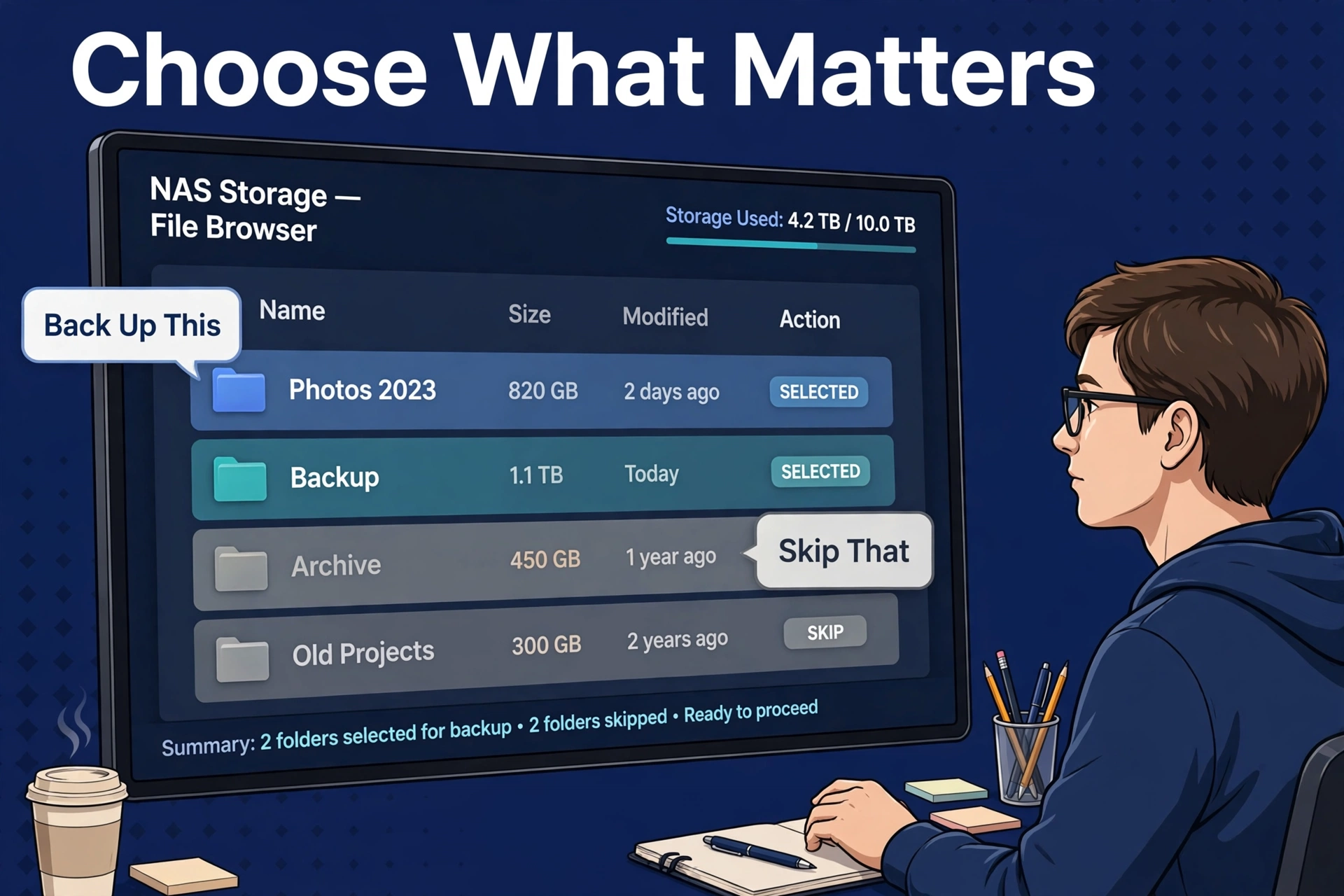
Backing up 12TB of Linux ISOs you could re-download tomorrow? A waste of time and cloud money. Be selective — the irreplaceable stuff gets the full 3-2-1 treatment:
- Family photos and videos. Non-negotiable. Full 3-2-1, no debate.
- Personal documents. Tax records, scans, projects — full 3-2-1.
- Phone backups and app data. If it lives on the NAS, it gets backed up. Simple.
- NAS configuration backups. Tiny files, massive time-savers after a disaster. Export them regularly — you’ll thank yourself.
Quick reality check: what can skip the offsite copy? Your Plex library (re-rippable, re-downloadable), software installers, anything replaceable with time rather than tears. Keep a local backup if it’s cheap — just don’t pay cloud fees for any of it.
This triage is the whole reason the strategy stays affordable. You’re not backing up the NAS — you’re backing up the irreplaceable parts of the NAS. Big difference.
Where to Back Up To: Your Options
Option 1: External USB Drive (Local Backup)
Simplest second copy there is. Plug a big external drive into the NAS’s USB port and schedule regular backups. It’s fast (USB speeds), cheap (one drive), and recovery is instant — plug it into any computer and read your files directly.
The catch? It lives right next to the NAS, sharing every physical risk — theft, fire, flood. That’s why it’s copy #2, not the whole plan. Want extra safety? Rotate two USB drives, keeping one unplugged in a drawer. Old-school. Effective.
Option 2: Cloud Storage (Offsite Backup)
This is the standard offsite copy. Most NAS systems ship with built-in apps that push backups to popular cloud providers on a schedule — encrypted, so the provider can’t read your files. And since you’re only uploading the irreplaceable subset (not the whole media library), a modest plan usually does it. Way cheaper than cloud-storing everything, which — let’s be honest — adds up fast. Our NAS vs cloud storage breakdown covers the cost logic in detail.
The catch is upload speed. That first backup — a few hundred gigabytes over a typical home connection — takes days. After that? Incrementals (changed files only) are quick. Kick off the first run on a Friday night and walk away.
Option 3: A Second Location (Friend/Family NAS)
The enthusiast’s move: a second NAS — even a cheap used one — sitting at a relative’s house, syncing over the internet. No monthly fees, full control, as much space as you throw at it. The catch is obvious enough: you need a willing relative with decent internet and a spare shelf. In some families, easier said than found.
Backup destinations, compared
| Feature | USB drive | Cloud storage | Remote NAS |
|---|---|---|---|
| Setup difficulty | Easy | Easy–moderate | Moderate–hard |
| Ongoing cost | None | Monthly plan | None (after hardware) |
| Protects against theft/fire | No | Yes | Yes |
| Recovery speed | Fastest | Slow (download) | Moderate |
| Capacity limits | Drive size | Plan size | Your hardware |
How to Back Up a NAS: Setting It Up, Step by Step
- Decide what matters. List your shared folders and mark each “irreplaceable” or “replaceable.” Be ruthless — this list controls your costs.
- Get the local backup drive. USB external, at least as large as the data you’re protecting. Plug it into the NAS.
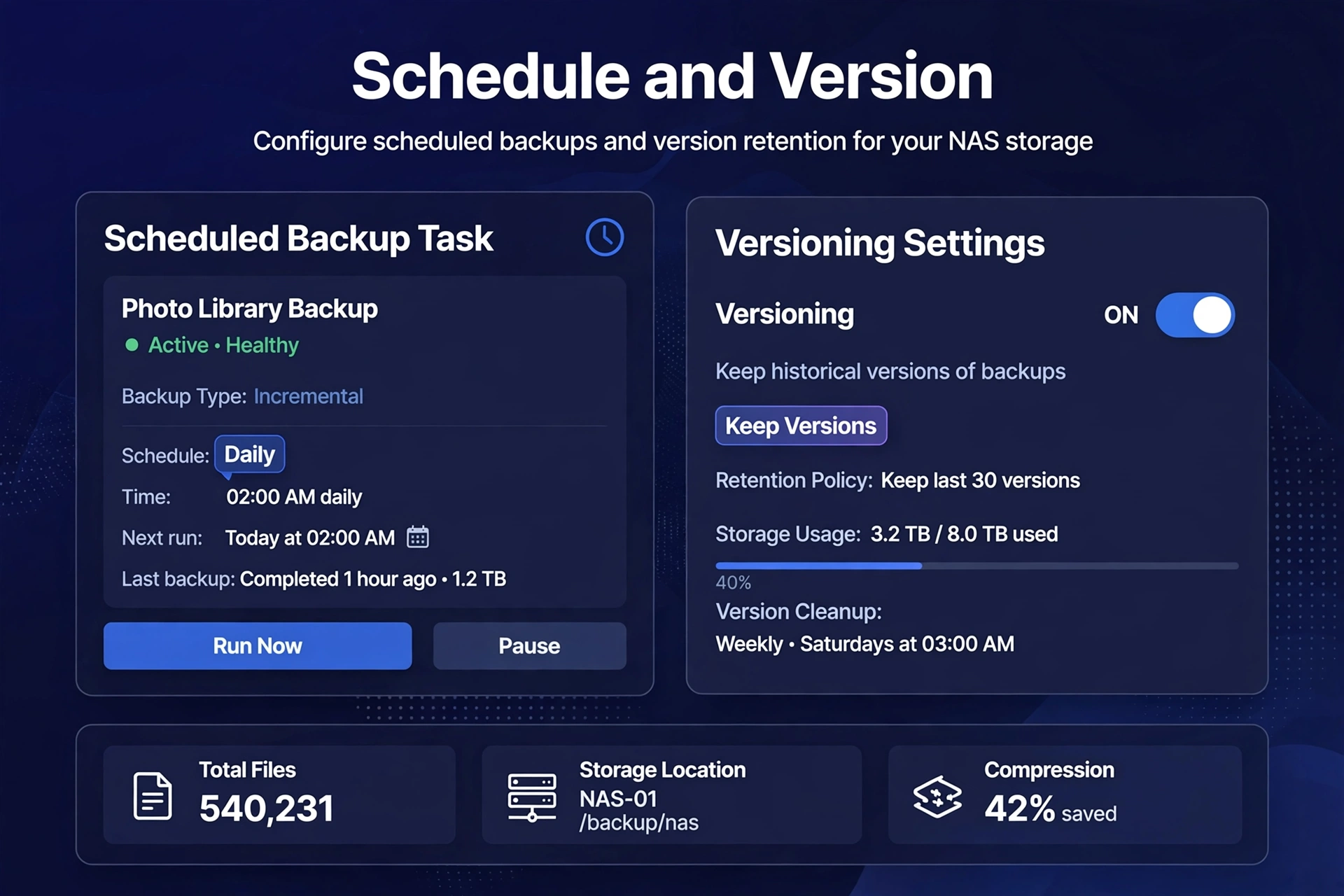
- Create the local backup task. In your NAS backup app (Synology’s Hyper Backup, or your vendor’s equivalent): point the irreplaceable folders at the USB drive, versioned, nightly or weekly.
- Turn on versioning. This one’s critical. Versioning keeps multiple historical copies — so a file corrupted last Tuesday restores from the week before. Without it, your backup just mirrors the damage. Useless.
- Set up the offsite copy. Cloud or remote NAS — your call. Enable encryption with a passphrase stored somewhere safe: password manager, written down offsite, ideally both. Start the initial backup. Then go live your life; it takes a while.
- Export your NAS configuration. Stash the system config backup somewhere safe. Rebuilding users, shares, and settings from memory after a disaster is pure misery.
- Schedule and (almost) forget. Let automation do its thing. Check the backup logs monthly — two minutes, that’s all.
How Often Should Backups Run?
Match the frequency to how fast the data changes. Photos piling up daily? Back up daily, or every other day. Documents that change weekly? Weekly’s fine. NAS configuration? Monthly — or right after any settings change.
There’s no prize for backing up more often than your data changes. But there’s a real penalty for backing up less often than your regret horizon. Ask yourself: “how much work could I stand to lose?” A day’s worth? A week’s? Set the schedule to match your answer. Simple as that.
Test Your Backup (The Step Everyone Skips)
An untested backup is a rumor. Once a quarter, do this: pick a random file from your backup, restore it, open it, confirm it’s intact. Five minutes — and you’ve verified the whole chain. The backup ran, the data reads, and you still remember how to restore.
Once a year, go bigger and simulate a real loss. Pretend a shared folder got deleted, then restore the whole thing from backup. Either everything works — great — or you find the gap while there’s still time to fix it. Every backup horror story ever told ends the same way: “…and we’d never tested the restore.”
One more thing — and I mean this: write the restore steps down while you’re calm. Not during a crisis. A one-page note — where backups live, where the passphrase is, what order to restore in — turns panic into procedure. Tape it in a drawer near the NAS. Future you will be so grateful. Trust me on this one.
Common Backup Mistakes
- Backing up to the same NAS. A scheduled task copying Folder A to Folder B on the same drives protects against nothing but your own confusion. Separate media or it doesn’t count.
- No versioning. A mirror without history just replicates ransomware and deletions at higher speed. Congrats on the automation, I guess.
- Encrypting the offsite backup, then losing the passphrase. Now you own a very secure brick. Two places for that passphrase. Minimum.
- Never checking the logs. Backup tasks fail quietly — full USB drive, expired cloud token, nobody notices. Glance at the logs monthly.
- Forgetting the small stuff. NAS config exports, Docker container settings, password manager vaults. The data gets backed up; the configuration you’d need to actually use it doesn’t. Don’t forget the small stuff.
Still choosing hardware? Start with our best NAS for home guide — and when sizing drives, remember backups need space too. Our best NAS hard drives guide covers what to buy.
How Long Should You Keep Backup Versions?
Versioning turns a backup from a mirror into a time machine. But how many versions, for how long? Depends on the data.
Active documents? Keep it generous. Daily versions for a month, weekly for a few months, monthly for a year. Storage is cheap next to the afternoon you’d spend reconstructing a spreadsheet from memory. Not even close.
Photos get lighter retention — they don’t get edited in place the way documents do. A few weekly versions plus monthly snapshots going back six months covers the realistic scenarios: deletion discovered late, a corrupted import, a bad edit you want to reverse.
Most NAS backup apps do per-task retention policies — something like “last 30 daily versions, then one per week for 12 weeks, then one per month for 12 months.” Set it once and let the app prune automatically. The exact numbers matter less than having a policy at all. Infinite versions fill any drive eventually; zero versions means no time machine. Something beats nothing here.
Frequently Asked Questions
Do I really need to back up my NAS if I have RAID?
Yes — really. RAID handles drive failure and nothing else. Deletion, ransomware, theft, fire, power damage — the scenarios that actually destroy data sail right through it. RAID is uptime; backup is recovery. You need both.
What is the 3-2-1 backup rule?
Three copies of important data, on two different media types, with one copy offsite. The home version: the NAS itself, a USB drive plugged into the NAS, and a cloud backup (or a drive/NAS somewhere else).
How do I back up a Synology NAS?
Use Hyper Backup — it’s built in. It handles local (USB), remote (another NAS), and cloud destinations, with versioning and encryption. Point it at your irreplaceable shared folders, turn on multi-version retention, schedule it, and watch the logs. Other brands ship equivalent tools.
How much cloud storage do I need for NAS backup?
Only enough for the irreplaceable subset: photos, documents, configs — not the media library. Most families land in the hundreds of gigabytes, which fits the cheaper tiers. Triage first, size the plan second.
Can I back up my NAS to Google Drive or Dropbox?
Yes. Most NAS backup apps support the big consumer clouds as destinations, with client-side encryption so the provider can’t read your files. Just watch the plan size — and brace for a long initial upload on typical home connections.
Should the backup be encrypted?
The offsite copy? Absolutely — it’s leaving your house. Use the backup app’s built-in encryption with a strong passphrase, stored in two safe places (password manager plus a written copy offsite). An encrypted backup you can’t unlock is no backup at all.
How do I know my backup actually works?
Test restores. Quarterly, restore one random file and open it. Yearly, restore a whole folder as a drill. Monthly, check the task logs for failures. A backup you’ve never restored isn’t a plan — it’s a hope.
