

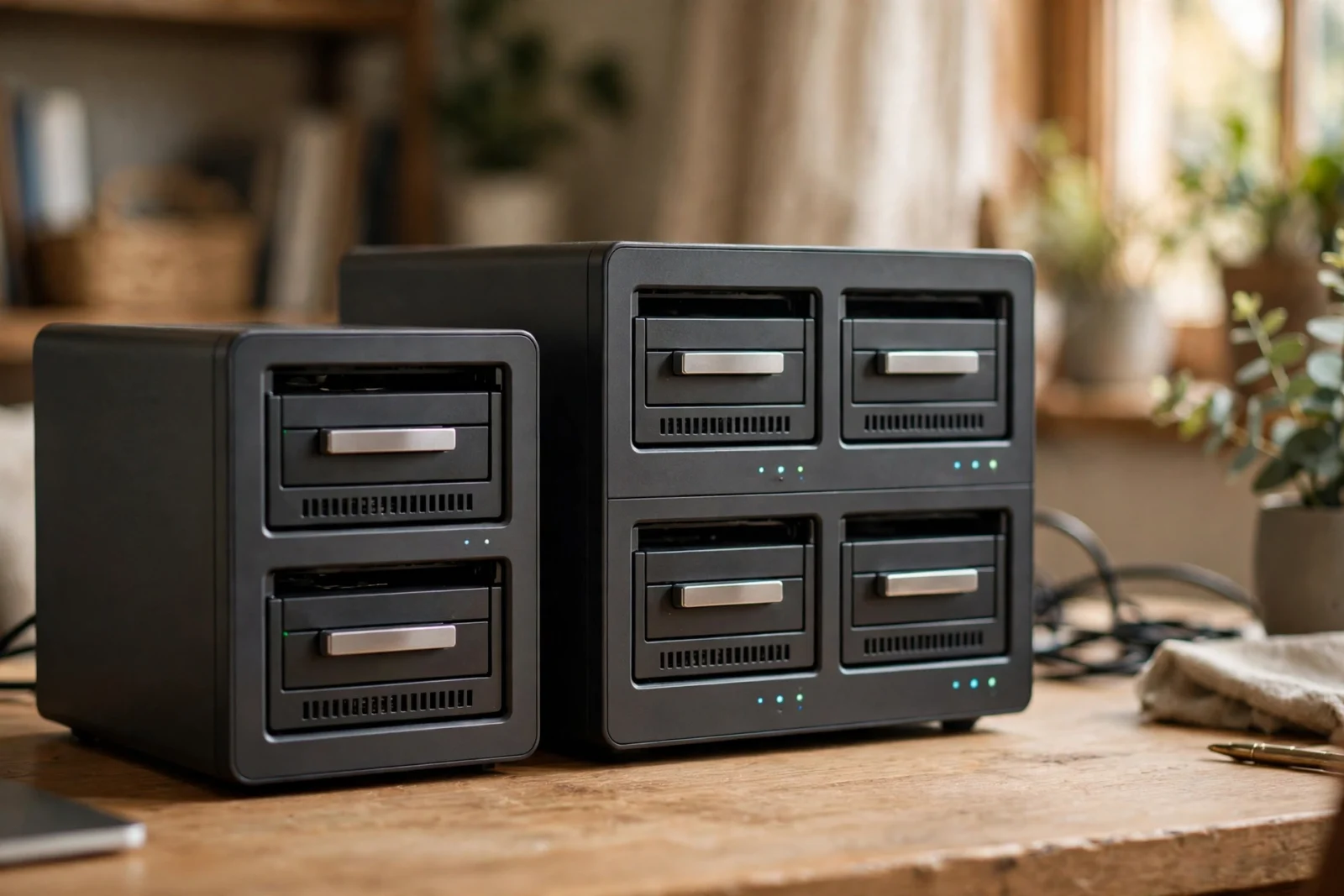
My first NAS was a 2-bay. I filled it in fourteen months. Then I spent a whole weekend migrating everything. In fact, six terabytes of photos, movies, the works — onto a 4-bay box while my wife kept asking why the internet was so slow. (It wasn’t the internet. It was me.) That weekend is the reason I have Opinions about drive bays, capital O.
So here’s my verdict, earned the hard way: for most home users, the 4-bay wins. However, it costs more upfront — no way around that — but you get RAID 5, a real expansion path. In addition, a box that won’t feel small in two years. For example, a 2-bay? Honestly fine if your needs are simple and stable: file storage, backups, light streaming, done. The real question isn’t how much data you have today — it’s how fast that pile grows. Nobody tells you that at checkout.
And this decision deserves more thought than it usually gets, because bay count is the one NAS spec you can never, ever upgrade. RAM? Pop in a stick. Drives? Swap them out. But bays are destiny — they’re baked into the chassis. Get it right and the box hums along for years. Get it wrong and you’re doing the migration-weekend dance.
2-Bay vs 4-Bay NAS: What Drive Bays Actually Determine
I learned what bays determine by getting it wrong first. A bay is just a slot for one hard drive. Simple. But that number quietly controls three things: which RAID levels you can use, how much usable storage you end up with, and whether you can grow later without starting over.
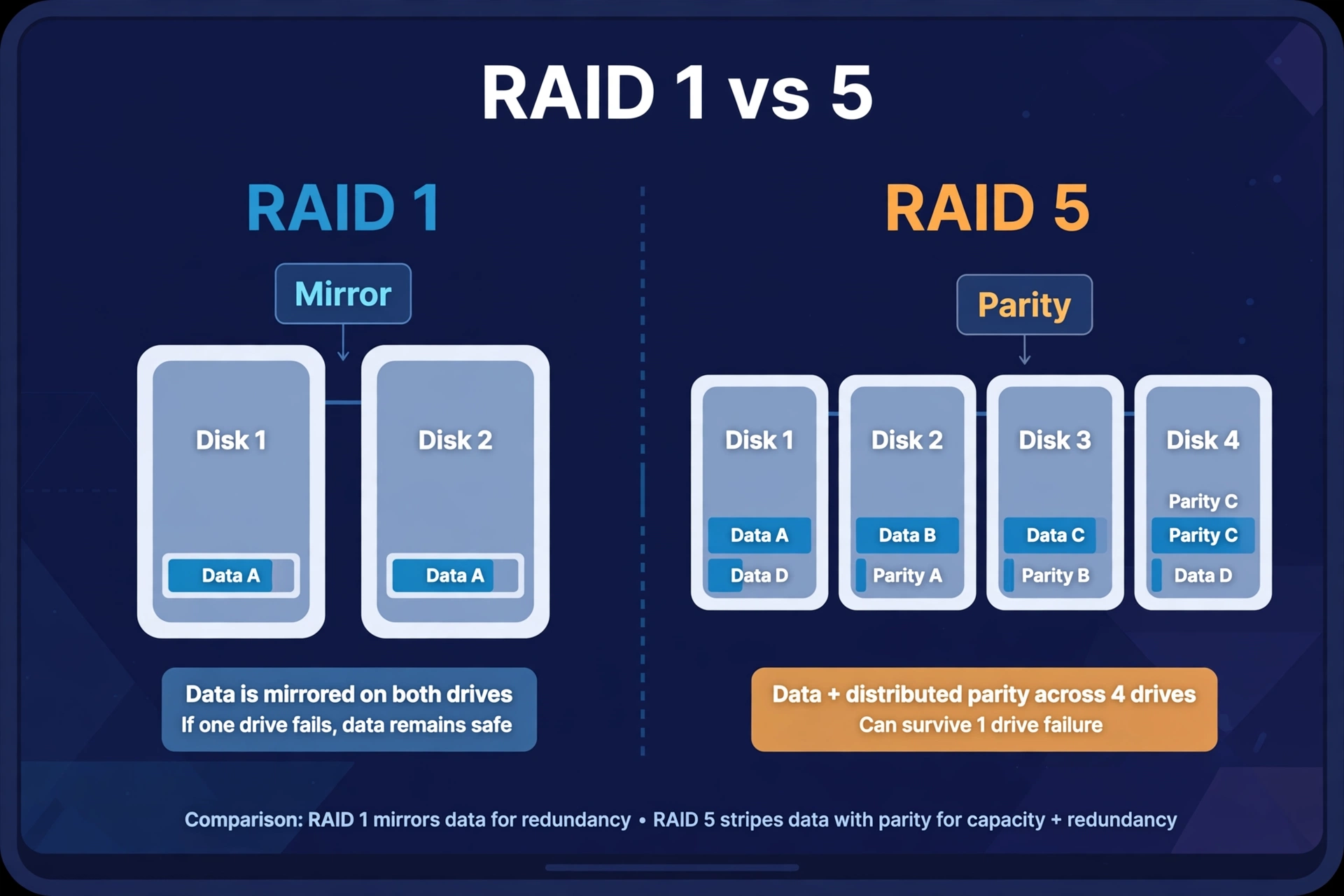
However, rAID — redundant array of independent disks — is what stands between your data and a dead drive. In addition, your options come straight from your bay count. For example, two bays, and you’re realistically looking at RAID 1, where both drives hold identical copies of everything, or no redundancy at all. In addition, four bays unlocks RAID 5: your data gets striped across the drives with parity information woven in. As a result, any single drive can die and you lose nothing — and you only sacrifice one drive’s worth of capacity instead of half of everything. Sit with that efficiency gap for a second, because it hit me like a truck the first time I did the math. Furthermore, two 8TB drives in RAID 1: 8TB usable. Moreover, four 8TB drives in RAID 5: 24TB usable. Also, same drives, triple the space, same survive-one-dead-drive protection. Then I ordered the 4-bay.
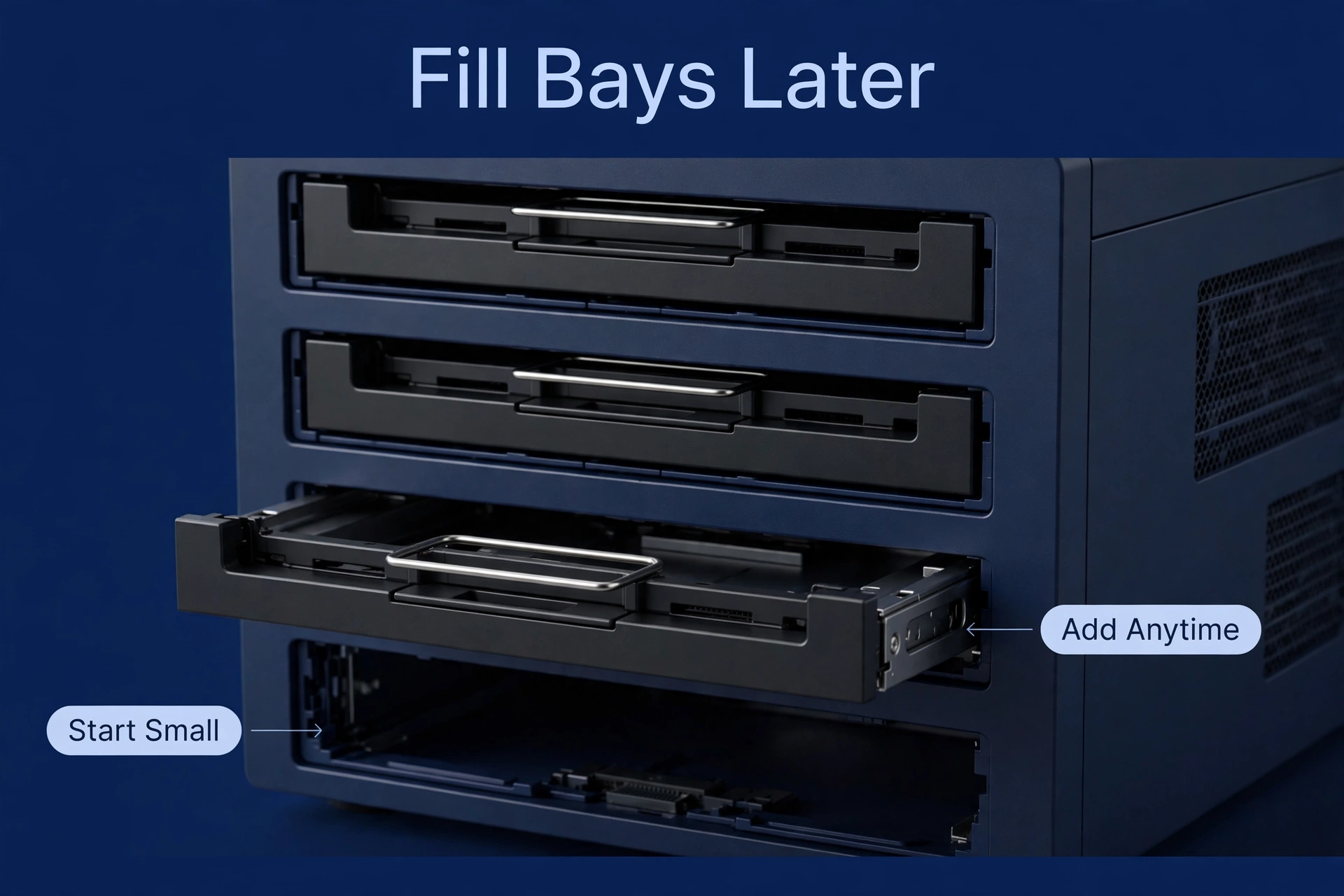
Bays also write your expansion story, and this is where my 2-bay punished me. A 2-bay NAS is full the day you unbox it. Need more space later? Your only move is replacing both drives with bigger ones and migrating everything over. Slow. Fiddly. A whole weekend gone. A 4-bay box, though — you start with two drives, and a year later you just slide in a third. The array grows. No migration, no weekend sacrificed. (For picking the drives themselves, our guide to the best NAS hard drives has you covered.)
The Case for a 2-Bay NAS
Now — I am not here to trash the 2-bay. I still recommend them. To specific people. My dad, for instance: 1.5TB of photos and documents, barely changed in five years. For him, a 2-bay in RAID 1 is perfect.
A 2-bay nails the core jobs. Furthermore, centralized files for the household. Moreover, automatic backups from the laptops and phones. Light media streaming in the evening. “Back up two machines and keep the family photos in one place”. In fact, two bays handle that with room to spare. The boxes are smaller, they run quieter, they sip less power, and they cost noticeably less than their 4-bay siblings.
But — and you knew there was a but — you’re buying a closed system. The day you want more space, or you get curious about what RAID 5 could do for you, you’re shopping for a whole new enclosure and migrating everything across. For some people that’s five years out, no harm done. For others it’s eighteen months out, and it’s deeply annoying. So: which buyer are you? Be honest — I wasn’t, and it cost me a weekend.
The Case for a 4-Bay NAS
This is where I live now, and I am not going back. Four bays is the home-NAS sweet spot, and for me it comes down to one word: flexibility. RAID 5’s capacity efficiency. A real expansion path. A box that adapts when your needs shift, because they will. Start with two drives in RAID 1 today, drop in a third next year, migrate to RAID 5, add the fourth when the movie collection gets out of hand. The NAS grows with you instead of against you.
Yes, it costs more. Bigger box, more shelf space, a bit more power draw. But here’s how I think about it now, post-migration-weekend: spread that premium over the five-plus years most people keep a NAS. In addition, it’s one of the cheapest upgrades in all of home tech. And I’ve watched friends buy the 2-bay to save a little, then buy the 4-bay anyway two years later. That is the most expensive way to do this. I know, because I did it.
Here’s the whole showdown at a glance:
| Feature | 2-Bay NAS | 4-Bay NAS |
|---|---|---|
| Typical RAID options | RAID 1, RAID 0, JBOD | RAID 1, RAID 5, RAID 6, RAID 10 |
| Usable space (4TB drives) | 4TB (RAID 1) | 12TB (RAID 5) |
| Expansion path | Replace drives only | Add drives later |
| Upfront cost | Lower | Higher |
| Size and noise | Smaller, quieter | Larger, slightly louder |
| Power use | Lower | Moderately higher |
| Best for | Simple backups, stable needs | Growing libraries, media servers |
Can You Run a 4-Bay NAS With Just 2 Drives?
Yes. Full stop. And honestly? This is the move I wish someone had told me about before box number one.
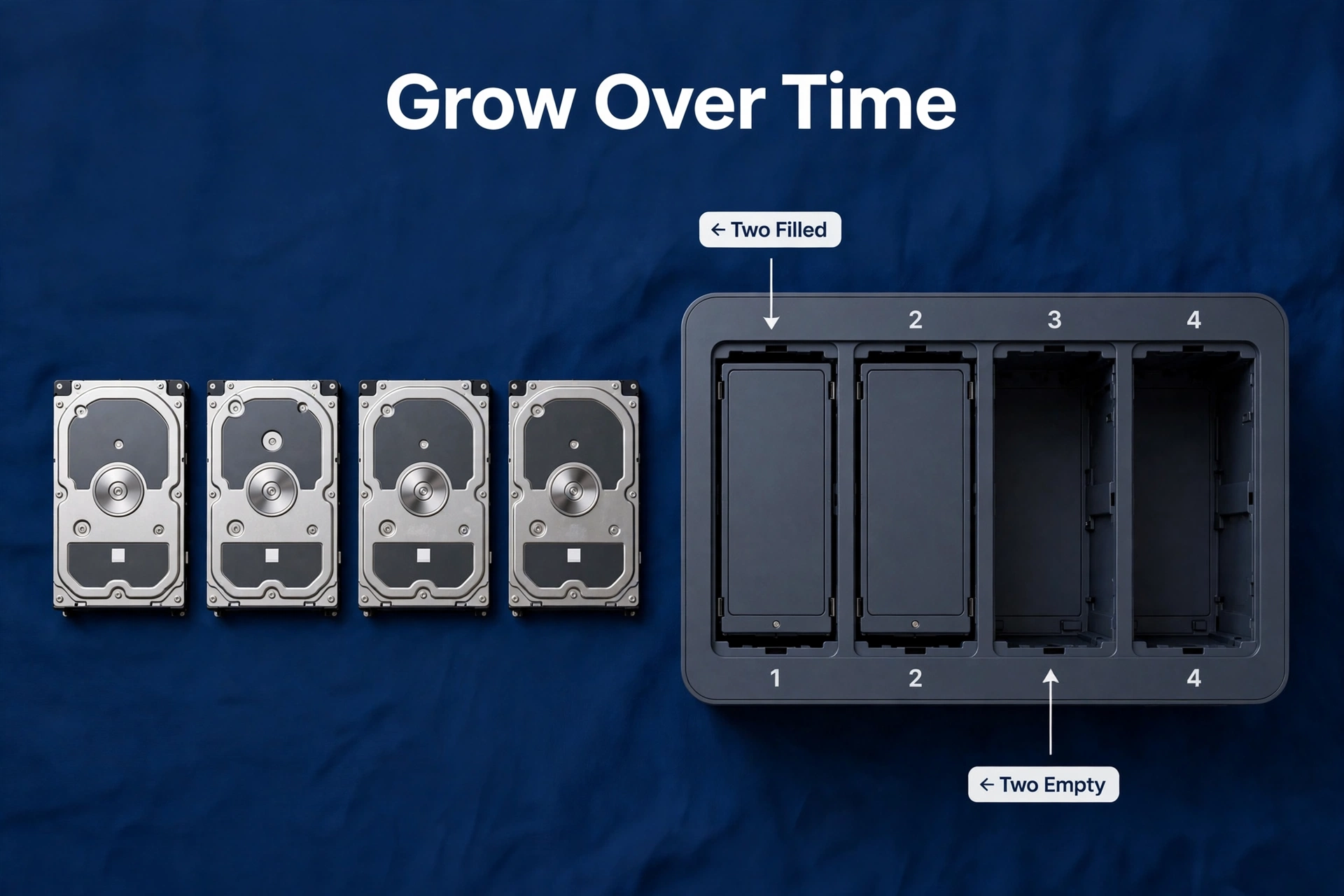
Nothing says you have to fill every bay on day one — I don’t know why everyone assumes that, but they do. Also, buy the 4-bay enclosure, install two drives in RAID 1 (or your NAS maker’s equivalent). In addition, leave the other two bays sitting there, empty and full of potential. You pay the 2-bay price for drives while keeping the 4-bay future.
Need more space down the road? Slide in the third drive and expand the array. Most modern NAS systems do this without wiping your data — though it takes hours. In addition, you want a backup first. (You always want a backup first. That’s just the rule.)
One caveat, because there’s always one: when you expand, try to buy the same drive model. Matched drives rebuild faster and behave more predictably together. Learned that one the annoying way — my third drive was a different model, and the rebuild dragged. Exact model discontinued by then? Happens all the time. In that case, match capacity and recording technology (CMR) at minimum.
RAID Options by Bay Count, Simply Explained
Okay. Story time. Because RAID levels are boring as a list, and I learned them as a saga.
First, about a year into owning my 4-bay, one of my drives started throwing SMART errors. In fact, the little amber warning in the storage manager, and your stomach just drops. First, the array went degraded. Second, i ordered a replacement, and the rebuild ran Friday evening to Monday. Finally, three days of the NAS fans screaming at full tilt. That’s RAID 5 rebuilding: slower than RAID 1, recalculating parity for every stripe instead of just copying a mirror. Meanwhile, here’s the practical version, minus the textbook:
Common home-NAS RAID levels, side by side:
| Feature | RAID 1 (mirror) | RAID 5 | RAID 6 |
|---|---|---|---|
| Minimum drives | 2 | 3 | 4 |
| Drive failures survived | 1 | 1 | 2 |
| Usable capacity (4TB drives) | 4TB (2 drives) | 8TB (3 drives) | 8TB (4 drives) |
| Needs at least | 2-bay NAS | 4-bay NAS (3 bays used) | 4-bay NAS |
| Rebuild speed | Fast | Slower | Slowest |
For home use, RAID 1 on a 2-bay and RAID 5 on a 4-bay cover nearly everybody. RAID 6’s double-failure protection is nice on paper but usually overkill at home. And the golden rule: RAID is not a backup. It survives dead drives — not deleted folders, ransomware, or fire. Your NAS still needs its own backup plan; see how to back up your NAS.
How Many Drive Bays Do You Actually Need?
My cousin asked me this exact question last month — texted me links to two NAS boxes, a 2-bay and a 4-bay, “which one.” There are really only five kinds of buyers. Here’s the rundown.
If you’re sitting under ~4TB with stable, simple needs — documents, some photos, backups — a 2-bay in RAID 1 is plenty. Second, don’t overbuy.
Growing photo and video library, or a media server? Finally, go 4-bay. You’ll fill the space — media libraries are the fastest-growing dataset in most homes, one 4K movie can swallow 50GB — and RAID 5’s efficiency starts paying off the moment that third drive goes in.
Tight budget but an uncertain future? Meanwhile, the hybrid move — my default recommendation: buy the 4-bay enclosure, fill two bays. Nevertheless, two-bay drive cost, four-bay future.
Running several heavy jobs at once — media server plus surveillance plus family backups? In fact, four bays minimum, and honestly I’d call it mandatory. As a result, you’ll want the separation. Two bays, three workloads, zero elbow room — bad combination.
And if you already know you’ll blow past four bays — be honest with yourself — then skip both. In contrast, look at 5- or 6-bay models. There’s no virtue in buying a 4-bay knowing full well you’ll replace it in a year. (More on the bigger boxes below.)
Still torn? Here’s the tiebreaker: the price gap between a 2-bay and 4-bay enclosure in the same product line is usually modest once you add drives into the total — and drives are where the real money goes anyway. If you can stretch, 4-bay is the safer long-term bet. Our best NAS for home guide has current 2026 picks in both sizes, so you can see the gap in real numbers.
What About 5, 6, or 8 Bays?
Bigger boxes exist, and they’re not just for businesses. Sitting on 10+ TB of media already? Running a stack of services? Consolidating five ancient external drives into one box? A 5- or 6-bay starts making real sense. The trade-offs scale up with it, though: bigger footprint, more noise, more power, enclosure prices that climb meaningfully. It’s a jump, not a step.
But for first-time buyers, anything past four bays is usually premature — and I say that as someone who loves big boxes. Buy for the data you actually have, not the data center of your dreams. You can always add a second NAS later. Plenty of enthusiasts end up with exactly that setup.
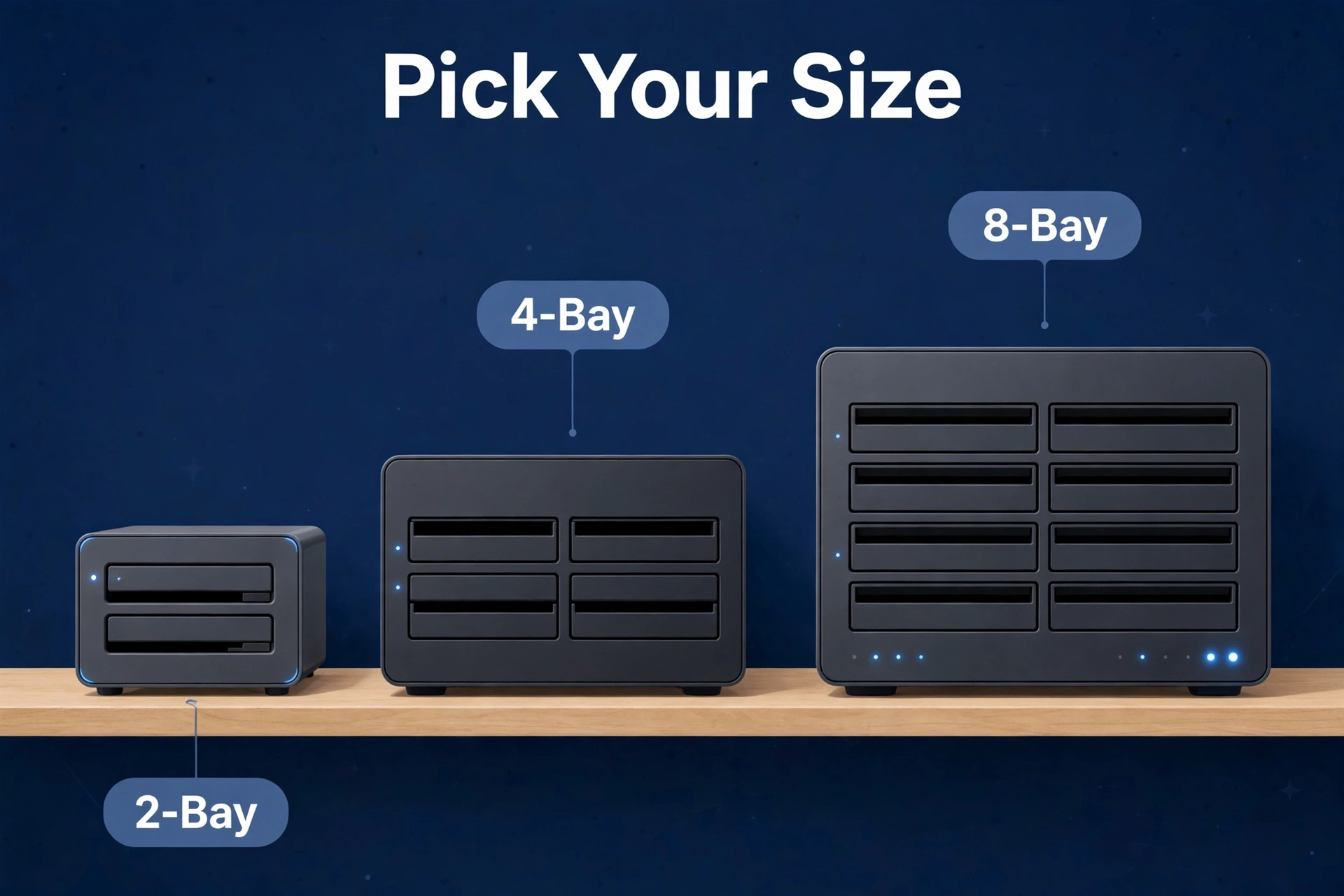
Which Bay Count Fits Common Home Uses?
Abstract advice only gets you so far. Here’s how it shakes out for the three jobs home NAS boxes do most — with my own biases fully disclosed.
Media server households
Running Plex or Jellyfin? Lean 4-bay. My movie library doubled in eighteen months — one 4K movie can swallow 50GB, and collections double every couple of years. On 4TB drives, jumping from 4TB usable (2-bay RAID 1) to 12TB usable (4-bay RAID 5) is the difference between re-ripping your library and sliding in another drive. Transcoding doesn’t care about bay count; the library behind it does.
Photo backup and family files
Pure photo backup and documents? Two bays is genuinely enough for most families. Photo growth is steady but slow next to video. A thousand JPEGs barely make a dent. The exception, and it’s a big one: videographers. Anyone in the house shooting 4K regularly — treat it like a media server and go 4-bay. Phone photos are tiny. Phone videos are not. My kid’s birthday videos taught me this.
Home office use
Client work or business records on the NAS? Now the calculus shifts from convenience to risk. Four bays with RAID 6 — survives two simultaneous drive failures — is worth a look when downtime costs actual money. And regardless of bay count, here’s the thing I tell every freelancer friend: the backup strategy matters more than the hardware. RAID handles dead drives. Only a real backup handles everything else.
Frequently Asked Questions
Is a 2-bay NAS enough for Plex?
For direct-play streaming to a couple of devices? Sure — a 2-bay handles that fine. But transcoding 4K for multiple users, or feeding a big, growing library? That’s where the extra bays and RAID 5 efficiency of a 4-bay box pay off. Our best NAS for Plex picks go model by model if you want specifics.
Can I add more bays to my NAS later?
Nope — and this is the cruelest fact in this whole article. Bay count is fixed hardware. A 2-bay will never become a 4-bay, What you can do: swap in larger drives, or add an expansion unit if your model supports one. (Some higher-end models do — but they cost real money.)
Does RAID 5 need 3 or 4 drives?
Three minimum. On a 4-bay NAS, running RAID 5 across three bays and leaving the fourth empty for later is one of the most common home setups out there — it’s the default answer for a reason.
Is it OK to mix drive sizes in a NAS?
It works, but traditional RAID is limited by the smallest drive — a 4TB + 8TB pair in RAID 1 gives you 4TB usable, and that wasted 4TB stings every time you look at the storage manager. Some systems (like Synology’s Hybrid RAID) handle mixed sizes more gracefully, reclaiming space traditional RAID would strand. Matched drives are always cleanest, though.
How long does it take to expand a NAS with a new drive?
Hours. Potentially the better part of a day with big drives. The system redistributes data across the new layout, it runs in the background, your files stay accessible, but performance dips while it works. So don’t kick off an expansion right before you need the NAS at full speed. Friday evening, not Monday morning.
Should I get SSDs or hard drives for my NAS bays?
Hard drives for the bays — that’s where terabytes live cheaply, and it’s not close. Lots of NAS boxes also pack M.2 slots for SSD cache, which speeds up frequently-hit data without replacing bulk storage. First NAS? Put the budget into good CMR hard drives first. Cache is a luxury; capacity is the job.
What happens if my NAS box itself dies?
Usually your data survives — one of the less-scary failure modes. The drives carry standard Linux file systems or the vendor’s RAID format, and moving them to a replacement unit (same brand and family) typically brings everything back. That’s one more reason backups matter, though: hardware fails in ways drives alone can’t cover.
