

However, the best NAS for photo backup in 2026? However, a 2- or 4-bay unit with a genuinely good photo app, quiet operation, and room to grow. For most families, that means a Synology DS225+ or similar, with two CMR drives to start. In addition, photographers with big Lightroom catalogs should step up to 4-bay — the space and RAID 5 efficiency are worth it. Here’s the thing, though: raw power barely matters for this job. Photo backup is light work. Furthermore, what matters is the software experience and a clear path to expand when the library inevitably outgrows day one.
I’ll tell you exactly when I became a NAS person: the day Google Photos started charging real money for storing my own children’s faces. Two kids, roughly 40,000 photos, and suddenly the “free” cloud had a monthly price tag. So I bought a box. This guide is the one I wish someone had handed me that day: automatic phone backup, sane organization, family sharing, and storage that won’t fill by Christmas.
What Makes a NAS Good for Photo Backup?
Photo backup cares about different things than, say, 4K video transcoding. Forget benchmark scores.
First: the photo app. In addition, number one, no contest, not even close. Furthermore, you’ll live in this app daily — if it annoys you, the project dies within a month. Synology Photos is the most polished option I’ve used — auto backup, timeline, on-device face recognition, family sharing. When my wife — zero patience for tech — opened it and just used it, that told me everything. A clunky app? Doesn’t matter how good the hardware is. The experience is dead on arrival.
Second: quiet, always-on operation. Moreover, this thing sits in a living area and runs 24/7. Also, low noise and low power beat benchmark scores every single time. You will never once wish you’d bought the faster chip. You will absolutely notice a whiny fan at 11 PM during a movie. Take my word for it.
Room to grow. First, photo libraries only go one direction — up. Second, a box that takes more drives later beats one that’s full on day one. Future-you will have opinions. Listen to future-you.
Then two practical ones: reliable remote access without router surgery. In addition, a simple built-in way to back up the backup — because your photo NAS becomes the thing you can’t lose. The easier the tools, the more likely you’ll actually use them. Friction kills backups.
Notice what’s missing from that list: transcoding muscle, 10GbE networking, virtual machines. Finally, photo duty is light — gloriously light. Meanwhile, put the budget into drives and a good app experience, not a CPU you’ll never stress. That’s the whole buying philosophy in one sentence.
Still deciding between a NAS and sticking with Google Photos? Read our Synology Photos vs Google Photos comparison first. Full trade-off, migration included, no sugar-coating.
Our Picks: Best NAS for Photo Backup in 2026
Best Overall for Families: Synology DS225+ (2-Bay)
Here’s what I bought, and why. A 2-bay Synology — the DS225+ class. The classic family scenario: auto backup from everyone’s phones, shared albums the grandparents can actually browse, photos on the TV at Christmas. Synology Photos is the best photo app in the game, in a small quiet box that vanishes onto a shelf. Two drives in RAID 1 to start, and you’re set for years of family photos. Not the most exciting choice. The one that works while you sleep.
Best for Growing Libraries: 4-Bay Models (DS925+ Class)
Library already big, or shooting lots of video? Go four bays. The advantages stack fast: start with two drives, add more later, get RAID 5’s capacity efficiency when you do, plus headroom for the next five years of camera upgrades. Think 4-bay is “overkill”? Ask me again in three years, when your kid starts filming everything in 4K. For photographers, 4-bay is the safer long-term buy. The sizing math below shows why.
Best Budget: Entry 2-Bay Options
Money tight? The entry-level 2-bay models from the major brands cover the fundamentals: auto backup, basic organization, sharing. You trade some app polish and processing speed — face indexing takes longer, thumbnails generate slower — but the core job gets done. Your photos, safe at home. Smart move: put the savings into bigger drives, where they matter far more than a fancier enclosure. A cheap box with great drives beats an expensive box with cheap drives. Every time.
Best for Photographers: 4-Bay With Room for a Lightroom Workflow
Photographers play a heavier game, and I say this as one of them. RAW files are enormous, Lightroom catalogs want fast access, and a working photographer fills drives at an alarming rate — weddings, events, client work, it never stops. A 4-bay NAS with RAID 5 gives you the capacity headroom and the redundancy to sleep at night. And when sizing, don’t forget the working files — catalog previews and smart previews multiply fast, quietly eating gigabytes you didn’t budget for. Learned that one the expensive way, mid-wedding-season.
Photo NAS picks, at a glance
| Feature | Best overall (2-bay) | Growing libraries (4-bay) | Budget (2-bay) | Photographers (4-bay) |
|---|---|---|---|---|
| Who it’s for | Families | Large/video-heavy libraries | Tight budgets | RAW shooters, pros |
| Bays | 2 | 4 | 2 | 4 |
| Start with | 2 drives, RAID 1 | 2 drives, expand later | 2 drives, RAID 1 | 3–4 drives, RAID 5 |
| Photo app | Full-featured | Full-featured | Core features | Full-featured |
| Expansion path | Replace drives | Add drives | Replace drives | Add drives |
Beyond photos, our best NAS for home guide covers the full 2026 lineup by scenario — media, backups, budget, the works.
How Much Storage Do Your Photos Actually Need?
Do this math before buying drives. Seriously — before. It’s the difference between a NAS that lasts five years and one that’s full by Christmas, and guessing wrong is the single most common photo-NAS regret.
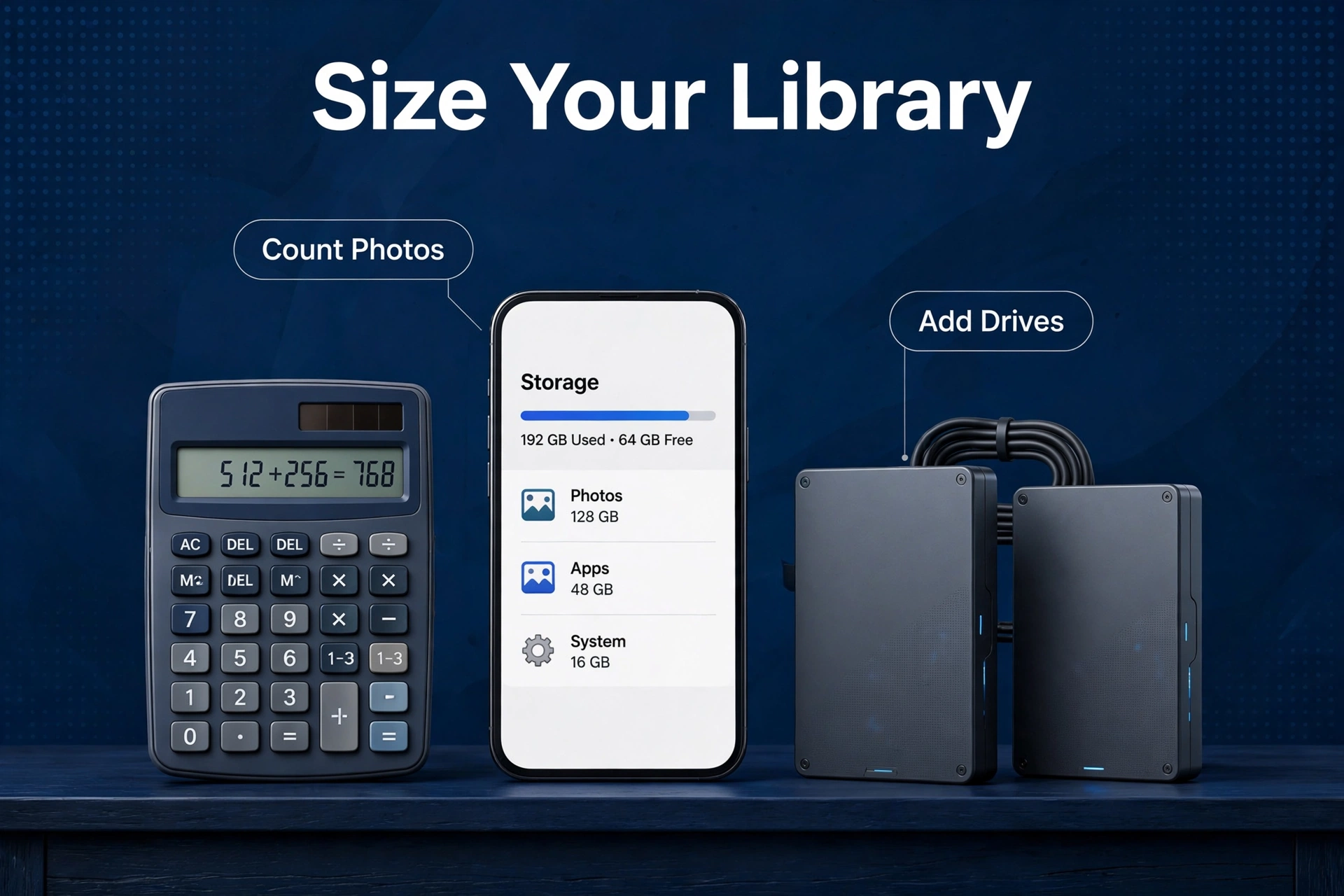
First, check your current library size. Nevertheless, phone settings show camera-roll storage. In fact, add computer photo folders and any cloud usage. Total it. Moreover, don’t estimate from memory — it lies. Also, my “about 2TB” was nearly 4. Next, estimate yearly growth. First, a photo-heavy family easily adds 100–300GB a year these days — more with 4K video, and video is the real hog. Be honest. Then add margin anyway, because you’ll still underestimate.
Then multiply by five years, and double it. As a result, five years of growth, doubled, equals your target usable capacity. In contrast, storage needs always outrun estimates. Every photographer, every family, every time. Nobody ever bought too much storage. Nobody.
And don’t forget RAID overhead. Similarly, two drives in RAID 1 give you one drive’s worth of usable space. In fact, the other drive is your safety net, not extra room. Size for usable space after RAID, not raw capacity. This is where people get burned, every time.
Concrete example, so it’s not abstract: a family starting at 1TB today with normal growth should think in terms of 6–8TB usable. That’s two 8TB drives in RAID 1 — or a 4-bay with room to expand later on. Our best NAS hard drives guide covers exactly which drives to buy (spoiler: CMR only — and yes, it explains why).
Setting Up Phone Auto-Backup That Actually Works
Best NAS in the world means nothing if the photos never leave the phone. This step decides whether the whole project succeeds or becomes an expensive paperweight. Here’s the walkthrough.
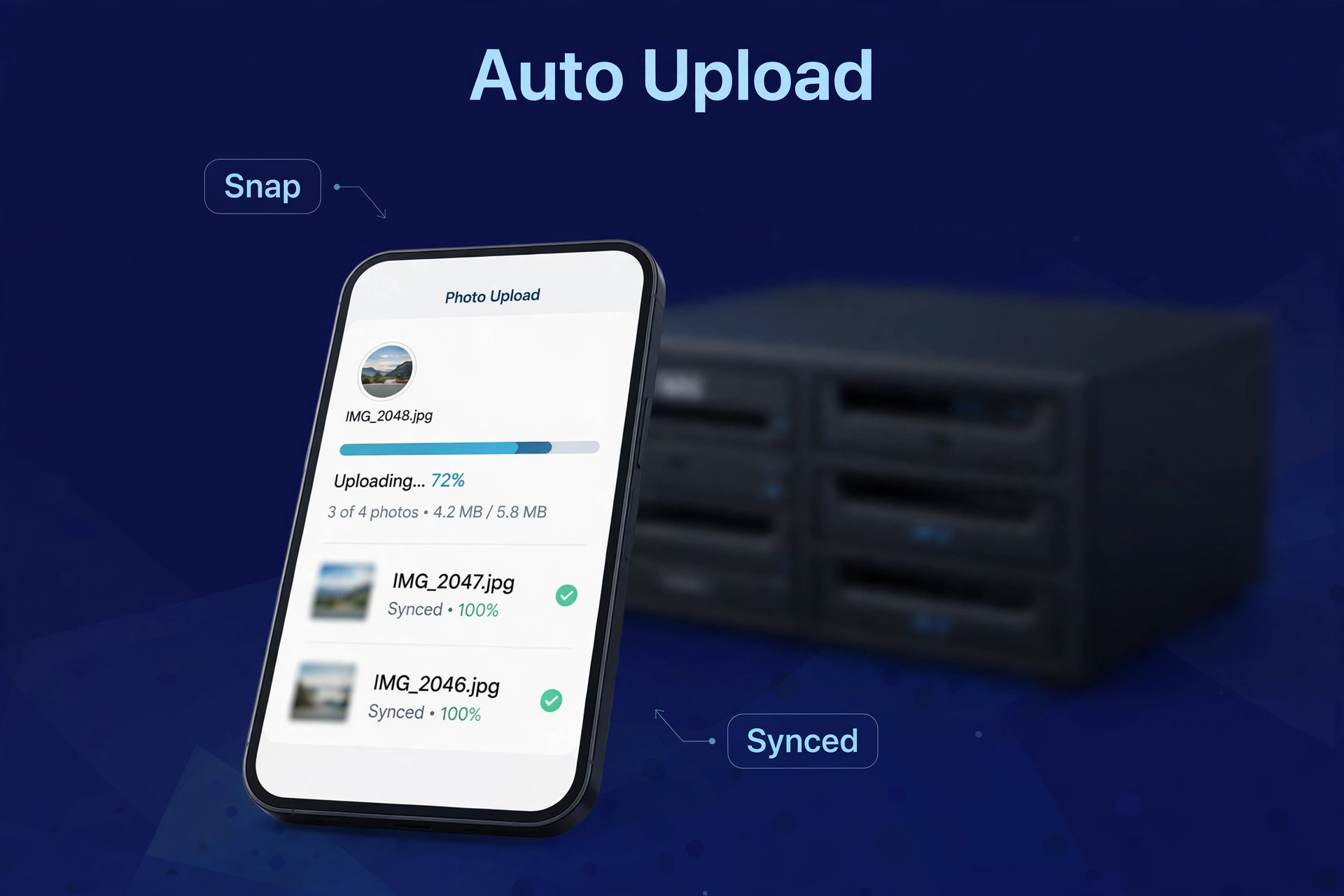
Step one — install the photo app on every family member’s phone. Specifically, every. However, single. For example, one. Enable camera-roll backup over Wi-Fi. Do everyone in one sitting — the stragglers are the ones whose photos die with a dead phone six months later.
Step two — Wi-Fi only, plugged in if possible. The first backup of a full camera roll is massive — gigabytes upon gigabytes. In addition, let it run overnight on the charger. Don’t try to rush it.
Step three — include videos. They’re the storage hogs and the most irreplaceable memories you’ve got — first steps, birthdays, the dog being ridiculous. Furthermore, confirm video backup is on, not just photos. This setting gets missed constantly.
Step four — use shared spaces for family albums. Moreover, personal backup plus a shared family space: birthday photos from four phones land in one album by themselves.
And step five — don’t wipe the phone right away. Let the NAS backup run a few weeks first. Verify the photos are actually there. Then free up phone space with confidence. The photos are irreplaceable; the phone storage is not.
Don’t Forget: Back Up the Backup
Your photo NAS is now the thing you can’t lose — which means it needs its own backup — non-negotiable for a photo library, and the step most people skip because the NAS feels safe. 3-2-1 rule: three copies, two media types, one offsite. In practice: a USB drive on the NAS plus a small cloud plan for the irreplaceable core. That’s the whole formula. Not complicated, just disciplined.
Read our full guide on how to back up your NAS before calling the job done. And the mantra, one more time, because it bears repeating until it’s instinct: RAID is not a backup. It never was. It never will be.
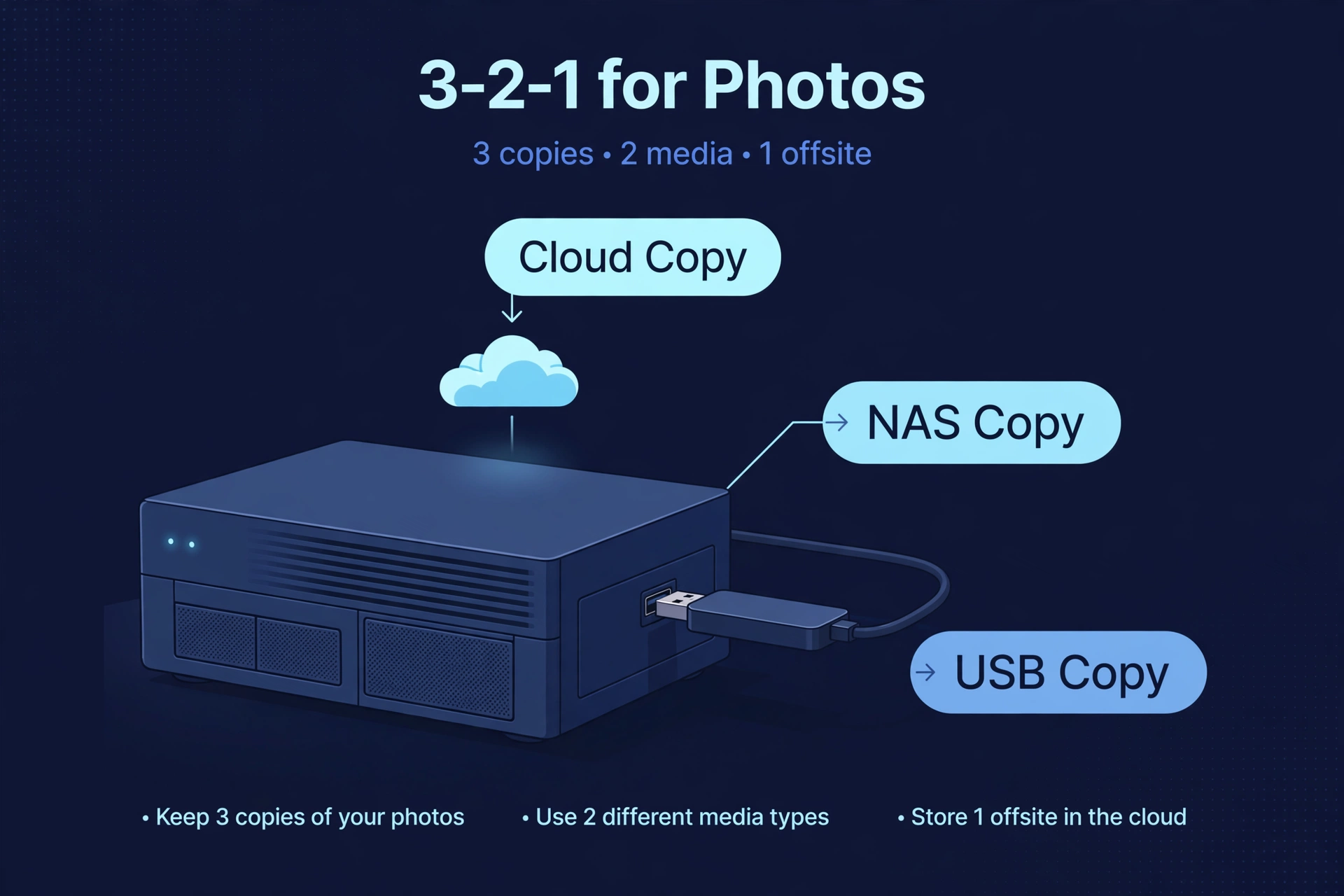
Photo NAS Mistakes to Avoid
Buying too small. That’s the #1 regret, and it’s not close. Photo libraries grow relentlessly — 4K video made sure of that. Buy headroom. Then buy a little more headroom. It’s that important.
Then there’s skipping the phone setup. Also, an unconfigured app means an empty NAS. Set up every family member’s phone on day one — no exceptions, no “I’ll do it later.” Later never comes.
Drive choice matters more than people think. First, photo indexing hammers drives with sustained writes — exactly where cheap drives fall apart. Second, sMR or desktop drives will let you down sooner or later; CMR NAS drives only. This is not the place to save $20. Skip two coffees and buy the right drive.
And the big one people skip: no offsite copy. Finally, a NAS survives drive failure, not fire or theft. Meanwhile, the family archive — the irreplaceable stuff — deserves an offsite copy. Nevertheless, full stop. No debate. I’ve never once regretted having one.
Finally: ignoring duplicates. Years of phone backups breed mountains of duplicates and screenshots. Thousands of them. Most photo apps have duplicate detection — run it after every migration, or drown slowly.

Do You Need SSD Cache for a Photo Library?
Lots of NAS boxes have M.2 slots for SSD caching, and the marketing makes it sound essential. Revolutionary! Game-changing! For photo backup? Usually not. But the exceptions are worth knowing, because they’re real.
What SSD cache actually does: parks frequently-accessed small files on fast flash so browsing feels snappier. In fact, what photo backup mostly involves: writing big files once (the backup itself), reading them occasionally (browsing). As a result, thumbnails and the face-recognition database benefit most — with cache, scrolling a 50,000-photo timeline feels noticeably smoother. The marketing oversells; the reality is “nice, not necessary.”
Our take: skip it initially. Get the NAS running on good hard drives, and add cache SSDs only if browsing feels sluggish. Most families never feel the need. Photographers scrolling huge RAW libraries are the exception — a modest read cache helps when thumbnail grids drag. It’s an add-later upgrade, so deferring is safe. One caution: don’t use SSD cache as a stand-in for adequate RAM. Cache helps. It isn’t magic.
Keeping the Library Tidy After Setup
The unglamorous truth: a photo NAS wants occasional housekeeping, or it quietly becomes a digital attic. Not a fun attic — a “80,000 unsorted photos” attic. A twice-yearly tidy-up keeps it actually usable, and it’s less work than it sounds.
After any big import or migration, run duplicate detection. In contrast, years of phone backups and cloud exports create shocking duplication. Then delete the screenshots — screenshots, memes, accidental pocket photos. A surprising chunk of the average camera roll is junk, and most apps filter by media type, so purge in bulk. Satisfying, honestly.
Name your people. Similarly, face recognition finds the faces; naming them is your job. Specifically, twenty minutes on the regulars, and every future search gets better. Then curate, don’t hoard. Keep everything — storage is cheap — but star the genuinely good shots. Future you says thanks.
And the most important, easiest-to-skip item: twice a year, confirm the NAS backup ran and the offsite copy is current. However, five minutes. For example, don’t skip it.
An hour or two, twice a year — that’s the whole cost. The alternative is what most people have right now: 80,000 unsorted photos nobody ever opens. A little curation is the difference between an archive and a treasure chest. Which one do you want to hand the grandkids someday? Exactly.
Frequently Asked Questions
How much storage do I need for family photos?
The formula: measure your current library, add yearly growth, plan five years out, then double it. A typical photo-heavy family should target 6–8TB usable today — usually two 8TB drives in RAID 1, or a 4-bay NAS with expansion room. When in doubt, buy bigger than the math says. The math is always optimistic.
Is a NAS better than Google Photos for backup?
For ownership and long-term cost: yes — no subscription, no caps, data stays home. For AI search and zero maintenance: Google Photos still leads, and it’s not close on the AI front. Lots of families run both — NAS as the primary archive, a small cloud plan as offsite backup. Best of both, honestly.
Can I edit Lightroom photos directly from a NAS?
Yes, with caveats. Keep the Lightroom catalog file on fast local storage (SSD); park the RAW image files on the NAS. That combo works well over a wired connection. RAW editing over Wi-Fi? Noticeably slower — wire the workstation if you’re serious about it.
Do I need a 4-bay NAS just for photos?
Not necessarily. A 2-bay handles backup, organization, and sharing for most families just fine. Go 4-bay if the library’s already large, you shoot lots of video, or you want an expansion path that doesn’t involve replacing drives. It’s about the future, not today.
How do I organize 50,000 photos on a NAS?
Let the app do the heavy lifting — automatic timeline, face recognition, smart albums cover most of it. Then a simple year-based folder structure for the rest, duplicate detection after big migrations, tags on the important events. Don’t hand-organize everything. You’ll quit by March. Everyone does. The robots are better at this than you.
What happens to my photos if the NAS breaks?
Drive fails? RAID keeps you running while you swap it. Enclosure dies? The drives — and your photos — are usually recoverable in a replacement unit. But neither replaces a real backup. Offsite copy of irreplaceable photos, always. No exceptions.
Should kids’ phones back up to the family NAS too?
Absolutely — kids’ phones are the most loss-prone devices in any house. Auto-backup on their phones, private space plus shared family albums. Highest-value backup you’ll ever configure, and it takes ten minutes. Do it today.
