

Nothing kills the excitement of a new smart home gadget faster than a “couldn’t add device” message after five minutes of watching a spinning wheel. If you’re looking for a matter pairing failed fix, you’re in the right place — this guide walks you through every common error, one by one, with the exact steps that actually work.
Matter was supposed to make smart home setup dead simple: one standard, every brand, scan a code, done. And honestly, when it works, it really is that easy. But when it doesn’t, the error messages are vague and the real cause is almost never what the message says.
Here’s the reassuring part: nearly every Matter pairing failure comes down to a short list of root causes — Bluetooth timing, Wi-Fi band mix-ups, a missing Thread border router, blocked network traffic, or a device still attached to an old home. Once you know what to look for, most fixes take less than ten minutes.
In this complete troubleshooting guide, we’ll cover the eight errors people run into most often, with a concrete fix for each one. And if you’re still fuzzy on what Matter and Thread even are, start with our beginner’s guide to Matter and Thread first — it’ll make everything below click much faster.
Before You Troubleshoot: The 5-Minute Checklist
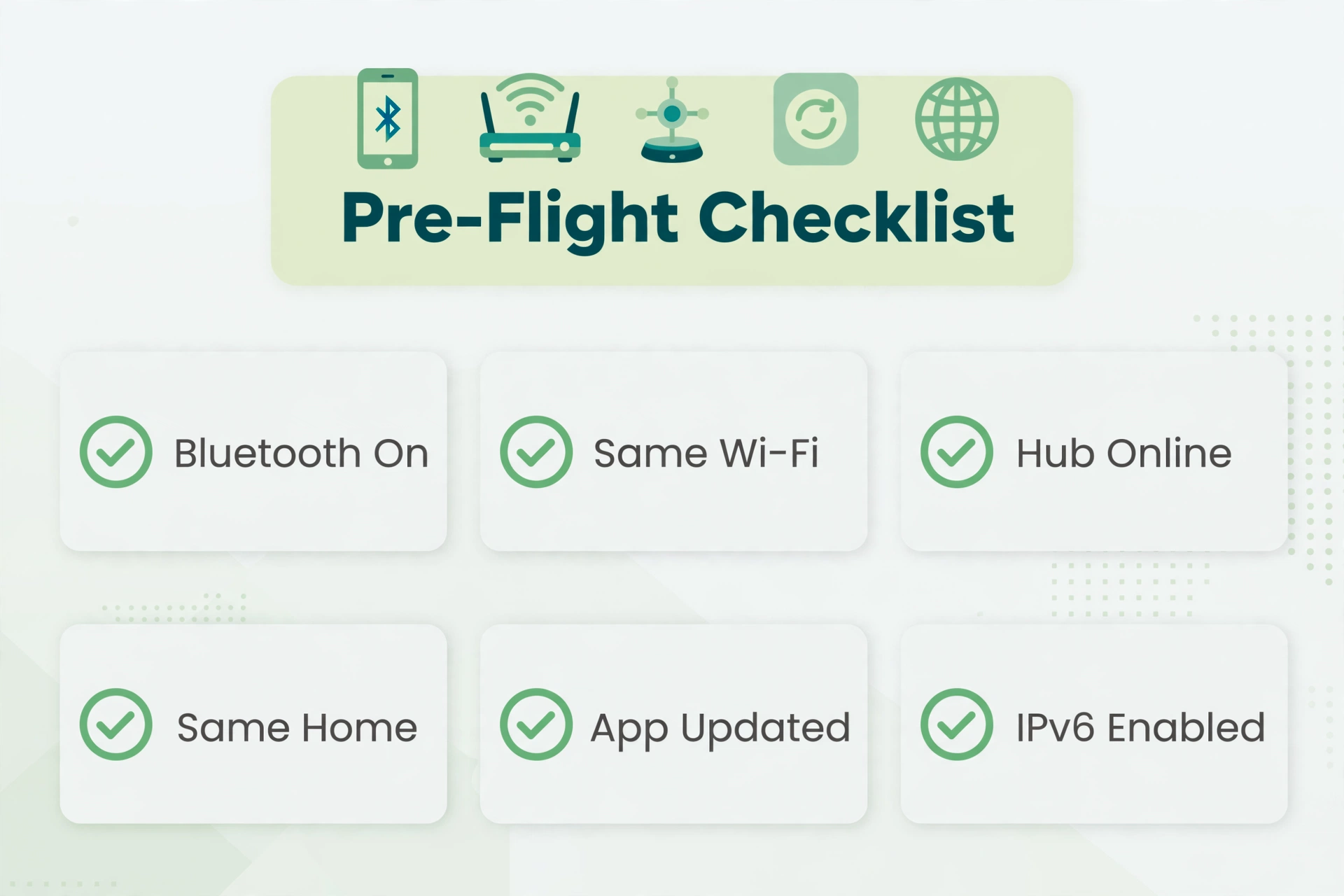
First things first: about half of all pairing headaches disappear once you rule out the basics. This checklist takes five minutes and saves you an hour of frustration.
- Your phone’s Bluetooth is turned on, and you’re standing within a few feet of the device.
- For Wi-Fi Matter devices: your phone and the device are on the same Wi-Fi network.
- Your smart home hub (or border router) is plugged in, powered on, and online.
- Your phone and hub are signed into the same home in your controller app.
- Your controller app and the device firmware are both updated to the latest version.
- IPv6 is enabled on your router (Matter needs it — more on this later).
Got all of that? Good. If pairing still fails, the problem is specific — and the next section will help you pin it down.
How Matter Pairing Actually Works (The 60-Second Version)
To fix pairing, it helps to know what’s supposed to happen. Matter pairing — officially called “commissioning” — runs in three quick phases:
- Bluetooth handshake. Your phone connects to the device over Bluetooth Low Energy and exchanges security keys. This step has to happen within a short window after the device powers on.
- Network handoff. Your phone passes your Wi-Fi credentials (or Thread network info) to the device, so it can join your home network.
- Fabric joining. The device is registered into your smart home “fabric” — Matter’s word for the secure network of devices your home controls.
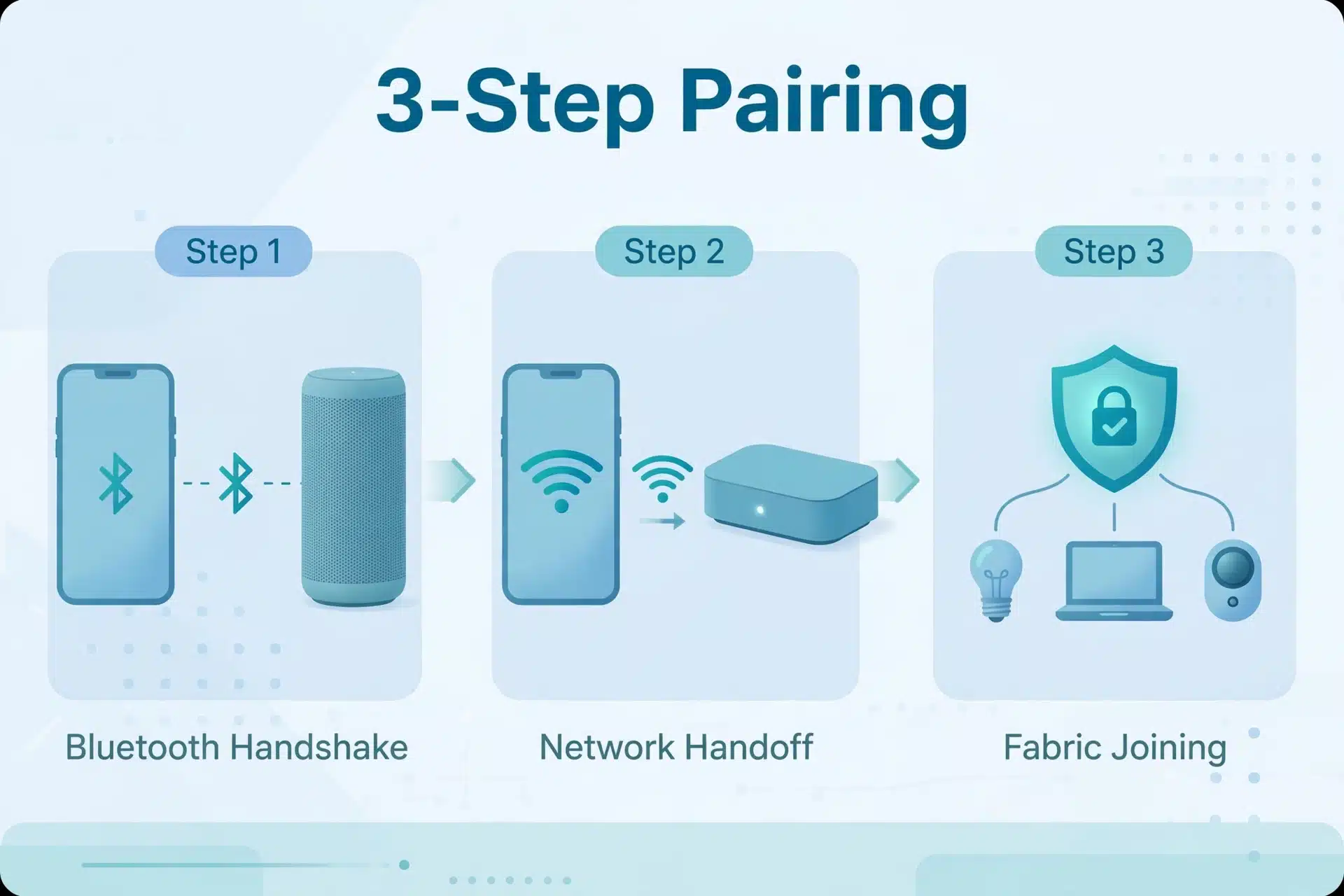
When you see a “matter pairing failed” message, one of those three phases broke. Each error below tells you exactly which phase failed and how to fix it.
Matter Pairing Failed? Fix These 8 Common Errors
Work through these in order — most people find their answer in the first three.
1. “Couldn’t Add Device” / Commissioning Failed
This is the vaguest error in the bunch — the app spins, thinks, then gives up. It usually means the Bluetooth handshake started but the network handoff stalled, often because the device is too far from your phone or your hub glitched mid-process.
Here’s the fix that works most often:
- Force-close your controller app completely, then reopen it.
- Move your phone within 3 feet (about 1 meter) of the device.
- Power-cycle your smart home hub — unplug it for 30 seconds, then plug it back in.
- Put the device back into pairing mode (usually a long press on its setup button — check the manual).
- Try pairing again, slowly this time. Rushing through the steps is a genuine cause of failures.
If you’re setting up with Google Home, Google’s official Matter setup guide walks through the same flow with screenshots — handy if you want a second reference.
2. Bluetooth Pairing Window Expired
Matter devices only advertise themselves over Bluetooth for a short time after powering on — typically about 15 minutes. After that window closes, your phone can’t see the device at all, and pairing fails before it even starts. This one bites people who unbox a device, get distracted, and come back half an hour later.
The fix is simple — you just need to reopen the window:
- Power the device off, wait 10 seconds, and power it back on.
- If it still doesn’t appear, factory-reset it: most devices use a long press (10–20 seconds) on the setup button. Check your manual for the exact gesture.
- Start pairing on your phone within a couple of minutes of the device powering up.
- Keep your phone close to the device the entire time — don’t wander off mid-handshake.
Think of it like a door that only stays open for 15 minutes. If you miss it, you just ring the bell again.
3. Thread Network Not Found
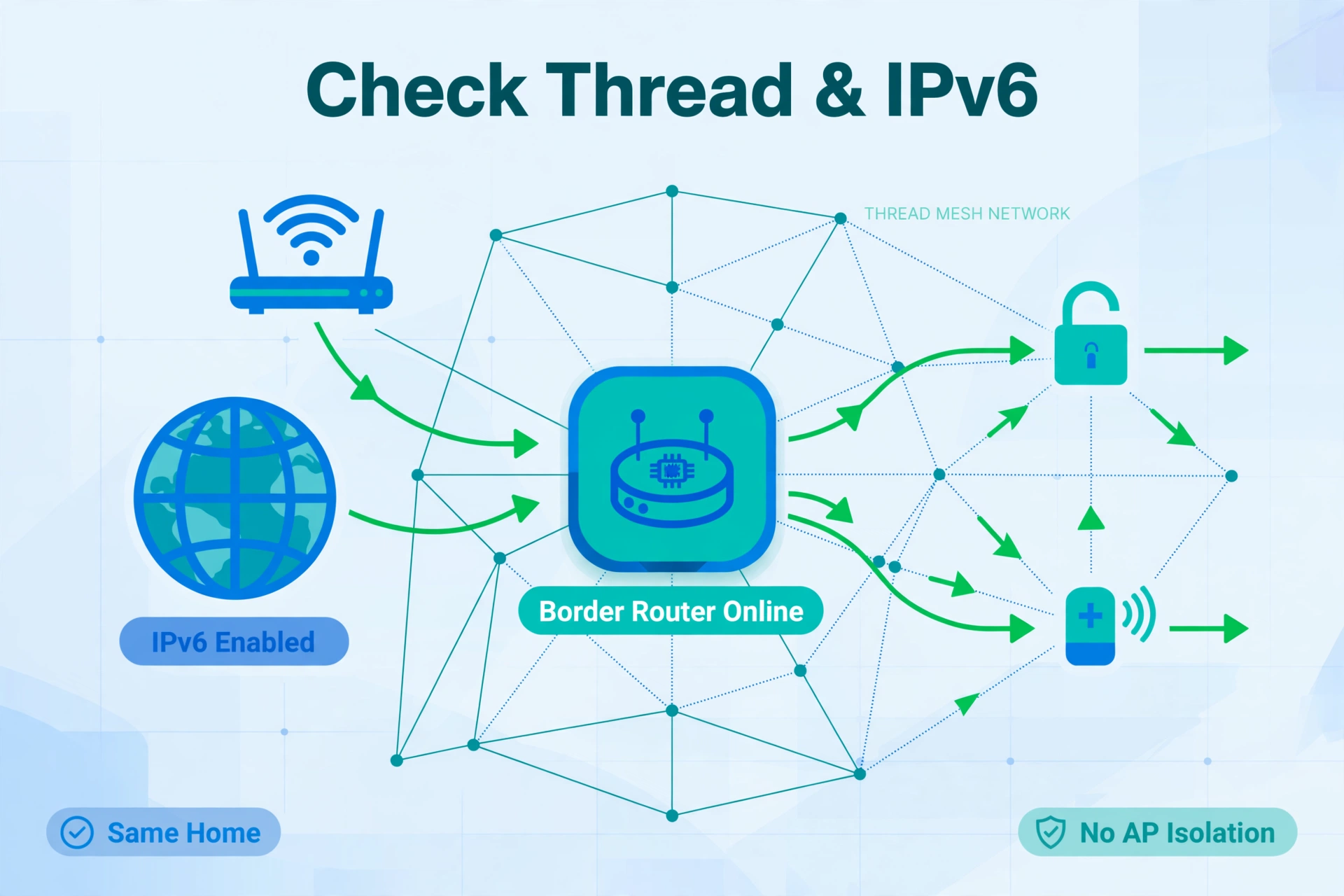
If your device uses Thread (many sensors, locks, and Eve- or Nanoleaf-style gadgets do), your phone can’t talk to it directly — it needs a Thread border router to bridge Thread to your Wi-Fi network. No border router, no pairing.
So if pairing fails with a “Thread network not found” or border-router-style message, do this:
- Confirm you actually own a Thread border router, and that it’s powered on and online.
- Check that the border router is signed into the same home as your controller app.
- If you’re building a Thread setup from scratch, see our roundup of the best Thread border routers to pick one that fits your ecosystem.
- Place the border router within reasonable range of the device — Thread is a mesh, but the first hop still matters.
- Try pairing again. Thread devices usually join within a minute once a router is reachable.
4. Wrong Fabric (Your Device Joined the Wrong Home)
In Matter-speak, a “fabric” is the secure home network a device belongs to — basically, which home controls it. If you’ve ever paired the device before (even in a different app, or at a previous address), it may still be holding onto its old fabric. New pairing attempts then fail because the device thinks it already has an owner.
Here’s how to sort it out:
- Open the old controller app and remove the device from there first.
- If you can’t access the old app anymore, factory-reset the device to wipe all fabrics.
- Confirm the reset worked — the device should blink, pulse, or announce it’s in pairing mode.
- Pair fresh in your current app, and double-check you’re adding it to the right home if your app manages more than one.
5. IPv6 or Multicast Blocked on Your Network
Here’s the nerdy one — but it’s more common than you’d think. Matter runs on IPv6 and uses multicast discovery (mDNS) to find devices on your network. Some routers ship with IPv6 disabled, and guest networks or “AP isolation” features block device-to-device chatter. The result: your phone and the device are on the same Wi-Fi in name, but they can’t actually see each other.
To fix it:
- Log in to your router’s admin page and make sure IPv6 is enabled.
- Turn off AP isolation (sometimes called “client isolation”) if your router has it.
- Make sure your phone isn’t on a guest network — guest networks are usually walled off from your smart home devices.
- Confirm your phone, hub, and device are all on the same subnet, not split across VLANs.
- Restart your router, then try pairing again.
One reassurance: enabling IPv6 is perfectly safe on a home network — your router handles all of it quietly in the background.
6. Device Already Commissioned to Another Home
This is the cousin of the wrong-fabric problem, but it shows up differently: you bought a device secondhand, or you’re moving it from Apple Home to Google Home, and pairing fails instantly with an “already commissioned” style message. Matter devices accept only one commissioning admin at a time — the old admin has to let go first.
The fix:
- In the old ecosystem’s app, find the device and choose “remove” or “unpair.”
- Wait a full minute — the release isn’t always instant.
- If the old app is gone (new phone, sold hub), factory-reset the device instead.
- Start pairing in your new app. This time it should go through cleanly.
Pro tip: once a device is paired, you can share it to a second platform with a fresh pairing code — that’s Matter’s multi-admin feature. But the first pairing always needs a clean slate.
7. 2.4GHz vs 5GHz Wi-Fi Confusion
Almost every Matter-over-Wi-Fi device only speaks 2.4GHz. Meanwhile, your phone probably clings to the faster 5GHz band — and many modern routers use one network name for both bands (“band steering”). The device connects on 2.4GHz, your phone sits on 5GHz, discovery traffic gets lost between the bands, and pairing fails. Classic.
Fix it like this:
- Temporarily connect your phone to the 2.4GHz band — or temporarily disable the 5GHz band in your router settings.
- Move closer to your router during pairing. 2.4GHz reaches farther, but the handshake itself is pickier.
- Run the pairing process again while both devices are effectively on 2.4GHz.
- Once paired, move your phone back to 5GHz. The device stays happily on 2.4GHz — it doesn’t care.
This single issue accounts for a surprising share of “matter pairing failed” reports, so it’s always worth trying early.
8. Controller App Mismatch (Wrong App for Your Hub)
Matter is multi-platform, but the first pairing has to happen in the app that owns your hub. Pairing in the Alexa app when your border router lives in Apple Home, for example, fails because the app can’t find the Thread credentials or fabric it expects.
Here’s the rule of thumb:
- Commission the device in the ecosystem app that manages your hub or border router — Apple Home, Google Home, SmartThings, or the Home Assistant companion app.
- Complete the full setup in that app first: name the device, assign a room, confirm it responds.
- Only then generate a new Matter pairing code and add the device to a second platform.
- Home Assistant users: Home Assistant’s official Matter documentation covers commissioning step by step, including how to sync Thread credentials to your phone.
Quick-Reference: Error, Cause, and Fix
Bookmark this table. When pairing fails, find your error message, check the likely cause, and jump straight to the fix.
| Error Message | Most Likely Cause | Fastest Fix |
|---|---|---|
| “Couldn’t add device” | Bluetooth handshake stalled | Move phone close, reboot hub, retry |
| Pairing window expired | 15-minute window closed | Power-cycle, then pair quickly |
| Thread network not found | No border router online | Power on a border router in the same home |
| Wrong fabric / wrong home | Device holds an old fabric | Remove from old app or factory-reset |
| Device unreachable | IPv6 off or multicast blocked | Enable IPv6, disable AP isolation |
| Already commissioned | Old admin still attached | Unpair from old app or factory-reset |
| Device not found (Wi-Fi) | Phone on 5GHz, device on 2.4GHz | Pair with phone on 2.4GHz |
| App can’t finish setup | Wrong app for your hub | Commission in the hub’s own app first |
Tried Everything? The Last-Resort Playbook
Sometimes a stubborn device ignores every targeted fix. When that happens, reset the whole chain in order — it clears the transient glitches that individual fixes miss.
- Power-cycle everything in this exact order: router first, then hub/border router, then the device, then your phone. Let each one fully come back before moving to the next.
- Factory-reset the Matter device and confirm it enters pairing mode.
- Update firmware everywhere — the phone app, the hub, and the device itself if its manufacturer app offers updates.
- Try commissioning from a different phone or tablet. Occasionally the problem is a cranky Bluetooth stack on one specific device, not your smart home at all.
- Check the manufacturer’s support page for model-specific reset steps — a few devices hide their reset behind unusual button combos.
If it still won’t pair after all that, you’ve likely got a hardware fault or a genuine firmware bug. Time to contact the manufacturer while the device is still under warranty.
How to Prevent Matter Pairing Problems Next Time
A few habits make future pairings boring in the best possible way:
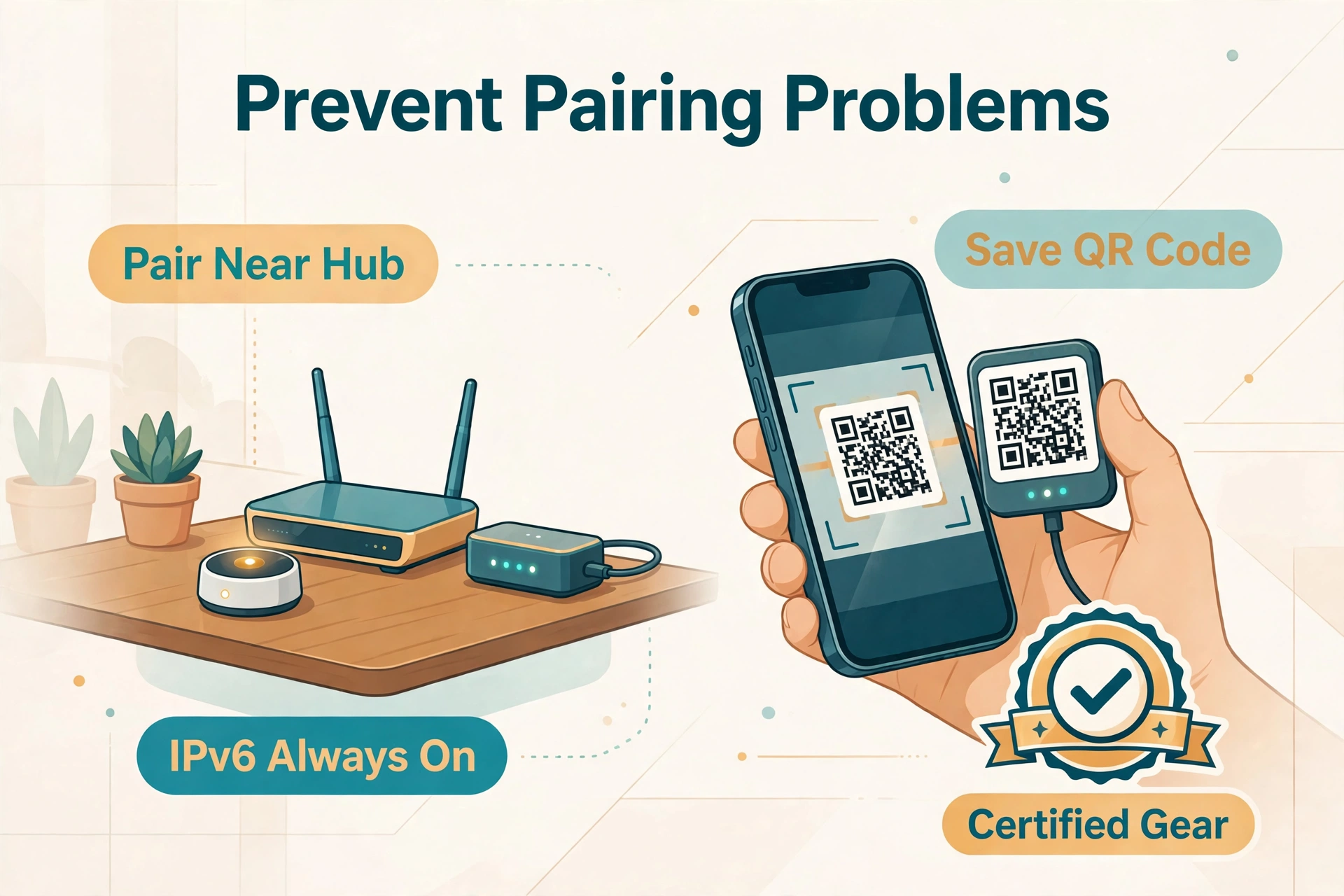
- Set up new devices near your router and hub, then move them to their final spot afterward.
- Keep a Thread border router powered on in every ecosystem you use — Thread devices can’t pair without one.
- Leave IPv6 enabled on your router permanently. There’s no downside on a home network.
- When shopping, stick to certified gear — our list of Matter-compatible smart home devices only includes devices that actually carry the Matter badge.
- Photograph each device’s Matter QR code and setup key before you mount it somewhere awkward. Future-you will be grateful.
Matter Pairing Failed Fix: Frequently Asked Questions
Why does Matter pairing fail at the very last step?
Late failures almost always mean the Bluetooth handshake worked but the network handoff didn’t — your phone drifted to 5GHz, IPv6 or multicast is blocked, or the Thread border router dropped offline mid-process. Run the checklist above, then revisit the IPv6, Thread, and Wi-Fi-band fixes.
Do I need a Thread border router to pair Matter devices?
Only for Thread-based devices. If your gadget is a Thread sensor, lock, or bulb, then yes — without a border router your phone can’t reach it and pairing fails. Wi-Fi Matter devices pair through your router and don’t need one.
How long does the Bluetooth pairing window stay open?
Around 15 minutes after the device powers on or is reset. After that it stops advertising over Bluetooth, so power-cycle or factory-reset to reopen the window — and start pairing promptly once the device is awake.
Can I pair a Matter device with two apps at the same time?
Not simultaneously — but one device can absolutely live in two apps. Commission it fully in the first app, then use multi-admin sharing to generate a fresh pairing code for the second. Finish the first pairing completely before starting the second.
Does Matter pairing need internet access?
Partly. The Bluetooth handshake and local commissioning work offline, but your controller app usually needs internet to verify the device’s certificate. If pairing stalls, make sure your phone has a working data connection.
The Bottom Line
Matter pairing failures feel mysterious, but they rarely are. Nine times out of ten, the culprit is one of the eight issues above. Work through them in order, and you’ll have that device responding in your app within the hour.
And if you’re still deciding which platform to build your smart home on, our guide to the best home automation system for your needs will help you pick an ecosystem before you buy your next gadget.
