

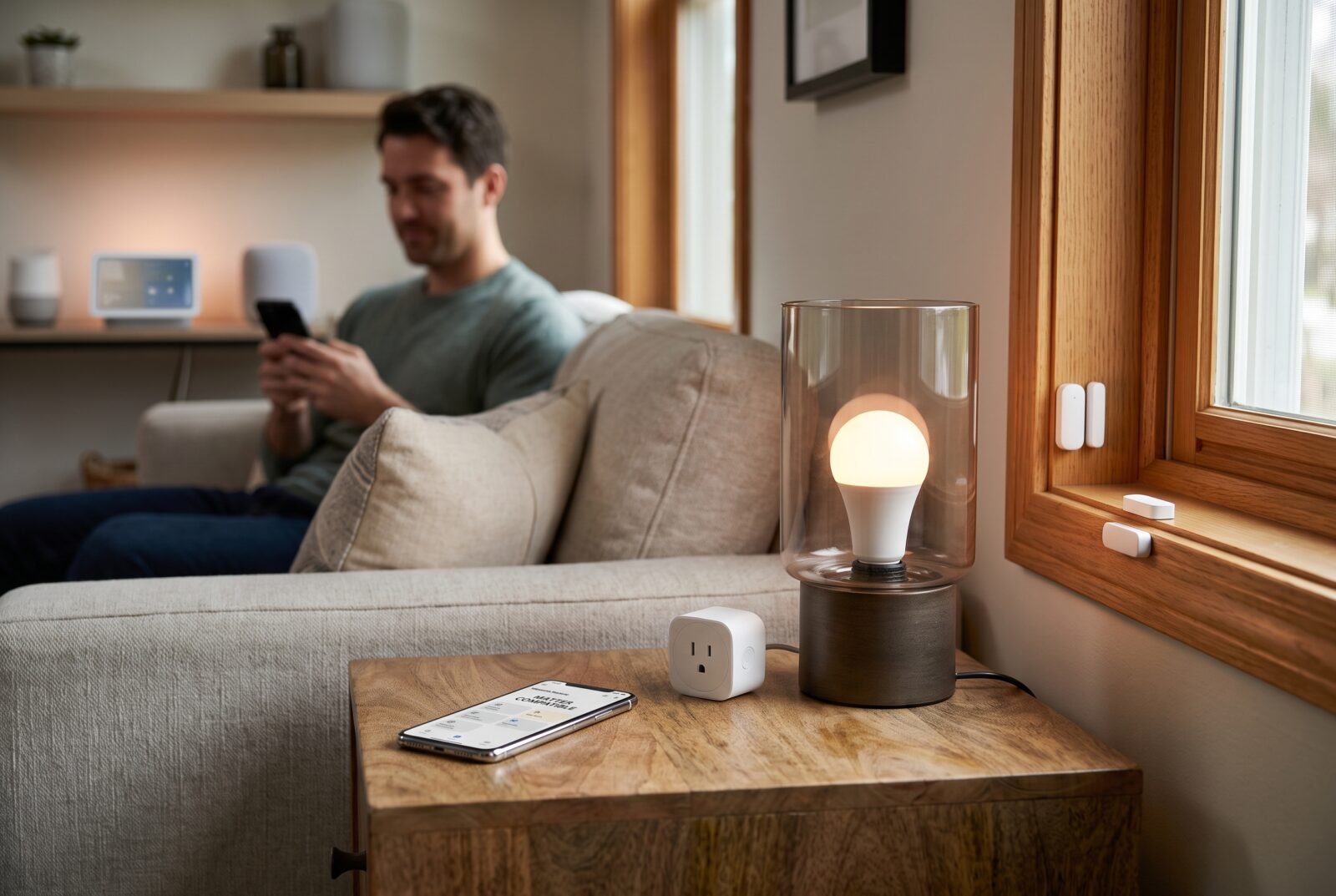
Buying a smart bulb should not mean choosing which phone everyone in your home must use. Matter compatible smart home devices help reduce that problem by giving supported products a common way to communicate with platforms such as Apple Home, Google Home, Amazon Alexa, and SmartThings.
Useful starting points include smart plugs, lights, and contact sensors. But the Matter logo does not guarantee that every feature will appear in every app. You still need to check the exact model, its connection method, and your platform’s support.
This guide explains which devices to consider, what equipment they need, and how to avoid paying for compatibility that does not deliver the experience you want.
What are Matter compatible smart home devices?
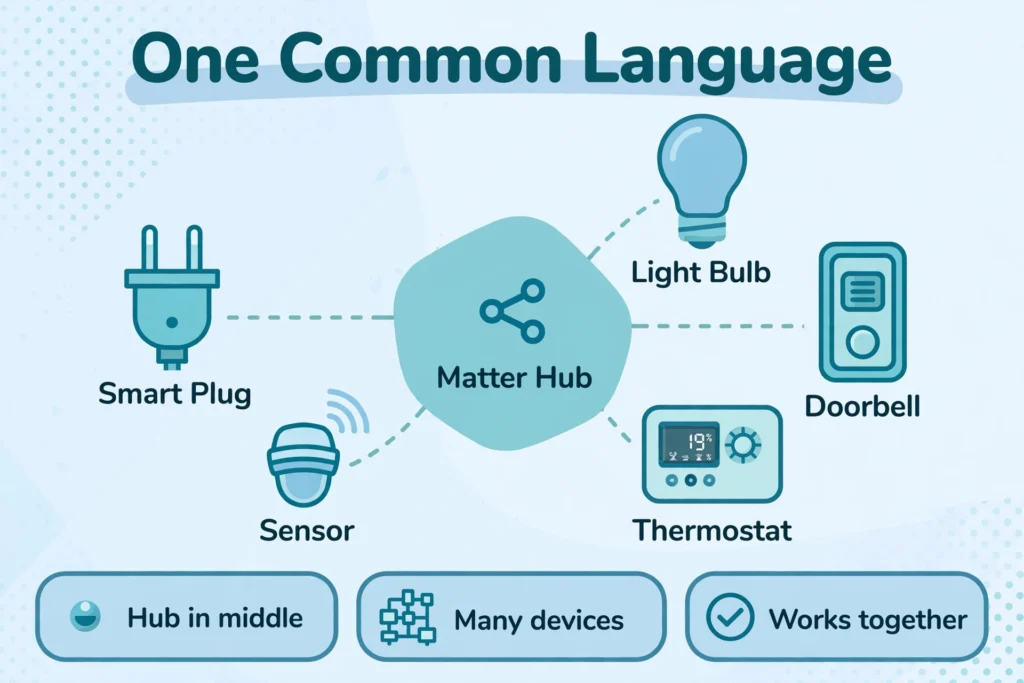
Matter compatible smart home devices use a shared communication standard to connect with supported smart home platforms. They can communicate over Wi-Fi, Ethernet, or Thread, depending on the product. Matter enables local control and cross-platform use, while available features still depend on the device, software, and controlling platform.
The Connectivity Standards Alliance’s Matter overview explains the standard’s focus on interoperability and local connectivity. In practical terms, you can choose compatible products from different brands without requiring a separate platform integration for each one. Smart Home Device Solution
However, Matter is not a complete replacement for a manufacturer’s software. A light may expose brightness and color controls through Matter while keeping special effects in its own app. Compatibility describes a working connection; it does not promise identical controls everywhere.
Matter compatible devices worth considering
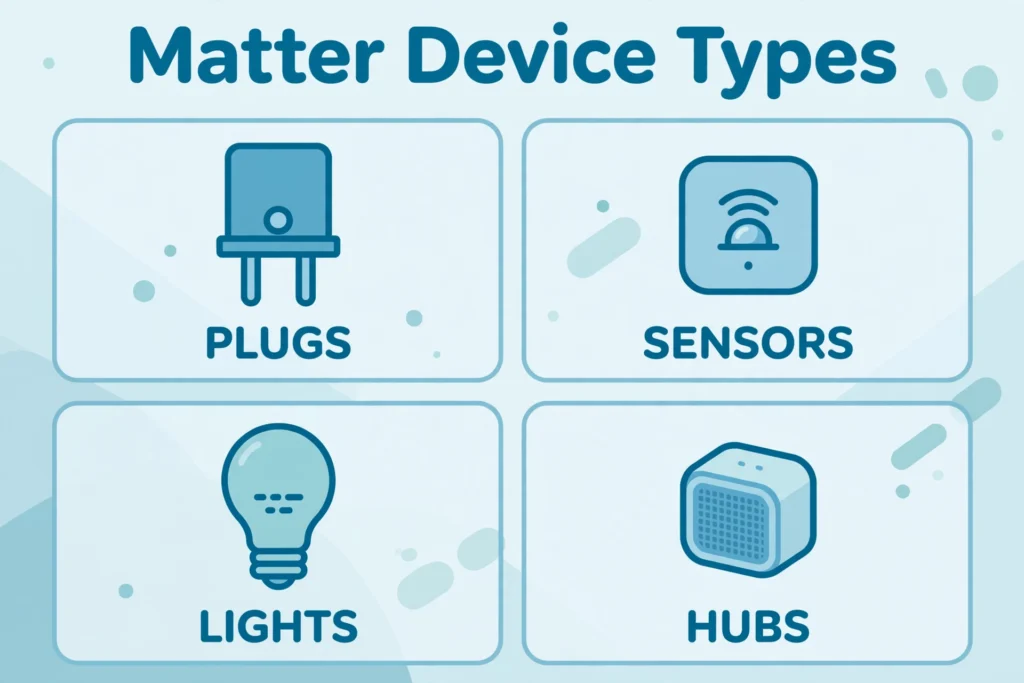
The following examples illustrate different ways to set up Matter. They are selected for their documented connection methods and practical uses, rather than a claim of hands-on performance testing. Availability, electrical specifications, and included features can differ by country and product generation.
Matter device examples compared.
| Device or setup | Matter connection | Useful starting point | Main check before buying |
|---|---|---|---|
| Tapo P110M | Wi-Fi | Switching a lamp or suitable plug-in appliance | Regional electrical rating and energy-data support |
| Matter-enabled Eve Energy | Thread | Smart plug control and extending a Thread mesh | Compatible controller and Thread border router |
| Aqara Door and Window Sensor P2 | Thread | Detecting whether a door or window is open | Sensor triggers supported by your chosen app |
| Nanoleaf Essentials Matter lights | Thread or Wi-Fi, depending on model | Bulbs and lightstrips for everyday lighting | Exact generation, connection type, and bulb fitting |
| Supported Hue lights through Hue Bridge | Bridged Matter connection | Keeping an existing Hue lighting setup | Bridge support and feature differences |
Tapo P110M: a Wi-Fi starting point
The Tapo P110M supports Matter over Wi-Fi and includes energy monitoring. The documented US model uses 2.4 GHz Wi-Fi, so check that your network supports the required band.
It is a sensible candidate if you want to start with a lamp without adding Thread equipment. Still, confirm whether your preferred platform displays the energy information you need; a product’s energy-monitoring feature does not by itself establish support in every connected app.
A smart plug controls the electricity supplied to an appliance. It does not automatically gain control over that appliance’s internal settings. A lamp with a physical switch is often a clearer starting point than a device that waits for a button press after power returns.
Eve Energy: a plug that also supports a Thread network
The Matter-enabled Eve Energy uses Thread. Eve also serves as a routing device, meaning it can relay traffic for other Thread accessories when powered.
This makes it worth considering when you already have compatible Thread infrastructure and plan to add sensors around the home. Check the regional model and Matter status, especially when buying older stock or second-hand equipment.
Compare the controls available through your preferred platform with those in the Eve app. Detailed history and additional settings deserve a separate check from basic on/off compatibility.
Aqara P2: open-and-closed detection
The Aqara Door and Window Sensor P2 supports Matter over Thread. Its core purpose is straightforward: reporting whether the two sensor components are together or separated.
For example, you could use a supported opening event to trigger a hallway light. Before buying, check whether your platform can use that sensor state in the automation you want. Aqara explicitly notes that automation conditions and functionality vary between ecosystems.
Also check the mounting arrangement. A technically compatible sensor is still a poor purchase if its magnet cannot align properly with your door frame.
Nanoleaf Essentials: check the connection on the exact box
Nanoleaf’s Matter range includes products using Wi-Fi and products using Thread. The company also makes clear that Matter support varies by product and generation.
That distinction matters when comparing similar-looking bulbs. Do not assume an older Thread-enabled light is a Matter light, or that every Essentials listing needs the same equipment.
Choose the correct fitting, brightness, white-light range, and dimming behavior first. Then confirm the networking requirements. A compatible bulb that produces the wrong light for your room will still be disappointing.
Philips Hue: an option for keeping existing lights
Supported Hue lights can connect to Matter platforms through a Hue Bridge. This is useful if you already own a working Hue system and want to connect it to another platform.
The Hue Matter compatibility page documents bridge support and exceptions, including the Play HDMI sync box and the dial function on the Tap dial switch. Check those details before replacing an existing integration.
A bridged setup does not require every connected light to become a native Matter device. The bridge handles the connection, which can make retaining existing equipment more practical than replacing it.
Which other device categories support Matter?
Matter extends beyond plugs and bulbs. Supported categories include locks, thermostats, window coverings, and various sensors. Later versions have expanded into products such as robot vacuums and household appliances, but platform implementation varies.
For instance, Google’s supported-device documentation lists device categories and control support separately. That is a useful reminder to verify both the category and the operation you need. Recognizing a vacuum is not the same buying requirement as offering your preferred cleaning controls.
Cameras also require careful checking. Matter 1.5, released in November 2025, introduced camera support alongside updated closure controls, soil sensors, and expanded energy capabilities.
However, a specification release does not make an existing camera compatible or establish support in your chosen app. Check the exact camera’s shipping firmware and the platform’s camera documentation before purchasing. CSA-IOT
For an expensive appliance, prioritize its main job. Cleaning performance, repair options, dimensions, and warranty may matter more than whether it joins a particular smart home dashboard.
Matter, Thread, and Wi-Fi: what is the difference?
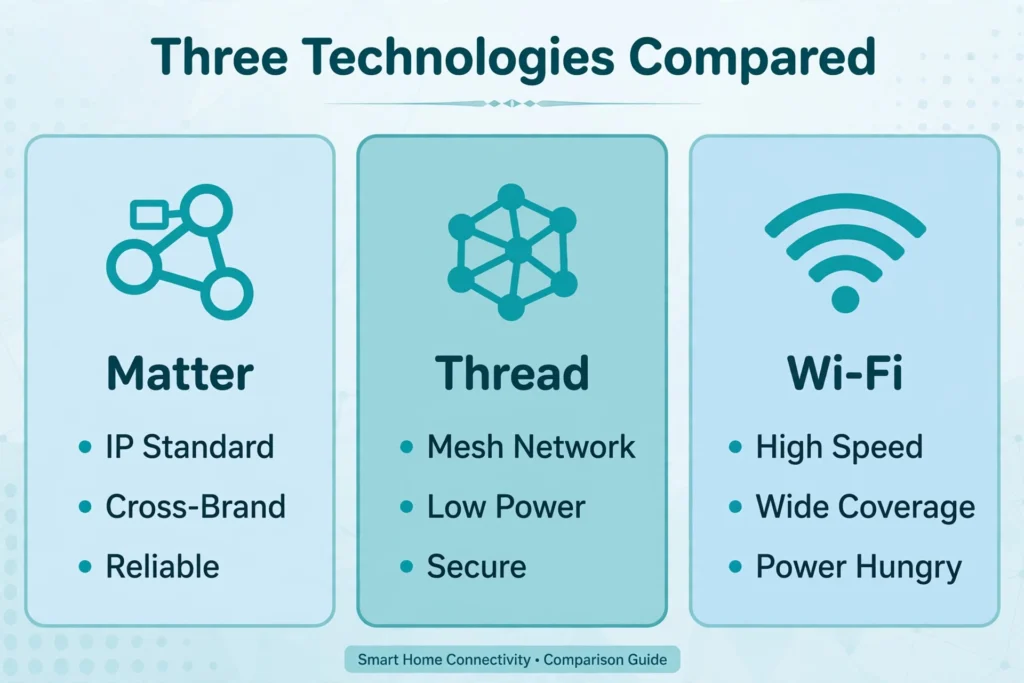
Matter defines how compatible devices exchange commands and information. Thread and Wi-Fi provide network connections over which that communication can travel. They serve different roles, so “Matter versus Thread” is not a direct choice between competing standards.
Thread is designed for low-power mesh networking. The Thread Group’s home-network explanation describes how it suits devices such as sensors and how a border router connects that network to other networks.
For buying purposes, the distinction is simple:
- Matter over Wi-Fi: uses your Wi-Fi network and does not require a Thread border router for that device.
- Matter over Thread: uses a Thread network; a typical whole-home setup needs a Thread border router.
- Matter through a bridge: lets supported devices behind that bridge appear in a Matter platform.
Bluetooth commonly helps with initial setup. Seeing Bluetooth listed does not mean it carries the device’s everyday Matter commands.
You can mix Wi-Fi and Thread devices in the same supported platform. There is no need to choose one connection method for every room.
Do you need a Matter hub?
The answer depends on the platform and how you want to use it. Start by separating two jobs: a Matter controller manages devices, while a Thread border router connects a Thread network to the rest of your home network. One product can perform both jobs.
Google Home requires a supported Matter hub. Its hub compatibility guide identifies which models also provide Thread border routing, including Nest Hub second generation, Nest Hub Max, and Nest Wifi Pro. A speaker that controls Wi-Fi Matter devices does not necessarily provide Thread support.
Apple has an exception to blanket hub requirements. Its Matter setup documentation says iPhones running iOS 18 or later can add and control Matter accessories without a home hub.
Compatible Thread-enabled iPhones can also support certain local Thread interactions, subject to accessory support. Apple still recommends a home hub for the best experience.
Before buying extra hardware, identify the exact speakers, displays, streamers, or hubs you already own. Check their model numbers against your platform’s requirements. This can prevent buying equipment you already have—or assuming a similar-looking model supplies a missing function.
How to choose devices that fit your home
Begin with a specific outcome: “turn this lamp off from bed” is a better brief than “make the bedroom smart.” It gives you a clear way to judge whether a product and its required equipment are worth buying.
Next, check these details:
- Exact model and current support. Look for documented Matter support on the product you will receive. Treat a promised future update as a promise, not an available feature.
- Your platform’s controls. Verify the particular action, sensor reading, or automation trigger you need.
- Required equipment. Include any controller, bridge, or Thread border router in the total cost.
- Physical and regional fit. Check voltage, socket or bulb fitting, dimensions, environmental rating, and applicable electrical approval.
- Support and returns. Review firmware support, warranty terms, and the return window so you can verify the complete setup at home.
For smart plugs, follow the model’s load limits and appliance restrictions. Do not assume a headline wattage makes it suitable for every motor or high-power appliance. The P110M specifications, for example, distinguish resistive-load and motor ratings.
Buy one device before outfitting every room. Give household members a chance to use it, including the ordinary physical controls. That small trial reveals practical problems a compatibility list cannot answer.
How to set up a Matter device
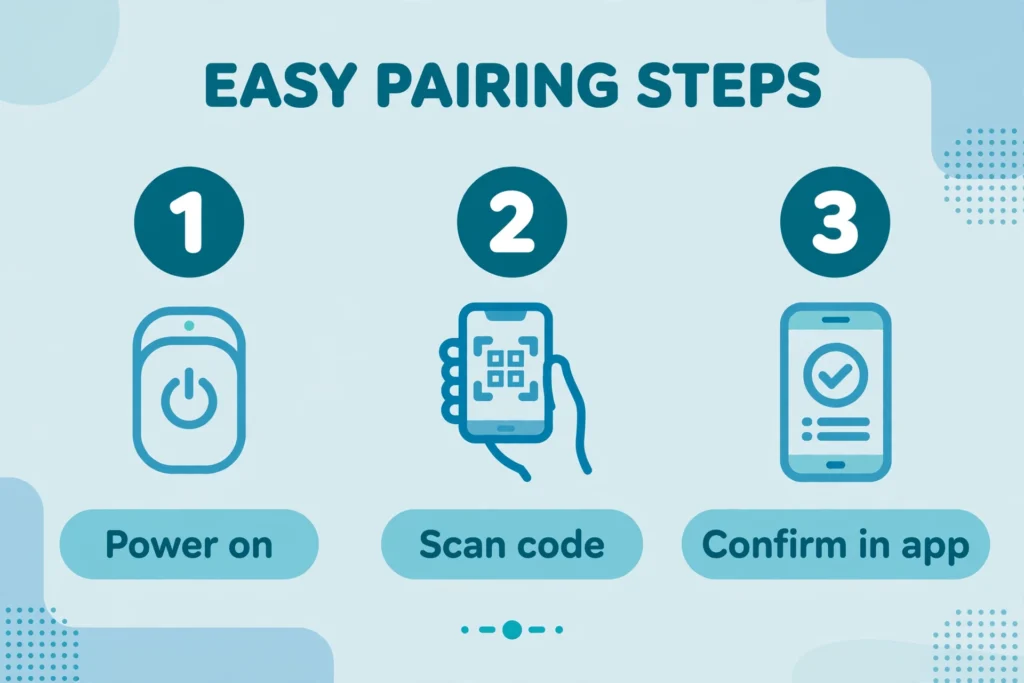
Follow the manufacturer’s instructions for the exact model, using this sequence as a general framework:
- Update the essentials. Install current phone, platform-app, hub, and device updates where available.
- Prepare the connection. Confirm that the required controller is ready and any necessary Thread border router is running.
- Enter pairing mode. Keep your phone nearby and enable the Bluetooth and local-network permissions requested by the setup app.
- Add the accessory. Scan its Matter QR code or use the available manual setup code, then follow the app’s prompts.
- Test the basic function. Confirm switching, dimming, or sensor reporting before creating several automations.
- Add another platform if needed. Use the existing platform’s sharing or pairing flow rather than immediately resetting the accessory.
Matter’s multi-admin feature allows a device to belong to multiple supported platforms. Each platform still needs its required infrastructure. Google’s Matter management instructions explain this sharing process.
Treat automations as something to configure and check in each platform. For example, avoid creating competing schedules that switch the same lamp on and off at nearly the same time.
What to check when pairing fails
Start with the simple causes: the accessory has left pairing mode, its battery is low, the phone is too far away, or the required hub is unavailable. If it already belongs to another platform, check the sharing instructions before trying its original code repeatedly.
Next, examine the network. Devices on an isolated guest network may be unable to reach the controller. Matter also relies on local IPv6 communication and multicast discovery; Home Assistant’s Matter troubleshooting guidance explains how network separation and filtering can disrupt discovery.
For Thread devices, check that the border router is powered and connected, then try setup closer to it. For Wi-Fi devices, verify the supported Wi-Fi band and password against the product instructions.
Change one thing at a time and retest. Save a factory reset for the manufacturer’s recommended recovery process, because it may mean rebuilding connections that were already working.
Frequently asked questions
Will Matter devices work when the internet goes down?
Matter supports local device control while the necessary home network and controller remain available. However, remote access, cloud services, and some voice functions can still depend on internet access. An internet outage is also different from a power outage that shuts down your router and hubs.
Does “Works with Alexa” mean a device supports Matter?
No. A device may work with Alexa through another integration. Look for explicit Matter support for the exact model rather than relying on a voice-assistant logo. Likewise, a Thread logo alone does not establish Matter compatibility.
Can I keep my existing non-Matter devices?
Yes. There is no need to replace a working setup simply to standardize every label. Supported bridges may bring some existing devices into Matter, while other products can continue using their current integrations. Check which functions a bridge exposes before changing anything.
Does Matter eliminate manufacturer apps and subscriptions?
Not necessarily. Basic Matter control can reduce dependence on separate apps, but setup, advanced settings, updates, or optional services may still involve a manufacturer. Check the specific feature you need instead of assuming the Matter badge removes every account or subscription requirement.
Start with one useful device
The best first purchase is a Matter compatible device that solves a clear problem using equipment you already own. A plug, bulb, or contact sensor gives you a manageable way to check setup, daily controls, and automation support. Expand once that complete experience works for your household.
