

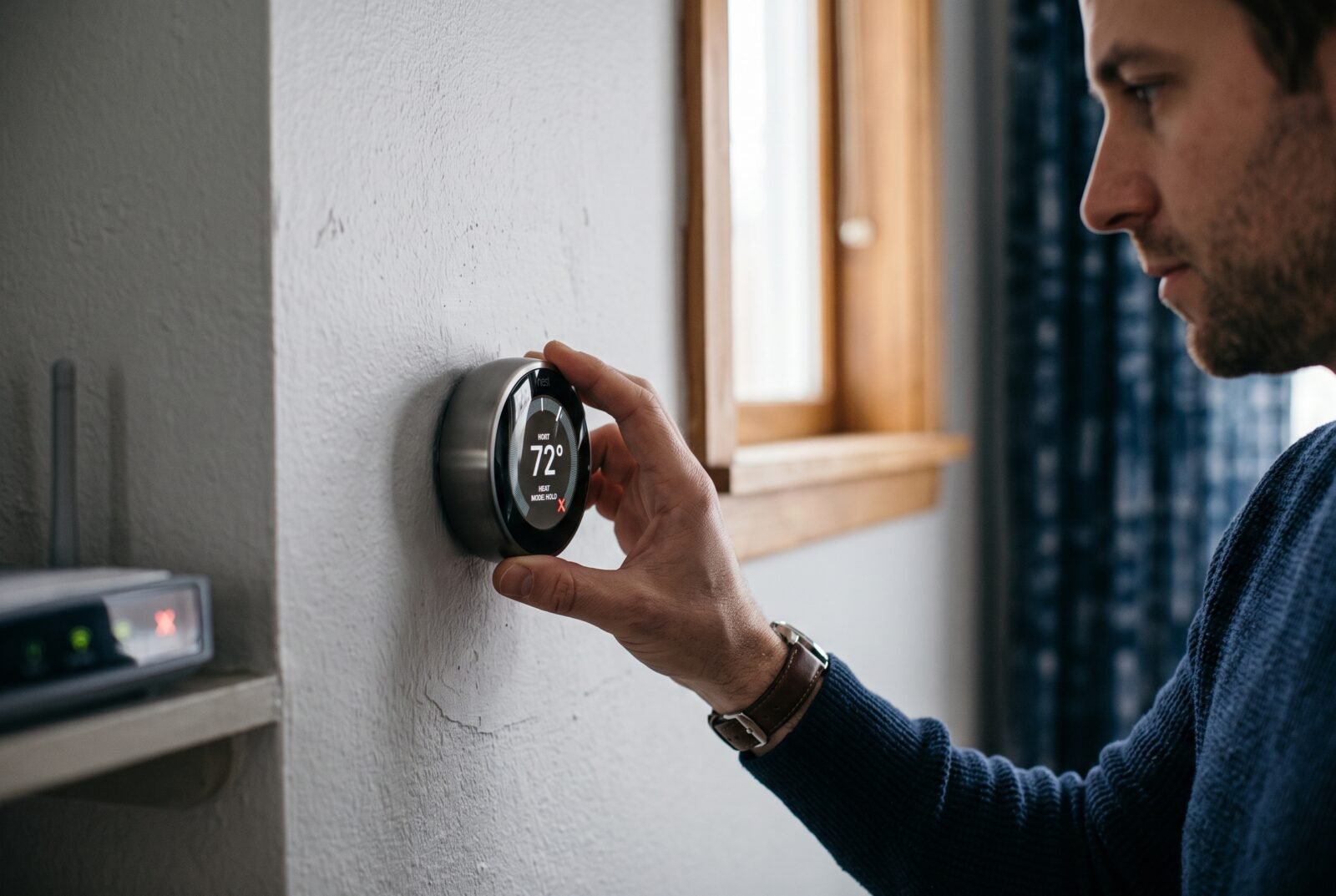
Yes, a Nest thermostat can work without Wi-Fi once it has been installed and configured. You can adjust the temperature on the device, and basic heating or cooling can continue. Losing internet access mainly affects connected features, including remote app control. First-time setup is a separate, model-specific question.
If your app says “offline,” start by checking the thermostat itself. A working display and responsive controls tell you something different from a blank screen or a power warning.
The answer also depends on which Nest you own. The Nest Thermostat, Nest Thermostat E, and different Nest Learning Thermostat generations do not share every setup method or scheduling option.
What happens when your Nest loses Wi-Fi?
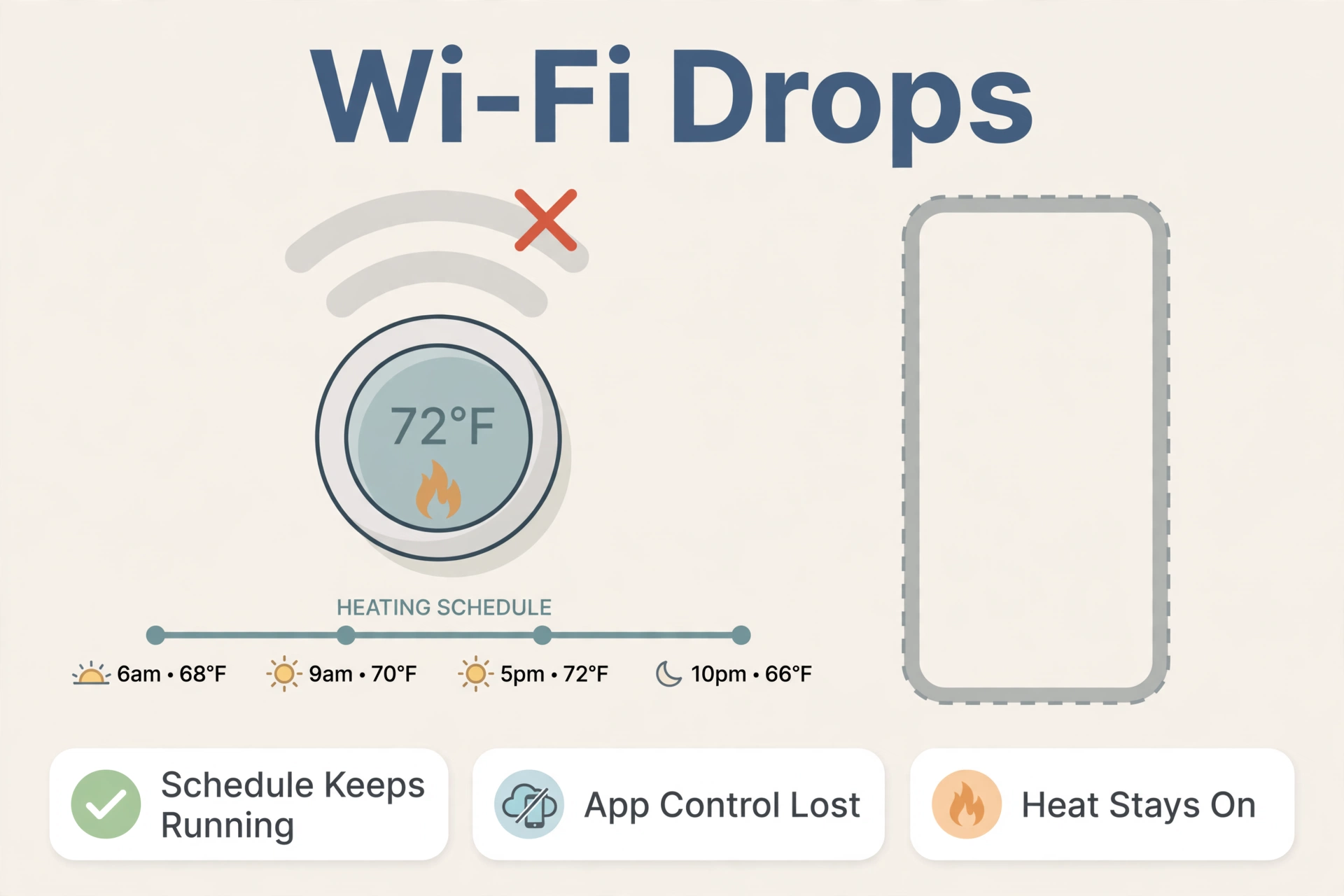
Your thermostat controls your home’s heating and cooling equipment locally. Its basic job does not require a constant stream of instructions from the internet.
For example, imagine your broadband connection fails during the evening. If the thermostat and heating system still have power and are working properly, you should be able to walk over and adjust the target temperature.
An existing temperature schedule can continue operating, too. However, continuing a saved schedule and editing that schedule are different functions. Some models let you change schedules on the thermostat; others use the app.
There are three separate situations to recognize:
- Wi-Fi failure: The thermostat cannot communicate with your router.
- Internet failure: Your router may still provide Wi-Fi, but the household connection to the internet has stopped.
- Power failure: The thermostat, heating equipment, cooling equipment, or several devices may have lost their electrical supply.
The first two affect connectivity. The third can stop temperature control altogether. A phone showing Wi-Fi bars does not prove that the home has internet access. Google Home and Nest Help
Which Nest features remain available offline?
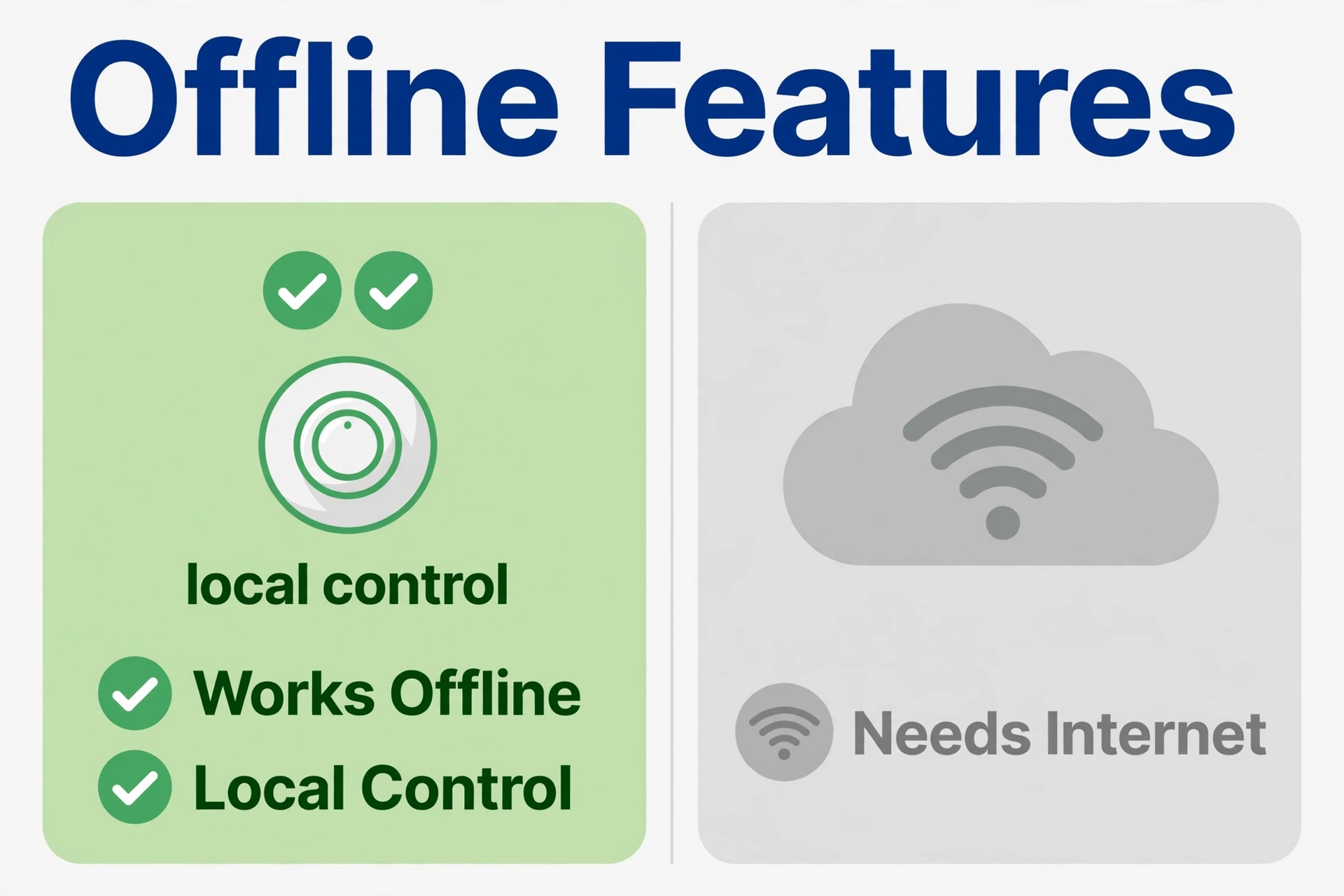
The most useful offline function is direct temperature control. Depending on your model and connected equipment, you can also select heating or cooling modes through the thermostat’s menus.
Use the physical controls appropriate to your device. Nest Learning Thermostats and Thermostat E use a ring, while the Nest Thermostat introduced in 2020 has a touch bar on its side. Do not assume an instruction to “turn the ring” applies to every Nest. Google Home and Nest Help
Features that communicate through an online service need more caution. Remote app commands, online notifications, and cloud-based integrations should not be treated as available during an outage. Restoring your phone’s mobile data does not restore the thermostat’s connection.
Saved schedules and schedule changes
A schedule already configured on the thermostat is useful when the internet drops. But if your routine changes while it remains offline, the model determines how easily you can update it.
What a Nest thermostat can still do without Wi-Fi, feature by feature
| Nest model | Scheduling consideration for offline use |
|---|---|
| Nest Learning Thermostat, 1st or 2nd generation | Existing schedules continue; schedules and other local settings remain accessible on the device. |
| Nest Learning Thermostat, 3rd generation | You can edit the temperature schedule directly on the thermostat. |
| Nest Thermostat E | You can edit the temperature schedule directly on the thermostat. |
| Nest Thermostat, 2020 model | Schedule editing uses the Google Home app. |
| Nest Learning Thermostat, 4th generation | Google documents schedule management through the Google Home app; do not assume older ring-based scheduling instructions apply. |
Google provides separate scheduling instructions for earlier Learning Thermostats and Thermostat E and for the Nest Thermostat and fourth-generation Learning Thermostat.
For an occasionally disconnected home, this difference may barely matter. For a property intended to stay offline, it can determine whether everyday scheduling is convenient or frustrating.
Safety Temperatures and alerts
Nest’s Safety Temperatures can call for heating or cooling when configured limits are reached, including while the home network is offline. The connected equipment must still be powered, compatible, and able to run.
The notification is separate from the protective action. Google states that Safety Temperature notifications require working Wi-Fi and internet at the time of the event.
Before leaving a property unattended, check the actual settings. Heating protection is enabled by default, while cooling protection is off by default for central air conditioning. Available options depend on the system and region.
These settings are a useful precaution, but they cannot repair a failed boiler, power a furnace during a blackout, or guarantee that every pipe or room remains safe.
Can you set up a Nest thermostat without Wi-Fi?
Sometimes, but “works offline” does not mean “every model can be installed without an app.”
An already configured thermostat has information about the equipment it controls. A new or factory-reset thermostat still needs the correct setup. Treat those as different starting points.
Older Learning Thermostats and Thermostat E
Earlier Nest Learning Thermostats offer setup questions on the thermostat itself. Google’s guidance for these models explains that an internet connection is not necessary simply to heat the home.
However, follow instructions for your exact model and region. In particular, do not assume all Nest Thermostat E installations have the same app requirements: regional versions and Heat Link arrangements differ.
If the setup flow allows you to continue without connecting, complete the equipment settings and system test. Skipping network setup is not permission to skip heating-system configuration.
Nest Thermostat and fourth-generation Learning Thermostat
Google specifies the Google Home app for setting up the Nest Thermostat and Nest Learning Thermostat, fourth generation. The standard consumer flow includes choosing a Wi-Fi network.
That makes “just install it and turn the dial” poor advice for these models. If the property has no broadband yet, arrange a suitable setup method before removing a working thermostat.
There is a documented professional exception for the Nest Thermostat: Google’s Pro Flow allows a registered Nest Pro to install it without the customer’s Wi-Fi, phone, or Google Account information. This still uses the installer’s Google Home app and Pro ID; it is not an app-free homeowner procedure. Google Nest Pro
If that sounds suitable, ask the installer to confirm support for the exact thermostat being fitted.
How to set up a Nest thermostat with fewer problems
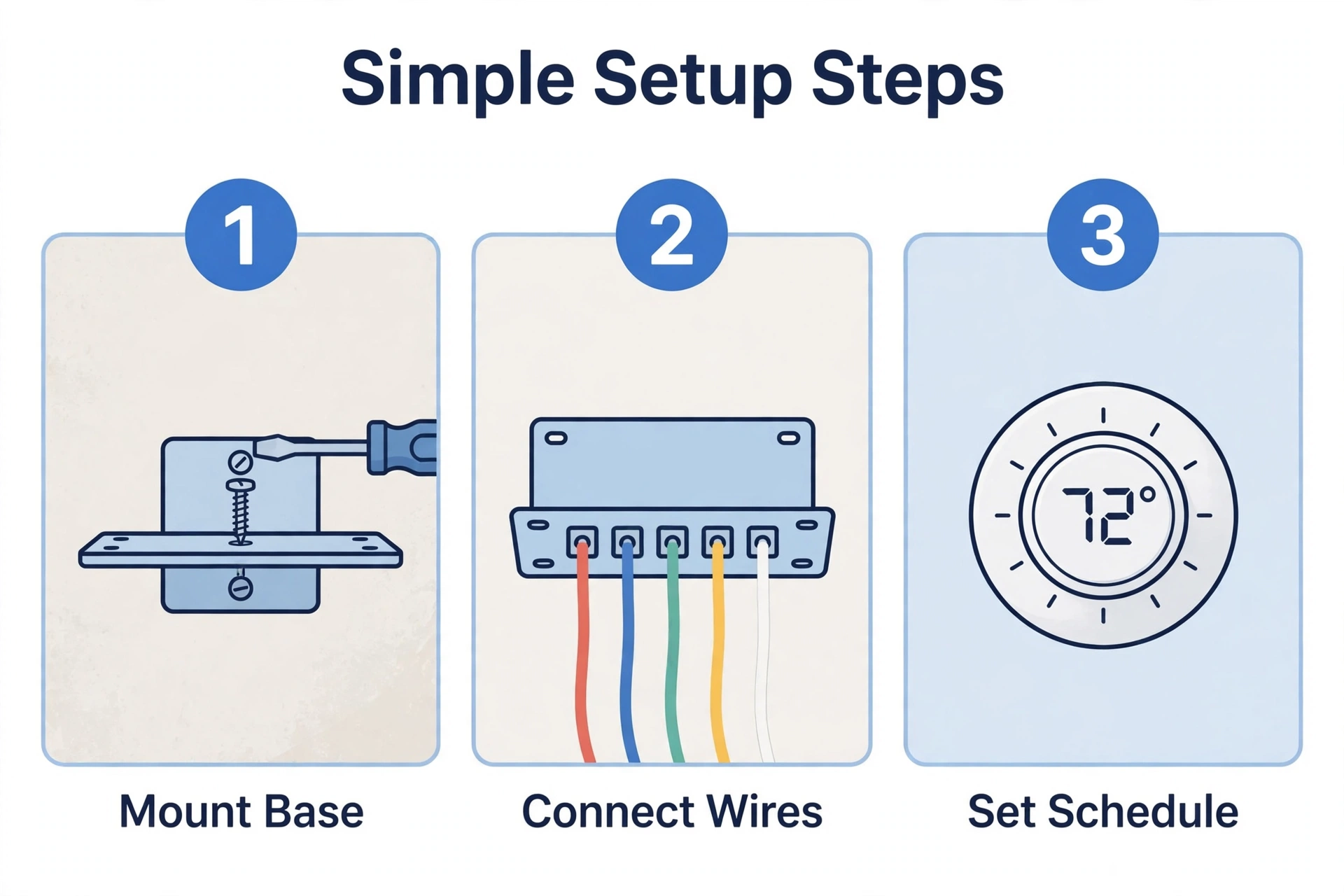
Whether your internet connection is permanent or temporary, a careful setup prevents confusion later.
- Identify the exact model and regional version. Use its model information and matching installation guide. Product names that sound similar can hide meaningful differences.
- Check system compatibility before disconnecting anything. Heating type, wiring, power requirements, and regional hardware all matter. A thermostat’s ability to operate offline does not establish compatibility.
- Switch off the relevant system power before wiring work. Follow the model’s instructions and local requirements. If you cannot identify the supply or wiring safely, stop and use a qualified installer.
- Keep a clear record of the existing connections. Photograph readable terminal labels. Wire color alone is not a reliable guide to function.
- Complete the correct guided setup. Use the required app or on-device process, enter accurate equipment information, and run the recommended system test.
- Check the household routine. Confirm temperatures, schedule times, and available safety settings. Show anyone using the home how to make a local adjustment.
Google’s compatibility guidance explains the checks to make before installation, including wiring and power requirements.
If a professional has already installed and configured the thermostat, use Google’s instructions for adding a professionally installed device to your account. Repeating the full installation flow can overwrite settings the installer selected.
For complex equipment, particularly dual-fuel systems, have a qualified professional handle configuration. Guessing equipment settings can cause incorrect operation or damage.
What changed for first- and second-generation Nest models?
Google ended connected support for the following models on October 25, 2025:
- Nest Learning Thermostat, first generation, released in 2011.
- Nest Learning Thermostat, second generation, released in 2012.
- The European second-generation version, released in 2014.
These devices no longer work in the Nest or Google Home apps. Remote control and connected features have ended, and they no longer receive software or security updates.
They can still be controlled directly, and existing schedules continue working. Google also states that their connection to Nest Protect ended, so the associated emergency shutoff no longer operates.
This matters when troubleshooting: a router replacement or stronger Wi-Fi will not restore a service Google has withdrawn.
It also matters when buying used equipment. Ask for the exact generation before paying for a thermostat advertised simply as a “Nest Learning Thermostat.” Working local controls and supported online services are separate purchasing considerations.
What about European Nest systems with Heat Link?
European Nest installations may include a Heat Link, which connects to the heating system. Its communication with the thermostat is separate from your household Wi-Fi.
Google explains that the wireless connection uses Thread, a local wireless network. Some Learning Thermostat installations also have a wired connection between the thermostat and Heat Link.
Consequently, a broadband outage is different from a thermostat-to-Heat-Link connection fault. Restoring your router will not necessarily fix a Heat Link error.
If heating stops and the thermostat reports a Heat Link problem, follow the instructions for that particular model and error. Avoid applying North American thermostat-wiring advice to a European Heat Link installation.
What to check when Nest says “offline”
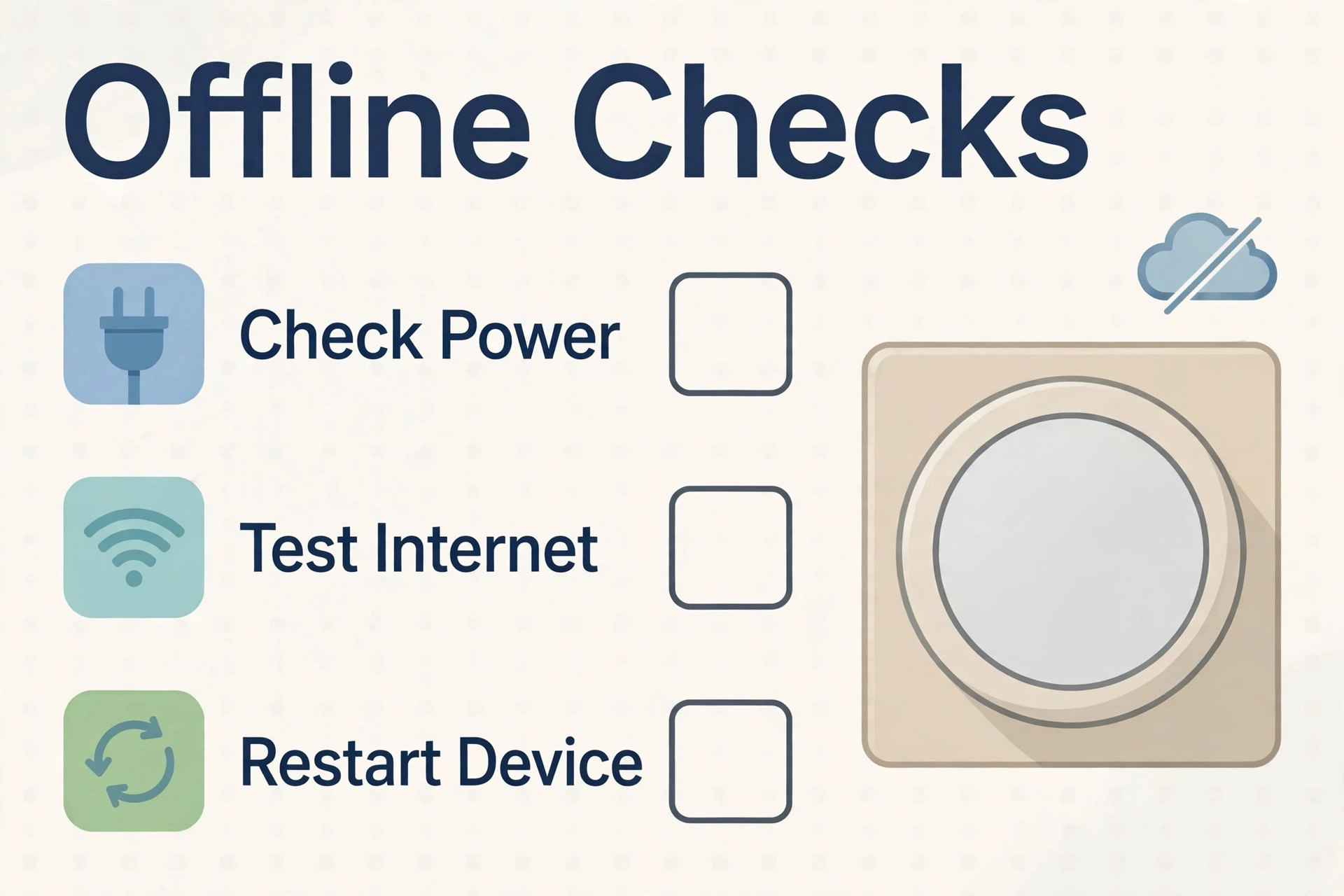
Start with the symptom you can verify, then work outward. Changing several settings at once makes it harder to identify the cause.
1. Check whether local control works
Wake the display and check for error messages. Confirm the operating mode, then make a reasonable temperature adjustment that would request heating or cooling.
A thermostat in Off mode will not follow ordinary temperature requests or its normal heating and cooling schedule. Also allows for normal equipment delays instead of repeatedly raising and lowering the setting.
If the display responds but the equipment does not, investigate that separately from the app connection.
2. Test the home internet connection
Use another device on the same Wi-Fi network to open a webpage. On a phone, disable mobile data for the test so it cannot quietly use cellular service.
If other devices also cannot connect, check the broadband service and restart the router according to its instructions. If only Nest is affected, check its connection details and any recent network changes.
For example, a changed Wi-Fi password requires updating the thermostat’s stored network information.
3. Check power and battery warnings
Nest may disconnect from Wi-Fi to conserve power when its battery is low. An offline message can therefore be an early sign of a power problem.
A blank display, repeated shutdowns, or persistent low-power warnings deserve attention even if restarting the router occasionally seems to help.
Battery arrangements vary by model. Do not follow a battery-replacement or USB-charging tutorial unless it matches your thermostat. Repeated power problems may need an installer to assess the wiring and power supply.
4. Restart before considering a factory reset
A restart preserves settings. A factory reset can erase configuration and require setup again.
Use the restart instructions for your model first. Do not factory-reset a functioning thermostat simply because your broadband is temporarily unavailable; you may turn a connection problem into a setup problem.
If basic checks fail, record the model, displayed error, and whether local heating or cooling works. That gives support or an installer useful information without repeated trial and error.
Is Nest sensible for a home with no permanent internet?
Keeping an installed, working Nest offline can be practical if you are comfortable using its local controls. A short gap between broadband providers is different from designing an entirely offline household.
For a permanent arrangement, consider three questions:
- Can you complete setup and recover from a reset without difficulty?
- Can you make the schedule changes you need locally?
- Will someone notice and respond if the heating or cooling fails?
A compatible conventional programmable thermostat may be easier to manage if every setting must remain accessible without an app. Compare the controls you will actually use, rather than buying for connected features you cannot access.
For an empty holiday home, the bigger issue is oversight. Local temperature control cannot tell you from miles away whether the equipment is working. Arrange an appropriate checking plan instead of assuming a silent app means everything is fine.
Frequently asked questions
Does a Nest thermostat work without Wi-Fi during a power cut?
Not necessarily. Losing electricity is different from losing internet. A thermostat battery does not supply power to the home’s heating or cooling equipment.
Depending on the model and remaining charge, the display may work temporarily. That does not mean the furnace, boiler, or air conditioner can operate.
Can I use my phone’s hotspot?
Google includes a mobile hotspot as a temporary diagnostic network in its offline troubleshooting guidance. It can help establish whether the home network is causing a connection problem.
A hotspot is still Wi-Fi. If the phone leaves or disables the hotspot, that connection disappears. Treat it as a temporary option, not an automatic promise of reliable unattended operation.
Will the thermostat reconnect when internet service returns?
Nest products periodically attempt to reconnect. If the saved network details are unchanged and there is no separate fault, reconnection should normally happen without a factory reset.
If it remains offline, check power, network credentials, and model support status before repeating setup.
Can I remove it from the app to make it offline?
You do not need to remove it from your account for a temporary outage. Account removal can change more than connectivity.
For the Nest Thermostat and fourth-generation Learning Thermostat, Google says removing the device from the Home app deletes its schedules, although manual heating and cooling control remains available.
What if my offline thermostat is locked?
On supported models, use the thermostat’s PIN to unlock it locally. Unlocking through the app requires the thermostat to be online.
If you do not know the PIN, contact the owner or Google support. Avoid resetting an unfamiliar installation without understanding the configuration you could lose.
Keep local control ready
A Nest thermostat can work without Wi-Fi, but the useful details are model-specific. Check which device you own, learn its physical controls, and confirm how its schedule can be managed.
If the internet drops, check the thermostat before assuming the heating has failed. If you are planning permanent offline use, settle setup and scheduling requirements before changing equipment.
