

How to Add a Guest Code to a Smart Lock for Temporary Access
The fastest way to give a guest access to a smart lock is to create a separate code that only works for their stay, then delete it when they leave. You do not need a spare physical key, and you never have to share your own code. This guide walks through the exact process, from choosing the right type of temporary code to removing it safely afterwards.
You will learn how temporary codes are set up in most lock apps, how to match the code to your guest’s arrival and departure times, and what to do when a code stops working. The steps work on most Wi-Fi and Bluetooth keypad locks used in homes and short-term rentals, because the underlying process is the same even when app screens differ.
Quick Start: The 5-Step Process
If you need a working code in the next few minutes, here is the short version. Follow these steps in order:
- Open your lock’s app and go to the users, guests, or access section.
- Add a new user and give it a name tied to the stay, such as the guest’s first name plus check-in date.
- Create a unique 4 to 8 digit code that you do not use anywhere else.
- Set the access type to temporary or scheduled, with a start time before arrival and an end time after checkout.
- Save the code, then test it on the keypad yourself before the guest arrives.
That is all most hosts ever need. The rest of this guide explains each step in more detail, covers the differences between lock brands, and fixes the small problems that catch people out.
Before You Start: What You Need
A few minutes of preparation makes the setup smooth and avoids the most common mistake, which is a code that does not work when the guest is standing at the door. Have these ready:
- Your smart lock installed and working, with fresh batteries or a healthy charge.
- The lock’s app on your phone, signed in as the owner or admin.
- Your phone connected to the internet so the new code syncs to the lock.
- The guest’s check-in and checkout dates and rough times.
- A naming convention, for example “Guest name + month,” so old codes are easy to spot later.
Battery and connection check
A new code only reaches the lock if the lock can talk to the app. If the batteries are low or the Wi-Fi connection has dropped, the code may look saved on your phone but never arrive at the keypad. Open the app and confirm the lock shows as connected, and replace weak batteries first. If your lock’s batteries seem to fade unusually fast, work through the causes in our guide to smart lock battery draining fast before your next guest arrives.
Pick the right code
Choose a code your guest can remember but a stranger cannot guess. Avoid birthdays, house numbers, and simple runs like 1234 or 2580. A good pattern is a short word converted to keypad digits, or the last four digits of the guest’s phone number mixed with the month of the stay. Never reuse your own master code, and never give two guests the same code at overlapping times.
Understanding Temporary Code Types
Not all guest codes are equal, and picking the wrong type is the main reason a “temporary” code keeps working months later. Most locks offer some version of these three types:
- Always-on codes work at any time until you delete them. Use them for family, cleaners who come every week, or a trusted neighbor.
- Scheduled or recurring codes work only during set hours on set days, such as every Tuesday between 10 a.m. and 2 p.m. These fit cleaners, dog walkers, and contractors.
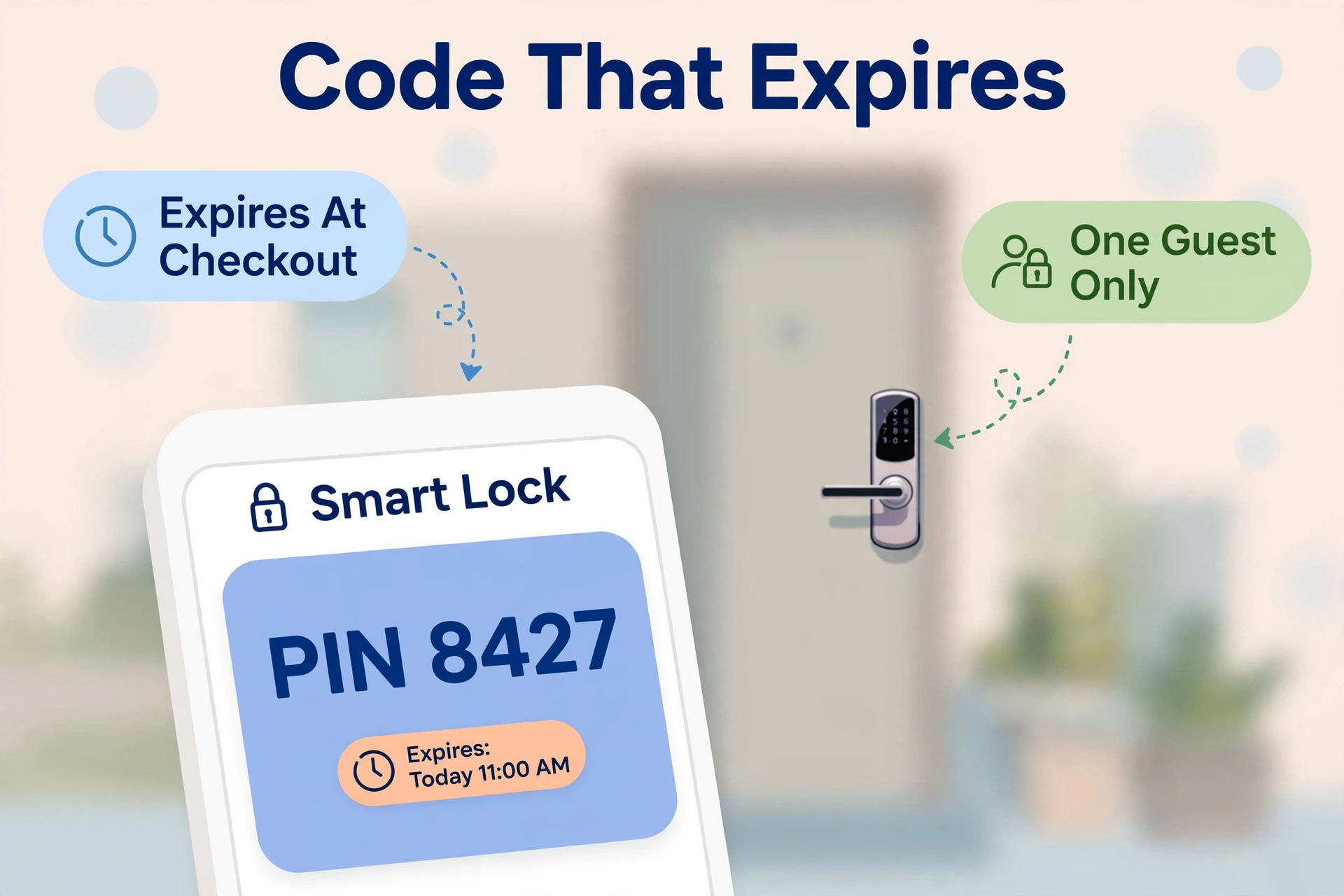
- One-time or temporary codes work for a single entry or a fixed window, such as a three-night stay, then stop on their own.
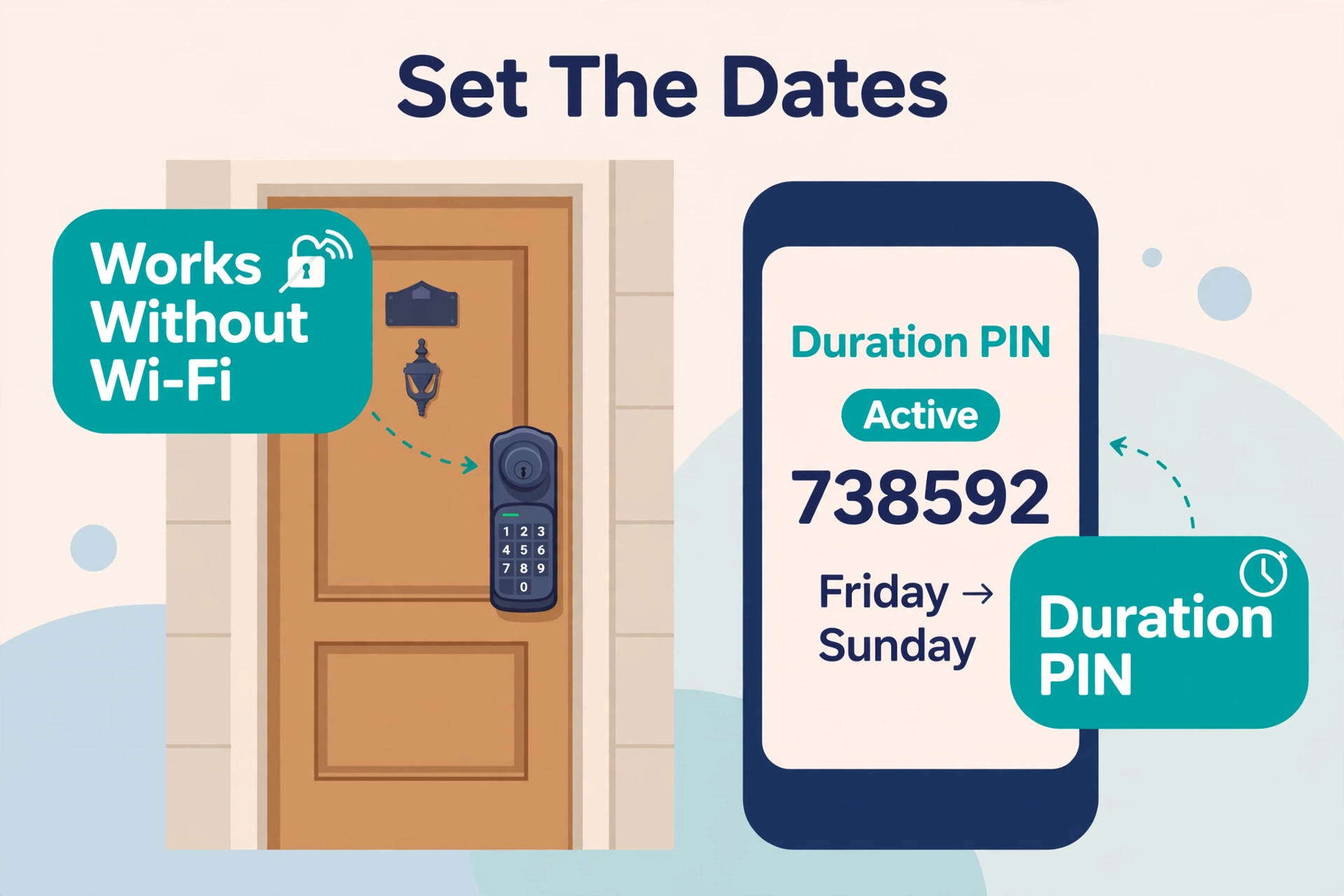
For short stays, the temporary type is the safest choice because it expires even if you forget to delete it. Some locks go further: Yale explains how hosts can set up guest access on a Yale smart lock, including inviting specific people rather than handing out one shared code, so each visitor has their own entry record. Platforms also differ in code style: igloohome’s documentation compares PIN and access types like algoPIN, where codes can be generated for a set duration and shared without the guest installing an app.
Code, app invite, or both?
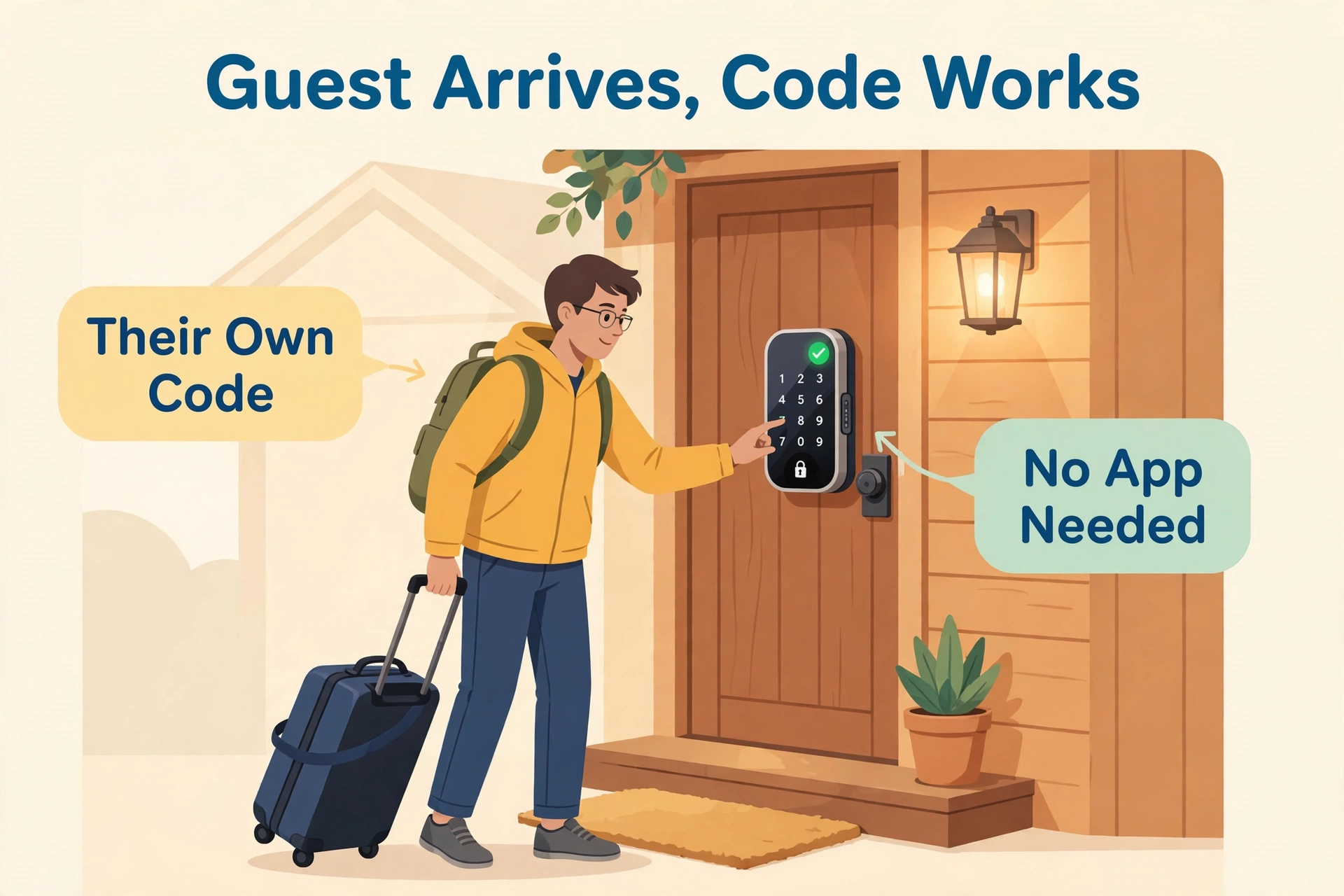
Some locks let you invite a guest by phone number or email so they unlock with an app instead of a code. App invites are convenient for tech-comfortable guests and give you a clear activity log, but codes are simpler for everyone else because nothing needs installing. For short stays, a dated code plus a clear lock message is usually enough. Send the property address, the code, the door it opens, and what to do if the keypad does not respond.
Step-by-Step: Adding the Guest Code
Screen names vary a little by brand, but the flow below matches the vast majority of locks. Take it one step at a time.
- Open the lock app and select the property or the specific lock.
- Open the users, guests, access codes, or people section.
- Tap the option to add a user, guest, or code.
- Enter the guest’s name or a stay label, such as “Ali – Oct 3–6.”
- Type the new code, or let the app generate one, and note it down.
- Choose the access type: one-time, temporary, or scheduled.
- Set the start date and time about 30 to 60 minutes before the guest arrives.
- Set the end date and time about one hour after checkout time, to cover late departures.
- Review the summary screen, then save or send the code to the guest your usual way.
After saving, stand at the door and enter the code yourself. If the lock opens, the code reached the lock correctly. This ten-second test prevents nearly every check-in problem. If you host often, compare locks with stronger host features in our roundup of the best smart lock for Airbnb setups before your next busy season.
Setting Start and End Times Correctly
Timing is where most guest code problems begin. A code that starts too late locks the guest out, and one that ends too late overlaps the next stay. Set the window with a little buffer on both sides, and think in the property’s local time, not your own if you manage remotely.
Arrival window
Flights run late and traffic happens. Start the code at least 30 minutes before the earliest realistic arrival, or from midday on check-in day if your cleaning schedule allows it. If a cleaner needs entry on turnover day, give the cleaner their own recurring code instead of widening the guest’s window.
Checkout window
End the code one to two hours after the stated checkout time. Guests often leave a little late, and an expired code at the door with luggage in hand is a bad final impression. After the window closes, the code should stop by itself; you will still delete it during cleanup.
Time zone and daylight saving traps
If you manage a property in another city, confirm the app schedules in the lock’s local time. A code that starts at “3 p.m.” in your time zone may start hours off at the property. Also remember that daylight saving changes can shift a saved schedule by an hour on some locks, so re-check standing schedules twice a year.
Managing Codes Between Guests
Good code hygiene is what separates a smooth rental from a security scare. Build a simple routine and follow it every stay.
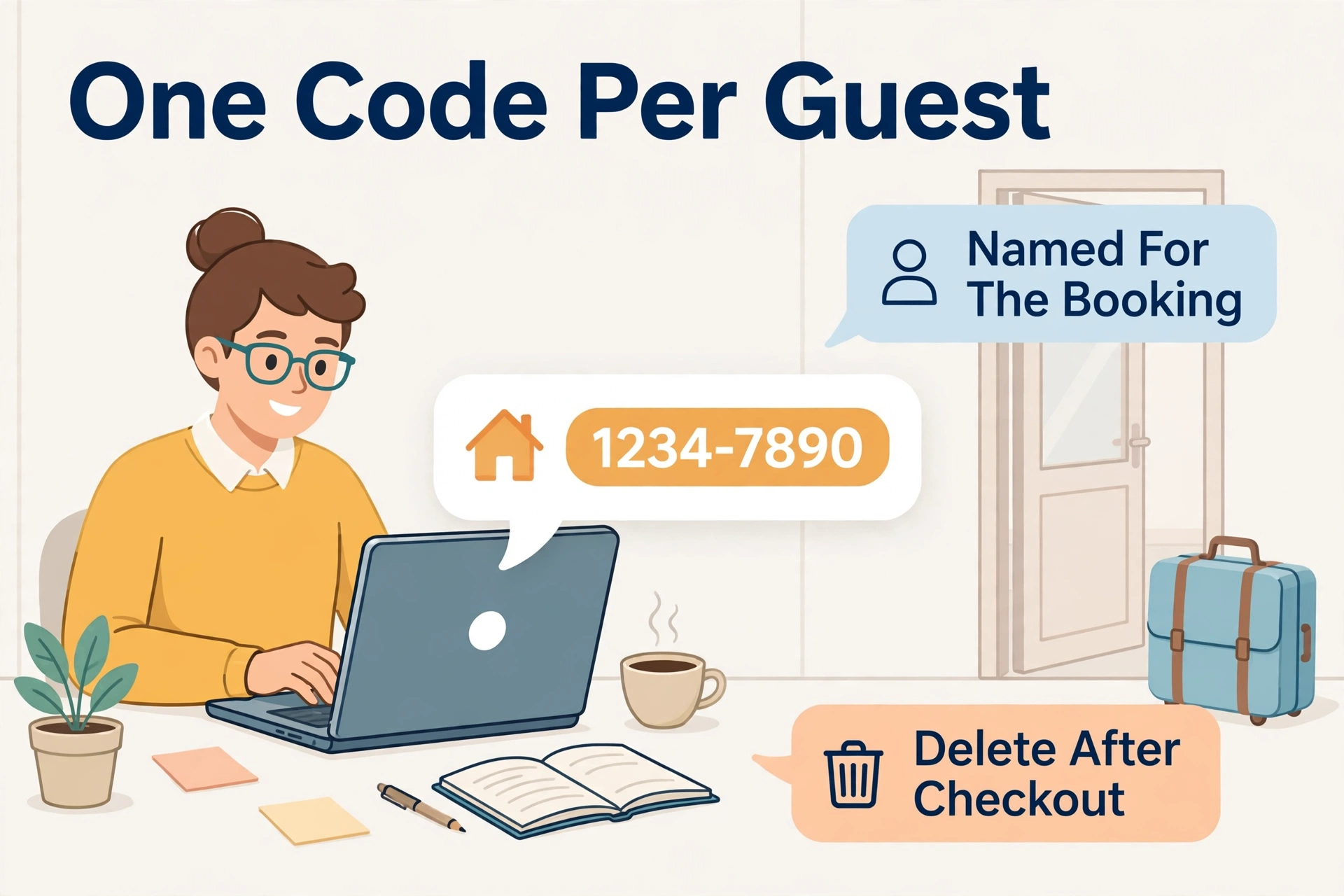
- One code per booking, named after the guest and stay dates.
- Send the code only after the booking is confirmed, inside your normal guest message thread.
- Check the activity log after checkout for any entries you do not recognize.
- Delete the code the same day the guest leaves, even if it was set to expire.
- Rotate your own master code every few months and after any staff change.
Deleting promptly matters because it shrinks the window where an old code could be tried. If you ever wonder what actually happens at the door when power runs out mid-stay, our breakdown of what happens when a smart lock battery dies explains the backup options on each lock type.
Sending the Code to Your Guest
How you deliver the code matters as much as the code itself. A short, complete message avoids a string of follow-up questions at the worst possible moment.
What to include in the message
- The full property address and which door the code opens.
- The code itself, clearly separated from other numbers in the message.
- How to unlock: enter the code, then press the check, hash, or lock button if your lock needs it.
- How to lock up when leaving: close the door and press the lock button or any key, per your model.
- Who to contact if the keypad does not respond, with a phone number you actually answer.
Common keypad habits guests miss
Many keypads need a wake tap before typing, and some need a confirming key after the code. Others lock automatically when the door closes, which surprises guests who step out to the car. One line in your message covering these habits removes most “the code doesn’t work” calls entirely.
When a Guest Code Does Not Work
When a guest reports a failed code, stay calm and check the simple causes first. In order of likelihood:
- The window has not started yet, or already ended.
- The code was saved in the app but never synced to the lock because the lock was offline.
- The guest is at the wrong door, such as a garage keypad instead of the front door.
- The guest missed the wake tap or the confirm key after typing.
- The batteries are too weak to turn the bolt, even though the keypad lights up.
You can fix the first two from your phone: extend the window, or reconnect the lock and push the code again. For the last one, talk the guest through any mechanical key backup or 9V jump-start contacts if your lock has them, and replace the batteries the same day. If failures repeat with different guests, the lock itself may be due for replacement rather than another settings change.
Quick Reference: Code Types at a Glance
| Code type | How long it works | Best for | Do not forget |
|---|---|---|---|
| Always-on | Until you delete it | Family, weekly cleaner | Review and rotate it regularly |
| Scheduled | Set hours on set days | Cleaner, dog walker, contractor | Check daylight saving shifts |
| Temporary (dated) | One stay window, then stops | Short-stay guests | Add a buffer at both ends |
| One-time | A single entry | Delivery, one-off visit | Guest gets one entry only |
Frequently Asked Questions
How far in advance can I create a guest code?
Most apps let you create and schedule a code days or weeks ahead, and it simply stays inactive until its window starts. Create it when the booking confirms, then test your own access before the arrival day so you are not troubleshooting at check-in time.
Can two guests use the same code?
They can, but they should not. A shared code gives you no way to tell who entered, and it must stay active across both stays, which doubles the exposure. One named code per booking takes seconds to create and keeps your activity log meaningful.
What if my lock does not offer temporary codes?
Use an always-on code and delete it the day the guest leaves, or check whether a firmware or app update adds scheduling. Some locks also time-limit codes through a connected hub or platform integration. If dated codes matter to your hosting, treat them as a must-have feature when you next replace the lock.
Should I change my own code after each guest?
No. Your master or personal code never goes to guests, so it does not need rotating after every stay. Rotate it when staff changes, every few months as routine, or immediately if you ever suspect it was seen or shared.
Why does the app show the code saved but the keypad rejects it?
Usually the lock was offline when you saved, so the code never downloaded to the keypad, or the access window has not started in the lock’s local time. Bring the lock online, re-save the code, confirm the window, then test at the door before telling the guest to try again.
Final Checklist Before Your Next Guest
- Fresh batteries in the lock and a connected status in the app.
- A unique, named, dated code created for this stay only.
- Start and end times with buffer on both sides, in the property’s time zone.
- Your own successful test of the code at the keypad.
- One clear message with the address, code, and lock-up instructions.
- A reminder to delete the code and scan the activity log after checkout.
Do this every stay and temporary access stops being a chore. The code arrives on time, works first try, and disappears when the visit ends, which is exactly what good guest access should feel like.
