


Yes — this guide walks you through migrating from Plex to Jellyfin without losing your media or starting over. Your movies, shows, and music stay put — you just point Jellyfin at the same folders and let it build a fresh library on top. Watch history needs a little extra coaxing, but free tools can carry your watched status over too.
Why the stampede in 2026? Money, mostly. Plex Pass prices have climbed hard — the lifetime plan now sits at $749.99, up from $249.99 before July 2026 — and features that used to feel included keep drifting behind the paywall. Jellyfin does the same core job for exactly $0. Hardware transcoding included.
Seven steps, in order. One house rule first: Plex keeps running until the very end. Trust me on that one.
Why So Many People Are Switching in 2026
First, some comfort: you’re not the only one eyeing the exit — three things are shoving Plex users toward Jellyfin right now, and I’d bet at least two apply to you.
Number one is the price. Plex Pass used to be an impulse buy — the kind of thing you’d grab without thinking. After round after round of hikes, the lifetime plan costs $749.99: real money for software that organizes files you already own. The monthly and annual plans add up fast too. Our breakdown of is plex pass worth it runs the break-even math if you want the full, slightly depressing picture.
Then there’s the paywall creep. Hardware transcoding — the thing that lets a modest little NAS juggle 4K streams — sits behind Plex Pass. Mobile downloads? Plex Pass. Live TV recording? Plex Pass. A whole pile of small conveniences, each one locked away. Individually, whatever; together, they quietly turn the free tier into a glorified demo.
And the third thing? Honestly, Jellyfin just got good. A few years ago it felt like a hobby project held together with optimism; today it’s polished and stable, with apps across the major platforms, a real plugin ecosystem, and development that actually ships. The gap that used to justify paying Plex has shrunk to almost nothing.
Ringing any bells? Then this costs one weekend of your life. Let’s do it properly.
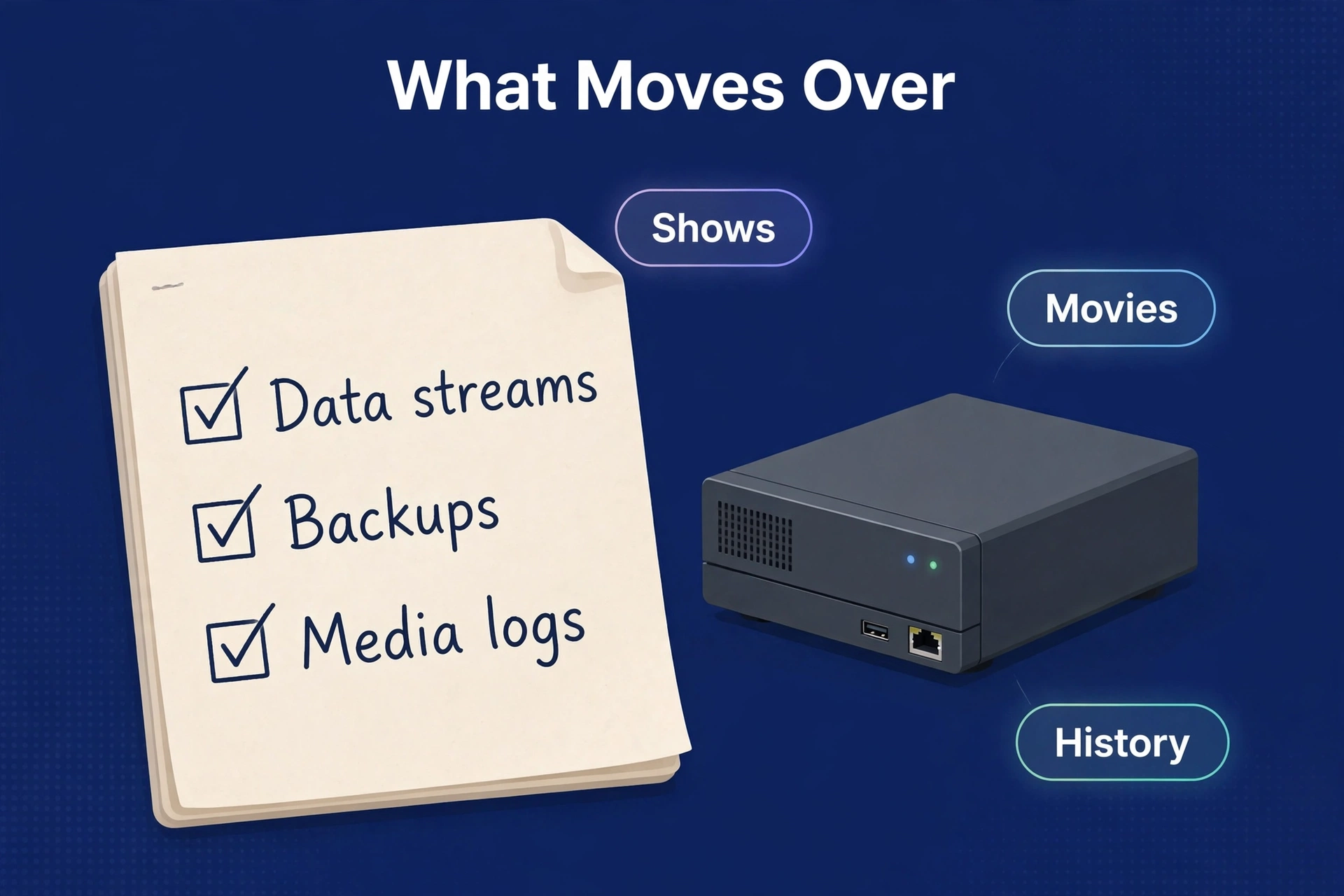
What Actually Moves Over (and What Doesn’t)
Before you touch a single setting, let’s set expectations — some stuff transfers cleanly, some needs a helper tool, and some of the personal touches you’ll rebuild by hand. All completely normal.
Table 1: What migrates from Plex to Jellyfin
| Item | Migrates? | How |
|---|---|---|
| Media files | Yes, untouched | Jellyfin reads the same folders |
| Library structure | Yes | Recreated during Jellyfin scan |
| Posters and metadata | Re-scraped | Jellyfin fetches its own artwork |
| Watch history | Yes, with tools | Sync via Trakt or migration utilities |
| User accounts | Manual | Recreate users in Jellyfin |
| Playlists | Partially | Some tools can export and reimport |
| Custom collections | Manual | Rebuild in Jellyfin |
The good news first: your actual media is never at risk. Those files took years to collect, and Jellyfin only reads the folders — it doesn’t move, rename, or touch a byte unless you tell it to. This whole migration is about rebuilding the database around your files.
Step 1 — Audit Your Plex Library
The boring part comes first. I know, I know — but this is the hour that saves you from three hours of troubleshooting later.
Open Plex and go hunting for the mess: duplicates, misnamed files, stray empty folders — and fix what you can right now. Here’s the thing: Jellyfin inherits everything you leave behind. All of it. That pile of duplicate episodes you’ve been pretending not to see? It comes along for the ride.
Eyeball your folder structure while you’re at it. Jellyfin likes the standard layout — one folder per movie, TV as Show / Season / Episodes. No need to reorganize your whole life, but tidy folders scan faster and match metadata better. An hour of tidying now is an investment.
Two things almost everyone forgets. First: write down your library list — every Plex library name, its type, which folders it points to — because you’ll rebuild that in Jellyfin. Second: back up your Plex data folder. You’ll probably never need it. But if anything goes sideways, that folder is your escape hatch. On most systems, it lives in the Plex Media Server application data directory.
An hour or two for a big library. Tedious, sure — but skipping this just reschedules that time as troubleshooting later.
Step 2 — Install Jellyfin Alongside Plex
Do not — under any circumstances — uninstall Plex yet. Run both servers side by side: your household keeps watching Plex like nothing happened, while you quietly build the new setup in the background.
Where should Jellyfin live? The same NAS or PC running Plex is usually fine — as long as it can run Docker or has a native package.
Installation itself is quick — grab Jellyfin from the official Jellyfin site. On a NAS, Docker is the reliable route. Full stop. Our jellyfin setup guide walks through Synology, QNAP, and generic Docker installs step by step.
Open the web interface and run the first-run wizard: set an admin username and password, and skip adding media libraries for now — that’s the next step. Then one sanity check: can your other devices reach it? Web UI loads on your phone? Lovely, you’re in business.
Step 3 — Point Jellyfin at the Same Media Folders
Here’s my favorite part: you copy absolutely nothing. Not a single file — just show Jellyfin where your media lives and let it get to work.
In the Jellyfin dashboard, add a media library and pick the content type — Movies, Shows, or Music — then add the folder path: the exact same folders Plex uses.
One gotcha, though: if Jellyfin runs in Docker, those folders must be mounted into the container first, or it sees nothing. This is where most people trip up — if the folder list looks empty, check mounts first. The setup guide linked above covers it.
Choose your metadata language and country, hit save, and Jellyfin starts scanning. Repeat for every library — movies, TV, music — then walk away. A big library can take hours on the first pass. Go make coffee; it’ll still be working when you get back.
Once it’s done, spot-check: open a few movies and shows. Posters right? Episodes matched? Fix mismatches now — edit metadata or rename and rescan. Normal stuff: Plex and Jellyfin match slightly differently, so a few items always need a nudge.
Step 4 — Move Your Watch History
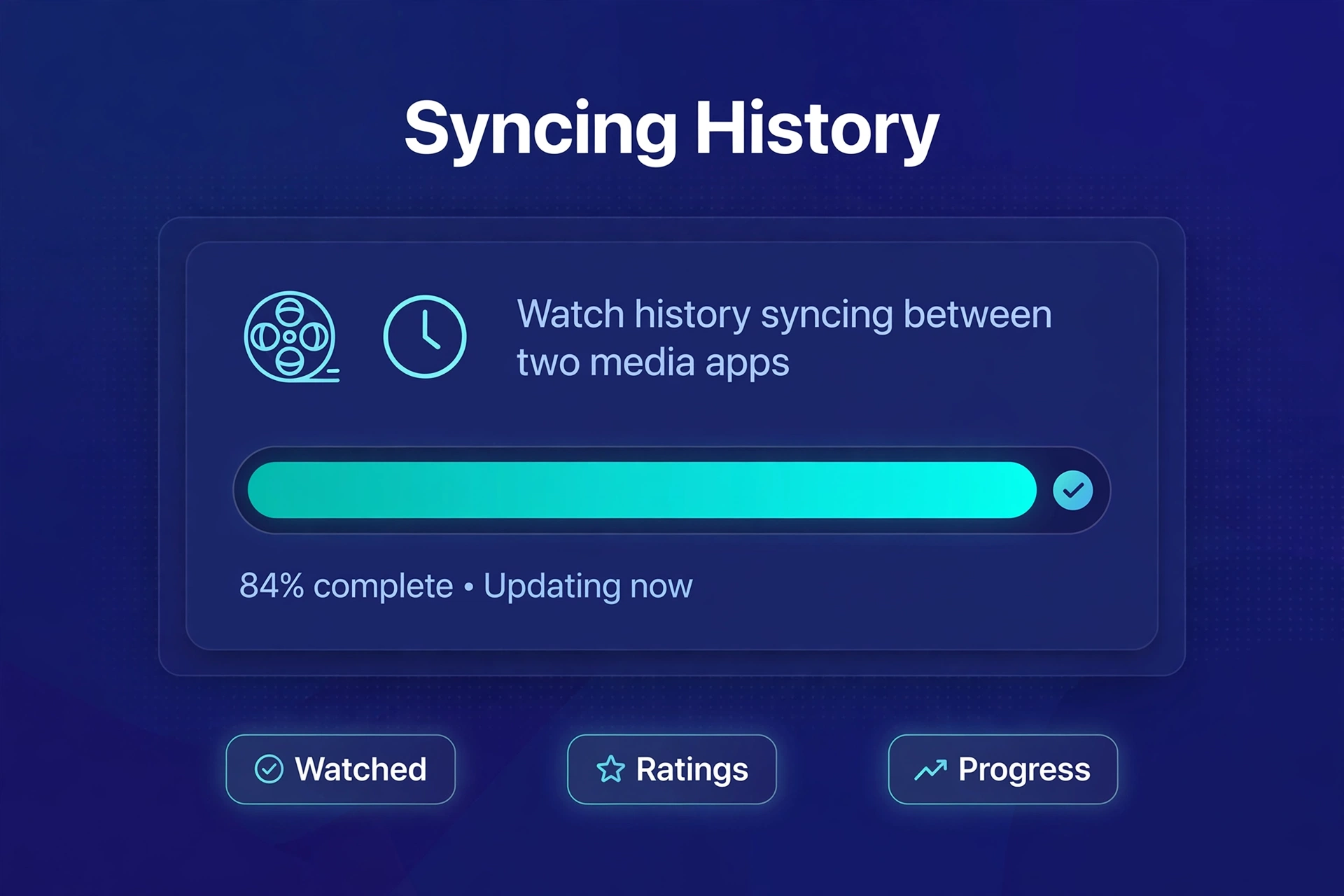
Deep breath — this is the one everyone dreads, and fair enough: it’s the only genuinely fiddly part of the migration. Jellyfin can’t read Plex’s database directly, so your watch history takes a detour through a middleman.
The most reliable route goes through Trakt, a free service that tracks what you watch across apps:
Start with a free Trakt account — two minutes, done. Then connect Plex to Trakt: Plex sends watch events through webhooks — a Plex Pass feature — which sync tools forward to Trakt. No Plex Pass? Third-party tools can pull the same data out of Plex a different way.
Wait for the sync, then check your Trakt profile — your watched movies and episodes should be there. Looking right? In Jellyfin, install the Trakt plugin from the plugin catalog, enter your credentials, and run a sync. Jellyfin marks matching items as watched.
Then spot-check: open a finished series and one you’re halfway through. Badges right? Resume points sane? If yes — the fiddly part is done.
A few honest caveats. Matching isn’t perfect — oddly named items sometimes won’t line up, and you may mark a handful by hand. Resume points don’t always survive; watched/unwatched status is the reliable part. Consistent file names help a lot — another reason Step 1 mattered.
Community tools claim to migrate Plex databases directly, but they tend to break when either server updates — check recent reviews first. The Trakt route is slower but far less fragile.
Step 5 — Recreate Users, Libraries Settings, and Playlists
Media? Done. History? Done. Now the human layer — the accounts, the preferences, the playlists your family actually uses.
Create a user account in the Jellyfin dashboard for each person in your household — Jellyfin users are local, no email invites, no nonsense. Then set permissions per user: restrict libraries (kids only see the Kids library, say), set parental ratings. Same idea as Plex’s managed users, minus the cloud.
Then get everyone onto the Jellyfin app — clients exist for Android, iOS, Android TV, Fire TV, Roku, and the web. While they install, recreate the playlists that matter: export anything critical out of Plex first — even a screenshot of the track list works — and rebuild by hand in Jellyfin. No magic button. But most households only have a few that matter.
One toggle you shouldn’t skip: hardware transcoding, in the playback settings, if your hardware supports it. The beautiful part — unlike Plex, it costs nothing extra. Our jellyfin vs plex comparison explains why that matters so much on a NAS.
Don’t rush this. Getting everyone logged in is what makes the switch feel real instead of theoretical.
Step 6 — Test Everything Before Touching Plex
Almost home — but this is where patience pays. Plex stays running while Jellyfin becomes your daily driver for a week or two. Put it through its paces:
Play a movie on every device your household uses and confirm direct play works where it should. Then force a transcode: stream a 4K file to a phone over mobile data. Stuttering? Better to find out on a quiet Tuesday than during family movie night.
Test remote access from outside your home network — if Plex handled it fine but Jellyfin sulks, revisit port forwarding or your reverse proxy. Keep an eye on watch history too: did the old stuff carry over, and do new watches record going forward? Live TV or DVR? Test it. Try a mobile download.
Finally, ask your family what’s missing. They will find every gap you overlooked. They always do.
If something’s broken, Plex is still right there as your fallback — exactly why we kept it running. Fix things in daylight, not at midnight with everyone hovering behind your chair.
Step 7 — Retire Plex
The finish line. Jellyfin has survived a week or two of real daily use — time to say goodbye.
Stop the Plex Media Server service or container — don’t delete anything yet, just stop it. Then live like that for a week. Nobody in the house notices? Good — that’s the test, and it just passed.
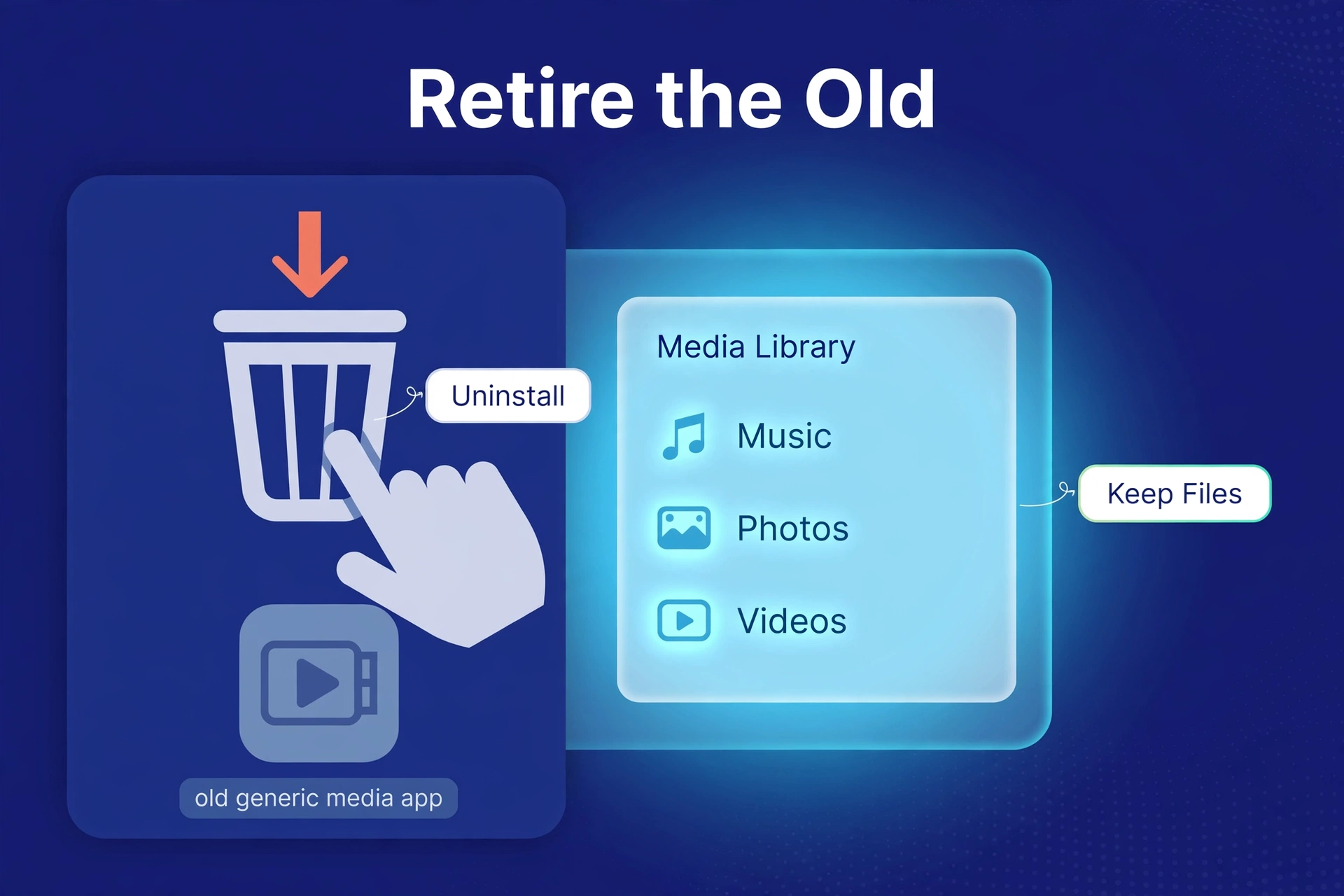
Now — and only now — uninstall Plex and remove its data folder. The quiet week proved nothing was missed, so the safety net can go. Cancel Plex Pass if you were paying for it — but check your billing cycle first — don’t fund another round by accident.
That last step — cancelling the subscription — is weirdly satisfying. Enjoy it. You’ve earned it.
Common Problems and Quick Fixes
Jellyfin can’t see my media folders
Nine times out of ten, this is Docker permissions or a volume-mount issue. The container needs those folders mounted and readable by whatever user Jellyfin runs as. Check your container’s volume mappings first, then folder permissions on the host.
Metadata matched the wrong movie
Use Jellyfin’s “Identify” option on the item — search manually and pick the right match. If it keeps happening, rename files to the standard “Movie Name (Year)” format and rescan. A little naming cleanup fixes most mismatches for good.
Transcoding stutters or fails
First, make sure hardware transcoding is actually enabled — and that Jellyfin can see your GPU or iGPU. In Docker, the /dev/dri device must be passed through to the container; miss that and nothing works. If your box simply has no hardware acceleration, lower the remote streaming bitrate so software transcoding has less to chew on.
Remote access works on Plex but not Jellyfin
Yeah, this one surprises people. Plex handles remote access automatically through its relay servers. Jellyfin needs a hand: port forwarding on your router, or better, a reverse proxy with HTTPS. One-time setup — then it works just as well.
Is It Worth Switching Back?
Some people migrate and get cold feet in the first week. Everything’s unfamiliar, and you start wondering if you made a mistake. Totally normal — give it a full two weeks before you judge.
The honest cases for going back? If someone in your house needs an app Jellyfin simply doesn’t have. Or if remote access setup defeated you and you’d rather pay than tinker — both completely legitimate. Plex’s polish is real, and our is plex pass worth it guide can help you decide whether the subscription is genuinely justified for your situation.
But here’s what usually happens: people who finish the migration don’t look back. The library works, the apps work, transcoding is free — and that subscription renewal email? It never arrives. Not a bad trade at all.
Frequently Asked Questions
Will I lose my media files when migrating?
No — and this is the fear I hear most. Jellyfin only reads your media folders. It doesn’t move, rename, or delete a single thing. Your files stay exactly where Plex left them; the migration just rebuilds the library database around them.
Can I transfer Plex watch history to Jellyfin?
Yes — Trakt is the bridge. Sync your Plex watched history up to a free Trakt account, install the Trakt plugin in Jellyfin, and sync it back down. Watched/unwatched status comes across reliably; exact resume points sometimes don’t.
Can Plex and Jellyfin run at the same time?
Yes — and during the migration, they absolutely should. They’re independent servers that can read the same media folders simultaneously. Keep Plex running as your fallback until Jellyfin has proven itself for a week or two. Belt and suspenders.
How long does the migration take?
The hands-on part is a few hours spread across a weekend: auditing, installing, scanning, syncing. The initial library scan might take several hours on its own for a big collection. Then give the test period one to two weeks before retiring Plex. No rush.
Do I need to reorganize my folders for Jellyfin?
Not necessarily — but tidy folders help more than you’d think. Jellyfin matches metadata best with the standard layout: movies in their own folders, TV as Show/Season/Episodes. If Plex matched everything fine, your structure is probably already close enough.
Is Jellyfin really free forever?
Yes. No paid tier, no premium features hiding behind a paywall, no company that could introduce one later — it’s open-source, maintained by volunteers, funded by donations. That’s the fundamental difference from Plex’s freemium model, and honestly, it’s the whole point.
