


How to Set Up a Private Wake Word with Home Assistant Assist
The commercial assistants trained us all to shout a brand name across the room. “Alexa.” “Hey Google.” “Siri.” If you run your own voice stack, you don’t have to live with that. A home assistant custom wake word lets your household say a phrase you chose — a name, a character, a joke only your family gets — and, more importantly, it does so privately. The listening happens on hardware you own, inside your own network, with no cloud account in the loop. This guide walks you through all three routes: picking a built-in wake word, installing a community-made model, and training a phrase of your own from scratch.
If you have not built your local voice pipeline yet, start with our guide on how to build a fully local voice assistant with Home Assistant. However, once Assist is answering you, changing what wakes it up is a small, reversible tweak — usually a model file and a settings dropdown, nothing more.
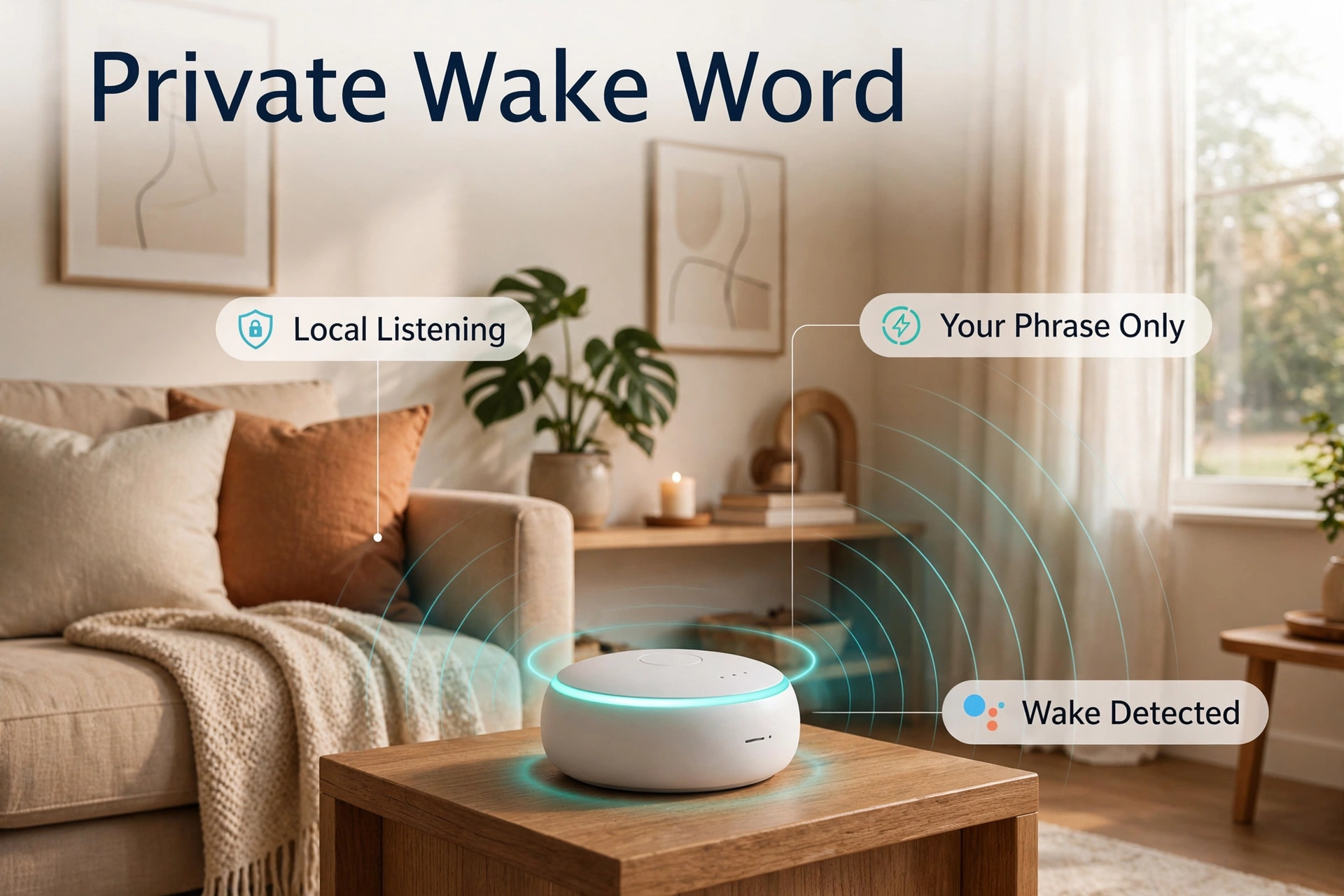
Why Use a Private Wake Word?
The wake word sounds like a cosmetic choice. It isn’t. It decides whose name your house answers to, and it decides what your microphones are doing all day long.
Privacy you can actually describe
With a commercial speaker, the wake word detector runs on the device, but everything after it flows to a vendor’s cloud, where recordings may be stored, reviewed, or used to train models. With Home Assistant, the wake word check is local, and the speech-to-text, the command processing, and the spoken reply can all stay on your own hardware too. A private wake word completes that story: nobody else’s assistant wakes up when you talk to yours, and no company gets to decide next year which recordings it keeps. You can explain the whole system to a skeptical family member in one sentence — “nothing leaves the house” — and it stays true.
No more brand-name collisions
Shared wake words cause daily friction. A TV commercial says the magic word and three rooms answer. A child named Alexa gets a home full of false triggers. Your own phrase ends that. Pick something that never appears in TV dialogue, podcasts, or your guests’ conversations, and false activations drop to near zero. Distinctiveness is not just privacy; it is detection quality, because models are best at spotting phrases that sound like nothing else in normal speech.
One house, several voices
Because the phrase is yours, it can also be playful or per-room. The kitchen satellite can answer to “Hey Chef,” the workshop to something else entirely, while the living room keeps a formal name. Commercial platforms will never let you do that. Here, it is just a different model selected on a different satellite.
What You Need Before You Start
You don’t need much, but the pieces have to be in place first:
- A running Home Assistant instance with at least one working Assist pipeline — you can already hold a voice conversation from the app or a satellite before you change anything.
- A voice satellite or microphone device: a dedicated voice satellite, an ESP32-based speaker, a repurposed tablet or phone, or a small computer with a USB microphone.
- Access to your Home Assistant configuration, either through the web UI add-on store or a file editor, so you can add a wake word model file.
- A phrase idea: two to four syllables, with clear, punchy sounds, that nobody in the house says in everyday conversation.
If your Home Assistant install itself still needs setting up, our walkthrough on how to install Home Assistant on a Raspberry Pi 5 gets you to a working system, and our Home Assistant Green vs Yellow comparison helps if you’d rather buy a ready-made hub. Voice work is light, but a healthy, updated install saves debugging later — and if your system still boots from an SD card, consider switching to faster storage, since slow I/O can make voice replies feel laggy; we cover that in our guide to migrating Home Assistant from SD card to SSD.
How Wake Word Detection Works in Home Assistant Assist
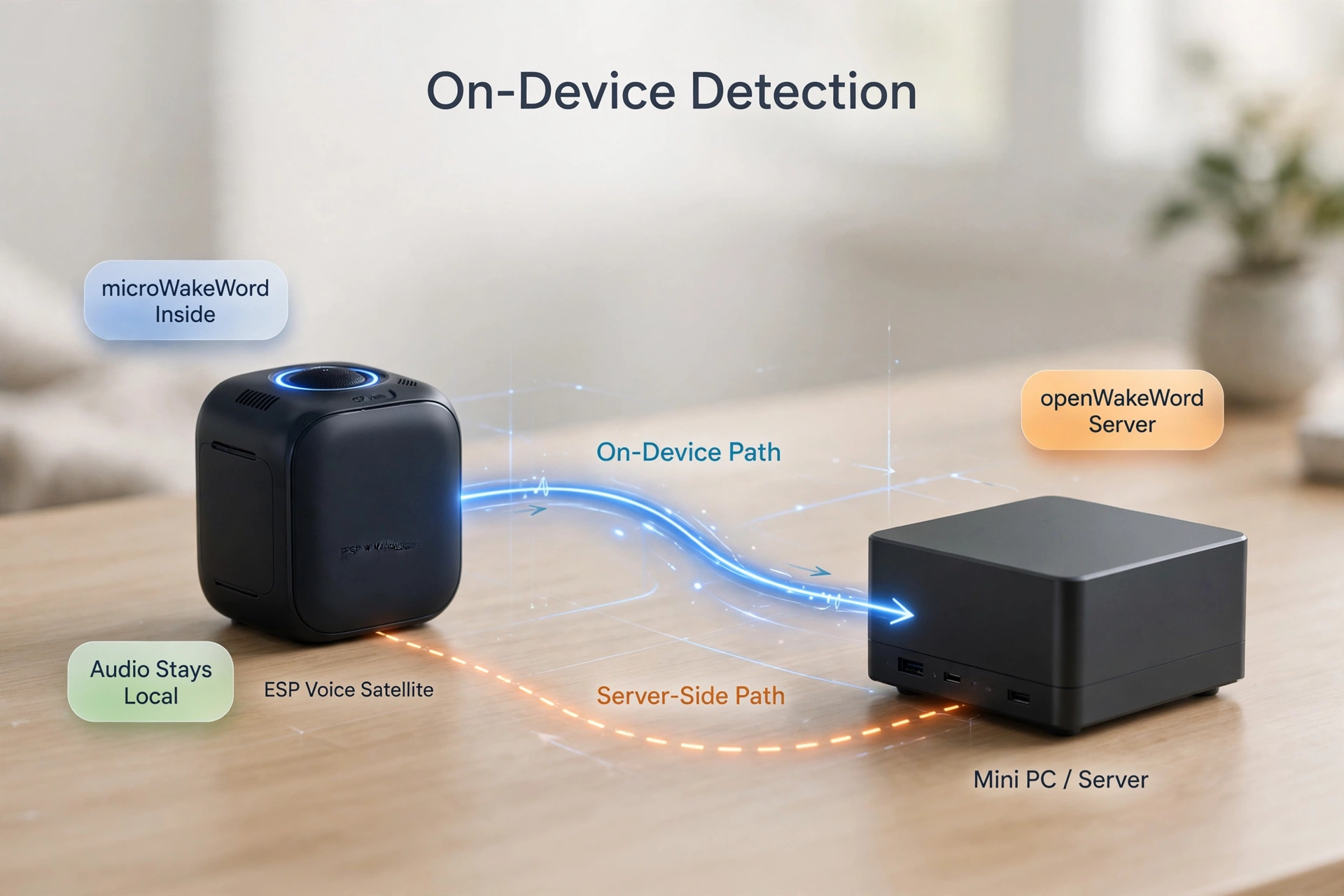
Your satellite microphone always hears the room, but it doesn’t stream all of it anywhere. A small neural-network model listens for one sound pattern — your wake word. Only then does the satellite stream audio to Home Assistant, where speech-to-text transcribes you, Assist works out the request, and text-to-speech answers. The wake word is the gatekeeper: everything personal happens after the gate.
Home Assistant uses two detection engines, and which one you have decides how custom models get installed:
On the device, with microWakeWord
Small satellites built on ESP chips run microWakeWord. Detection happens right on the device itself, with no network traffic at all until the word is heard. That makes it fast and very private, but the models are tiny and picky: they must be trained for this engine specifically, and the phrase choice is narrower.
On the server, with openWakeWord
Larger satellites — a Raspberry Pi, a spare mini PC, or devices streaming to a wake word service — use openWakeWord, running on your Home Assistant hardware or a companion service. It uses a little more of your network, but the models are stronger, with a large community library to pick from.
| Feature | microWakeWord (on-device) | openWakeWord (on server) |
|---|---|---|
| Where detection runs | Inside the satellite itself (small ESP-based devices) | On your Home Assistant hardware or a nearby service |
| Network use while idle | None — audio stays on the device | Satellite streams audio to your local network |
| Custom model source | Engine-specific trained models | Large community collection of ready-made phrases |
| Best for | Maximum privacy, simple satellites, instant response | Wider phrase choice, easier model swapping |
One warning that saves real time: the two engines use different model formats, and a model trained for one will not load in the other. They are not convertible — moving a phrase between engines means retraining or finding a version built for that engine. Check which engine your satellite uses before you fall in love with a phrase.
Step-by-Step: Set Up Your Private Wake Word
Every route follows the same shape: choose a phrase, get its model, tell your satellite to use it, then tune.
- Pick your phrase. Two to four syllables works best. Hard consonants at the start (K, T, P) and a clear ending help the model separate your word from background chat. Avoid names people in the house actually use, avoid one-syllable words entirely, and say the phrase out loud ten times — if your family finds it annoying by the fifth, pick another.
- Confirm your engine. Open your satellite’s settings in Home Assistant and note whether it uses on-device detection (microWakeWord) or a server-side wake word service (openWakeWord). This decides which model files will work.
- Get a model for your phrase. Start with a built-in option or a community model (next two sections). Download the model file — for openWakeWord this is typically a
.tflitefile; some models also come with a small.jsoncompanion file that describes the phrase. - Add the model to your system. Copy the file into the custom-model folder for your engine. On add-on based installs, that folder is shown on the add-on’s configuration page and is reachable through a file editor or network share add-on. On self-flashed ESP satellites, the model is referenced in the device configuration and pushed with a firmware update.
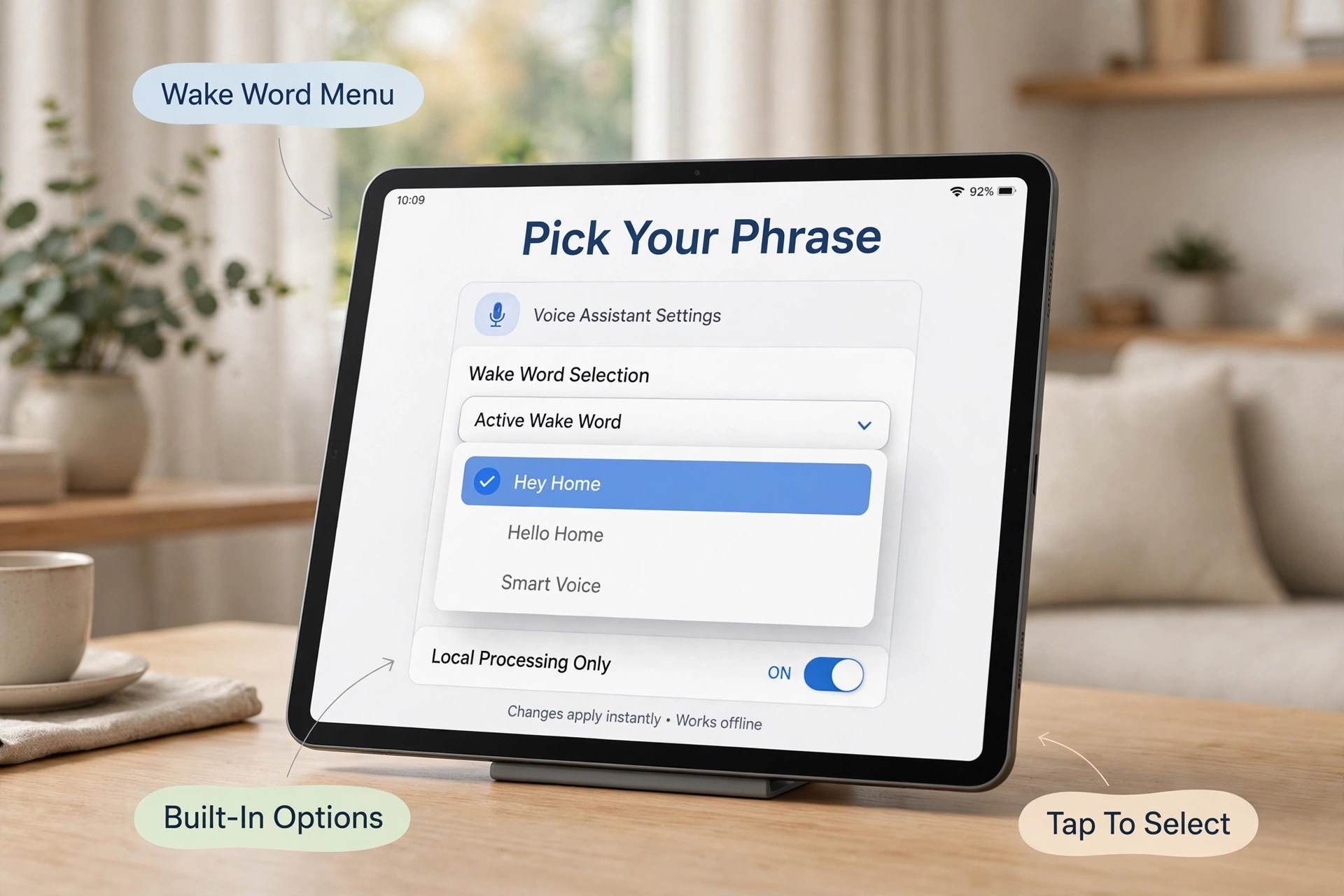
- Select the new wake word. Restart so the model is picked up, then open Settings → Devices & services → Voice Assistants (or your satellite’s own device page) and choose your phrase from the wake word dropdown.
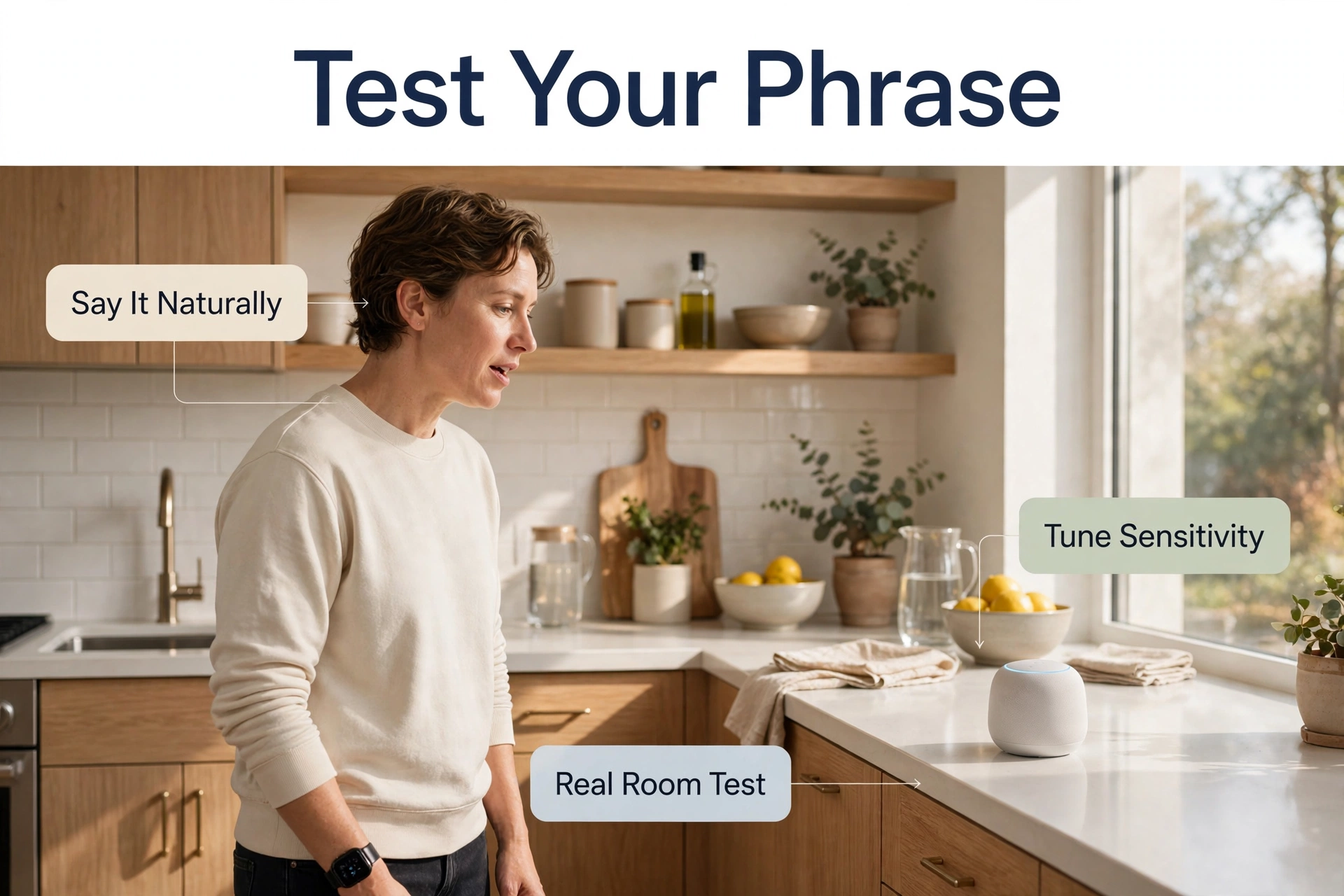
- Test at real distances. Say the phrase from where people actually sit and stand — sofa distance, across the kitchen, with the TV on. Test with different voices in the house, including children.
- Tune the sensitivity. Most models expose a detection threshold. If the satellite misses real attempts, lower it slightly. If the TV or conversation triggers it, raise it. Change it in small steps and live with each setting for a day.
Option 1: Start with a Built-In Wake Word
Before downloading anything, look at what you already have. The openWakeWord library ships with several pre-trained phrases, including “OK Nabu,” “Hey Jarvis,” “Hey Mycroft,” “Alexa,” and “Hey Rhasspy.” Switching from the default to one of these takes seconds — open the satellite’s voice settings, pick the phrase, done. It is not fully “private” in the sense of being unique to your home, but it proves your pipeline end-to-end and teaches you how the selection, testing, and tuning steps feel before you invest in a custom model. Many households stop here happily: “Hey Jarvis” collides with far fewer TV scripts than the big brand names do.
Option 2: Install a Community Custom Wake Word
This is the sweet spot for most people. The community maintains a shared collection of over a hundred ready-trained wake words in several languages — names, characters, and phrases people actually wanted in their homes. The community wake word collection for Home Assistant is the usual starting point. Browse it, find your phrase, and download the matching model file (plus its .json companion if one is listed with it).
Installation follows the same steps as the main guide above: place the file in your engine’s custom-model folder, restart, then select the phrase on your satellite. Two things to watch:
- Format match. Collection models are trained for openWakeWord. If your satellite detects on-device with microWakeWord, you need a model built for that engine instead — the file will simply not appear or not load otherwise.
- Quality varies. Community models depend on how much synthetic speech their trainer generated. If one phrase proves flaky in your room, a second variant of the same phrase, or a different phrase entirely, often performs better. Swapping costs you two minutes, so be ruthless.
Test each candidate against your real room: normal conversation, a movie playing, someone in the next room. A good phrase feels almost boring — it triggers when spoken to the satellite and otherwise never.
Option 3: Train a Wake Word That’s Truly Yours
If your phrase doesn’t exist yet — your house’s name for itself, a family in-joke, a word in your language — you can train it. This sounds like a research project, but the modern workflow is surprisingly push-button. Using the openWakeWord training tools, you generate thousands of synthetic examples of your phrase with text-to-speech voices, then train a small classifier against lots of “not your phrase” audio so it learns the difference. The bundled notebooks produce a finished model file — no recording thousands of samples yourself.
Expect the first trained model to be imperfect. Fresh models often need their detection threshold adjusted — trainers typically set a confidence cutoff around the middle-to-high range, and the practical fix for most problems is patience plus small tweaks:
- Missing your real voice → lower the threshold a notch, or train with more varied synthetic voices.
- Firing on similar-sounding words → raise the threshold, or choose a phrase with sharper, less common sounds.
- Working for you but not your kids → add more voice variety to training; children’s voices are underrepresented in default synthetic sets.
One honest note: a self-trained model will rarely match the polish of the big shipped phrases, which were trained on enormous data. That’s fine. In a quiet living room, “good enough, and it’s ours” beats “flawless, and it’s a brand.”
Troubleshooting Common Wake Word Problems
The TV keeps waking it up
Your phrase (or something close to it) exists in dialogue, or your threshold is too eager. Raise the threshold first. If a specific show keeps triggering it, the phrase itself is too common — that’s data telling you to pick something stranger.
It misses me half the time
Work through the boring causes first: microphone holes blocked or facing a wall, satellite too far from where you speak, a fan or music between you and the mic. Then lower the detection threshold slightly. If only some voices fail, the model needs better training variety — this is the classic case for retraining with more synthetic voices rather than endlessly nudging settings.
My model file doesn’t show up in the list
Almost always a format or location problem. Confirm the file sits in the custom-model folder your engine actually reads, confirm the file type matches your engine (openWakeWord and microWakeWord models don’t mix), include the .json companion if the model shipped with one, and restart before checking the dropdown.
It worked yesterday and stopped today
Check for a satellite firmware update or an add-on update that restarted with default settings, and confirm the selected wake word on the device page is still your phrase. Custom selections occasionally revert after major updates; reselecting takes ten seconds.
Frequently Asked Questions
Does a custom wake word make my setup more private?
Yes, in two ways. The phrase is not a brand trigger shared with millions of other homes, so accidental activations — and the recordings that follow them on cloud systems — don’t happen. And because detection runs on your own hardware with local processing behind it, the whole conversation can stay inside your network.
Can different rooms use different wake words?
Yes. Each satellite selects its own model, so the kitchen can answer to one name and the bedroom to another. Just keep the phrases clearly different from each other so a call in one room doesn’t wake the next.
Do custom wake words work on small ESP-based satellites?
Yes, with on-device (microWakeWord) models built for that engine. The catalog is smaller than the server-side collection and models are format-specific, so check engine compatibility before choosing your phrase.
Can I use my own name as the wake word?
You can, but think it through: people say your name in conversation, on calls, and on TV interviews. The model can’t tell “talking about you” from “talking to the house,” so you’ll get false triggers. A nickname nobody uses elsewhere, or a “Hey + word” combo, works much better.
The Bottom Line
Setting up a private wake word is the rare smart-home upgrade that is cheap, fast, and makes the system feel like it belongs to your family instead of a brand. Start with a built-in phrase to learn the ropes, graduate to a community model for a personality of your own, and train from scratch only if your phrase truly doesn’t exist yet. Pick sounds that are sharp and unusual, tune the threshold in small steps over a few days, and respect the one hard rule: match the model to your detection engine. Do that, and the next time you talk to your house, you’ll be using your words — literally.
