

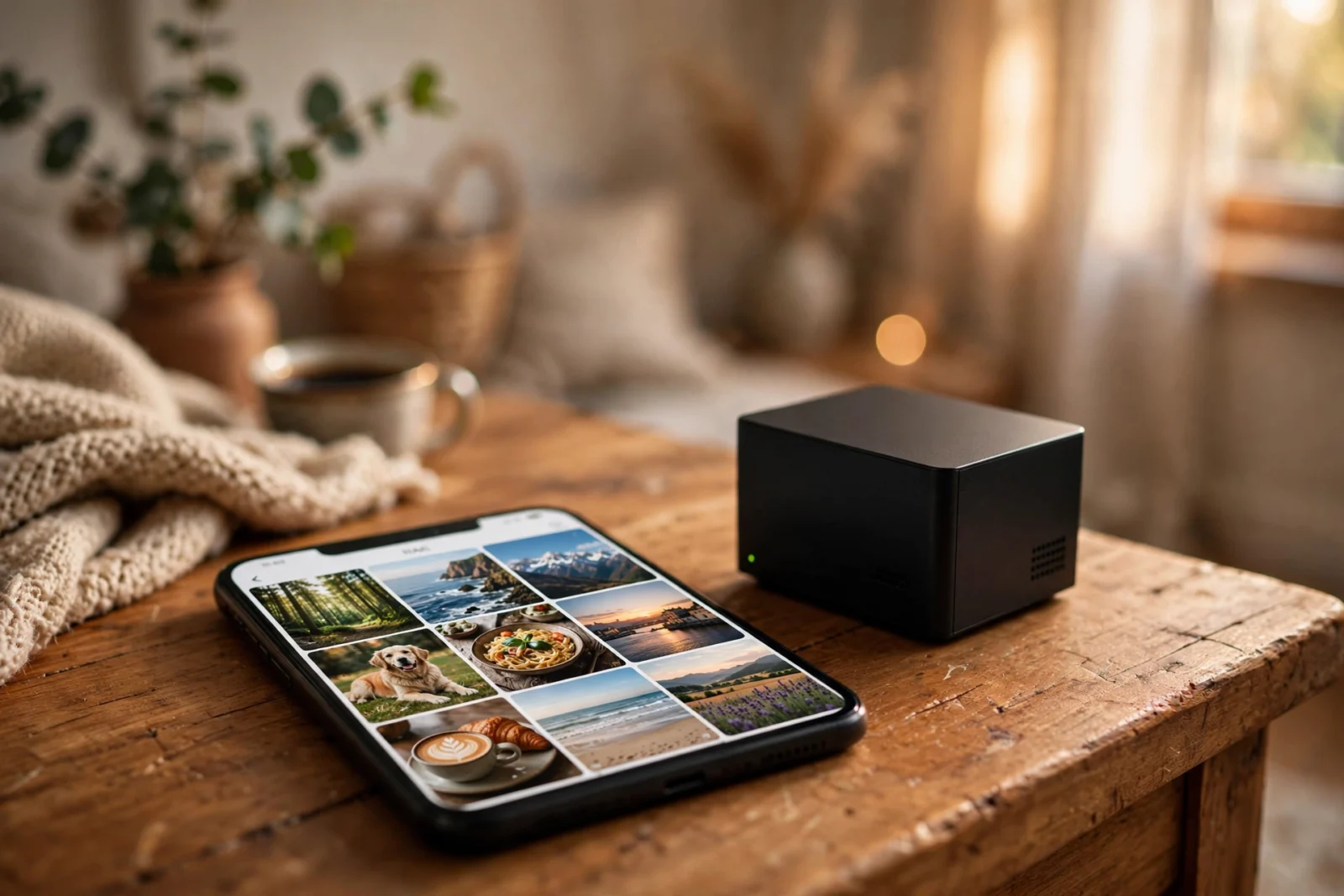
Can a NAS replace Google Photos? However, for most families — yes. A NAS running Synology Photos backs up your phone photos automatically, sorts them into albums and timelines, recognizes faces right on the device, and shares nicely with the family. What you lose: Google’s almost spooky AI search (“show me every beach sunset photo”), the wider ecosystem, the whole zero-maintenance thing. What you gain: no monthly fee, no storage-cap anxiety, and your photos living in your house instead of somebody’s data center.
Funny thing is, this is one of the top reasons people buy a NAS at all — escaping that slow drip of cloud photo subscription fees. But “can it replace Google Photos” and “should you switch tomorrow” are two different questions. Let’s compare the two honestly, then talk migration — and the hybrid setup most people actually end up with.
What Google Photos Actually Gives You
Can a NAS replace
Fair’s fair — start with what you’d be giving up. Google Photos is genuinely excellent software. Automatic phone backup. A timeline that makes a decade of photos actually browsable. Face grouping. And search that borders on magic — type “receipts,” “dogs,” “beach,” and there they are. Sharing takes seconds, the editor’s decent, and it behaves identically on every device you own.
The price of all that: the subscription ladder. For example, the free tier covers a modest stash. Moreover, a real photo library — especially with modern phones shooting enormous files and 4K video — shoves you into paid tiers that grow with your collection. And your memories live under someone else’s terms of service, with price changes you’ll hear about after the fact. In addition, it’s the product everything else gets measured against. Which is exactly why this comparison matters.
None of that alone is a reason to leave, mind you. It’s just the context for why people start shopping around.
What Synology Photos Does Well
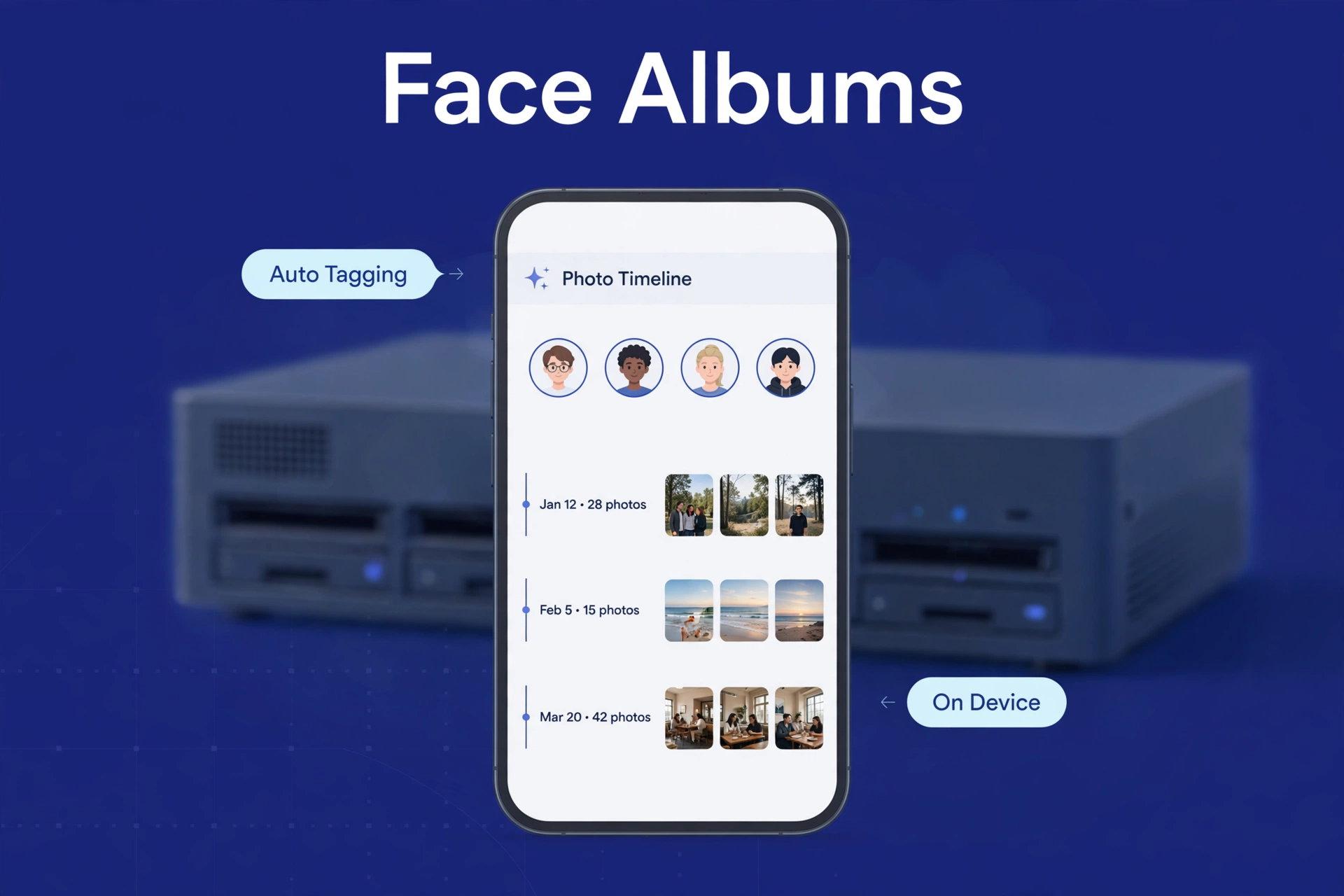
Synology Photos — the photo app baked into Synology’s NAS operating system — is way better than “good enough for a freebie.” The phone apps back up your camera roll automatically, videos included, over Wi-Fi. Web and mobile give you the familiar timeline, albums, and family sharing links. Face recognition runs on the NAS itself — grouping people without a single photo touching the cloud. For privacy-minded families that’s a genuine advantage, not a footnote.
Day-to-day organization is covered: smart albums, tags, conditional filters (every photo from a certain camera, every video over a minute long — that kind of thing). Shared spaces let the whole family feed one library — birthday photos from four different phones landing in the same album on their own. And since it all lives on your NAS, there’s no storage tier to outgrow. Need room? Add a bigger drive.
Synology Photos vs Google Photos: Head-to-Head
Synology Photos vs Google Photos, feature by feature
| Feature | Synology Photos | Google Photos |
|---|---|---|
| Cost model | Free with NAS (you own storage) | Free tier, then monthly subscription |
| Storage limit | Your drives (expandable) | Plan tier |
| Auto phone backup | Yes | Yes |
| Face recognition | Yes, on-device | Yes, in cloud |
| AI object/scene search | Basic | Excellent (“beach sunset”) |
| Sharing | Good (links, shared spaces) | Excellent (frictionless) |
| Photo editing | Basic | Good built-in editor |
| Maintenance | Yours (updates, drives) | None |
| Privacy | Photos stay home | Processed in Google’s cloud |
See the pattern? Synology Photos matches Google Photos on the fundamentals — backup, organization, faces, sharing — and loses on the intelligence layer. Google’s AI search is the single hardest thing to walk away from. If you find photos by typing what was in them all the time, be honest with yourself about how much you’d miss that. It’s a real loss, not a small one.
Face Recognition and AI: On-Device vs Cloud
This gets its own section because it’s the philosophical core of the whole comparison. Google’s recognition runs in its data centers — powerful, always improving, trained on mind-boggling amounts of data. Synology’s runs on your NAS’s processor. Private by design. Slower to improve. Less clever.
In practice, Synology’s face grouping does the main job well: finds faces, clusters the same person, lets you name them. Furthermore, where it trails is the fuzzy stuff. In fact, the same person across thirty years of aging, or “every photo with a birthday cake in it.” For family archiving, the basics cover maybe 90% of real-world use. For power searchers? The gap is real and you’ll feel it.
No wrong answer here. Just a trade: Google’s brains for Google’s cloud, or your NAS’s privacy for slightly dumber search. Pick your priority.
Moving From Google Photos to Synology: The Migration
Switching isn’t scary. It does eat an afternoon, though. Rough shape of it:
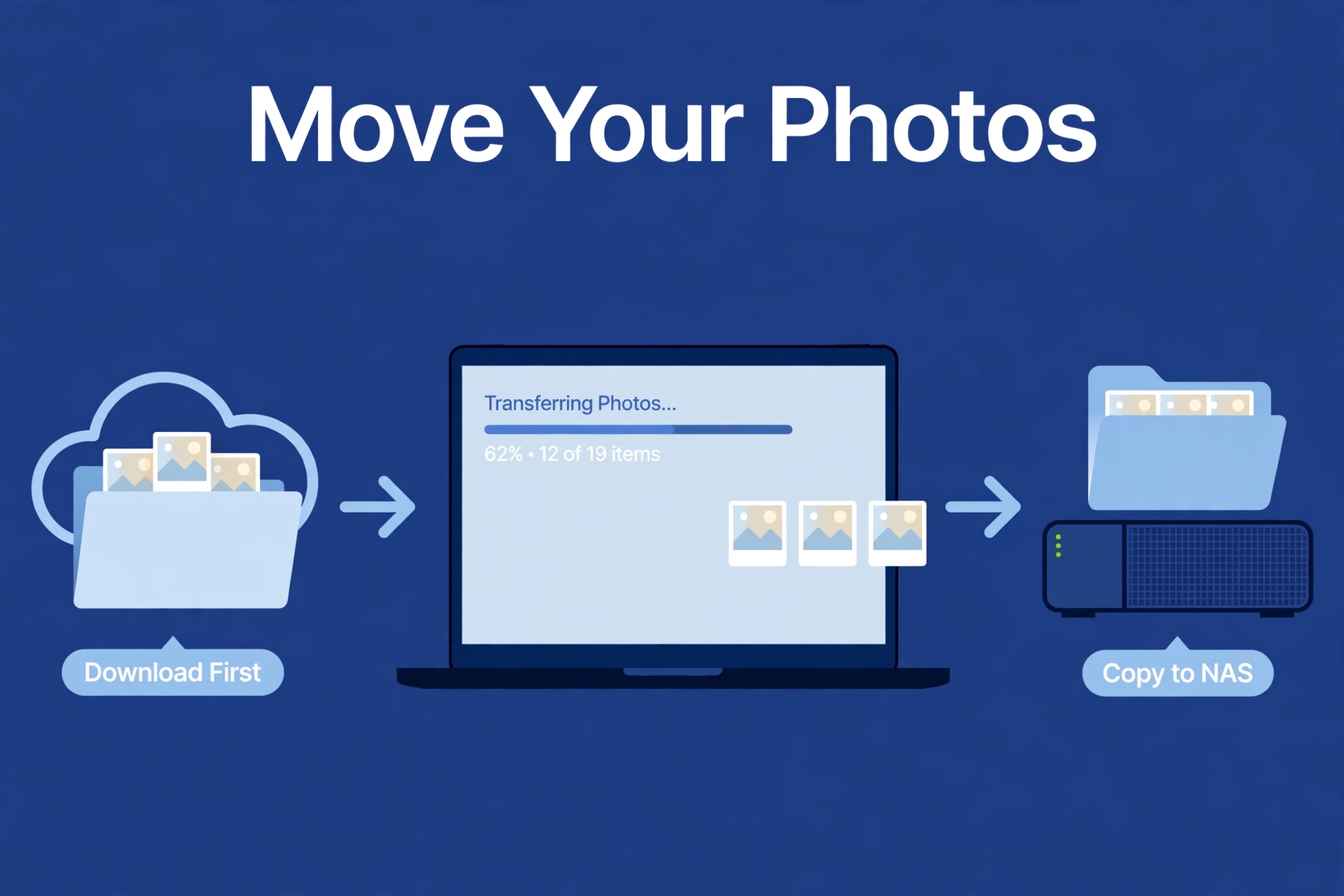
- Export from Google. Google Takeout downloads your library. Big library? Do it in chunks — Takeout splits large exports automatically.
- Import to the NAS. Copy everything into your Synology Photos library folder. The app indexes it all: thumbnails, faces, metadata.
- Let it index. Face recognition and thumbnails across tens of thousands of photos takes hours — sometimes a day or two on smaller NAS models. Start it at night, walk away.
- Check the results. Spot-check face clusters and album dates. Takeout metadata gets messy sometimes — fix what matters, don’t chase perfection.
- Install the phone app, enable auto-backup. This is when the switch goes real: new photos land on your NAS now, not Google’s cloud.
- Keep Google Photos around for a while. Don’t delete anything for a month or two. Run both, confirm the NAS has it all, then decide.
One heads-up: Takeout exports don’t always preserve album structures and edits perfectly. Think of the migration as “every photo, safely moved” — not “pixel-perfect clone of my Google library.” Set expectations right and you’ll be happy.
Where Synology Photos Falls Short
Honesty time. The gaps, stated plainly:
- AI search. Covered above — Google’s years ahead, and the gap isn’t closing quickly.
- Sharing friction. Google Photos sharing just works for non-technical relatives. Synology links work fine, but getting grandma onboarded takes more hand-holding.
- You’re the admin now. Updates, drive health, the occasional weirdness — all yours.
- No magic features. Google’s cinematic memories, collage suggestions, those little delights? Don’t exist here. You won’t miss most of them. But they’re nice while you’ve got them.
- Synology hardware only. Synology Photos runs on Synology NAS boxes, period. Switch NAS brands someday, and you’re migrating photo apps too.
Immich: The Third Option Worth Knowing
Before committing, you should know about Immich — the open-source, self-hosted Google Photos alternative that’s become the darling of the home-server world. Runs on any NAS or server (Synology too, via Docker), free, and the interface deliberately apes Google Photos — including impressively good machine-learning search that runs locally. On your hardware.
Immich’s case: better search than Synology Photos, runs anywhere, development moving fast, no vendor lock-in. The catch: it’s community software. Setup’s more hands-on, and you’re trusting your memories to a fast-moving open-source project instead of a decade-old product. Tinkerers? It’s arguably the best Google Photos replacement in existence. Set-and-forget families? Synology Photos is the calmer choice. Horses for courses.
The Hybrid Strategy Most People Land On
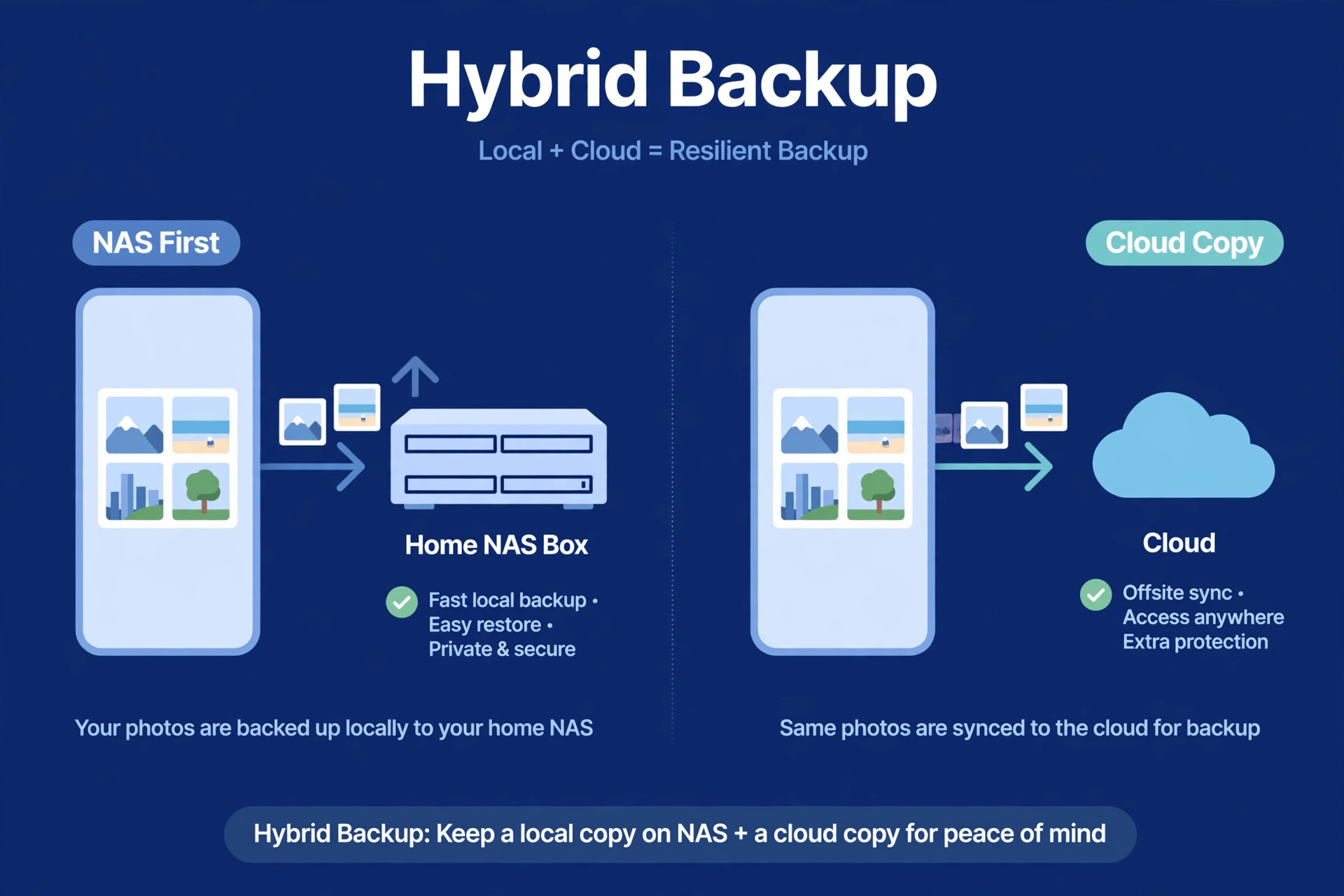
Here’s the open secret: most successful switchers don’t go all-in on day one. They go hybrid. The NAS becomes the primary home for the full-resolution everything — every photo, every video, no subscription. Google Photos (or iCloud) stays on the free or cheapest tier as a lightweight second copy of just the highlights — plus the sharing convenience for relatives who live in that ecosystem anyway.
You get the economics of owned storage with a safety net: house burns down, the cloud still has the important stuff. Moreover, it’s the photo version of the 3-2-1 backup rule, and it dodges the all-or-nothing anxiety of a full migration. Also, go fully self-hosted later if you want — the hybrid path keeps every door open.
Whichever route you take, the photos deserve a NAS worth putting them on — our best NAS for photo backup picks cover the models that handle photo libraries best. And for the broader money question, our NAS vs cloud storage comparison runs the five-year numbers.
What NAS Do You Need for Photos?
Photo duty is light work for a NAS. No powerhouse required. A basic 2-bay best NAS for home unit handles photo backup, face recognition, and family sharing without breaking a sweat. Enormous libraries (100k+ photos) index faster with more RAM and CPU — but that’s an optimization, not a requirement. Don’t overspend chasing it.
What matters more than the box: the drives. CMR NAS drives — our best NAS hard drives guide has the picks. And a backup of the NAS itself, because the moment your photo library becomes the thing you can’t lose, the 3-2-1 rule applies to it. Funny how that works.

Sharing With Family: The Real-World Test
Theory’s nice. The family group chat is where it gets tested. Google Photos sharing is genuinely frictionless: tap share, pick a person, done — works even for people who’ve never thought about photo apps in their lives. Grandma taps the link, sees the grandkids. Zero setup.
Synology Photos sharing works — but the recipient’s journey has more steps. First, shared links open in any browser, no problem; the shared-space albums are great once everyone’s configured. But “once everyone’s configured” is doing real work in that sentence. Second, tech-comfortable relatives? Finally, non-issue. The ones who call you when the TV remote acts up? Budget some patient onboarding. You’ll earn it back.
The compromise most families settle on: NAS holds the full archive and handles backup duty, while day-to-day sharing with extended family flows through whatever they already use. In fact, usually a messaging app, or Google Photos on the free tier. Meanwhile, you don’t have to migrate your family’s habits to migrate your storage. The archive is yours; the sharing layer can stay social. Those are separate decisions.
Practical tip: share from lower-resolution previews when the app offers the option. Nevertheless, full-res originals over a slow home upload make for sad little spinning indicators on the recipient’s end. In fact, nobody enjoys that.
None of this is a dealbreaker — just the honest shape of the trade. People who switch for the economics and privacy adjust within weeks. Then the sharing differences fade into background noise. Photos are safe, the bill is gone, and honestly? That’s what most switchers wanted all along.
Frequently Asked Questions
Can Synology Photos fully replace Google Photos?
Backup, organization, face recognition, family sharing — yes, completely. What you’ll miss: Google’s superior AI search and its frictionless sharing. Most families call that trade worth it for zero subscription fees and full ownership of their data.
Is Synology Photos free?
Yes. Included with every Synology NAS, no extra cost, no storage caps beyond your drives, no premium tier lurking. The “price” is the NAS hardware — which you were buying anyway.
Does Synology Photos recognize faces without the cloud?
Yes. Face detection and person clustering run entirely on the NAS — photos never leave your home for it to work. One of the strongest privacy arguments for switching, honestly.
How do I move my photos from Google Photos to Synology?
Google Takeout export, copy the files into your Synology Photos library, let the NAS index everything (faces and thumbnails take hours on big libraries), then enable auto-backup in the phone app. Keep Google Photos running a month or two as a safety net before deleting anything.
What is Immich, and is it better than Synology Photos?
Immich is a free, open-source, self-hosted Google Photos alternative with excellent local AI search. Arguably more capable than Synology Photos — but more hands-on to set up and maintain. Tinkerers love it; set-and-forget families usually stick with Synology Photos.
Can I access Synology Photos when I’m away from home?
Yes, via Synology’s secure remote-access service — no router configuration needed. Browsing and sharing work fine remotely. Uploading big videos over slow connections is the main limitation — same as any remote storage.
What happens to my photos if my Synology NAS dies?
Usually the drives survive even when the enclosure fails — move them to a replacement unit and your data comes back. But “usually” isn’t a backup strategy. Keep a second copy of irreplaceable photos under the 3-2-1 rule, like everything else on a NAS.
