

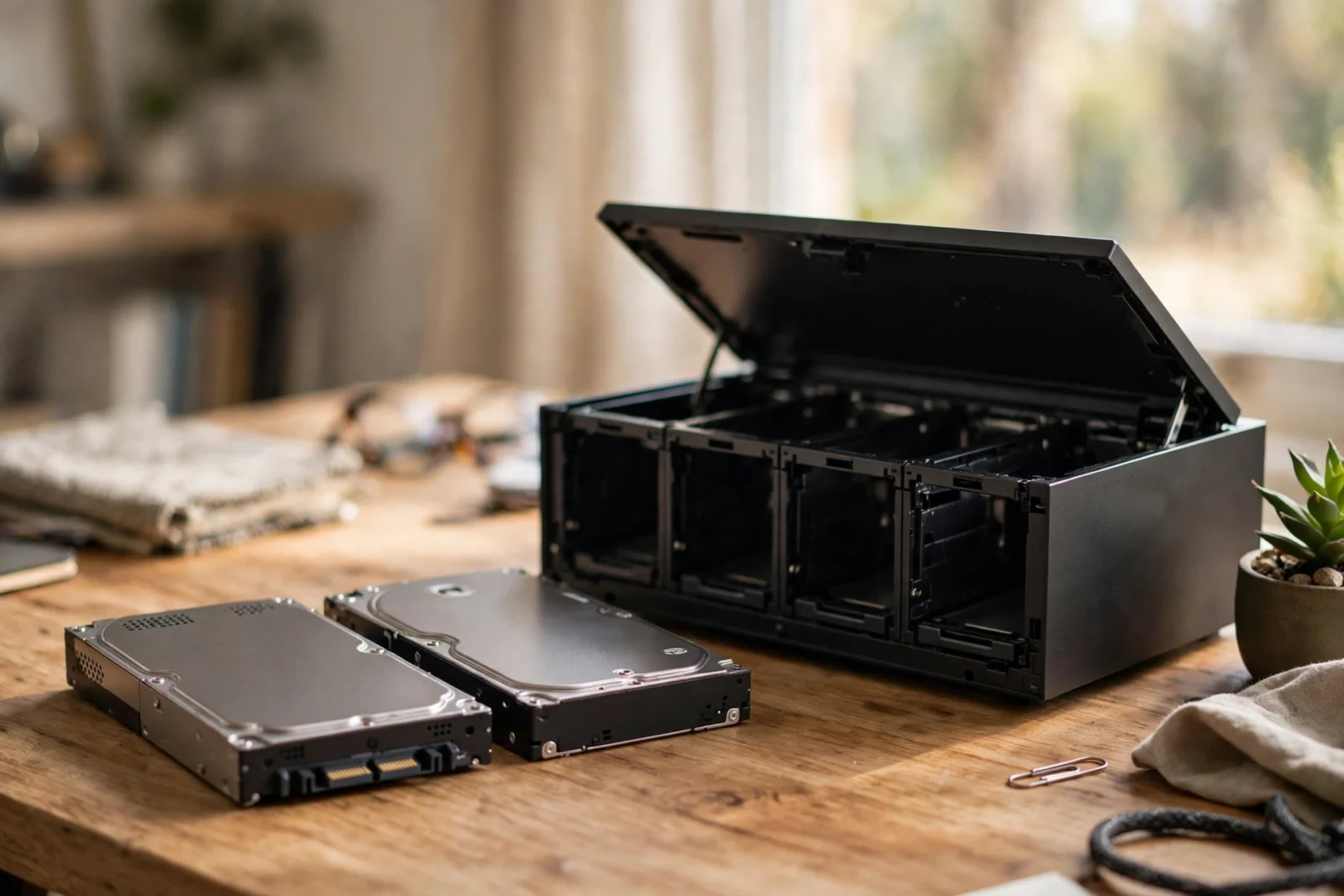
Short answer? However, for most home users in 2026, the best NAS hard drives are the WD Red Plus and the Seagate IronWolf. For example, done — that’s the shortlist.
Underneath that recommendation, though, sits one rule, and if you ignore it, nothing else in this guide matters: only buy CMR drives for your NAS. Burn it into your brain. Two drive families cover maybe 90% of home NAS builds, and honestly, the shopping part is easy. It’s the why that trips people up — why a NAS drive isn’t just a regular hard drive wearing a higher price tag, what CMR and SMR actually do to your data, and how WD Red vs IronWolf really shakes out once you look past the marketing. Let’s get into it.
Why You Can’t Just Use Any Hard Drive in a NAS
Think about what a NAS drive’s life actually looks like. It spins all day. Every day. It sits an inch away from three or seven other spinning drives, all of them shaking each other. And every so often — usually at the worst possible moment — it has to rebuild an entire RAID array. Hours of reading and writing every single sector, nonstop. Honestly, it’s about the most punishing thing you can ask a spinning disk to do.
The drive in your desktop lives a different life entirely. In addition, it wakes up when you sit down, does some work, naps when you leave. Furthermore, put a desktop drive in a NAS and here’s what tends to happen: it hits a bad sector, tries to recover it. In addition, keeps retrying… and retrying… for so long that the RAID controller figures the drive is dead and boots it out of the array. NAS drives cap that recovery time. Sounds like a small thing. It isn’t — it’s the difference between a hiccup and a degraded array at 2 a.m.
Vibration is the other silent killer. Moreover, four or eight drives in a metal box, all humming, all shaking each other. In fact, and that shaking makes read/write heads less accurate. NAS drives carry rotational vibration sensors that compensate for it. Desktop drives? Mostly they don’t. In a 2-bay box you can probably get away with it. Anything bigger, though — yeah, it starts to matter.
One more difference: the workload rating. Also, this one’s simple — drive makers rate NAS drives for way more data written per year than desktop drives. In addition, they put longer warranties behind them. First, three years on the mainstream NAS lines, typically, versus two on desktop drives. When a manufacturer is willing to put that in writing, it’s not marketing fluff. It’s a promise.
So when people say “best NAS hard drives,” they’re really talking about a tiny, purpose-built category. Good news: that narrows your choices a lot. The catch, for bargain hunters — skip the desktop drives even when they’re on sale. Whatever you save evaporates the first time a drive drops out of your array in the middle of the night.
The CMR-Only Rule: What CMR vs SMR Means for Your NAS
Alright — deep breath. This is the single most important technical detail in the whole guide, so let’s take it slow.
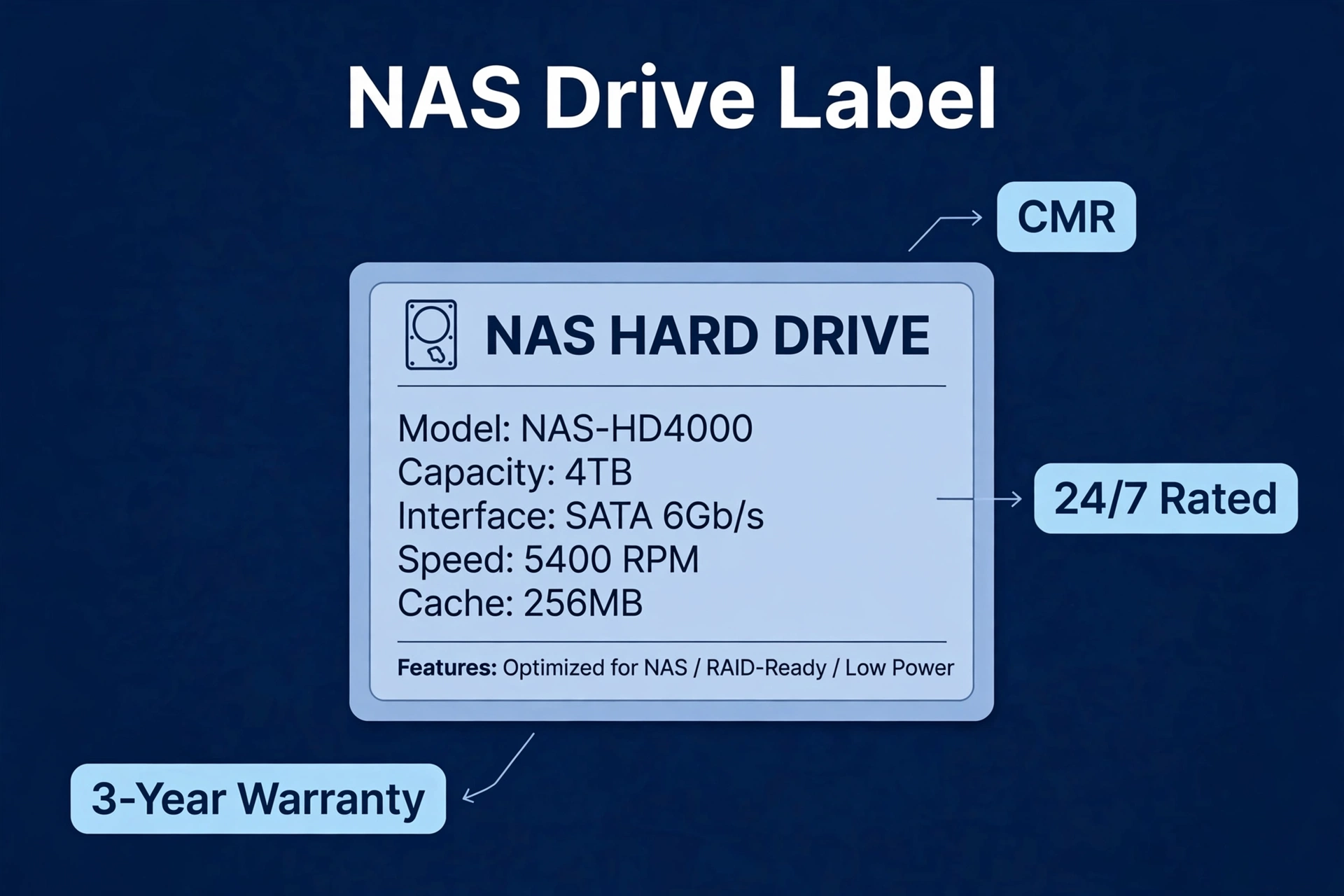
However, hard drives store data on spinning platters, in magnetic tracks. CMR (conventional magnetic recording) lays those tracks side by side — picture lanes on a highway. SMR (shingled magnetic recording) overlaps them like shingles on a roof, cramming more data onto the same platter. Meanwhile, sMR costs less per terabyte. And for a drive that lives in a drawer as a cold backup? Totally fine. No argument there.
In a NAS, though, SMR is trouble. Because the tracks overlap, rewriting data often means reading and rewriting the neighboring tracks as well. Furthermore, under light everyday use you might never notice. But a RAID rebuild is the exact moment your data is most vulnerable. In fact, and that’s precisely when an SMR drive can slow to an absolute crawl. Moreover, rebuilds that take hours on CMR can drag on for days on SMR. Also, worst case, the array just gives up on the drive.
First, none of this is theoretical, by the way. Nevertheless, a few years back there was a genuine scandal when it came out that some drives marketed for NAS use were quietly shipping with SMR inside. In fact, people were furious. As a result, rightly so. The lesson stuck around: check the recording technology before you buy, and only put CMR drives in a NAS. Finally, everything I recommend below is CMR in the capacities home NAS owners actually buy — but still, confirm it on the manufacturer’s spec sheet for your exact model and capacity. Product lines change. Trust, but verify.
Before we move on, here’s the whole CMR-vs-SMR comparison in one spot, in case the details are starting to blur:
| Feature | CMR | SMR |
|---|---|---|
| How data is written | Tracks side by side | Tracks overlapped like shingles |
| RAID rebuild speed | Fast and predictable | Can be extremely slow |
| Random write performance | Good | Poor under sustained writes |
| Cost per terabyte | Slightly higher | Slightly lower |
| Suitable for NAS | Yes — the only safe choice | No |
| Good for | NAS, servers, active storage | Cold backup, archival, single-drive use |
WD Red vs IronWolf: The Head-to-Head
Ask in any NAS forum and you’ll get the same two names. Every time. There’s a reason — both are purpose-built NAS lines, both CMR, both rated for 24/7 use, both battle-tested in millions of home setups over many years. Pick either one and you’ll be fine. The differences are all in the fine print.
WD Red: Know the Lineup Before You Buy
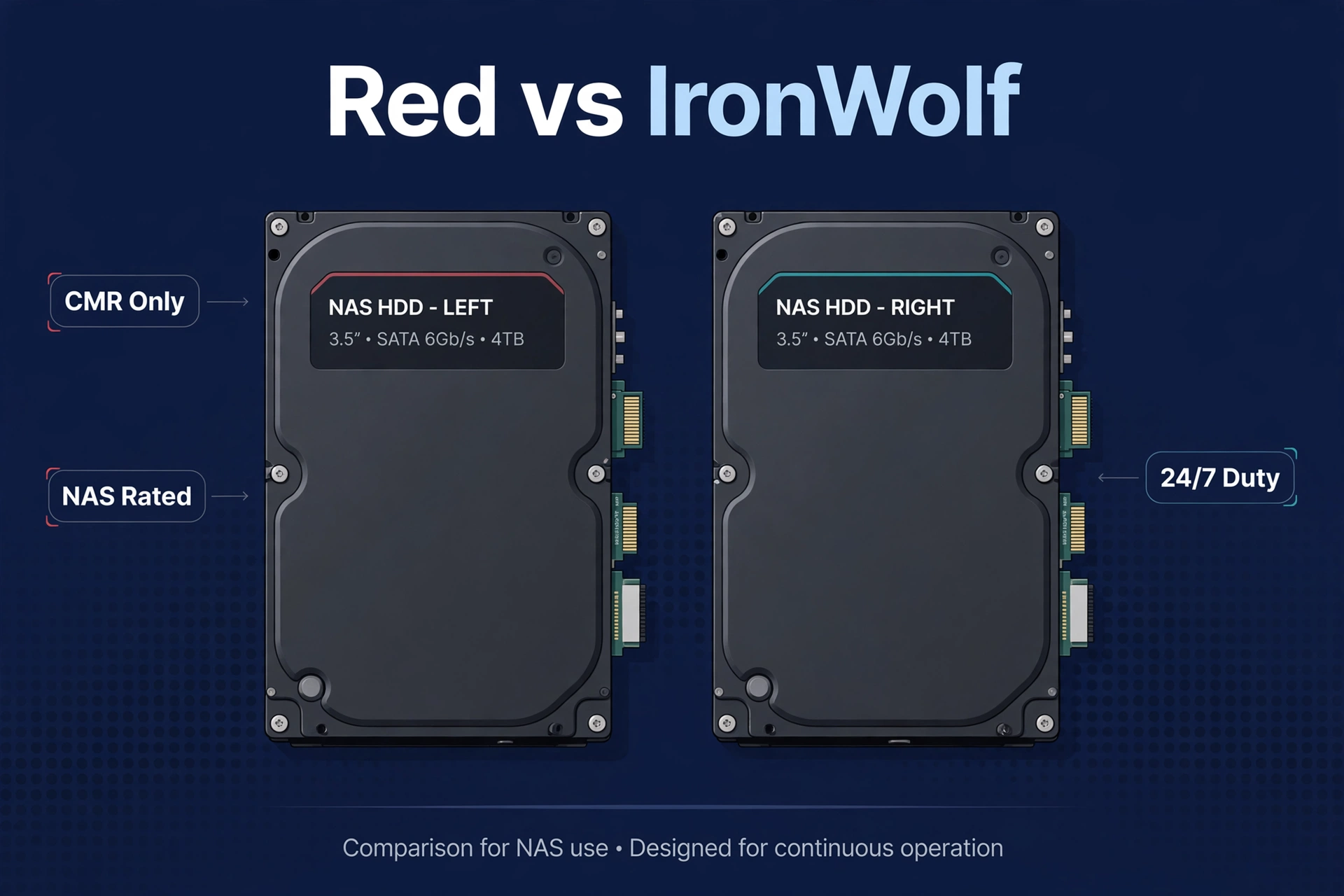
Western Digital’s naming is where people get burned. “WD Red” isn’t one product — it’s three, and they are not interchangeable. WD Red Plus is the one you want: the CMR line for home and small-office NAS, 24/7 rated, three-year warranty. WD Red Pro is the step up for bigger arrays and heavier workloads — overkill for most homes, but good to know it exists. And plain WD Red — no Plus, no Pro — is the budget line, and some capacities in that line have shipped with SMR in the past. See the trap? That’s exactly why you buy Red Plus and never plain Red.
So repeat after me: Red Plus, not Red. One word. It’s the difference between a safe CMR drive and a gamble.
Seagate IronWolf: The Straightforward Pick
Seagate makes this easier on everyone. The standard IronWolf line is CMR across the board in NAS-relevant capacities, 24/7 rated, three-year warranty — basically Red Plus’s direct rival. IronWolf Pro steps up for bigger arrays, with a longer warranty and Seagate’s data recovery service thrown in. That last part is genuinely useful insurance, because let’s be honest — most of us don’t keep perfect backups.
IronWolf drives also carry health management features that talk straight to compatible NAS operating systems. Your NAS can pull detailed drive health data and warn you earlier when a drive starts struggling. Nice to have. Not a dealbreaker — both brands are solid — but nice.
Toshiba N300: The Third Option Worth Knowing
Poor Toshiba. The N300 never gets the forum hype of the big two, but it’s a legit CMR NAS line, and it’s often priced a bit lower at the same capacity. Spot an N300 going for less than the equivalent Red Plus or IronWolf? No technical reason to avoid it — same 24/7 NAS workload design. The catch is availability, which varies more by region. That’s mostly why it stays in third place.
All three NAS drive families in one view, so you can compare them directly:
| Feature | WD Red Plus | Seagate IronWolf | Toshiba N300 |
|---|---|---|---|
| Recording technology | CMR | CMR | CMR |
| Designed for 24/7 NAS use | Yes | Yes | Yes |
| Typical warranty | 3 years | 3 years | 3 years |
| Step-up line | WD Red Pro | IronWolf Pro (adds data recovery) | N300 Pro |
| Beginner-friendliness | Buy “Plus,” avoid plain Red | Simplest lineup to shop | Often cheapest; check availability |
Building your first NAS and want the easiest possible decision? Honestly, it’s a coin flip between Red Plus and IronWolf at whatever capacity you need. Just buy whichever costs less per terabyte from a reputable seller on the day you’re shopping. And if you haven’t picked the box to put them in yet, our guide to the best NAS for home use has you covered.
How to Choose the Best NAS Hard Drives: Capacity, Bays, and Workload
Brand is only half the battle. The other half is sizing — and that’s where first-time buyers usually either overspend or back themselves into a corner they’ll regret a year from now.
- Figure out your usable space, then double it. Media libraries, photo backups, phone camera rolls — they grow faster than you think. Buy for what you’ll need in three years, not what you need this weekend.
- RAID eats capacity — plan for it. Two 4TB drives mirrored in RAID 1? That’s 4TB usable, not 8. Three 4TB drives in RAID 5 gives you 8TB usable. Do the math on usable space after RAID, not raw capacity. Our 2-bay vs 4-bay NAS guide breaks down which RAID levels each bay count supports.
- Buy all your drives at once if your budget allows. Mixing models and ages in one array works fine, but matched drives rebuild faster and behave more predictably. Starting with fewer drives because money’s tight? Totally fine — just grab the same model when you expand later.
- Shop price per terabyte, not the sticker price. The middle capacities — often 4–8TB for home NAS — usually hit the sweet spot. The smallest and largest drives in a lineup tend to cost more per TB. That said, street pricing moves around constantly, so always check before you buy.
- Match the drive to what you’ll actually do with it. Family photos and movie streaming? Light work — any NAS drive shrugs it off. Virtual machines or a busy Plex server hammering multiple transcodes? Heavier. That’s when the Pro lines start earning their keep.
What to Avoid When Buying NAS Drives
- Desktop drives in a NAS. Covered above. Wrong tool for the job, no matter how tempting that sale price looks.
- Surveillance drives for general NAS use. These are tuned for security cameras — constant sequential writes. Under the random read/write patterns of a home NAS they can act weird. Not interchangeable, despite looking similar on the shelf.
- Used or refurbished drives holding your only copy of anything. A secondhand NAS drive makes a fine scratch disk. Your family photos? They deserve new drives with full warranties. Non-negotiable.
- Shucking external drives to save a few bucks. It’s a beloved hobbyist trick — crack open a cheap external enclosure, harvest the drive inside. Sometimes it works out. But you lose the warranty, you might pull an SMR drive, and some shucked drives have power quirks in certain enclosures. First NAS? Buy proper internal NAS drives and skip the adventure.
- Mixing SMR and CMR in one array. Expanding an existing NAS? Check what’s already in there first. Dropping an SMR drive into a CMR array is basically volunteering for a miserable rebuild.
First-Day Setup Tips for New NAS Drives
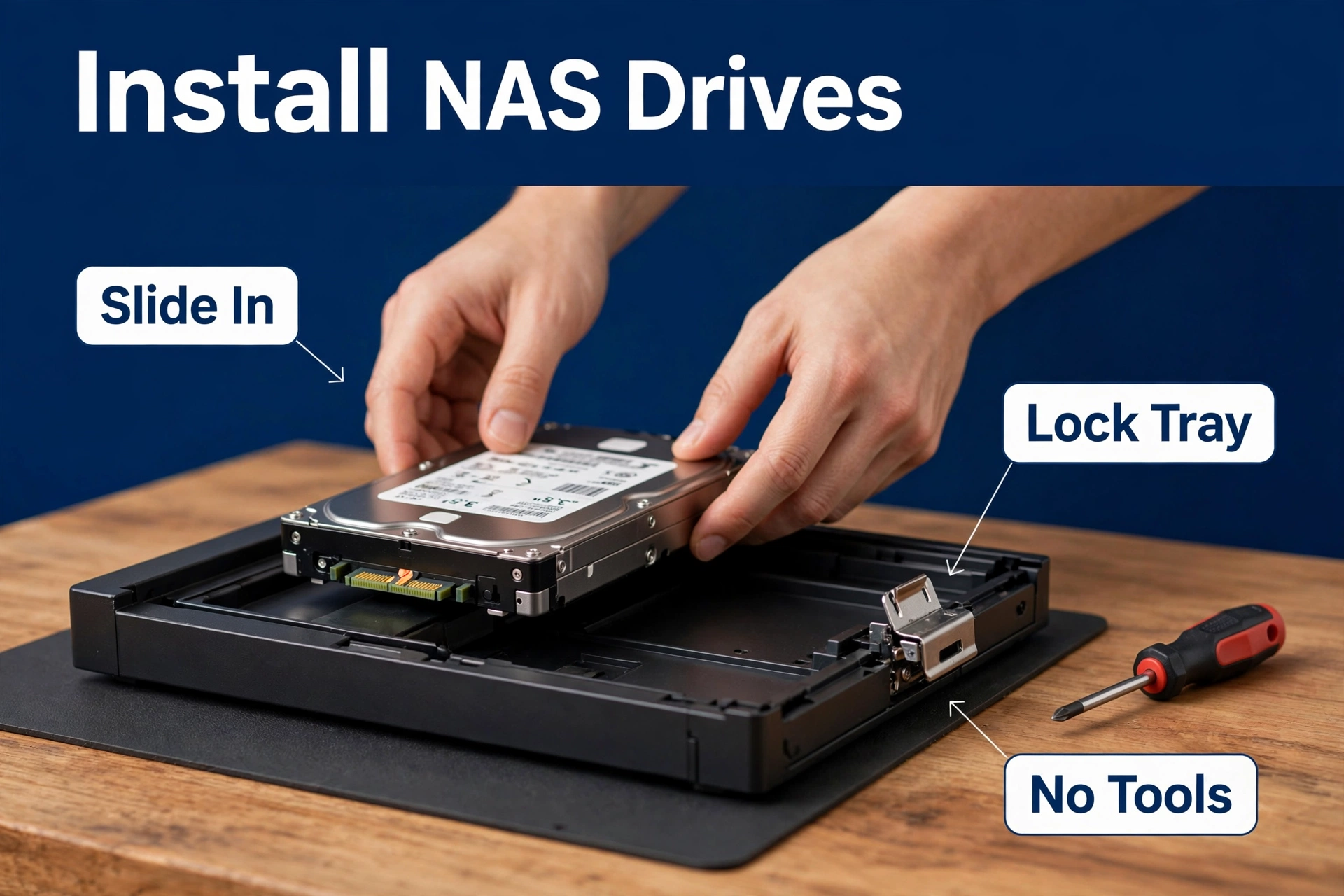
Drives arrived? Great. Now resist the urge to slam them in and start copying your data over immediately. First, run the NAS manufacturer’s built-in drive test — Synology, QNAP, TrueNAS, they all include long SMART tests or bad-block scans. Takes hours. Boring. But it catches the rare dead-on-arrival drive before your data depends on it, which is exactly when you want to find out.
Next: update your NAS firmware and the drive firmware before building the array. In contrast, ten minutes of your life. Prevents an entire category of strange, hard-to-diagnose issues down the road.
And the big one — RAID is not a backup. Say it again for the people in the back. RAID saves you when a drive dies. It does nothing for accidental deletion, ransomware, theft, or a flooded house. Your NAS needs its own backup: an external drive, the cloud, ideally both. Read our guide on how to back up your NAS before you call the job done.
Frequently Asked Questions
Can I use regular desktop hard drives in a NAS?
Physically? Sure — they’ll fit, they’ll spin up, they’ll work for a while. But without the error-recovery tuning, vibration tolerance, and workload ratings of proper NAS drives, they’re much more likely to drop out of a RAID array when things get stressful. For data you actually care about, buy real NAS drives.
Is WD Red Plus better than Seagate IronWolf?
For home use, neither one is meaningfully better. Both CMR, both 24/7 rated, both three-year warranties. Just buy whichever is cheaper per terabyte when you’re shopping. The only genuine trap here is accidentally buying plain WD Red (no “Plus”) instead of Red Plus.
How do I check if a drive is CMR or SMR?
Head to the manufacturer’s official spec sheet and look up your exact model number and capacity — the reputable makers list recording technology explicitly these days. No mention of it on the spec sheet? Treat that as a red flag and pick a drive that discloses it. And never guess based on the family name alone.
How many hard drives do I need for a NAS?
Two is the practical minimum if you want redundancy, via RAID 1 mirroring. One drive works for a basic file server — but then a single drive failure takes everything with it, zero protection. Four bays are the sweet spot for most home users: start with two drives, expand later.
Should I buy the biggest drives I can afford?
Not necessarily. Biggest capacities usually cost more per terabyte, and they take longer to rebuild too. Mid-range capacities tend to hit the best balance — reasonable price, reasonable rebuild times, and enough headroom to grow into.
Do NAS drives work in a regular PC?
Yep. A NAS drive is still just a hard drive, and it works fine as secondary storage in a desktop. It’s overkill for the job and typically pricier than a desktop equivalent — so nobody does it on purpose — but nothing stops you.
How long do NAS hard drives last?
They’re built for years of 24/7 operation, and five-plus years of service is pretty common. But they’re mechanical — every single one fails eventually. Keep an eye on the SMART health data in your NAS dashboard, replace a drive at the first sign of reallocated sectors, and keep backups no matter how young the drives are.
