

Nothing is more annoying in a smart home than a sensor that works perfectly on Monday and shows as “unavailable” on Tuesday. If you are searching for a zigbee devices going offline fix, you are not alone — this is one of the most common frustrations in the Home Assistant community. The good news? Most of the time, the device is not broken. The mesh network around it is just struggling, and a few targeted changes can make your Zigbee network rock solid again.
In this guide, we will walk through the eight most common reasons Zigbee devices drop offline and give you step-by-step fixes for each. No engineering degree required — just a bit of patience.
First, Understand What “Offline” Really Means in Zigbee
Before we fix things, a quick mental model helps, because Zigbee is a mesh network: most devices do not talk to your coordinator (the USB stick or hub running the network) directly. They hop through other Zigbee devices to get there. There are three roles:
- Coordinator: the single boss of the network — your USB dongle or built-in radio. There is only one.
- Routers: mains-powered devices (smart plugs, bulbs, switches) that relay messages for other devices. These are the backbone of your mesh.
- End devices: battery-powered devices (sensors, remotes, buttons) that sleep most of the time to save battery and only wake up to send a message.
So when a battery sensor shows as unavailable, the sensor itself is usually fine — it is the path back to the coordinator that has broken. Something changed in the mesh: a router was unplugged, interference spiked, or the device picked a bad route. With that mental model in place, let us look at the actual causes.
Zigbee Devices Going Offline Fix: The 8 Most Common Causes
Work through these in order. The first three solve the problem for the vast majority of people — do not skip ahead to buying new hardware before checking them.
Cause #1: Weak Mesh — Too Few Routers, Too Far Apart
This is the number one cause of flaky Zigbee devices, full stop. Battery-powered end devices cannot relay messages, so if you have a house full of sensors but only one or two mains-powered devices, distant sensors have no reliable path home. They join, work for a while, then quietly drop off.
The classic symptom: devices farthest from your coordinator go offline first. A weak mesh is also why a sensor works fine on your desk but dies the moment you mount it in the hallway.
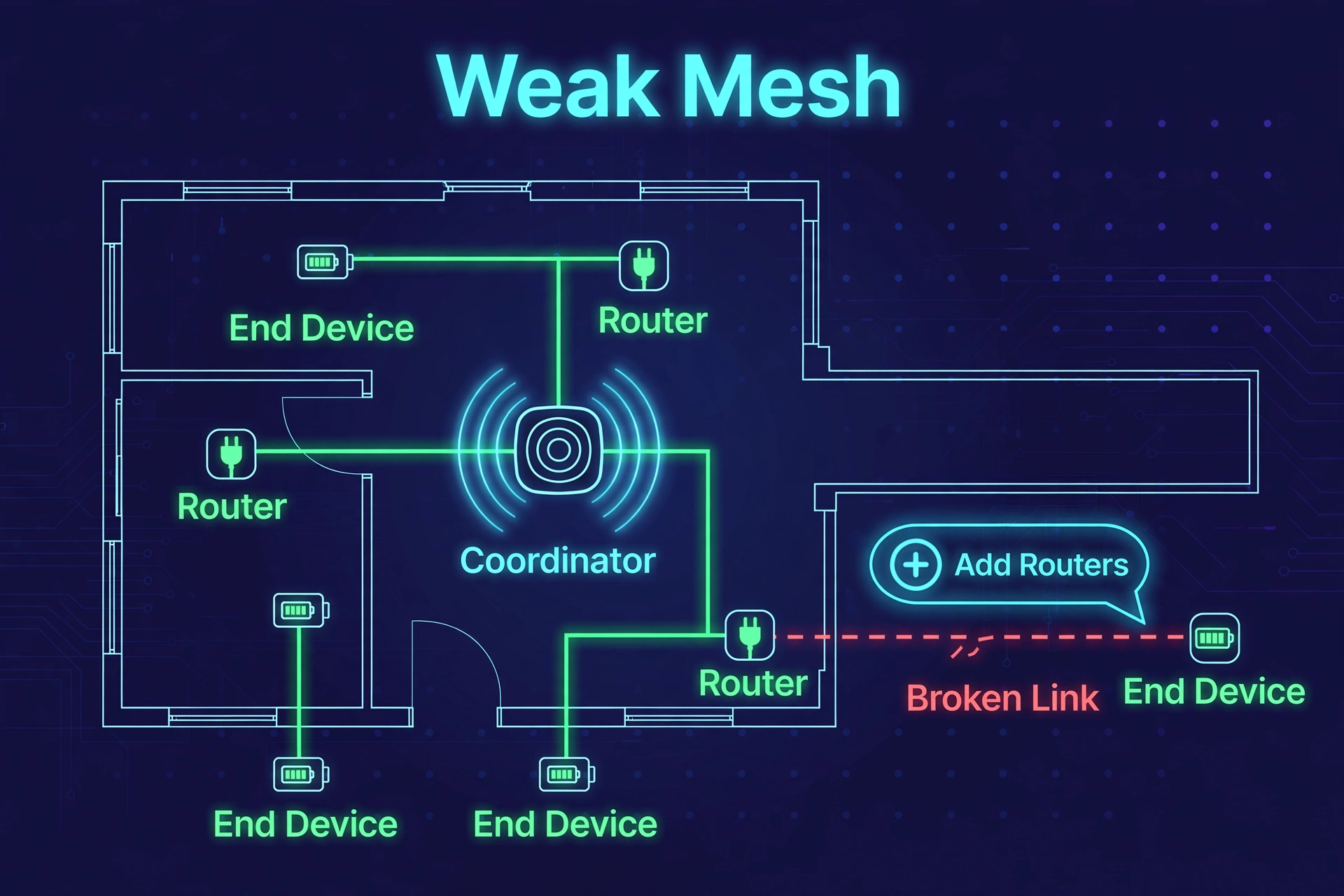
The fix: add more routers. Every mains-powered Zigbee device (smart plug, wired switch, always-powered bulb) strengthens the mesh. You do not need many — just spread them sensibly through the house.
- Open your Zigbee network map (ZHA: Zigbee Home Automation → Configure → Visualization; Zigbee2MQTT: Network map in the frontend) and find the weakest links.
- Place one or two inexpensive Zigbee smart plugs roughly halfway between the coordinator and the problem devices.
- Pair the new plugs near the coordinator first, then move them to their final spots.
- Wait 24 hours — Zigbee re-evaluates routes slowly — then check the map again for stronger links.
Cause #2: 2.4 GHz Wi-Fi Interference
Here is the sneaky one. Zigbee and Wi-Fi both live in the 2.4 GHz band, and they step on each other constantly. Your Wi-Fi router is far more powerful than a tiny Zigbee sensor, so when they overlap, Zigbee loses. The maddening part is that interference comes and goes — a neighbor’s router or a busy evening of streaming can push a marginal device over the edge.
| Wi-Fi Channel | Zigbee Channels Affected | Safe Zigbee Channels |
|---|---|---|
| 1 | 11, 12, 13, 14 | 15, 20, 25, 26 |
| 6 | 16, 17, 18, 19 | 11, 15, 20, 25, 26 |
| 11 | 21, 22, 23, 24 | 11, 15, 20, 25, 26 |
| Auto (1/6/11) | Most of the band | 25, 26 (usually clearest) |
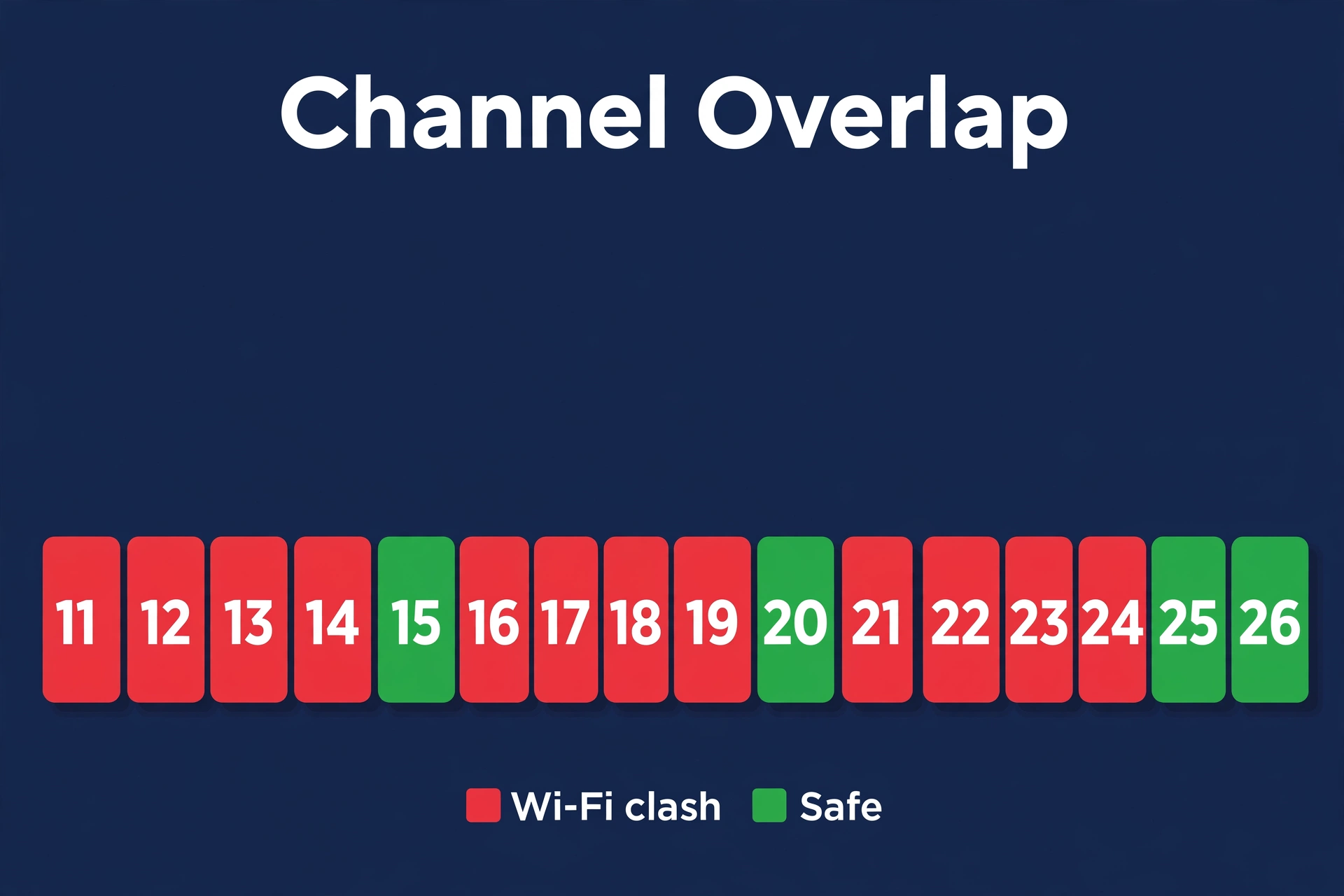
The single most effective move: set your Wi-Fi router to a fixed channel (1, 6, or 11 — not “Auto”) and set your Zigbee network to a channel far away from it. Zigbee channels 15, 20, and 25 are popular because they sit between the main Wi-Fi channels. Note that changing the Zigbee channel forces devices to re-pair in most setups, so plan for a quiet half hour.
- In your Wi-Fi router settings, change the 2.4 GHz channel from Auto to 1, 6, or 11 (a free Wi-Fi analyzer app on your phone shows which is least crowded).
- Change your Zigbee channel to one far from it — 15, 20, or 25 are safe bets (ZHA: network settings; Zigbee2MQTT: the
channelvalue in configuration). - Re-pair any devices that do not come back on their own, then give the network a day to settle.
Our walkthrough on how to change your Zigbee channel to avoid Wi-Fi interference covers this procedure in full detail.
Cause #3: Coordinator Plugged Directly Into the Computer (No USB Extension)
This one surprises almost everyone. USB 3.0 ports generate radio noise right in the 2.4 GHz band — exactly where Zigbee lives. If your coordinator dongle is plugged directly into a Raspberry Pi or mini PC next to a USB 3.0 port, it is shouting over its own interference. Devices pair fine at first, then drop off randomly.
The fix costs almost nothing and takes two minutes:
- Get a short USB 2.0 extension cable (1–2 meters is plenty) and reconnect the coordinator through it, away from the computer, USB 3.0 ports, and external drives.
- If possible, raise the coordinator up — on top of a shelf beats behind a desk.
- Restart Home Assistant and watch the network for a day or two.
This single change has rescued more “mystery dropout” networks than any other trick in the book. If you are still shopping for hardware, our guide to the best Zigbee coordinator dongles for Home Assistant explains why placement matters so much.
Cause #4: Dying or Low-Quality Batteries
It sounds obvious, but Zigbee devices are dramatic about low batteries. A sensor at 30% might still report temperature perfectly, then vanish from the network an hour later — the radio transmission is the most power-hungry thing the device does, and it is the first thing to fail when voltage sags.
Not all batteries are equal, either. Cheap coin cells often have inconsistent voltage, and some sensors are notoriously picky about battery brand. If one device keeps dropping while everything else is stable, suspect the battery before the network.
- Swap in a fresh, name-brand battery — do not trust the percentage shown in Home Assistant, which is often a rough estimate.
- After replacing, short-press the device’s pairing button once to wake it and let it re-announce itself.
- For devices in cold spots (garages, outdoors), remember cold drains batteries faster — consider a mains-powered alternative there.
Cause #5: You Have Hit a Device Limit
Every coordinator has a limit on how many devices can connect directly to it — typically 15 to 50 depending on the chip and firmware. Your 40th sensor pairs fine, your 45th pairs and vanishes overnight, and you assume the device is faulty.
The catch: this limit only applies to direct connections. Devices routed through routers do not count against it — yet another reason Cause #1 (add more routers) matters. If your network map shows dozens of devices all hanging directly off the coordinator, you have found your problem.
- Open your Zigbee network map and count how many devices connect directly to the coordinator.
- Add mains-powered routers near clusters of end devices so they route through the routers instead.
- Re-pair stubborn devices from their final installed location so they pick the nearest router during pairing.
Cause #6: Outdated Coordinator or Device Firmware
Zigbee coordinator firmware has improved enormously over the past couple of years. Older versions had bugs around routing and recovery from interference — exactly the symptoms that look like devices “randomly going offline.” The same goes for end devices: manufacturers quietly fix radio bugs in firmware updates.
One honest warning first: updating coordinator firmware is the one fix on this list with real risk. A failed flash can brick the stick. Read the instructions for your specific coordinator twice, and never flash on a laptop running on fumes.
- Identify your coordinator model and check for the latest firmware version.
- Back up your Zigbee network first — Zigbee2MQTT: back up
configuration.yamland the coordinator backup; ZHA: download a network backup from the integration settings. - Follow the official flashing instructions for your stick, then confirm the network comes back up. For end devices, check for OTA updates in Zigbee2MQTT or ZHA.
Cause #7: The Device Paired to a Router That Later Moved or Died
Zigbee devices are loyal to a fault. When a battery sensor pairs, it remembers its parent router. If you later unplug that smart plug or replace a bulb, the orphaned sensor keeps trying to reach a parent that no longer exists — and shows as offline even though the rest of your mesh is healthy.
This commonly happens after rearranging furniture or when a router bulb gets switched off at the wall (a smart bulb with no power is not a router — it is a paperweight).
- Think back: did you unplug, move, or wall-switch-off any mains-powered Zigbee device recently? That is your prime suspect.
- Restore the router to its spot, or re-pair the orphaned end devices from their installed location so they choose a new parent.
- Make a house rule: smart bulbs stay powered at the wall switch — use wireless switches or automations instead, because every powered-off bulb punches a hole in your mesh.
Cause #8: ZHA vs. Zigbee2MQTT Quirks
Both of Home Assistant’s main Zigbee options are excellent, but they handle “offline” detection differently, and that confuses a lot of people. ZHA marks a battery device as unavailable if it has not checked in within a certain time, while Zigbee2MQTT’s availability feature can be tuned or disabled. Sometimes the device is actually fine — the integration has just decided it has been quiet for too long.
Zigbee2MQTT also exposes more low-level settings (reporting intervals, availability timeouts, transmit power), while ZHA is simpler but gives you fewer knobs. If dropouts started right after migrating from one to the other, the difference in default timeouts is worth investigating.
- In Zigbee2MQTT, check Settings → Availability: try a generous timeout (or disable it temporarily) to see whether “offline” devices are actually still communicating.
- In ZHA, look at the device’s “last seen” timestamp — if it is recent, the device is alive and the unavailable flag is just a timeout technicality.
- Some sensors can be configured to report more often, which keeps them marked as available.
A Quick Diagnostic Order: What to Check First
If the list above feels like a lot, here is the short version — the order a professional would actually troubleshoot in. Most dropout problems are solved in the first four steps.
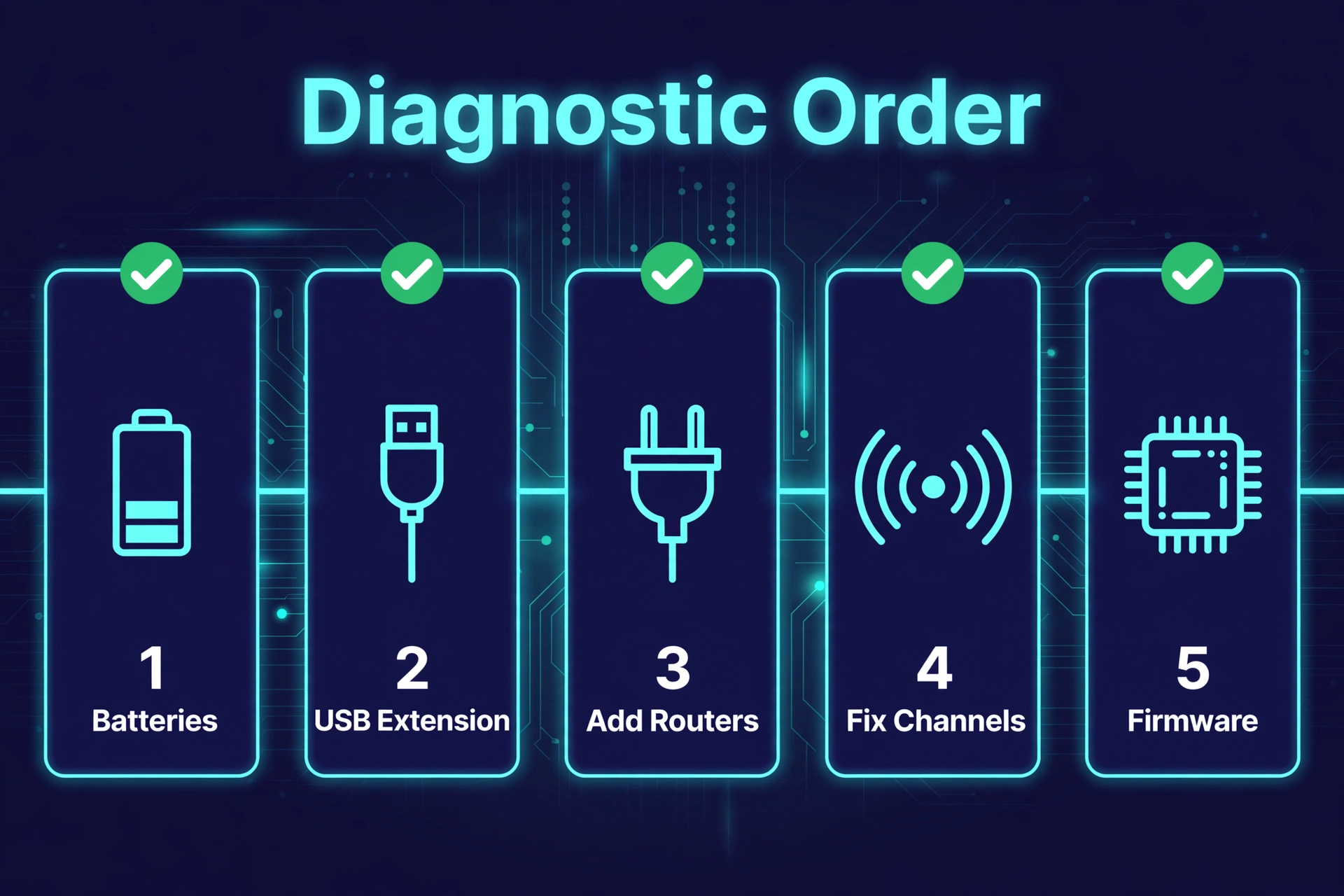
- Check the obvious: fresh batteries in the problem devices, and confirm no smart plugs or bulbs were recently unplugged or wall-switched off.
- Fix the coordinator position: USB extension cable, away from USB 3.0 ports and the computer itself. Two minutes, huge payoff.
- Strengthen the mesh: add one or two mains-powered routers between the coordinator and the problem area.
- Kill the interference: fix your Wi-Fi to channel 1, 6, or 11 and move Zigbee to 15, 20, or 25.
- Then look at device limits, firmware, and integration-specific timeouts.
One more habit that pays off: after any change, give the network 24 hours before declaring victory. Zigbee heals slowly — the mesh needs time to discover new routes and settle down.
How to Keep Your Zigbee Mesh Stable Long-Term
A handful of habits will keep your network boring in the best possible way:
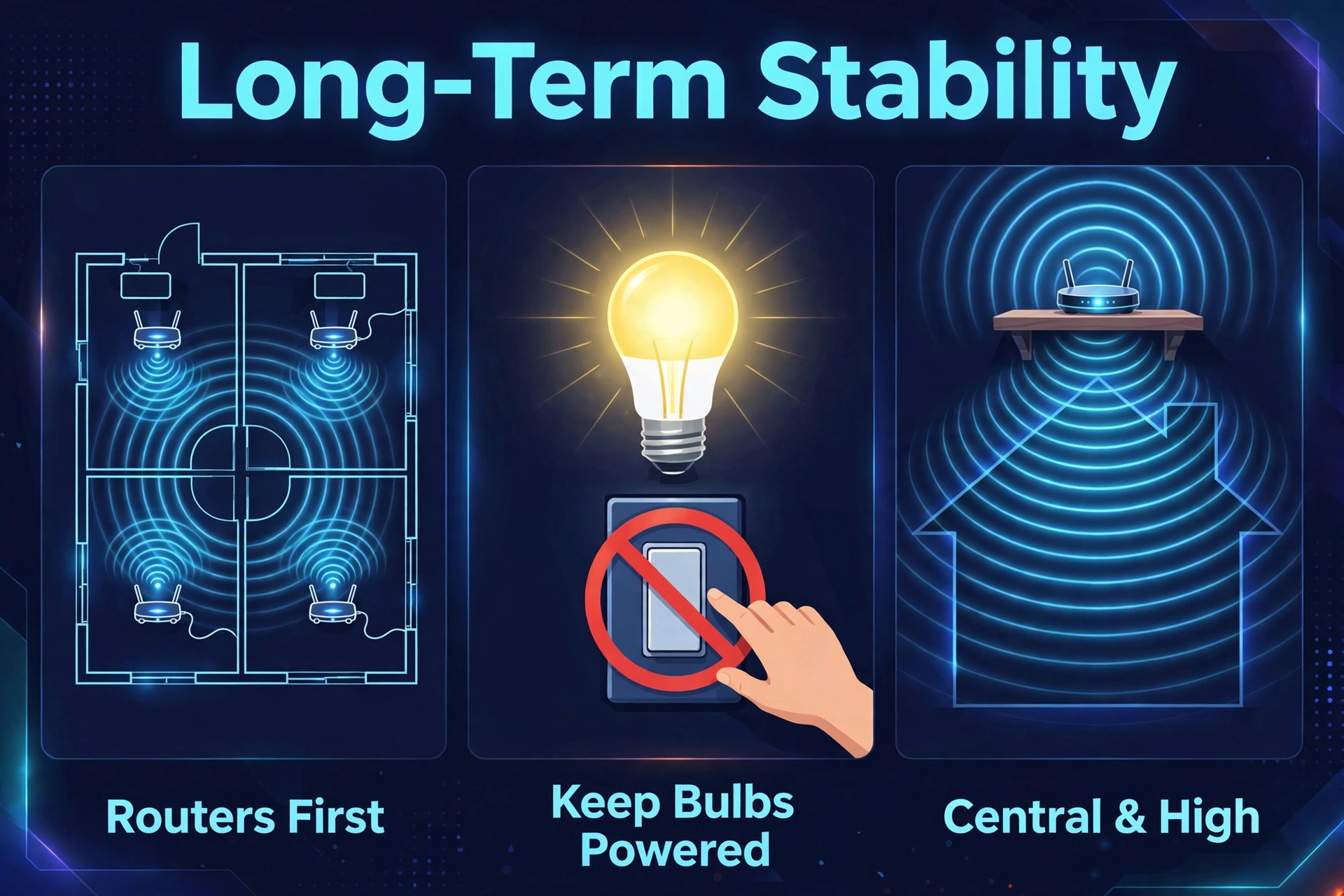
- Design with routers first. Every time you expand into a new room, add a mains-powered device there before the battery sensors. Think of routers as the roads and sensors as the houses — build the roads first.
- Never wall-switch a smart bulb. Every powered-off bulb is a hole in your mesh. Use smart switches, wireless remotes, or automations instead.
- Keep the coordinator central and elevated. A coordinator in a back-corner office serves half the house poorly. Central, high, and on an extension cable is the mantra.
Frequently Asked Questions
Why do my Zigbee devices go offline at night but work during the day?
This is the classic weak-mesh signature. During the day, activity keeps devices awake and routes fresh; overnight, battery devices sleep for long stretches, and if their route was marginal, they fail to check back in. Interference can also spike in the evening when everyone is streaming. More routers and a cleaner Zigbee channel fix this pattern in most cases.
Should I re-pair a device that keeps going offline, or just wait?
Re-pairing helps when the device is stuck to a dead or moved parent router — a fresh pairing lets it choose a better route. But re-pairing will not fix interference, a weak mesh, or a dying battery; the device will just drop off again. Fix the underlying cause first, then re-pair once as the final step.
Do Zigbee devices go offline when Home Assistant restarts?
Briefly, sometimes — and that is normal. After a restart, battery devices show their last known state until they next wake up and report, which can take minutes to hours. Mains-powered devices should come back within a minute or two. If devices stay unavailable long after a restart, that points to a mesh problem rather than the restart itself.
Can too many Zigbee devices cause dropouts?
Not directly — Zigbee networks can handle hundreds of devices. What causes trouble is too many devices connected directly to the coordinator, or too few routers to support them all. Scale with routers, not just devices, and large networks stay perfectly stable.
Is Zigbee2MQTT more stable than ZHA for keeping devices online?
For most users, the difference is smaller than the forums suggest. Both are very stable when the underlying mesh is healthy. Zigbee2MQTT offers more tuning knobs (availability timeouts, transmit power, reporting intervals), which helps in tricky environments, while ZHA is simpler to run. Fix the physical network first; only consider switching if you have done all of that and still have issues.
The Bottom Line
When Zigbee devices keep going offline, the device is rarely the villain. Nine times out of ten, the culprits are a thin mesh with too few routers, Wi-Fi interference in the 2.4 GHz band, or a coordinator suffocating next to a USB 3.0 port. Work through the causes in order, give the mesh a day to heal after each change, and you will end up with a network that just quietly works — which is the entire point of a smart home.
If you are still planning your setup rather than fixing it, start on the right foot: pick a solid coordinator, plan your router placement before your sensors, and choose a clean Zigbee channel from day one. A stable mesh is also what makes a smart home security setup trustworthy instead of theatrical.
