

How to Store Security Camera Footage Locally (No Cloud Needed)
The quick answer: your camera needs a microSD card inside it, a hub with a hard drive on your shelf, or a network recorder (NVR) — and then your footage stays on your own shelf, not on a company server. Local storage gives you the clips you need without a monthly subscription, but only if you set it up right and check that it actually records.
This guide covers the three local storage routes, how to choose camera-grade memory cards that survive constant overwriting, and the step-by-step for setting each route up. Everything here runs on normal home gear, and none of it uploads your footage anywhere.
What Local Storage Means (And Why People Choose It)
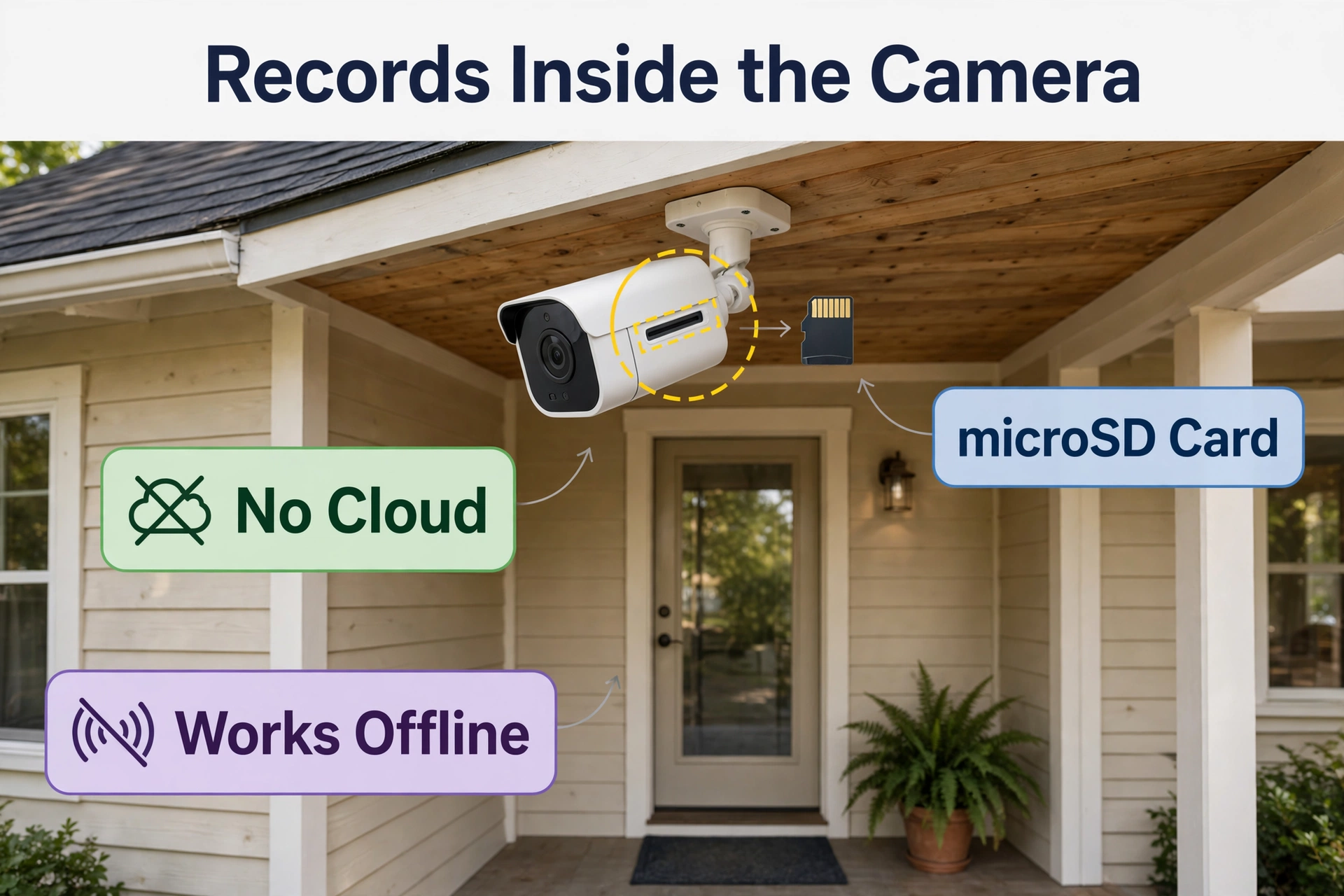
“Local storage” means the camera writes video to something you own: a card in the camera, a box in your house, or a drive on your home network. The camera still may see the internet for phone access, but recording continues if the internet dies.
- No monthly fee for storing and reviewing clips.
- You decide when footage is overwritten and when it is deleted.
- Cameras keep recording during an internet outage.
- Live view from your phone still works if the maker supports it — ask before you buy, because some brands restrict this.
Who pays either way
Two warnings before you start. First, some manufacturers charge for app features or AI detection even if you record locally; Wyze, for example, gates its AI person/pet/vehicle detection behind Cam Plus. Second, a local system you never check can silently fail — a full card, an offline hub, a camera that stopped. The last section gives you a ten-minute check to run so this never happens.
Your Three Local Storage Options
Option 1: MicroSD Card Inside the Camera
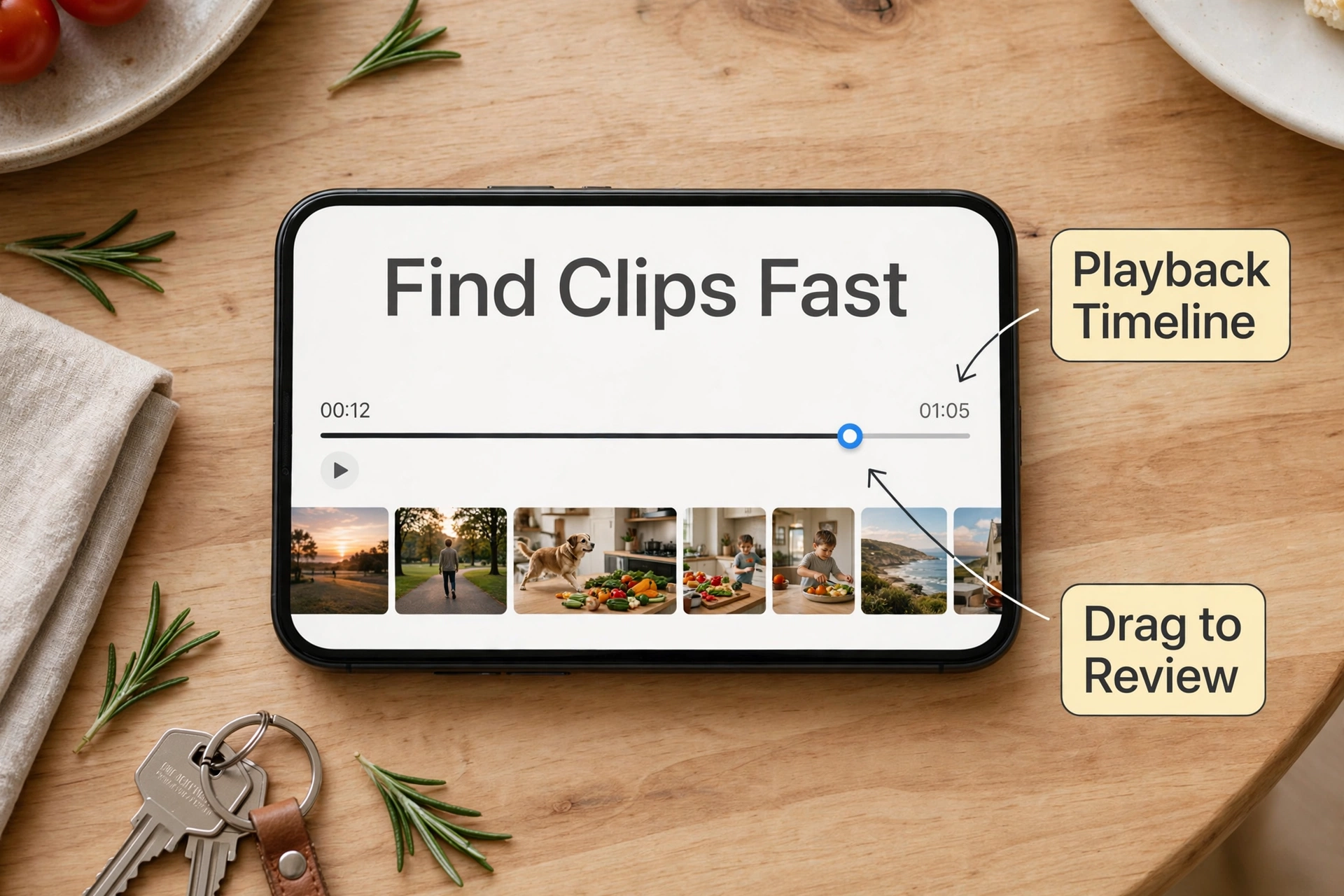
The simplest route. The card sits in the camera and records there. When it fills up, it overwrites the oldest footage first, and most apps let you scrub back through the timeline from your phone.
- Best for one or a few cameras.
- No extra box or wiring.
- Risk: theft of the camera takes the footage too.
The card needs to be rated for constant writing. Camera makers know this gear takes a beating: how a microSD card performs inside the camera is covered in Reolink’s guide to camera storage options, which walks through microSD card behaviour versus a home hub. The bigger the card, the more days you keep. A 256 GB card can hold roughly two to three weeks of typical Wyze event-plus-continuous recording, and over a week on many other brands.
Option 2: A Hub or Base Station With a Hard Drive
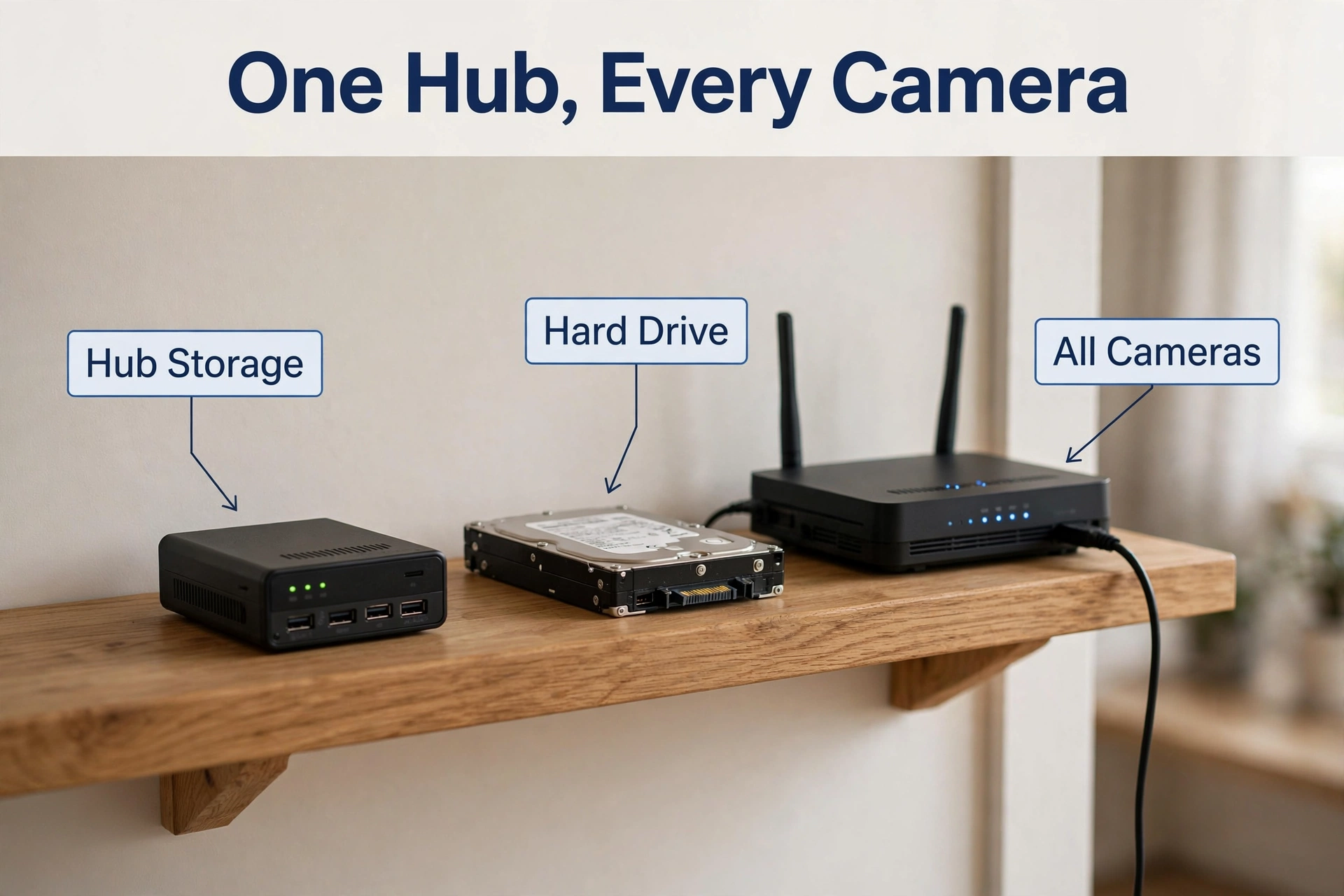
Several indoor/outdoor camera systems ship with a home hub that stores everything centrally. eufy stores footage on the HomeBase S380 (16 GB built in, expandable by SATA hard drive up to 16 TB), writing the disk first and the built-in storage only after the disk is removed. Reolink’s Home Hub takes microSD up to 256 GB and records offline from its paired cameras.
- Best for a whole-house system you can expand later.
- Stores footage indoors where it’s harder to steal.
- The hub needs power and, for app access, internet.
Option 3: NVR — A Recorder With Big Drives
An NVR records many cameras to full-size hard drives and gives you the longest retention. It’s the natural upgrade when a hub’s storage no longer covers the days you need, and it suits properties with many cameras. The trade-off is wiring: wired PoE cameras are the usual partner, so install takes longer. A wired four-camera kit can keep roughly 30 days of continuous footage on a multi-terabyte drive.
If you’re choosing between these routes, our roundup of the best security cameras with local storage compares the main systems side by side.
How Much Storage Do You Actually Need?
Start with the days you want to keep. A week lets you catch a package thief after a holiday. A month covers most disputes. Use the table to match card or drive size to your setup.
| Storage route | Where the footage lives | Room to grow | Keeps recording without internet? |
|---|---|---|---|
| MicroSD card (128–256 GB) | Inside each camera | Swap in a bigger card | Yes, on supported cameras |
| Home hub (16 GB–16 TB) | A box on your shelf | Add or upgrade a drive | Yes, for paired cameras |
| NVR (1–8 TB plus) | Recorder by your router | Add-on drive bays | Yes, on a local network |
The two levers that decide everything
- Continuous versus motion recording. Continuous gives you everything but eats storage. Motion-only can stretch a card for weeks at low-traffic doors, at the cost of possibly losing the moments before motion begins.
- Resolution. A 4K stream holds more detail but fills a card several times faster than 1080p. For many doors and yards, 2K is a workable middle ground.
Choose card size by your busiest camera, not the average: the front door never sleeps, while the side gate may record twice a week.
MicroSD Cards: What to Buy, What to Avoid
Ordinary cards die early in a camera. The fix is picking cards built for thousands of overwrite cycles — and it matters which class you buy.
What to look for
- Endurance-rated cards. Buy “high endurance” or “max endurance” models made for dashcams and surveillance cameras. They survive far more rewrite cycles than standard cards.
- Right class and speed. Most camera makers ask for Class 10/U1 or better, and list a maximum card size per model — check before you buy a 512 GB card your camera can’t read.
- Format in the camera. Format new cards in the camera itself, not on a computer, so the filesystem matches what the camera expects.
What to avoid
- Fake oversized cards sold cheap online — they fail fast and take your footage with them.
- Cards you already wore out in a phone or drone.
- Single giant cards with no spare: a card can fail, so keep a spare formatted and ready.
Setting Up a MicroSD Camera (Step-by-Step)
- Insert the card with the camera powered off, contacts the right way.
- Power on and open the camera’s app.
- Format the card inside the app when prompted.
- Choose your recording mode: continuous, motion-only, or scheduled.
- Turn on “loop recording” or overwrite so the camera reuses old space instead of stopping at full.
- Record a test: walk past the camera, wait a minute, and play it back from the card in the app.
Wyze’s own support page covers continuous recording on Wyze cameras without a subscription, including how playback from the card works in the app. If your doorbell camera also records, the no-subscription setups in our best video doorbell no subscription guide pair naturally with this approach.
Setting Up Hub Storage (Step-by-Step)
- Place the hub where it has power and, ideally, a wired network connection.
- Fit the hard drive or card as the maker instructs, and format it in the app.
- Pair each camera to the hub and confirm it appears in the app.
- Set the recording mode for the house: continuous for the busiest cameras, motion for the rest.
- Run the same test as before, camera by camera.
Hub habits that save you later
- Keep the hub somewhere discreet and powered. A hub in plain sight in a burglar’s path is a risk.
- Prefer the drive over built-in storage where the maker gives you a choice, so a failure doesn’t take the only copy.
- After a power cut or router change, reopen the app and confirm the hub is online and every camera present.
Do You Need Internet at All?
A local system records without internet. You may still want internet for phone alerts and live view from outside the house, and on many systems the app controls require it. The risk-free approach used by most families: cameras record locally no matter what, internet used only for alerts and quick phone checks.
If you’re planning cameras across the house, a wired installation often outlasts battery models. Our doorbell installation guide covers the wiring logic that makes either camera type dependable.
When Footage Goes Missing: A Quick Troubleshoot
- Nothing recorded at all. Is the card or hub actually inserted and formatted? Reformat in the app and retest.
- Gaps in the timeline. The camera lost power or Wi-Fi. Check the outlet, the breaker, and your router placement.
- Old clips vanished. The loop overwrote them. For important clips, download them to your phone the day you notice them.
- App says camera offline. It’s usually Wi-Fi or power, not storage. Power-cycle the camera, then check the app again.
The 10-Minute Monthly Check
Once a month, put a timer on and do this:
- Open the app and confirm every camera shows online.
- Play back one clip from yesterday on each camera.
- Confirm the oldest date you can still reach matches your plan (e.g. two weeks back).
- Check the storage readout: a card or drive that’s suddenly full or empty needs attention.
- Wipe lenses, re-aim any camera that got knocked, and update firmware if the app offers it.
Frequently Asked Questions
Can a camera record to a card with no internet at all?
Yes, on most cameras with a card slot. It records to the card continuously or on motion, and you review it in the app when you’re back on the same network. Some brands restrict remote live view without an account, so confirm this on your specific model before relying on it.
How long will a 256 GB card keep footage?
It depends on mode and resolution. Roughly one to three weeks of typical recording: continuous 1080p drains faster, motion-only much slower. Cards larger than your camera supports simply won’t be recognized, so check the model’s maximum in the manual.
What happens if someone steals the camera?
If the card is inside that camera, the footage leaves with it. A hub or NVR indoors keeps recording even if an outside camera is taken, which is the strongest argument for hub storage on doors and driveways.
Do I still need an account with the camera maker?
Usually yes for app setup and phone access, even when storage is local. The difference is where the video lives: on your card, hub, or drive — not in a plan you rent monthly. True account-free systems exist but trade away app convenience.
Can local storage work with Home Assistant?
It can, with compatible cameras and integrations, but setups vary widely. This guide stays with maker-supported card, hub, and NVR routes that work out of the box. Households already wired for automations can extend those systems later.
Putting It Together
Start with one camera and a proper endurance card. Set recording the way you actually want it, test playback the same day, and put the monthly check on your calendar. When you’re ready to cover more of the house, a hub or NVR slots into the same routine. Your footage stays where it belongs: on your shelf, under your control, with no monthly bill.
