

How to Set Up Adaptive Lighting in Home Assistant
Adaptive Lighting in Home Assistant is a free custom integration that changes your lights’ brightness and color temperature automatically through the day. Mornings are bright and cool, afternoons stay neutral, and evenings shift to dim, warm light. Once it is set up, your lights simply match the sun.
In this guide you will install Adaptive Lighting through HACS, configure it in the Home Assistant interface, tune the most useful settings, and fix the most common problems. No YAML experience is needed.
Adaptive Lighting Home Assistant: What It Does
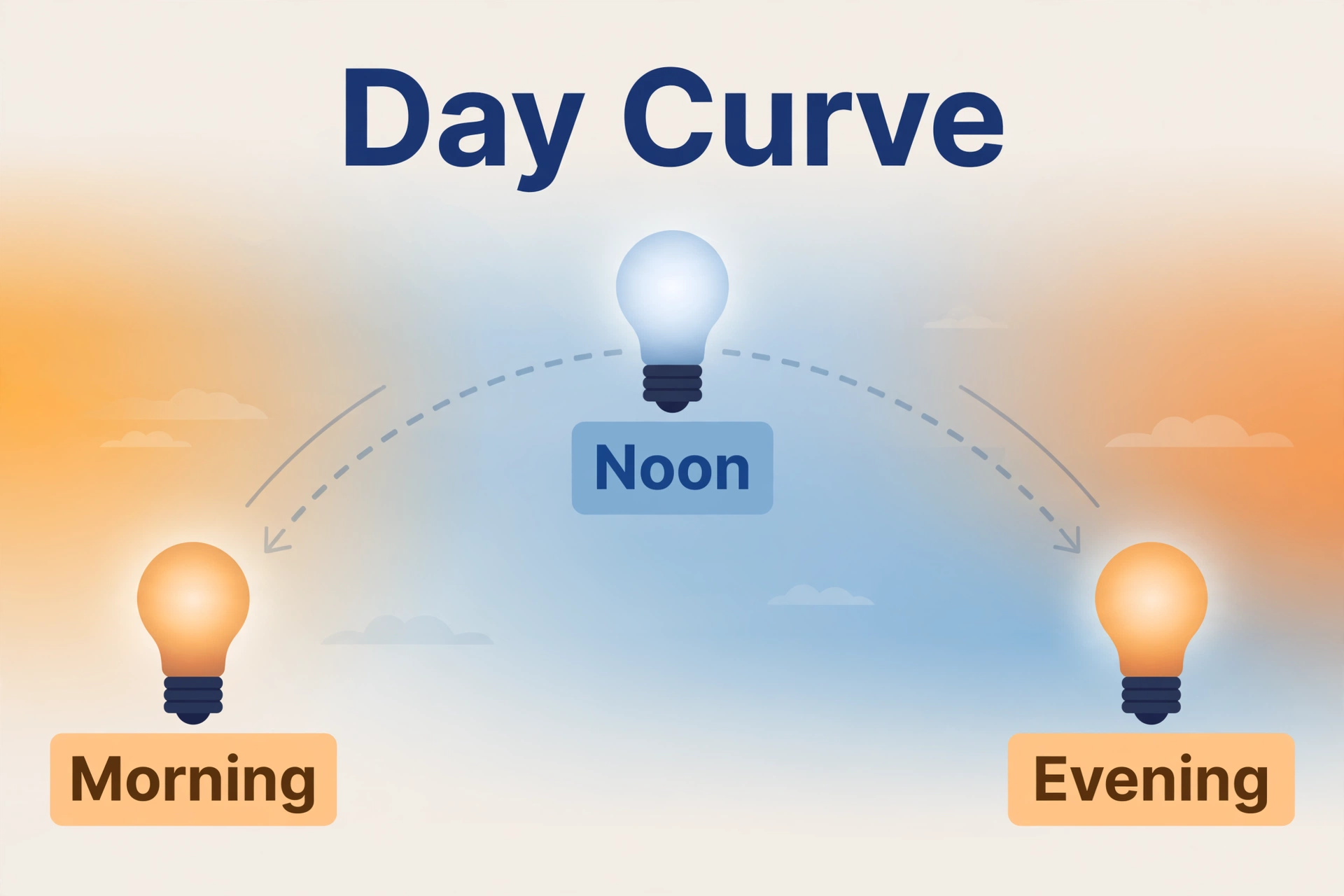
Adaptive Lighting watches the sun. It knows when the sun rises and sets at your location, and it moves your lights along a smooth curve between two points you choose: the coolest, brightest setting at midday and the warmest, dimmest setting at night.
Every 90 seconds by default it recalculates what your lights should look like right now and adjusts them with a gentle transition. You walk into the kitchen at 7 AM and the lights are bright white; you come back at 9 PM and the same lights are a soft warm glow. Same switch, same bulb, zero fiddling.
Bright cool light in the morning helps you feel alert, and dim warm light in the evening is easier on your eyes. The honest reason most people install it is simpler, though: your home’s light always feels right without you touching anything.
How Adaptive Lighting Controls Your Lights
Each group of lights you configure gets four switches. The names follow your config entry, so a group called “Living Room” creates:
switch.adaptive_lighting_living_room— the main on/off switch for adaptationswitch.adaptive_lighting_sleep_mode_living_room— turns on sleep mode (extra dim)switch.adaptive_lighting_adapt_brightness_living_room— enables or disables brightness changesswitch.adaptive_lighting_adapt_color_living_room— enables or disables color temperature changes
That lets you split control: turn off the color switch to keep a fixed warm color while brightness adapts, or turn off the main switch to pause a room while you cook.
What You Need Before You Start
Adaptive Lighting is not built into Home Assistant, so check you have these things ready:
- Home Assistant running and updated. Any install type works. If you have not installed it yet, follow our Home Assistant starter guide for Raspberry Pi 5 first.
- HACS installed. Adaptive Lighting is a community integration, so you install it through the Home Assistant Community Store.
- Lights that support brightness and color temperature. Brightness adapts on any dimmable light, but color temperature only shifts on tunable-white or full-color bulbs that report color temperature support. Fixed white bulbs get brightness changes only.
Popular picks include Philips Hue, Wiz, IKEA DIRIGERA/TRÅDFRI, Govee, and most Zigbee or Wi-Fi bulbs paired through ZHA, Zigbee2MQTT, or native integrations. Still choosing? Our Philips Hue vs Wiz comparison covers two common tunable options.
Step 1: Install Adaptive Lighting via HACS
The install takes a few minutes:
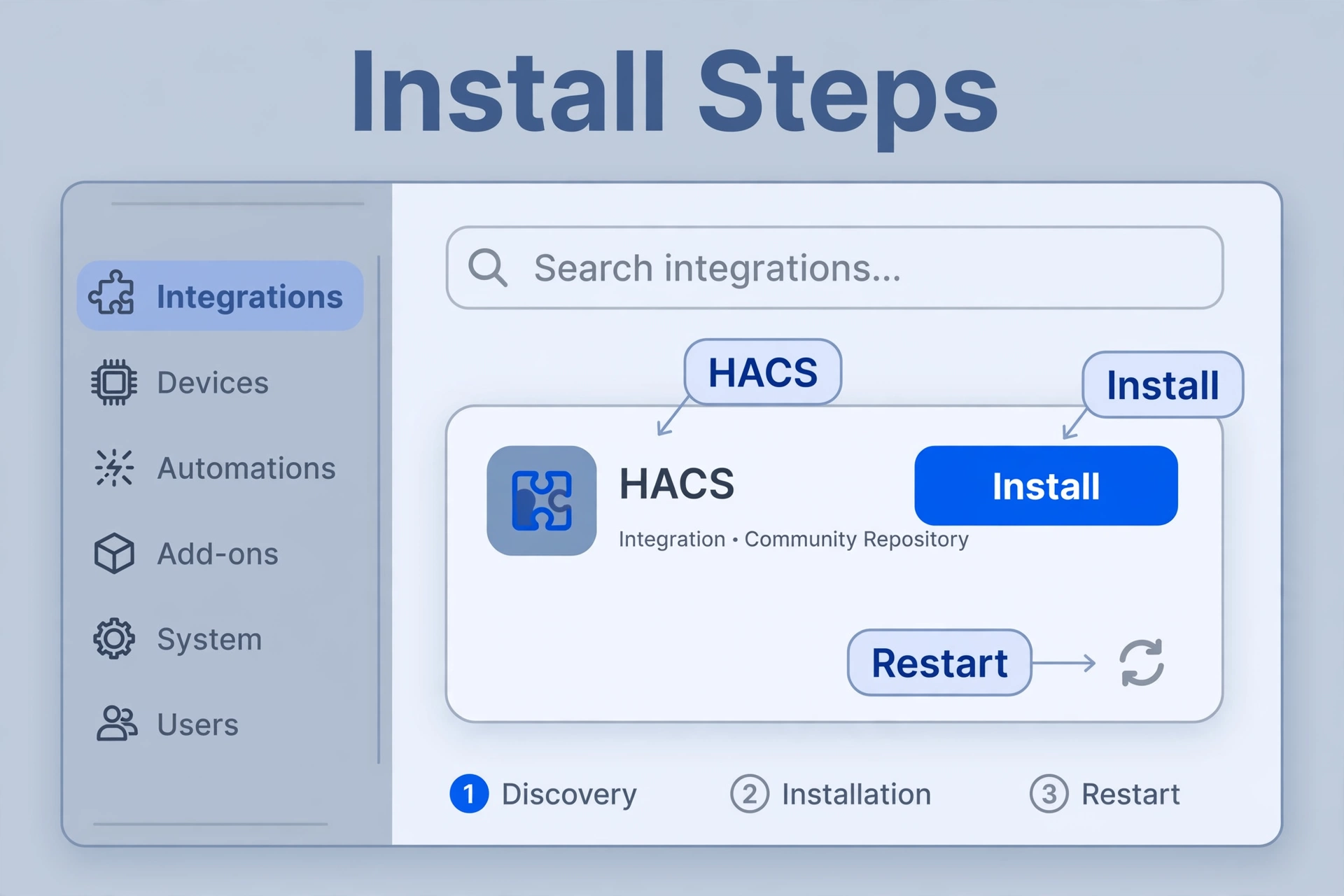
- Open the Home Assistant sidebar and click HACS.
- Click Integrations, then the blue Explore & Download Repositories button in the bottom right.
- Search for Adaptive Lighting.
- Click the result, then click Download and confirm.
- Restart Home Assistant when prompted (Settings → System → Restart).
That is the whole install. The integration is on your system but not active yet — the next step is the one people forget.
Step 2: Add the Entry to configuration.yaml
Even if you plan to configure everything in the UI, Adaptive Lighting requires a small entry in your configuration.yaml. Without it, the integration will not load at all.
- Open File editor (or your preferred editor add-on).
- Open
configuration.yaml. - Add this single line anywhere in the file:
adaptive_lighting:- Save the file.
- Go to Developer Tools → YAML and click Check configuration to confirm there are no errors.
- Restart Home Assistant one more time.
That single line is the minimum. You can define whole light groups here too (an example is below), but the single line plus the UI setup is the cleanest path.
Step 3: Configure It in the Home Assistant UI
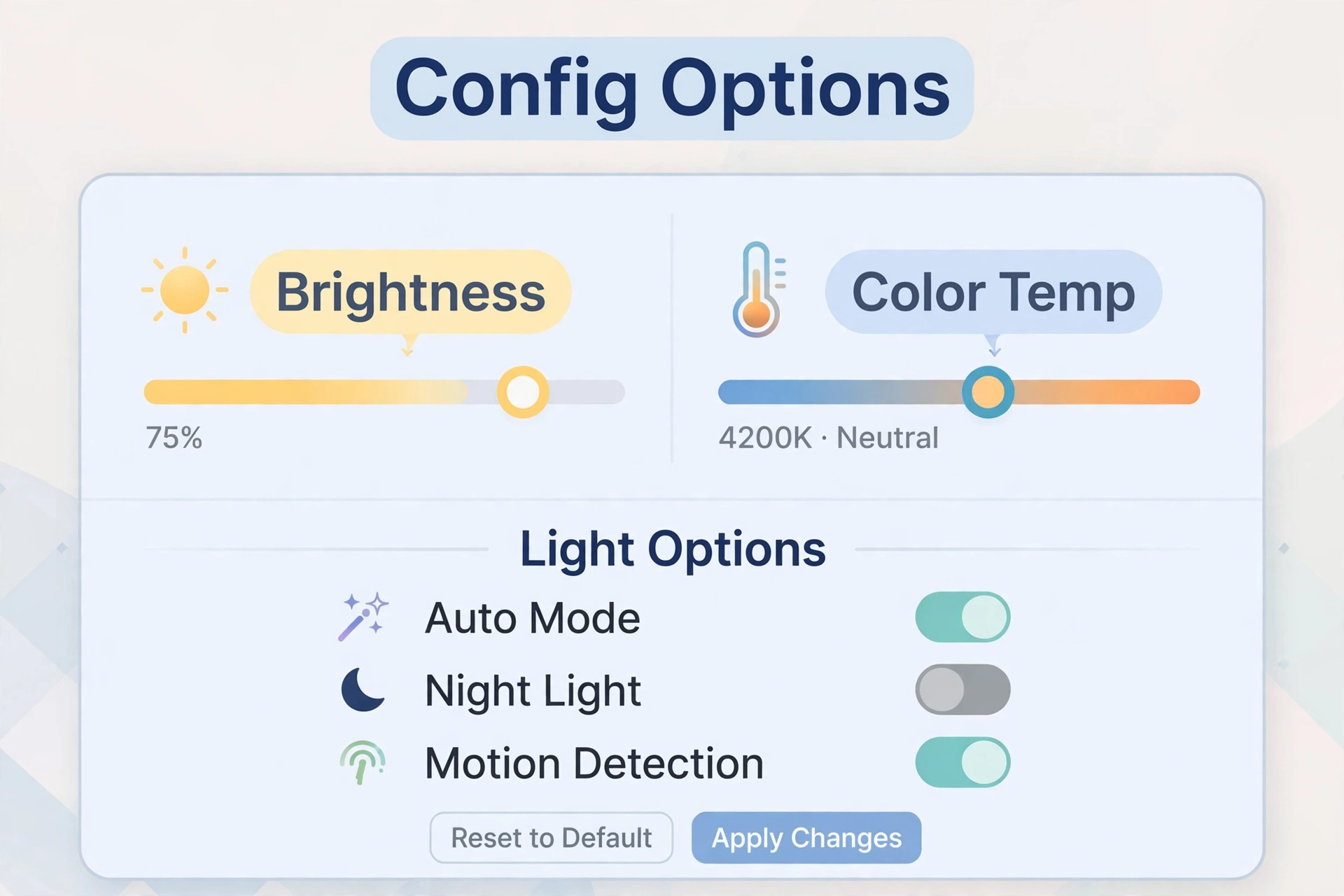
- Go to Settings → Devices & Services.
- Click Add Integration (bottom right) and search for Adaptive Lighting.
- Give your first light group a name, for example Living Room.
- Select the lights you want in this group. Start with one room, not your whole house.
- Click Submit, then open the new integration’s Configure menu to adjust settings.
The configuration menu holds every option listed in the reference table below. For your first group, leave everything at defaults except the lights. Defaults are genuinely sensible — the integration’s authors picked values that work for most homes.
Step 4: Switch It On and Check It Is Working
- In your entities list, find
switch.adaptive_lighting_living_room(matching the name you chose) and turn it on. - Turn on one of the lights in the group.
- Watch the light’s brightness and color temperature attributes over the next minute — they should settle to the current time of day. To force an instant update, run this service call in Developer Tools → Services:
service: adaptive_lighting.apply
data:
  entity_id: switch.adaptive_lighting_living_room
  turn_on_lights: false
If the light adjusts sensibly for the time of day — bright and cool at noon, dim and warm late at night — the basics are done. The rest of this guide is about making it yours.
Basic Settings Worth Changing First
Two setting pairs do most of the personalizing.
Brightness range
min_brightness (default 1) and max_brightness (default 100) set the floor and ceiling in percent. Most people keep the maximum at 100 and raise the minimum slightly: 10–20 for a living room, 1–5 for a bedroom.
Color temperature range
min_color_temp (default 2000K) is the warmest the lights get at night, and max_color_temp (default 5500K) is the coolest at midday. If your bulbs only support, say, 2200K–6500K, match the range — anything outside a bulb’s real range just gets clipped.
adaptive_lighting:
  - name: "Bedroom"
    lights:
      - light.bedroom_ceiling
      - light.bedroom_lamp
    min_brightness: 5
    max_brightness: 80
    min_color_temp: 2200
    max_color_temp: 5000
That caps the bedroom at 80% even at midday, between a cozy 2200K and 5000K.
Fine-Tune the Sunrise and Sunset Times
By default Adaptive Lighting tracks real sunrise and sunset from your Home Assistant sun integration. That is correct for most people, but real life is messier than astronomy:
- Offset the times.
sunrise_offsetandsunset_offsetshift the curve in seconds. Asunset_offsetof-1800starts warming the lights 30 minutes before actual sunset. - Clamp the times.
min_sunrise_time,max_sunrise_time,min_sunset_time, andmax_sunset_timeset hard bounds. If summer sunsets hit 10 PM where you live, capping sunset at 9 PM keeps the evening warm-up sane. - Fix the times.
sunrise_timeandsunset_timeaccept fixed times like"07:00:00"and ignore the sun entirely — good if your routine is fixed regardless of the season.
Try offsets before fixed times. A small offset keeps the seasonal drift that makes the lighting feel alive.
Sleep Mode for Bedrooms and Night Paths
When you turn on switch.adaptive_lighting_sleep_mode_bedroom, lights drop to sleep_brightness (default 1%) and sleep_color_temp (default 1000K) — barely-there light for bathroom trips that will not wreck your night vision. The classic setup is a bedtime automation:
automation:
  - alias: "Enable sleep mode at bedtime"
    trigger:
      - platform: time
        at: "23:00:00"
    action:
      - service: switch.turn_on
        target:
          entity_id: switch.adaptive_lighting_sleep_mode_bedroom
  - alias: "Disable sleep mode in the morning"
    trigger:
      - platform: time
        at: "07:00:00"
    action:
      - service: switch.turn_off
        target:
          entity_id: switch.adaptive_lighting_sleep_mode_bedroom
Sleep mode is also tunable: sleep_rgb_or_color_temp switches to an RGB color, sleep_rgb_color sets it (default [255, 56, 0], dim orange), and transition_until_sleep makes sleep settings a gradual minimum after sunset.
Manual Override: What Happens When You Change a Light Yourself
This decides whether Adaptive Lighting feels magical or annoying. By default take_over_control is on: if you change a light’s brightness or color yourself — from the HA app, a voice assistant, or a scene — the integration notices and stops adapting that light until you clear the manual flag.
How it hands control back depends on take_over_control_mode:
- pause_all (default) — changing either brightness or color pauses both adaptations.
- pause_changed — only the attribute you touched pauses; the other keeps adapting. Change brightness and the color temperature still drifts with the sun.
To resume adaptation for a light, clear the manual flag with the service:
service: adaptive_lighting.set_manual_control
data:
  entity_id: switch.adaptive_lighting_living_room
  lights:
    - light.living_room_lamp
  manual_control: false
Two related options are worth knowing. autoreset_control_seconds (default 0, disabled) auto-clears manual control after a set number of seconds — 7200 means manual tweaks expire after two hours. And adapt_only_on_bare_turn_on, when true, skips adaptation when a light turns on with specific brightness or color already set, so your saved scenes stay untouched.
Using Adaptive Lighting With Motion Sensors and Automations
Adaptive Lighting does not turn your lights on or off — it only decides how they look when they are on. Your motion sensors, schedules, and buttons handle the on/off. The two pair beautifully.
The simplest pattern: a motion automation that turns lights on with a bare light.turn_on call. Adaptive Lighting intercepts it (the intercept option, on by default) and instantly applies the current brightness and color temperature — no delay, no flash of wrong settings.
automation:
  - alias: "Hallway motion light with adaptive settings"
    trigger:
      - platform: state
        entity_id: binary_sensor.hallway_motion
        to: "on"
    action:
      - service: light.turn_on
        target:
          entity_id: light.hallway_ceiling
For movie night or dinner parties, turn off the main Adaptive Lighting switch in your scene automation, then turn it back on after. Your scene is never overridden, and normal adaptation resumes when the evening is over.
Adaptive Lighting Configuration Options Reference
Caption: Adaptive Lighting configuration options with defaults (checked 2026-10-02)
| Setting | What it does | Default |
|---|---|---|
lights |
Light entity IDs this config controls | [] |
interval |
Re-adaptation frequency, in seconds | 90 |
transition |
Change duration, in seconds | 45 |
initial_transition |
First transition when a light turns on | 1 |
min_brightness |
Minimum brightness, percent | 1 |
max_brightness |
Maximum brightness, percent | 100 |
min_color_temp |
Warmest color temperature, Kelvin | 2000 |
max_color_temp |
Coldest color temperature, Kelvin | 5500 |
prefer_rgb_color |
Prefer RGB adjustment over color temperature | false |
sleep_brightness |
Brightness in sleep mode, percent | 1 |
sleep_color_temp |
Color temperature in sleep mode, Kelvin | 1000 |
sleep_rgb_or_color_temp |
rgb_color or color_temp in sleep mode |
color_temp |
sleep_rgb_color |
RGB color for sleep mode | [255, 56, 0] |
sleep_transition |
Transition when sleep mode is toggled, seconds | 1 |
transition_until_sleep |
Sleep settings as gradual minimum after sunset | false |
sunrise_time / sunset_time |
Fixed times (HH:MM:SS) overriding the sun | none |
min_sunrise_time / max_sunrise_time |
Earliest/latest virtual sunrise | none |
min_sunset_time / max_sunset_time |
Earliest/latest virtual sunset | none |
sunrise_offset / sunset_offset |
Shift sunrise/sunset, in seconds (negative OK) | 0 |
brightness_mode |
Brightness curve: default, linear, tanh |
default |
take_over_control |
Pause adaptation when something else controls a light | true |
take_over_control_mode |
pause_all or pause_changed |
pause_all |
detect_non_ha_changes |
Detect changes made outside HA (needs take-over on) | false |
autoreset_control_seconds |
Auto-clear manual control after seconds; 0 disables | 0 |
only_once |
Adapt only at turn-on, not continuously | false |
adapt_only_on_bare_turn_on |
Adapt only when turn_on sets no color/brightness (protects scenes) |
false |
separate_turn_on_commands |
Send color and brightness as separate calls | false |
send_split_delay |
Delay between split commands, ms | 0 |
adapt_delay |
Wait between turn-on and adaptation, seconds (helps flicker) | 0 |
skip_redundant_commands |
Skip commands matching known state (less traffic) | false |
intercept |
Intercept light.turn_on and adapt instantly |
true |
multi_light_intercept |
Intercept turn-on calls targeting multiple lights | true |
include_config_in_attributes |
Show options as attributes on the switch | false |
Source for all defaults: the integration’s official documentation on the Adaptive Lighting GitHub repository, checked 2026-10-02.
Troubleshooting Common Problems
My lights are not adapting at all
Check three things in order. Is the main switch (switch.adaptive_lighting_<name>) on? A fresh config entry starts off. Does configuration.yaml contain the adaptive_lighting: line? Without it the integration never loads. And is the light itself turned on? Adaptive Lighting adapts lights that are on; it does not switch them on.
Adaptation stops after I change a light manually
That is take_over_control doing its job — it paused adaptation for the light you touched. Clear it with the adaptive_lighting.set_manual_control service above, or set autoreset_control_seconds so manual tweaks expire on their own.
My lights flicker when the brightness changes
Flickering usually comes from the bulb or dimmer, not from Adaptive Lighting. Some dimmers and cheap bulbs handle rapid transitions badly. Try adapt_delay of a couple of seconds, or separate_turn_on_commands: true for lights that cannot take brightness and color in one call. For physical dimmer flicker, read our LED flickering with smart dimmers fix guide — the root cause is often dimmer compatibility.
The Adaptive Lighting switches are missing
Switches appear only after the config entry loads and a restart completes. If they are still missing, check Settings → Devices & Services for a failed entry and read the error. Nine times out of ten it is a YAML indentation mistake — run Developer Tools → YAML → Check configuration before every restart.
Adaptive Lighting Home Assistant FAQs
Do I need HACS, or is Adaptive Lighting built into Home Assistant?
You need HACS. Adaptive Lighting is a community custom component, not a core integration, so it installs from the Home Assistant Community Store and needs the adaptive_lighting: entry in configuration.yaml to load.
Does Adaptive Lighting work with Philips Hue, Wiz, IKEA, or Govee bulbs?
Yes, as long as the bulbs are exposed to Home Assistant with brightness and color temperature support. Hue, Wiz, IKEA, and Govee bulbs all report color temperature when paired through their integrations, Zigbee2MQTT, or ZHA. For help choosing, see our Philips Hue vs Wiz comparison.
Will it work with white-only bulbs that cannot change color?
Partially. Brightness still adapts through the day on any dimmable light, which is honestly half the benefit. Color temperature adaptation simply has nothing to control — leave adapt_color on, it will not cause errors.
Does Adaptive Lighting use more electricity?
If anything, it uses less. Lights run dimmer in the evenings instead of sitting at 100% all night, and dimming an LED reduces its power draw.
Can I exclude some lights from adapting without removing them?
Yes, three ways. Turn off the main switch for that room’s group, turn off just the brightness or color switch to pause one axis, or remove the light from the config entry and restart — the cleanest option for a light that should never adapt.
Does it still work if I control lights from a wall switch or Alexa?
It works, with one caveat. Wall switches that cut power remove the light from Home Assistant entirely, so nothing can adapt a light with no power. Smart controls — voice assistants, the HA app, smart remotes — change the light through Home Assistant, so Adaptive Lighting either adapts around the change or hands over manual control, depending on your settings.
Final Thoughts
Adaptive Lighting is one of those integrations that earns its place within a week. Install it through HACS, add the one YAML line, pick your lights in the UI, and flip the switch. Start with defaults, then adjust the brightness and color temperature ranges and the sunset offset to taste. After that, the sun does the rest — and you can stop thinking about your lights entirely.
