

The best router for many smart home devices in 2026 is a tri-band mesh system like the Amazon eero Pro 6E or the TP-Link Deco XE75. A typical smart home runs 40 to 80 always-on devices, and most single routers start dropping connections past 30 to 50 clients. Mesh systems built for 100 to 200 devices keep every camera, sensor, and speaker online without random disconnects.
Below: why device count breaks ordinary routers, how many clients popular routers really handle, mesh vs single-router compared, the five best options for device-heavy homes, and how to segment your IoT gadgets onto their own network.
Why 40–80 Smart Devices Choke an Ordinary Router
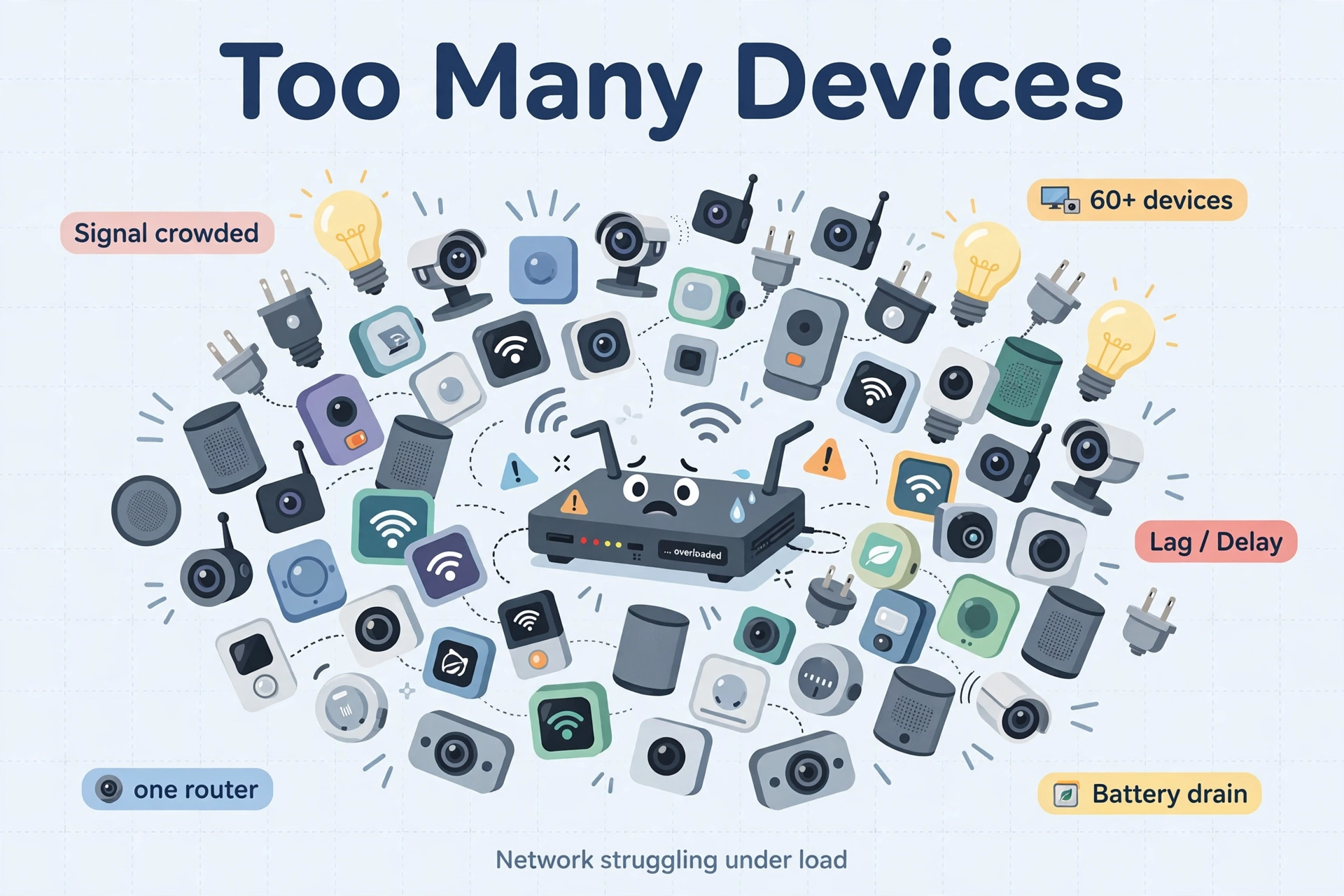
Your router was probably bought for phones and laptops. A smart home adds dozens of clients that never sleep: each camera, bulb, plug, lock, sensor, and speaker holds a WiFi connection open 24 hours a day. Three things go wrong when the count climbs.
First, cheap routers run out of memory and processing power. Every connected device needs a slot in the router’s client table and a share of its CPU. Budget routers are built for 15 to 25 active clients. Past that, the router starts kicking devices off or freezing until you reboot it — the classic “my cameras go offline every few days” problem.
Second, the 2.4 GHz band gets congested. Nearly every smart home gadget uses 2.4 GHz because it reaches farther through walls. Fifty IoT clients chattering on one band means constant competition for airtime, and latency-sensitive things like voice assistant responses and video doorbell streams suffer first.
Third, coverage gaps multiply the pain. A camera at the far end of the house with a weak signal retries constantly, which burns even more of the router’s capacity. One struggling device can drag down the whole network.
How Many Devices Can a Router Actually Handle?
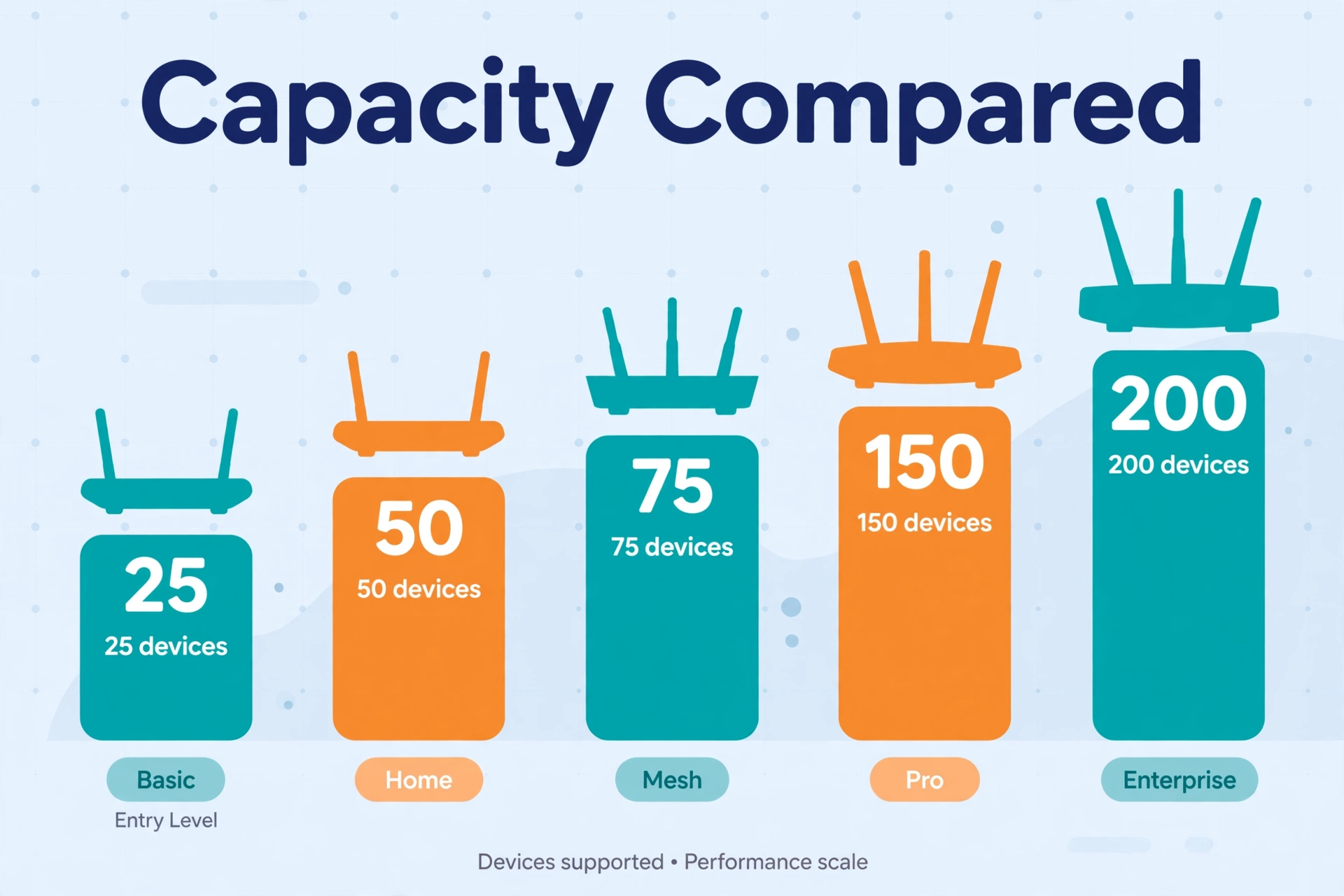
Manufacturers publish device-capacity numbers, but they assume a mix of idle and active clients. Treat these as ceilings, not comfortable operating levels — buy at least 50 percent more capacity than your current device count.
Table: Real-world device capacity of popular routers and mesh systems
| Router / System | Type | Claimed device capacity | WiFi standard | Coverage (approx.) |
|---|---|---|---|---|
| Amazon eero Max 7 | Mesh | 250+ devices | WiFi 7 | ~2,500 sq ft per unit |
| TP-Link Deco XE75 | Mesh | 200 devices | WiFi 6E | ~5,500 sq ft (2-pack) |
| TP-Link Deco X55 | Mesh | 150 devices | WiFi 6 | ~6,500 sq ft (3-pack) |
| GL.iNet GL-AXT1800 (Slate AX) | Single router | 120 devices | WiFi 6 | Small home / apartment |
| Amazon eero Pro 6E | Mesh | 100+ devices | WiFi 6E | ~2,000 sq ft per unit |
| TP-Link Archer BE400 | Single router | 90 devices | WiFi 7 | ~2,400 sq ft |
| Amazon eero 6 | Mesh | 75+ devices | WiFi 6 | ~1,500 sq ft per unit |
The pattern is clear: single routers top out around 90 to 120 devices in the best case, while mesh systems scale from 75 to 250+. If your device count is already past 50 and still growing, a mesh system is the safer buy.
Mesh vs a Single High-End Router
Both can work. Here is how to decide.
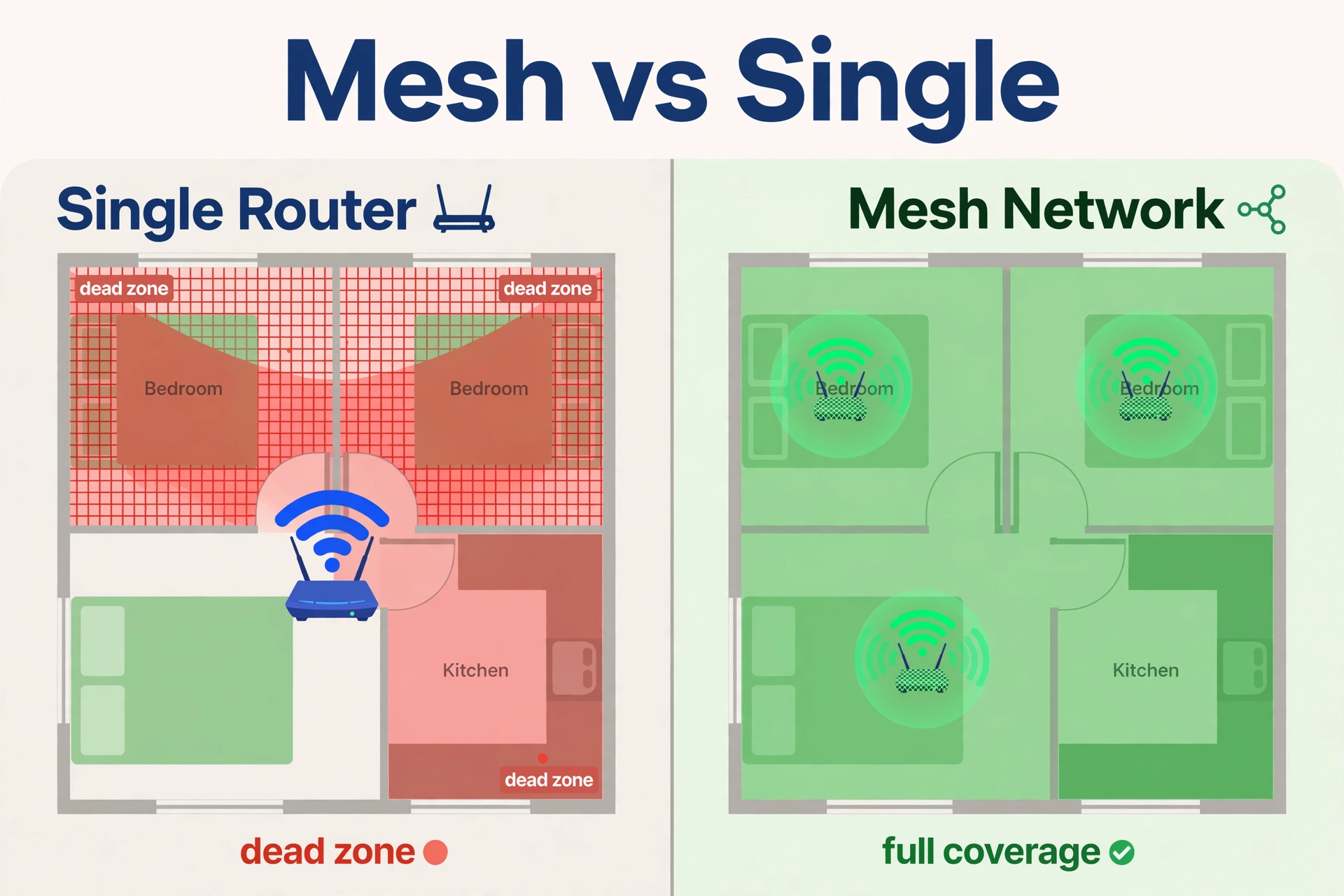
Choose mesh when: your home is over ~2,000 square feet, you have dead zones (garage, backyard, upstairs corners), your device count is past 50, or family members complain about video calls freezing in certain rooms. Mesh nodes spread the load and give every device a nearby access point. Our full roundup of the best mesh WiFi for smart home setups compares the top systems head to head.
Choose a single high-end router when: you live in an apartment or small home under ~1,500 square feet, your device count is under 40, and you want maximum speed in one place (gaming, 4K editing). A WiFi 7 single router like the Archer BE400 delivers more raw throughput per dollar than a mesh pack — it just cannot cover a big house or juggle 100 clients.
The hybrid answer: start with a strong single router, and if dead zones or disconnects appear as you add devices, that is your signal to move to mesh. Do not buy extenders — a plug-in extender halves your bandwidth and creates a second network name that devices cling to badly.
The Best Router for Many Smart Home Devices: 5 Top Picks (2026)
1. Amazon eero Pro 6E — Best Mesh for Device-Heavy Homes
The eero Pro 6E is the best router for many smart home devices because it was built for exactly this problem: 100+ device capacity, tri-band WiFi 6E, and TrueMesh software that is unusually good at keeping dozens of low-bandwidth IoT clients stable. Every node also carries a Zigbee radio plus Thread support, so the router doubles as your smart home hub — one less box, one less thing to go offline.
Setup takes about ten minutes in the eero app, and the system tunes itself over the first day. The 3-pack covers roughly 4,000 to 6,000 square feet depending on wall construction. It usually sells in the mid-range for a 3-pack — check the current price, as eero discounts run often.
Best for: Alexa-based smart homes that want the router and the hub in one box.
Watch out for: Only two ethernet ports per node; some advanced security features need the eero Plus subscription.
2. TP-Link Deco XE75 — Best Capacity per Dollar
The Deco XE75 claims 200 connected devices — the highest capacity in its price class — with tri-band WiFi 6E (2.4, 5, and 6 GHz), OFDMA and MU-MIMO to serve many clients at once, and around 5,500 square feet of coverage from a 2-pack. A 2.5 Gbps WAN/LAN port keeps it ready for gigabit-plus internet, and TP-Link’s HomeShield security and parental controls are free.
There is no built-in Zigbee or Thread radio, so pair it with a dedicated hub for those protocols. For pure WiFi device capacity at a sane price, though, nothing else in this list touches it. The 2-pack often sells for around $200 or less on sale — check the current price.
Best for: Large homes that need maximum device headroom without a flagship price.
Watch out for: No smart home hub radios; 6 GHz range is shorter through walls than 5 GHz.
3. TP-Link Deco X55 — Best Value Mesh
The Deco X55 is the mesh system to buy when the budget is tight but the device count is not: 150-device capacity, up to ~6,500 square feet from a 3-pack, WiFi 6, and wired backhaul support so a distant node can be fed by ethernet instead of wireless. Three gigabit ports per node give you room for wired cameras or a NAS.
You give up WiFi 6E and the 6 GHz band, which matters less for IoT gadgets (they all use 2.4 GHz anyway) than for laptops and phones. For most smart homes this is the rational default: real capacity, real coverage, for well under half the price of flagship systems.
Best for: Budget-conscious smart homes that still need triple-digit device capacity.
Watch out for: WiFi 6 only; needs a separate modem with most ISPs.
4. TP-Link Archer BE400 — Best Single Router
If your home is small enough for one router, the Archer BE400 is the strongest single-box option: WiFi 7 with Multi-Link Operation for lower latency, up to 6.5 Gbps of total throughput, ~2,400 square feet of coverage, and a 90-device capacity that embarrasses older single routers. Two 2.5 Gbps ports handle wired backhaul-grade connections for a NAS or gaming PC.
The catch is physics, not specs: one radio location cannot cover a big house or serve 100+ devices spread across floors. Buy this for apartments and small homes, not for a 3,000-square-foot device farm.
Best for: Small homes that want maximum single-point speed and WiFi 7 future-proofing.
Watch out for: Not expandable into a Deco mesh system; needs WiFi 7 clients for full benefit.
5. GL.iNet GL-AXT1800 (Slate AX) — Best Compact Power-User Pick
The Slate AX is a travel-sized router that punches far above its size: WiFi 6, a claimed 120 simultaneous devices, strong VPN support, and guest networks with real security controls. It is popular with renters and tinkerers who want full control over their network without ISP-router nonsense.
It is not a whole-home solution for a big house — range is apartment-scale, and it runs warm under sustained load. But as a primary router for a small smart home, or as a travel router that can run your IoT setup from a hotel room, it is uniquely capable for the price.
Best for: Apartments, renters, and power users who want VPN and advanced controls.
Watch out for: Limited range; runs warm when pushed hard.
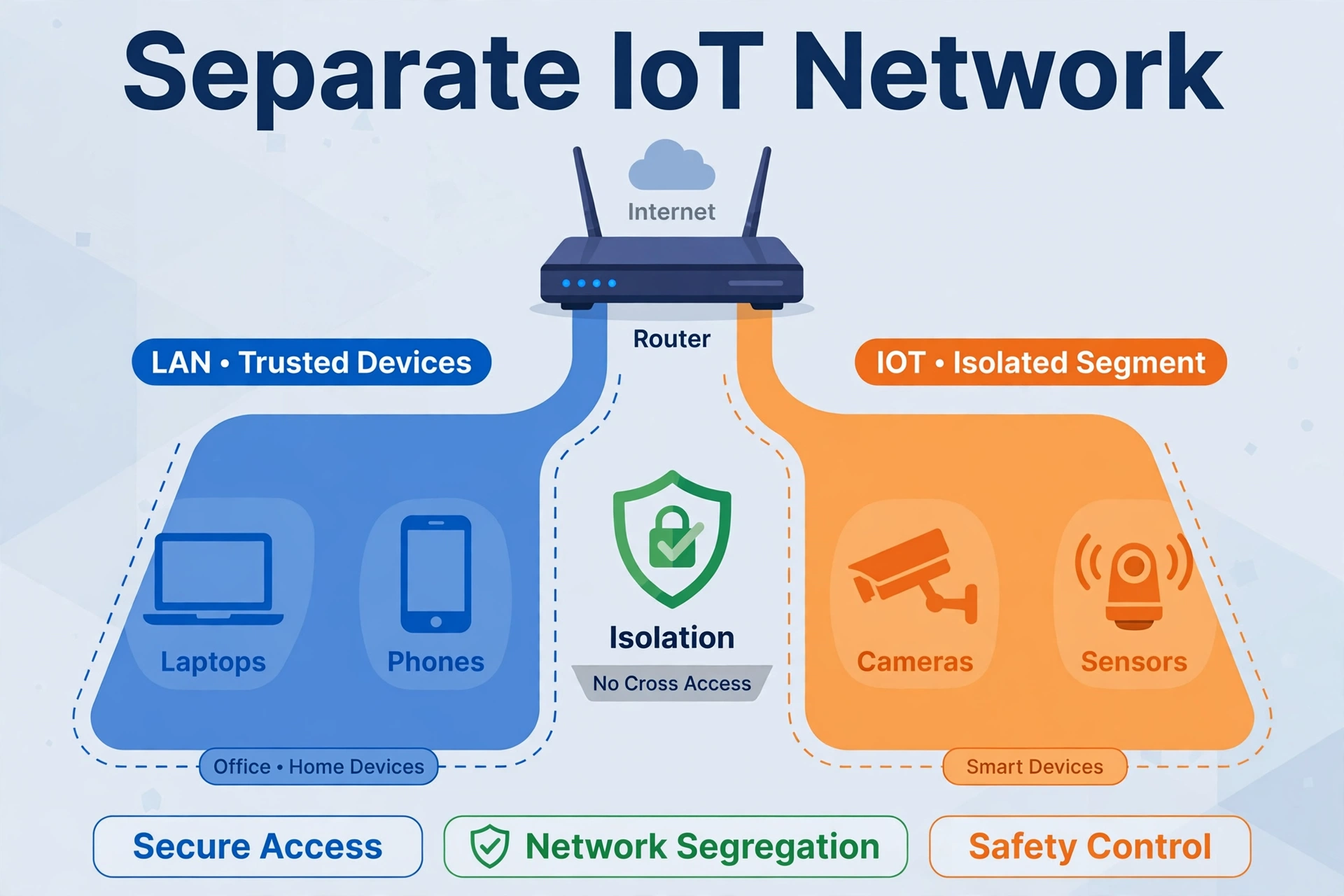
Segment Your IoT Devices Onto Their Own Network
Whatever router you buy, this one free step improves stability more than any hardware upgrade: put your smart home gadgets on a separate 2.4 GHz IoT network (sometimes called a guest or IoT SSID).
Why it helps: your cameras, plugs, bulbs, and sensors stop competing with laptops and TVs for airtime, and a misbehaving gadget cannot see your computers or NAS. Most modern routers — including every pick above — can broadcast a second network name in a few taps.
Two related fixes while you are in the settings: keep Zigbee gadgets off your WiFi’s busiest channels, and if sensors start dropping after a router change, change your Zigbee channel to avoid WiFi interference before buying anything new. Channel overlap causes more “broken” smart homes than bad hardware does.
Setup Checklist for a Device-Heavy Home
- Count before you buy. Open your current router’s app, count connected clients, and add 50 percent headroom. If the count is past 50, buy mesh rated for 100+.
- Wire what you can. One ethernet cable to a distant node (wired backhaul) improves a mesh more than upgrading to a pricier system.
- Give Zigbee and Z-Wave their own hub. Mesh routers with built-in radios (like eero) are convenient, but a dedicated Zigbee coordinator gives Home Assistant users local control and deeper device support.
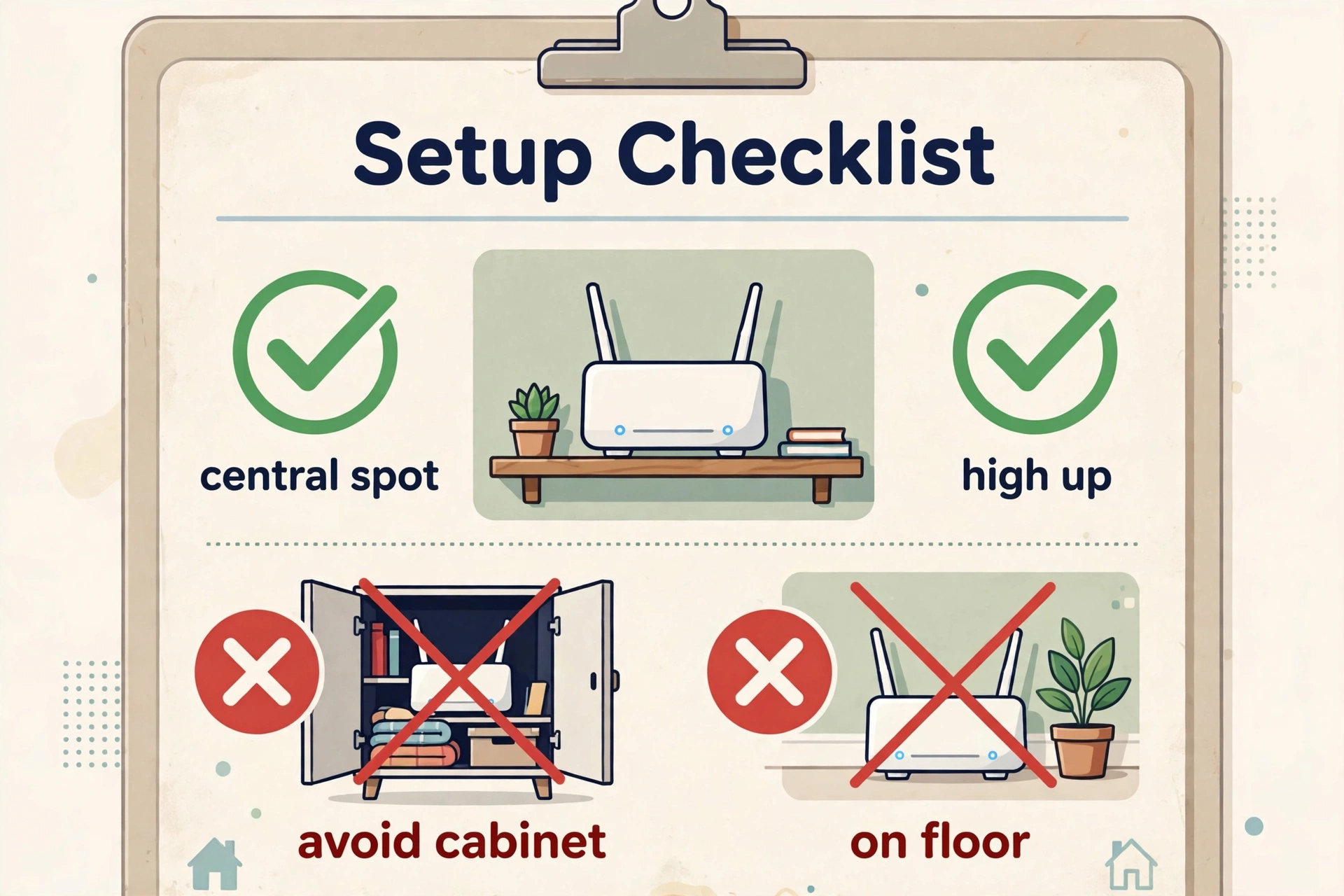
- Place nodes halfway to the dead zone — not inside it. A node deep in a dead zone has nothing good to repeat.
- Update firmware and reboot quarterly. IoT networks accumulate cruft; a scheduled reboot keeps things snappy.
- Use WPA3 if your gadgets support it, and put anything that does not support modern encryption on the isolated IoT network.
Frequently Asked Questions
How many devices can a typical home router handle?
A basic ISP-provided router usually handles 15 to 30 devices before performance degrades. Mid-range WiFi 6 routers manage 50 to 90. Mesh systems range from 75 (eero 6) to 250+ (eero Max 7). Always buy headroom — running near the limit causes the random disconnects most people blame on their gadgets.
Do smart home devices slow down WiFi for everyone?
They can, on the 2.4 GHz band, because dozens of always-on clients compete for airtime. The fix is a separate IoT network for gadgets plus a router with enough capacity — then your laptops and TVs never notice the sensors.
Is a mesh system overkill for an apartment?
Usually, yes. In under ~1,500 square feet with fewer than 40 devices, a single strong router (like the Archer BE400 or Slate AX) is cheaper and faster. Buy mesh when you have dead zones or a device count past 50.
Should I put all my smart home devices on 2.4 GHz?
Yes — nearly all of them only support 2.4 GHz anyway, and they need its longer range, not speed. Let the router steer phones and laptops to 5 or 6 GHz automatically.
Will a new router fix my Zigbee sensors dropping offline?
Sometimes, if the drops come from WiFi congestion or weak signal. But Zigbee runs its own mesh with its own routing and channels — check for channel interference and weak Zigbee routing before spending money on a router.
Do I need WiFi 7 for a smart home in 2026?
No — sensors and bulbs sip bandwidth. WiFi 7 pays off for gigabit-plus internet, heavy 4K streaming, and future-proofing. Most smart homes get more value from an extra mesh node than from a WiFi 7 badge.
Conclusion
The best router for many smart home devices is the one with headroom: count your clients, add 50 percent, and buy that much capacity. For most device-heavy homes that means a tri-band mesh system — the eero Pro 6E if you want the smart home hub built in, the Deco XE75 if you want maximum devices per dollar. Segment your IoT gadgets onto their own network, and the random disconnects stop.
Still deciding between mesh ecosystems? Compare the best mesh WiFi for smart home systems side by side — including which ones carry Zigbee and Thread radios and which are pure WiFi plays.
